
Panes and workspaces
Show up to six folders in one window, side by side or in a grid, and save the whole setup as a workspace you can reopen.
On this page 3 sections
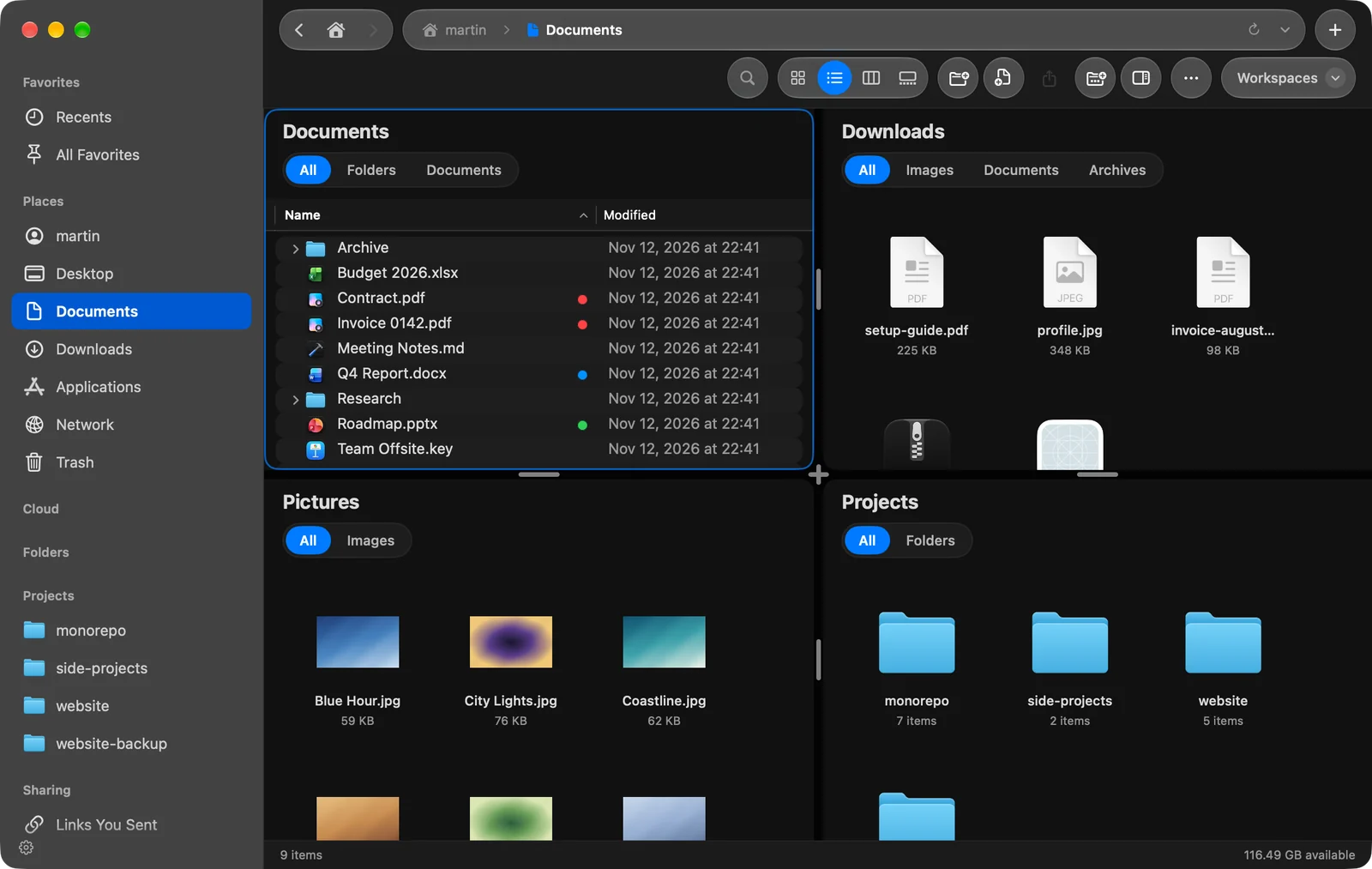
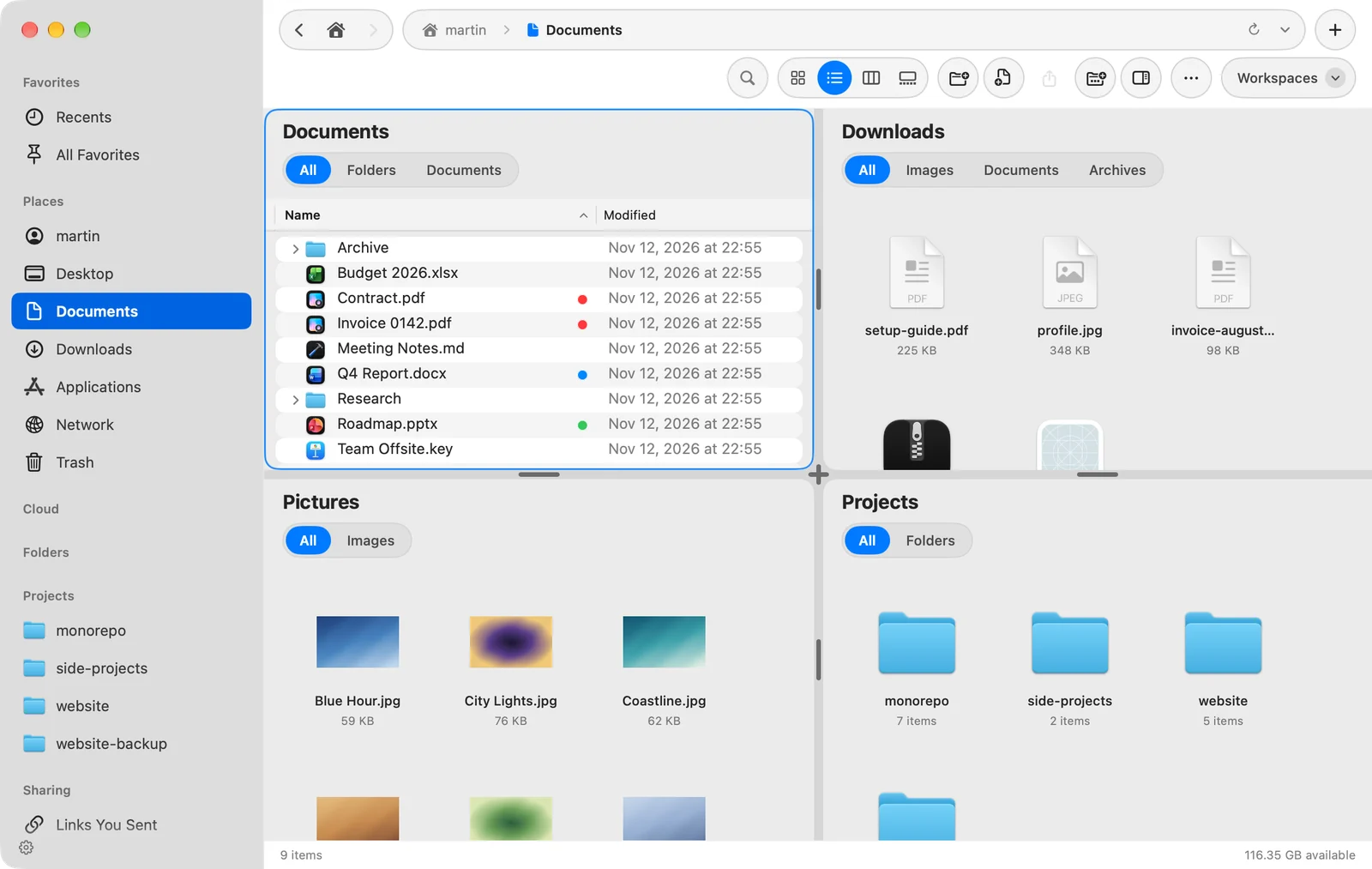
A DockDuck window can show up to six panes. Each pane is a file browser of its own, with its own folder, so you can see several places at once and drag files between them. A workspace saves a window as you set it up, panes, tabs and all, under a name you can reopen.
Panes
Choose how many panes you want with ⌃⌘1 to ⌃⌘6, or from View > Panes. New panes open on the folder you are in.
| Panes | Layouts (the first one is what you get) |
|---|---|
| 1 | Single Pane |
| 2 | Two Side by Side, Two Stacked |
| 3 | Three in a Row, Main Pane and Two |
| 4 | Four in a 2 by 2 Grid, Four in a Row, Main Pane and Three, Main Pane and Three Below |
| 5 | Main Pane and Four |
| 6 | Six in a 3 by 2 Grid, Six in a 2 by 3 Grid |
To change the layout without changing the number of panes, press the same shortcut again (for example ⌃⌘2 twice), or choose View > Panes > Next Pane Layout. You can also pick a layout by name in that menu.
- Resize panes by dragging the handle in the gap between them. Where four panes meet, drag the cross to resize them all at once.
- Turn two panes from side by side to stacked by clicking the handle between them.
- If the window is too small for a layout, DockDuck shows the largest layout that fits.
The focused pane
The pane you are working in has a colored frame. Click anywhere in a pane to focus it. The window has one toolbar and one status bar, and both follow the focused pane: the path, the view buttons, search and the item count are always for that pane. Keyboard shortcuts act on it too.
Each pane decides for itself whether it has room for the preview panel.
Workspaces
A workspace remembers a window so you can come back to it:
- its tabs (except pinned tabs) and which one was active,
- the panes, their layout and their folders,
- if you choose, the view and sort of each folder,
- your favorites, the order and contents of the sidebar, and the toolbar,
- whether the preview panel was showing, and its width.
Each workspace has a name, an optional color and a symbol, which show on the workspace chip at the top of the window. Servers you add while a workspace is open can be kept Only in this workspace.
Use workspaces for setups you return to: a client project with its folders in four panes, or a photo import with the card on one side and your archive on the other.
Where to go next
Thanks, that helps us improve this page.