 DockDuck
 Documentation
Compare Folders
Put two folders side by side and see at a glance which files are new, missing, or differ between them. Local, remote, or a mix.
What it is. Comparison takes the two panes of a split window and diffs them by name, tinting each side to show what’s new, missing, or changed, with ribbons connecting the matches. When to use it. Checking a local build against a deployed site, reconciling two backups, or confirming a copy landed before you trust it.
Starting a comparison
Click Compare in the toolbar (the left-right arrows). If the window isn’t split yet, DockDuck opens the second pane for you, so the button works straight from a single pane. Point each pane at the folder you want to compare, and the diff updates as you navigate.
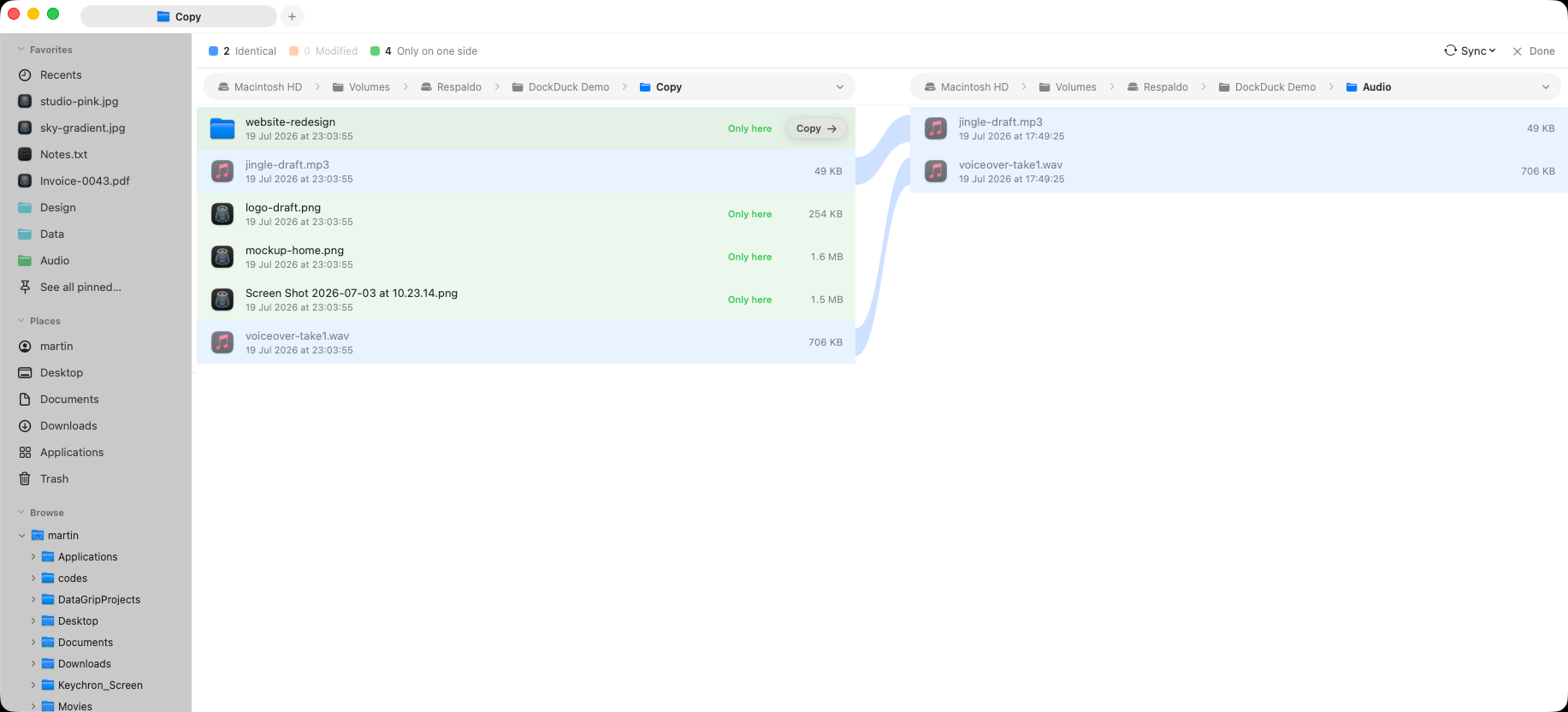
Reading the result
Files are matched by name across the two sides, then classified:
- Only on one side: present here, missing there (tinted on the side that has it).
- Differs: the same name on both sides, but a different size or modified date.
- Same: identical name, size, and date; left untinted.
The connecting ribbons link each matched pair across the gap, so a file that moved position in the listing is still easy to trace.
The comparison reads only name, size, and modified date. It doesn’t read file contents. Two files of identical size and date are treated as the same; it’s a fast structural diff, not a byte-for-byte check.
Local, remote, or mixed
Comparison works on any two browsable folders: two local directories, two
servers, or one of each. Comparing a local wwwroot
against the deployed site over FTP/SFTP is exactly the kind of check it’s built
for. Only non-folder surfaces (the Start Page) can’t be
compared.
Acting on the difference
Once you can see what differs, drag the entries you want across to the other pane to bring the sides in line. Move or copy as usual. Leave comparison by clicking Compare again; the split stays open so you can keep working two-up.
Where to go next
- Dual-pane view: the split the comparison runs on.
- Transfers: progress when you copy the differences across.
- Remote servers: compare against a live site.