 DockDuck
 Documentation
Search scopes & options
Choose where a search runs (this folder, its subfolders, or your whole Mac) and narrow the results with the search options panel's extension, type, date, size, and tag controls.
What it is. Two things shape every search: its scope (where DockDuck looks) and its narrowing options (which matches survive). When to use them. Set the scope to control breadth; open the options panel to cut a broad result set down to exactly what you want.
Scope: where the search runs
The scope is decided automatically by where you start the search:
| You’re on… | Search scope |
|---|---|
| A normal folder | That folder and all its subfolders (recursive) |
| The Start Page | Your whole Mac, the local computer plus every mounted volume |
A whole-machine search reaches across each mounted volume (internal disks, USB drives, SSDs, and NAS shares) because every volume keeps its own Spotlight index. The current scope is shown in the breadcrumb while you’re in search mode.
This folder only
For a folder-scoped search you can confine results to the immediate folder, with no recursion into subfolders. This lives under Location in the search options panel:
- This folder & subfolders: the default, recursive search.
- This folder only: match only items directly inside the current folder.
The Location control only appears for a folder-scoped search. A whole-machine search started from the Start Page has no enclosing folder to confine to, so the section is hidden.
The search options panel
Open the panel from the slider button () on the right edge of the search
pill. The button tints to the accent color whenever the panel is open or any
narrowing option is applied, so an active filter is always discoverable. Changes
apply live. Adjusting a narrowing control re-runs the query immediately.
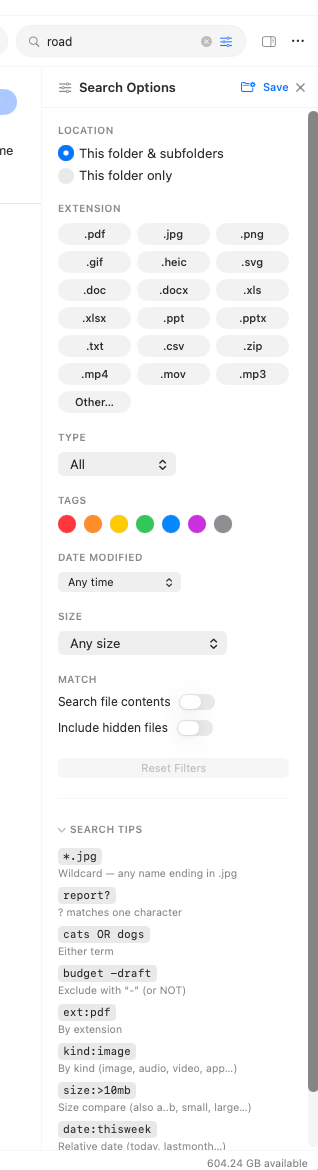
Extension
A grid of one-tap extension chips covers the common file types: pdf,
jpg, png, gif, heic, svg, doc, docx, xls, xlsx, ppt, pptx,
txt, csv, zip, mp4, mov, mp3. Toggle any number of them on. Results
match any selected extension. For anything not in the grid, tap Other…
and type extensions separated by spaces, commas, or semicolons (for example
dmg, rar, sketch).
Type
The Type control filters results by file kind (Images, Documents, and so on). It’s bound to the same kind filter the browser’s filter chips use, so it re-filters the already-loaded results instantly without re-running the Spotlight query.
Tags
Toggle one or more Finder tag color dots. Results match items carrying any
of the selected tags. (Tags also have a typed equivalent, see the tag: token
in query syntax.)
Date Modified
Pick a preset (Any time, Today, Past 7 days, Past 30 days, or Past year) or choose Custom range… to set explicit From and To dates. Picking the custom range seeds sensible defaults (the last 30 days) so the filter takes effect without forcing you to set both ends.
Size
Pick a preset (Any size, Small (< 1 MB), Medium (1–100 MB), or Large (> 100 MB)) or Custom range… to enter Min and Max bounds in megabytes.
Match
Two switches control matching behavior:
- Search file contents: also matches the indexed text inside files, not just their names.
- Include hidden files: includes dotfiles, which are skipped by default (matching Finder).
Reset
Reset Filters clears every narrowing option and the Type filter in one click. It’s disabled when nothing is applied.
Saving a search
The panel header has a Save button that turns the current query, options, and scope into a smart folder in the sidebar, a saved search that re-runs live each time you open it.
Where to go next
- Search basics: running a search and reading results.
- Query syntax: type the same filters directly into the field.
- Smart folders: save and re-run searches from the sidebar.