 DockDuck
 Documentation
On this page
Compress & Extract
Zip a selection or unpack an archive in place, built entirely on macOS's own tools, with no extra apps to install.
What it is. DockDuck compresses files into archives and extracts them again right from the file list. When to use it. Bundling a folder to send, or unpacking something you downloaded, without reaching for a separate archiving app. It’s all done with the archiving tools already in macOS, so there are no third-party dependencies.
Compressing
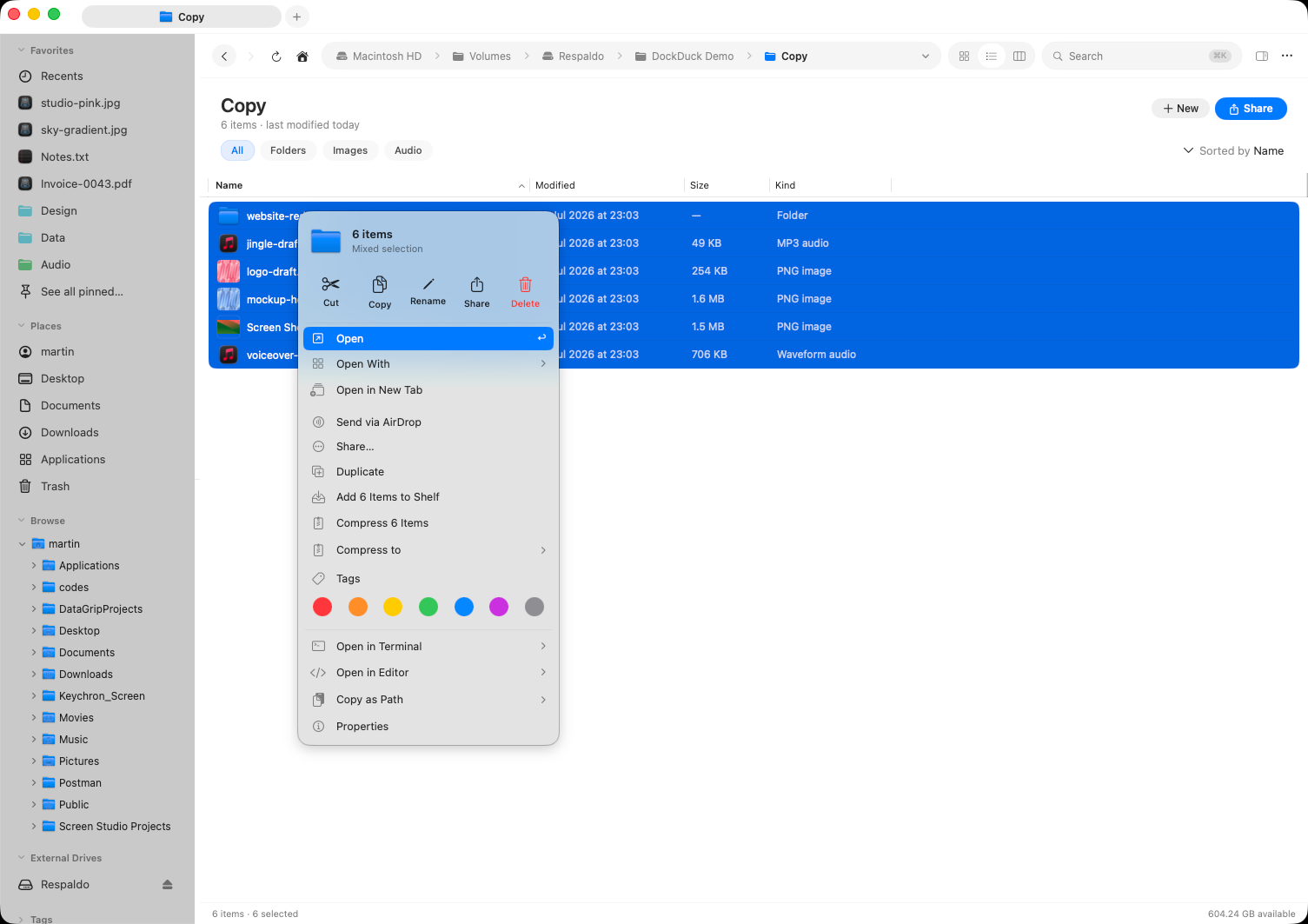
Select one or more items, right-click, and choose Compress to create a .zip
next to them (named after the selection, or Archive.zip for several items). For
another format, use Compress to and pick one:
.zip: the default; opens anywhere..7z: smaller, with strong compression..tar.gzand.tar.xz: common for Unix/server payloads.
Extracting
Right-click an archive and choose Extract to unpack it into a folder beside it.
DockDuck reads a wider set of formats than it writes (alongside the ones above it
extracts .rar, .cpio, and more), so you can open most things you’ll come across.
.rar is extract-only: macOS’s tooling can read RAR archives but not create
them, so RAR doesn’t appear under Compress to.
Where to go next
- Selecting & opening: build the selection to compress.
- Transfers: large compress/extract jobs show progress.
- Copy, move & trash: manage the archives afterward.