 DockDuck
 Documentation
On this page
Customize Folders
Give a folder its own color and an emoji or SF Symbol badge so it stands out at a glance.
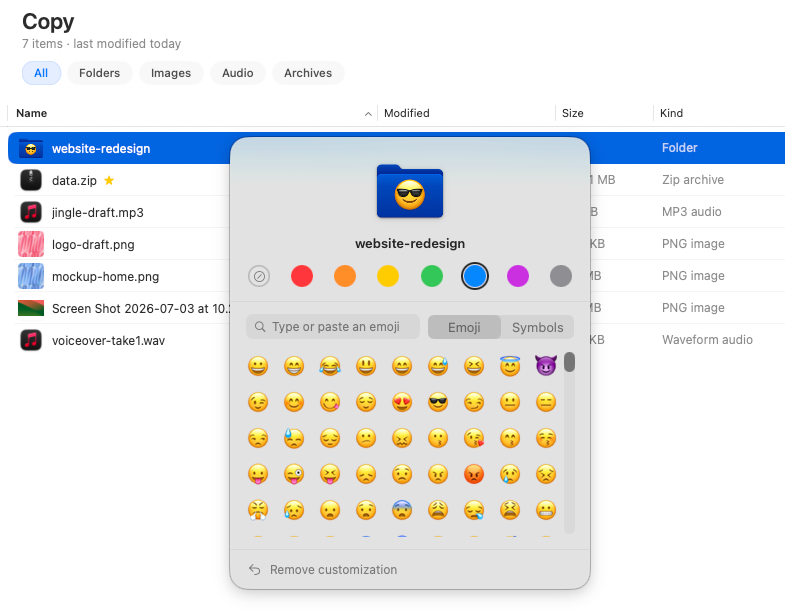
What it is. Folder customization stamps a folder with a color and a small emoji or symbol badge. When to use it. Making the folders you live in (Projects, Clients, a current sprint) instantly recognizable in a long list.
Customizing a folder
Right-click a folder and choose Customize Folder…. Pick a color and, optionally, an emoji or SF Symbol to stamp on it. The folder updates everywhere it appears: grid, list, and column views.
Clearing it
Open Customize Folder… again and clear the color and badge to return the folder to its default appearance.
This is DockDuck’s own customization, stored by DockDuck. It’s separate from macOS’s built-in folder customization, so the two don’t read each other’s choices.
Where to go next
- Color tags: tag files and folders for filtering and search.
- Smart folders: saved searches that update live.
- Sorting & columns: arrange the listing itself.