
Create and use a workspace
Save a window as a workspace, switch between workspaces, keep them in sync as you work, and open one at launch.
On this page 7 sections
What you’ll accomplish
- Save the window you set up as a named workspace
- Build a workspace step by step from chosen folders
- Switch between workspaces and keep them up to date
- Open a workspace every time DockDuck starts
Save this window as a workspace
- Set up the window
Open the tabs, panes and folders you want to keep.
- Open Save Workspace
Press ⌃⌘S, choose Window > Save Workspace…, or click the Workspaces chip at the top of the window and choose Save Window as Workspace….
- Name it
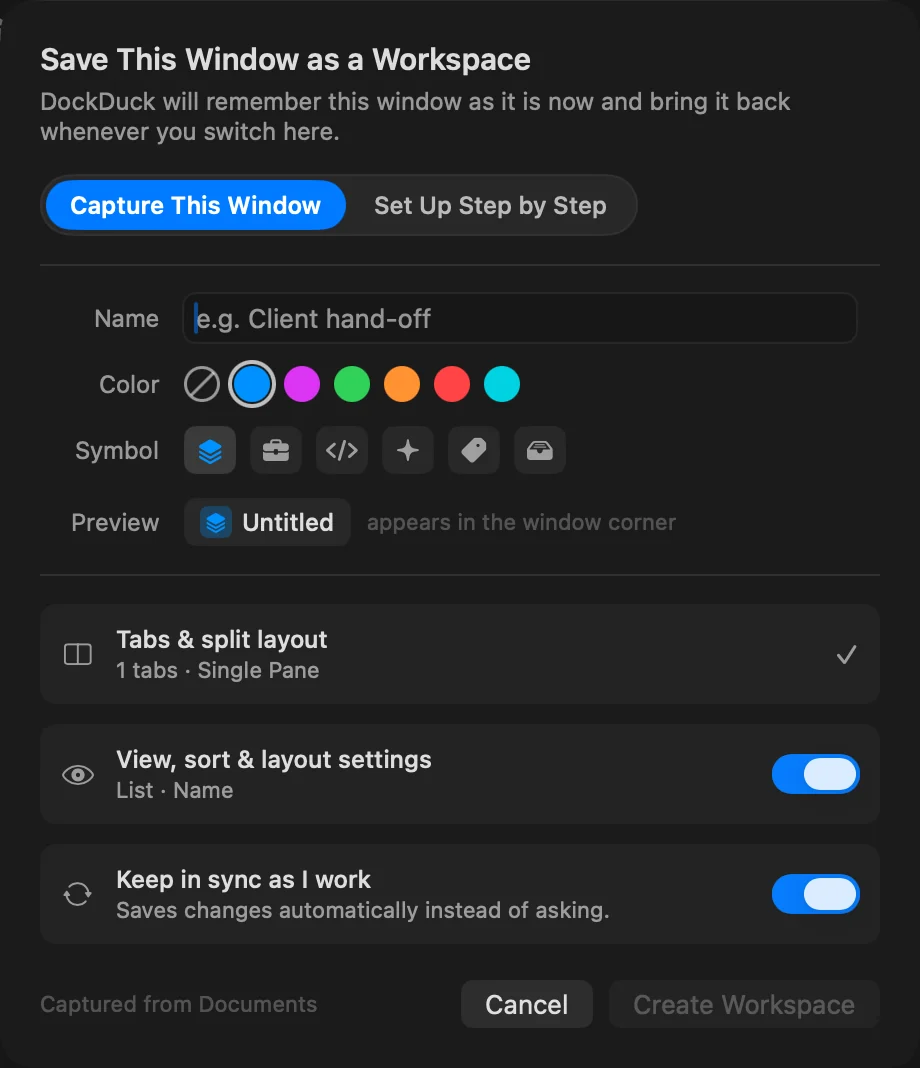
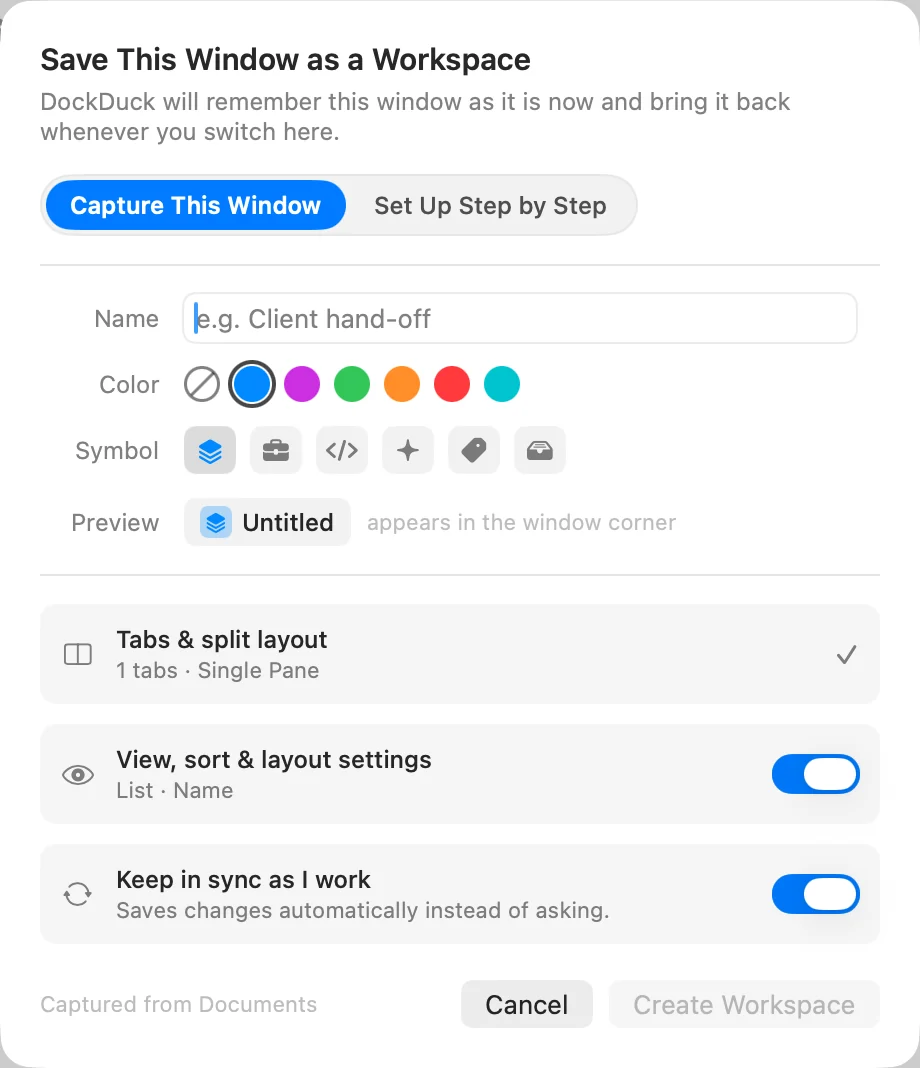
Make sure Capture This Window is selected. Type a Name, pick a Color (or No color) and a Symbol. Preview shows how the chip will look.
- Choose what it remembers
Tabs and the pane layout are always saved. Turn on View, sort & layout settings to keep each folder’s view and sort too. Turn on Keep in sync as I work to save changes on their own.
- Create it
Click Create Workspace.
Result: The chip at the top of the window shows the workspace's name, symbol and color.
Build a workspace step by step
Instead of saving the window as it is, you can choose its folders yourself. In the same sheet, choose Set Up Step by Step, then go through three steps with Continue:
- Identity: the name, color and symbol.
- Contents: a Home folder (click Choose…), the Tabs to Open (click Add Folder…) and the Layout of the panes.
- What to Remember: the same options as above.
Click Create Workspace. The workspace opens in a new window.
Switch workspaces
Click the chip at the top of the window. Its menu lists your workspaces, with a check mark next to the one that is open.
- In a workspace’s window, choosing another workspace changes the window to it.
- In a window without a workspace, the workspace opens in a window of its own, so nothing you had open is lost.
- To keep both on screen, point at a workspace in the menu and click the window button beside it (Open in New Window).
Choose Close Workspace to close the workspace and its window.
Keep a workspace up to date
With Keep in sync as I work on, the workspace saves your changes as you go, and again when you switch away from it, close its window or quit. With it off, the workspace stays as you saved it, whatever you change in the window. To change a workspace’s name, color, symbol or options, open the chip menu and choose Edit “<name>”….
Manage your workspaces
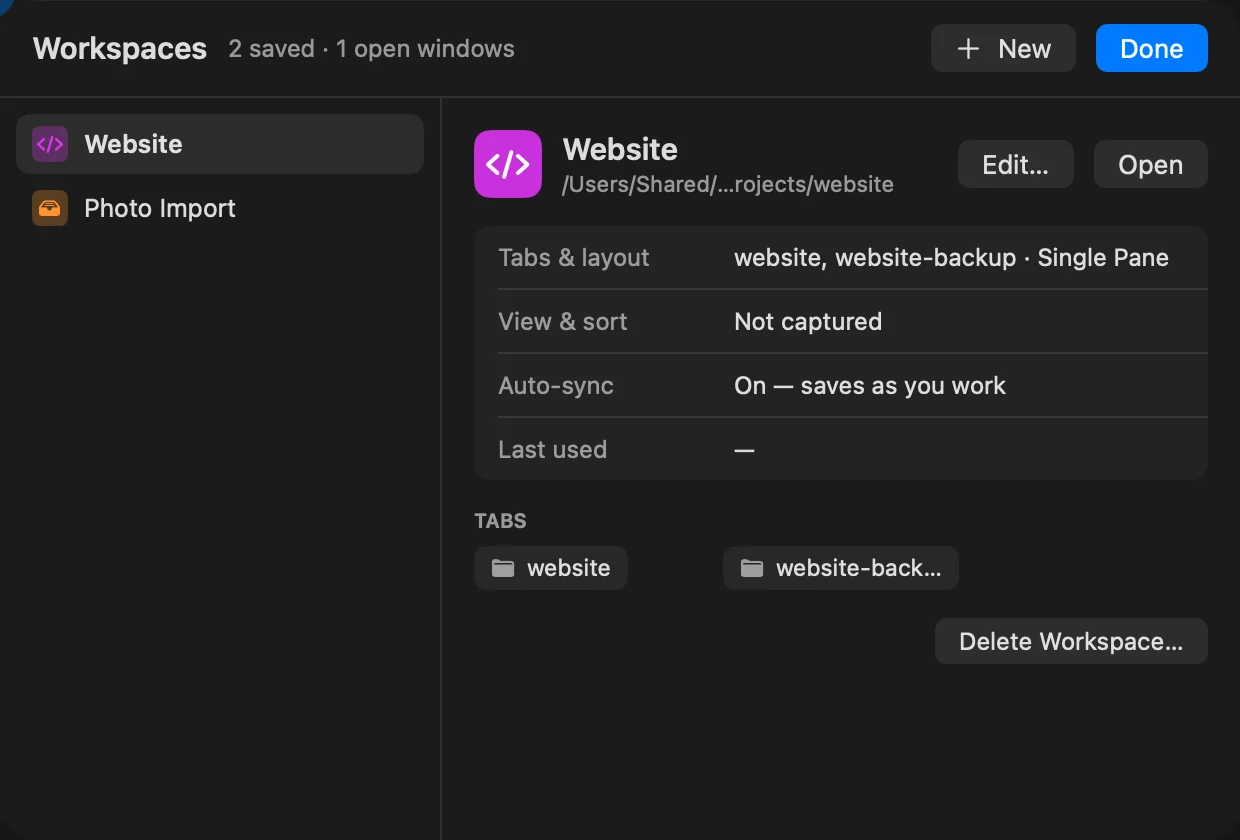
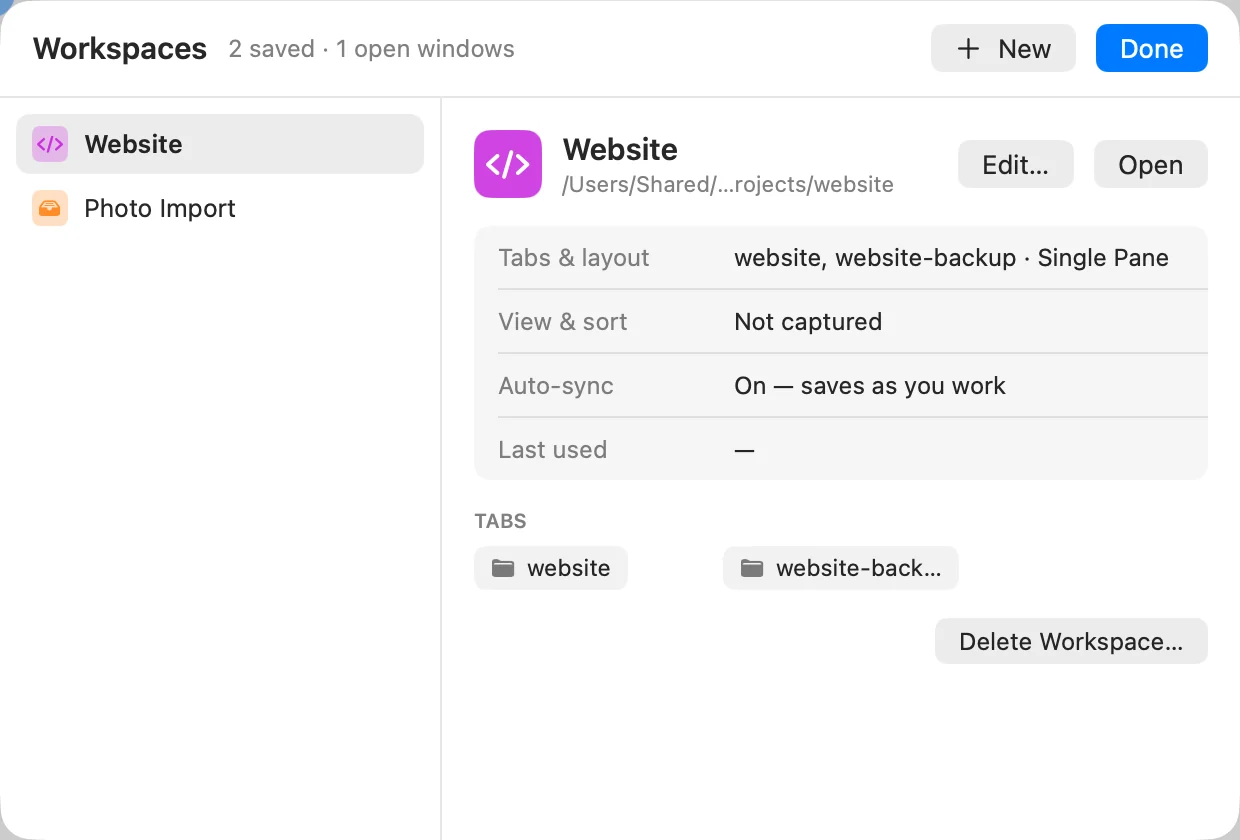
- Chip menu > Manage Workspaces… lists every workspace, with its tabs, whether it syncs and when you last used it. Click Edit… to change one, Open to open it, or New to create one.
- Settings > Workspaces lets you rename a workspace in its Name field and, from its ⋯ menu, turn Save changes as I work on or off.
Open a workspace at launch
Go to Settings > Workspaces and choose a workspace under Open a workspace at launch. DockDuck then starts with that setup instead of your last session. Choose None to go back.
If something goes wrong
| Problem | What to do |
|---|---|
| A server is missing in a workspace | It was added with Only in this workspace in another workspace, or hidden here with Hide from This Workspace. A window without a workspace shows every server. |
| A pinned tab isn’t in the workspace | Pinned tabs aren’t saved in workspaces. They stay at the front of every window instead. |
Thanks, that helps us improve this page.