
Find large files
List the files over 100 MB in a folder and its subfolders, biggest first, and spot what takes up space.
On this page 2 sections
What you’ll accomplish
- List every file over 100 MB in a folder and its subfolders, biggest first
- Search every disk for large files from the Start Page
- Find large files you haven't opened in months
The Large files button lists the files over 100 MB in the folder you’re in, subfolders included, with the biggest first. It appears in the folder’s header, next to the kind filters, only when the folder holds something that large.
List the large files in a folder
- Open the folder
Any folder on your Mac or on an external drive. The button doesn’t appear in cloud drives or on servers.
- Click Large files
In a narrow window the button shows only its bar chart icon. Hold the pointer over it to see “Show the largest files in this folder”.
Result: The search bar reads Large files in, followed by the folder's name, and the list is sorted by size, biggest first. - Work with the results
Select files to open, preview, move or delete them, as in any list. If you move something to the Trash, the list updates.
- Click Large files again to close the list
The folder comes back with the sort you had before.
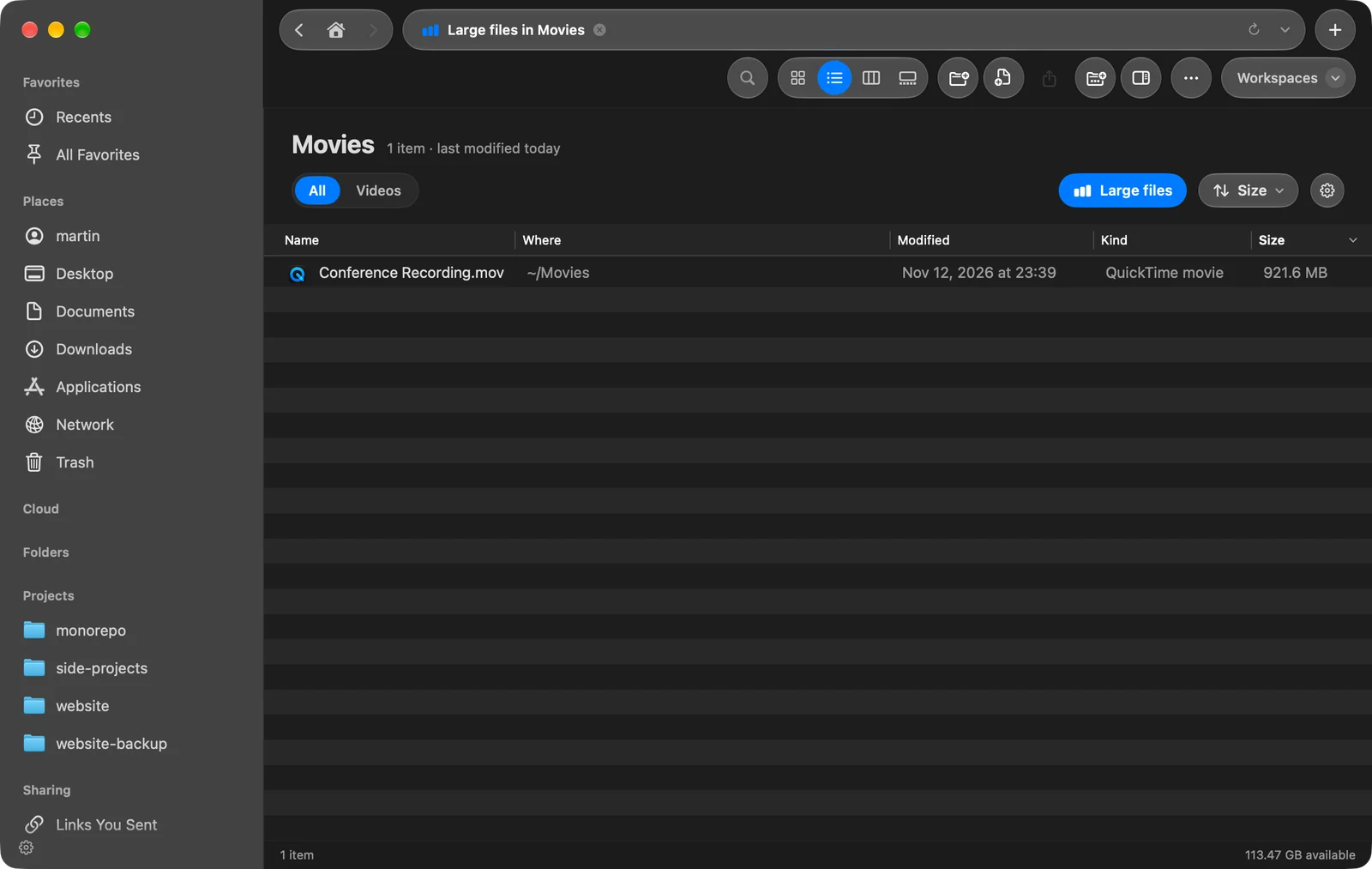
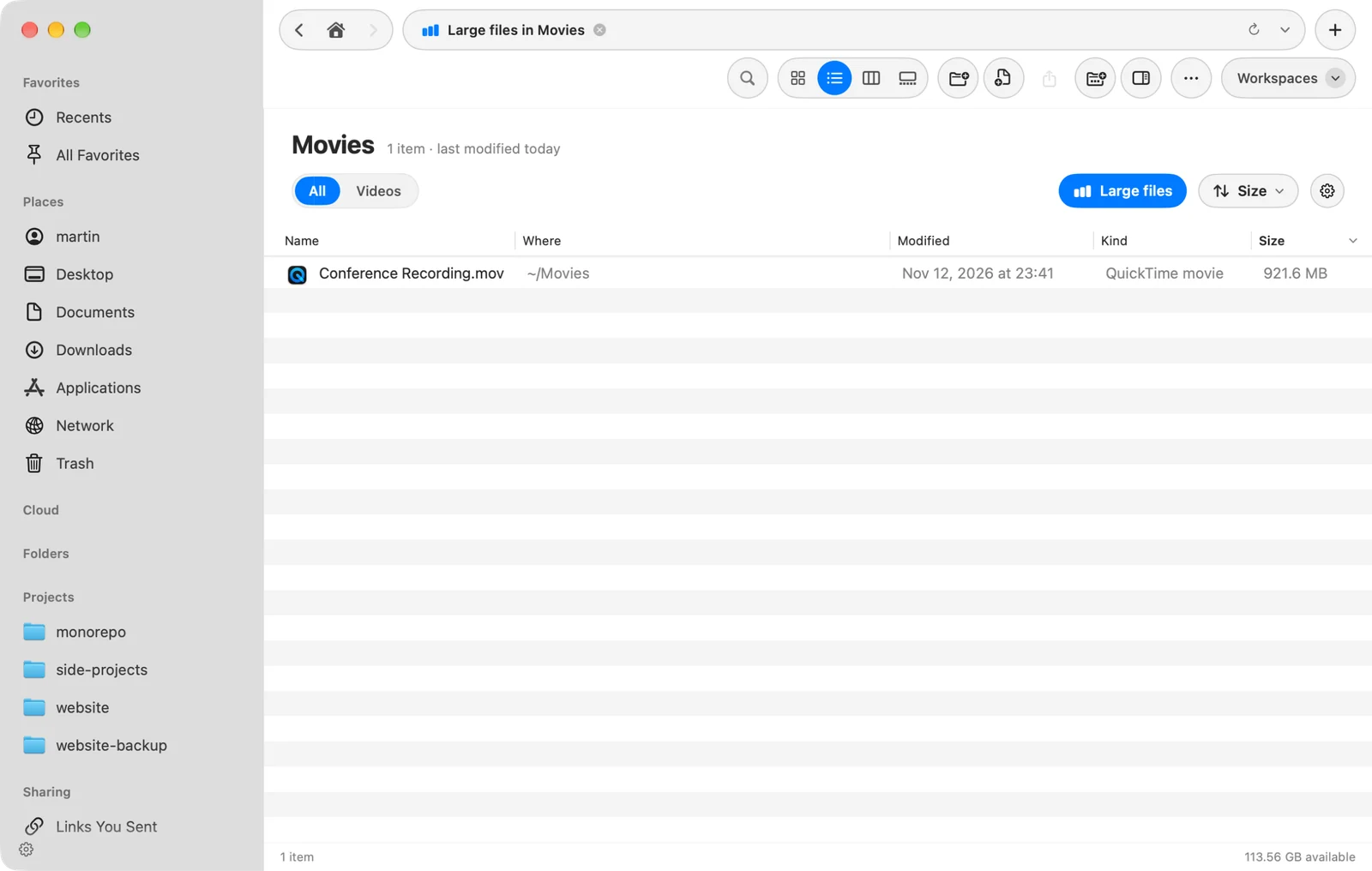
On the Start Page, Large files looks across every disk.
If the button finds nothing, the bottom of the window says “No large files here” and “Nothing over 100 MB in” the folder’s name.
Other ways to find large files
- Large files you haven’t opened. Free Up Space lists files of 250 MB or more that you haven’t opened in the last 6 months, so you can review them and move them to the Trash.
- The disk map. In Free Up Space, click Disk map to see every folder by size and the largest items in each.
- A size you choose. Search with a size filter, such as
size:>500mb. See Query syntax.
Thanks, that helps us improve this page.