
Create a folder rule
Write a rule as a sentence, such as "If Images, then move to Images", and let a folder keep itself tidy.
On this page 7 sections
What you’ll accomplish
- Set up a rule that sorts, renames, tags or cleans a folder for you
- See exactly which files the rule would take before you save it
- Start from a sample rule or from a sort you just did
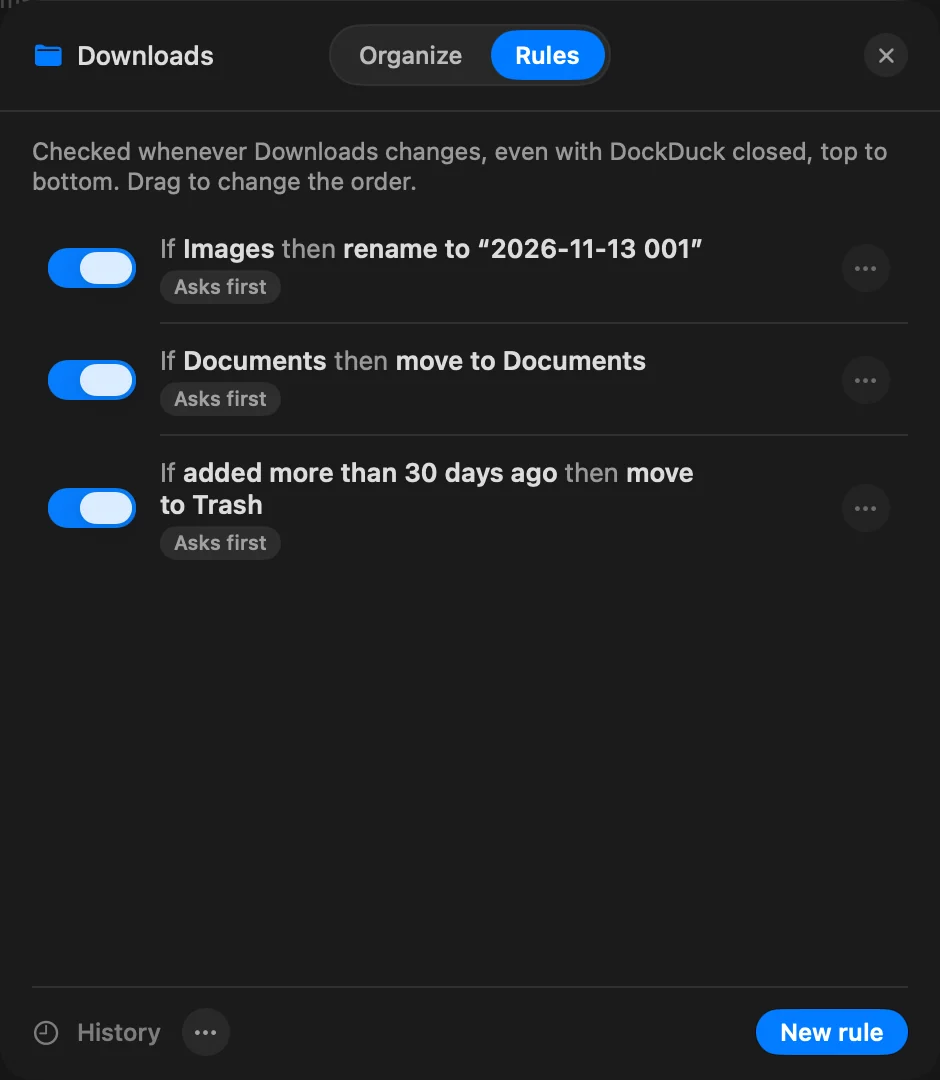
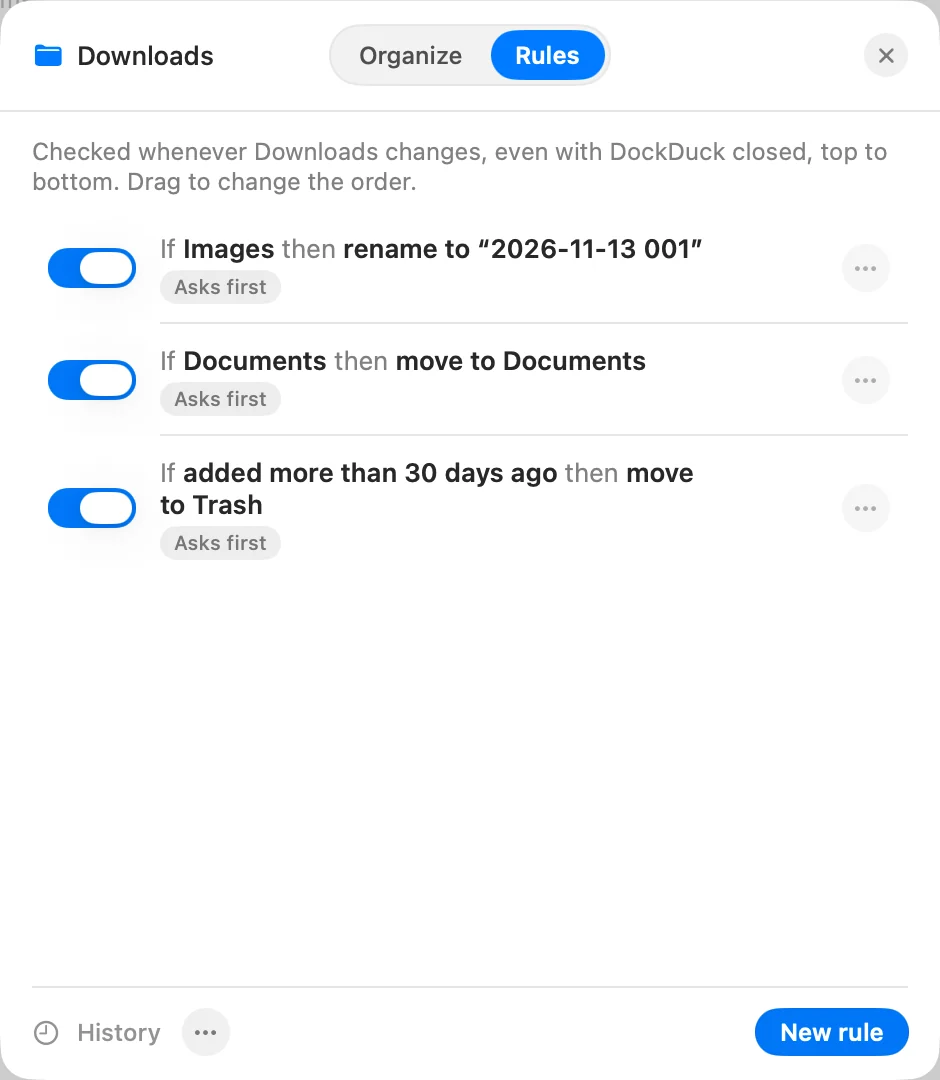
A folder rule reads like a sentence: In this folder, If these conditions are true, Then do this. DockDuck checks the folder’s rules when you open it, and with DockDuck closed too when the rules allow it. The first time a rule runs, it shows you what it’s about to do and waits for you.
Before you start
Rules work on folders on your Mac and on external drives. They never run on servers, iCloud Drive, Google Drive, Box, Sync, Recents, the Trash, tags or pinned items, or while a transfer is landing in the folder.
Create a rule
- Open the folder
Go to the folder you want to keep tidy, such as Downloads.
- Choose Organize This Folder
Control-click an empty spot in the folder and choose Organize This Folder…. You can also click the gear next to the sort menu at the top of the folder.
Result: The Organize sheet opens. - Open the Rules tab and click New rule
For a folder’s first rule, DockDuck offers samples. Pick one to start from it, or click Start blank.
- Choose where the rule looks
Next to In, keep Only in the folder, or choose In … and all its subfolders, or Only in the subfolder… and type its name.
- Add the conditions
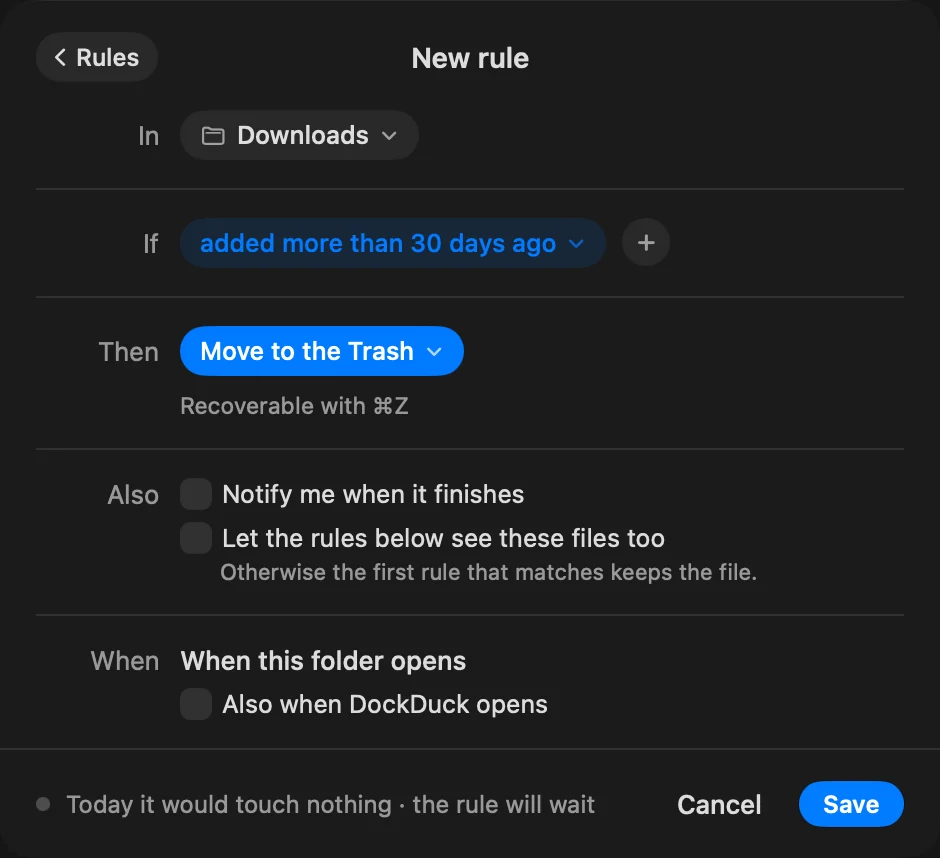
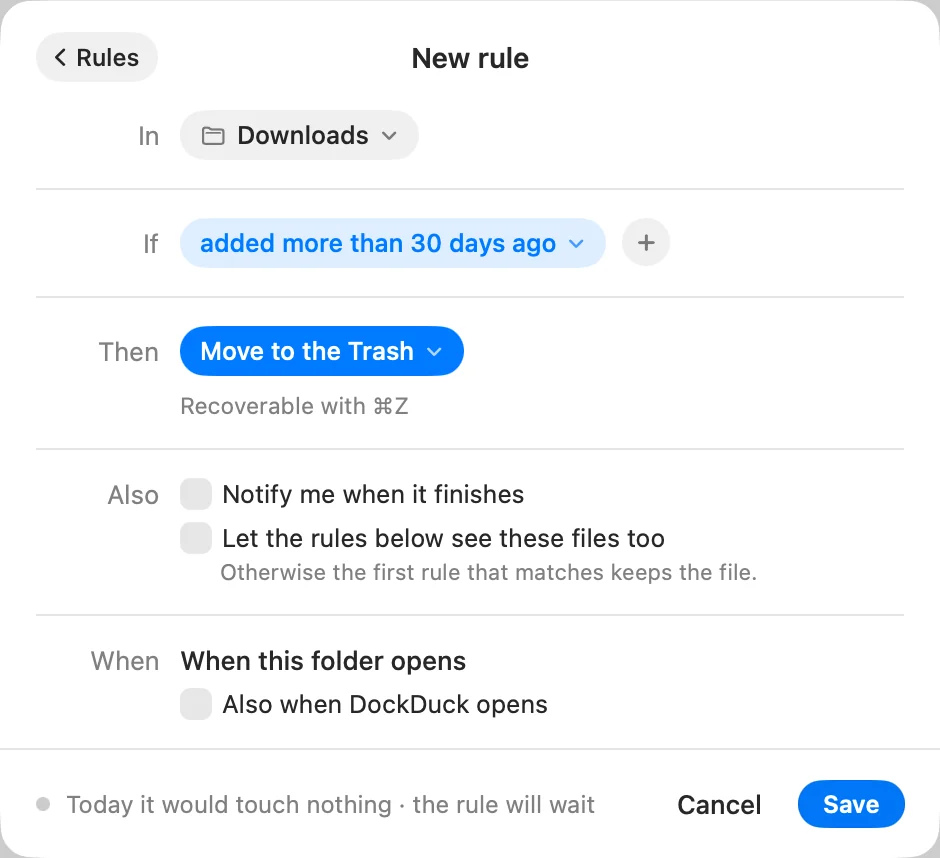
Next to If, click a condition to change it, or click + to add one. A file must meet every condition. See Conditions & actions.
- Choose the action
Next to Then, choose what happens to the files, such as Move to a subfolder, Rename or Add a tag, and fill in its value.
- Check the preview line
Click See to list exactly which files the rule would take today. Nothing moves yet.
Result: The line at the bottom says, for example, Today it would move 12 items. - Click Save
The rule is added to the folder’s list.
The next time the folder opens, the rule shows a preview and waits for you to confirm. See Preview, manage & undo rules.
Options
| Option | What it does |
|---|---|
| Notify me when it finishes | A notification names the folder and what the rule did. |
| Let the rules below see these files too | Otherwise the first rule that matches keeps the file. |
| Also when DockDuck opens | Runs the rule when you open DockDuck, not only when the folder opens. |
| Run without asking | Appears after the rule has run once with a preview. Every pass is still one ⌘Z. |
Samples
| Sample | The rule |
|---|---|
| Rename photos by date | If Images, then rename to the date added and a number |
| Sort by kind | If Documents, then move to Documents |
| Clean up the old | If added more than 30 days ago, then move to the Trash |
| Extract what you download | If Archives, then extract here |
| Take photos to Photos | If Images and the name contains “IMG_”, then import to Photos |
Other ways to start a rule
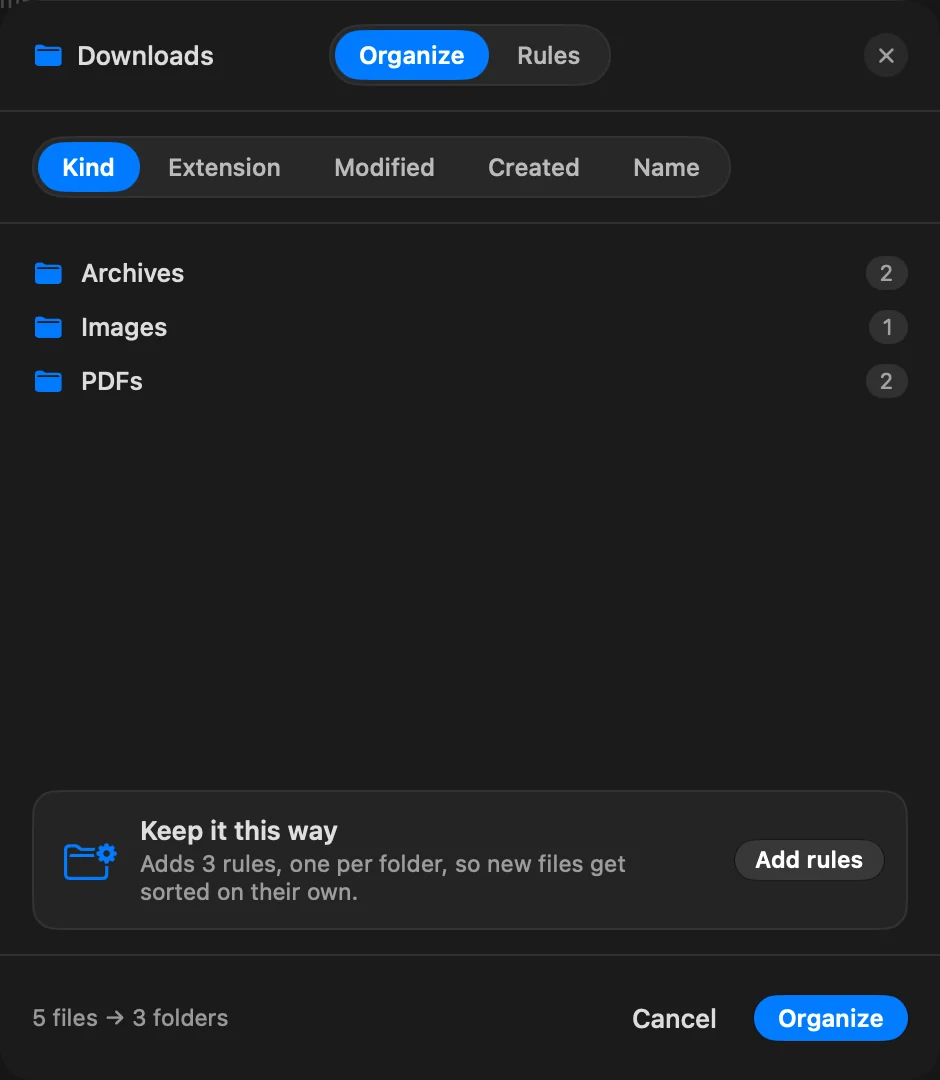
- From a sort. In the Organize tab, after you choose how to sort, the Keep it this way card adds one rule per folder, so new files are sorted on their own. Click Add rules.
- From a suggestion. When a folder has files nobody changed in months, the bottom of the window may say “This folder can tidy itself”. Click See how to open a rule that moves files modified more than 90 days ago to an Archive subfolder. Click No, thanks and DockDuck doesn’t suggest it again for that folder.
- From another folder or Mac. Import a
.ddrulesfile. See Preview, manage & undo rules.
Tips
- Rules run from top to bottom. Drag a rule in the list to change the order.
- When nothing in the folder meets every condition, the editor names the condition that blocks the rest. Click Remove it to drop it.
- Folders your rules move things into are never checked by those rules.
- Hidden files and cloud files that aren’t downloaded are never touched.
If something goes wrong
| Problem | What to do |
|---|---|
| The preview says “Finish the rule to see what it would take” | Fill in every value, such as the subfolder name, the folder to move to or the text to look for. A subfolder name can’t contain /. |
| ”Today it would touch nothing · the rule will wait” | No file matches today. The rule runs when one does. |
| Organize This Folder… isn’t offered | The folder is in iCloud Drive or another cloud drive, or it’s a place such as Recents. Rules don’t run there. |
Thanks, that helps us improve this page.