
Manage shared links
See every link you sent, copy it again, show its QR code, change its password or expiry, and revoke it.
On this page 5 sections
What you’ll accomplish
- Find a link you sent and copy it again, or show it as a QR code
- Change a live link's expiry, password or download setting
- Revoke one link, or turn off all of them at once
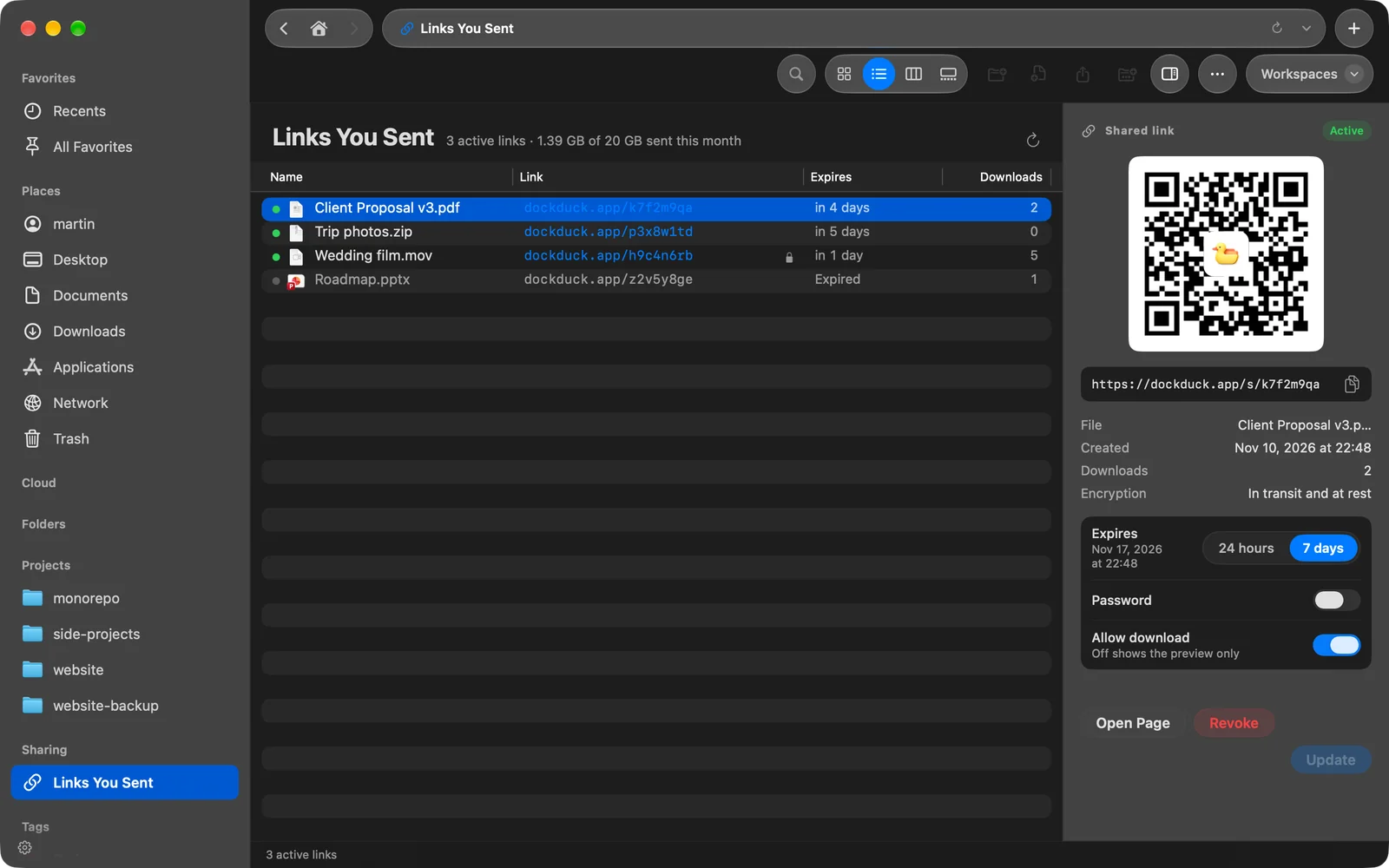
Every link you send is listed in Links You Sent, in the sidebar. The number next to it is how many links are active right now. The page header shows how many links are active and how much of this month’s allowance you have used.
Read the list
| Column | What it shows |
|---|---|
| Name | The file, or the zip for several items |
| Link | The end of the link’s address |
| Expires | When it stops working, or its status |
| Downloads | How many times it was downloaded |
A link can be Active, Expired, Revoked or Paused. Paused means people reported the link and DockDuck is reviewing it.
The download count goes up once per visitor per hour, so reloading the page doesn’t use up the link’s 500 downloads.
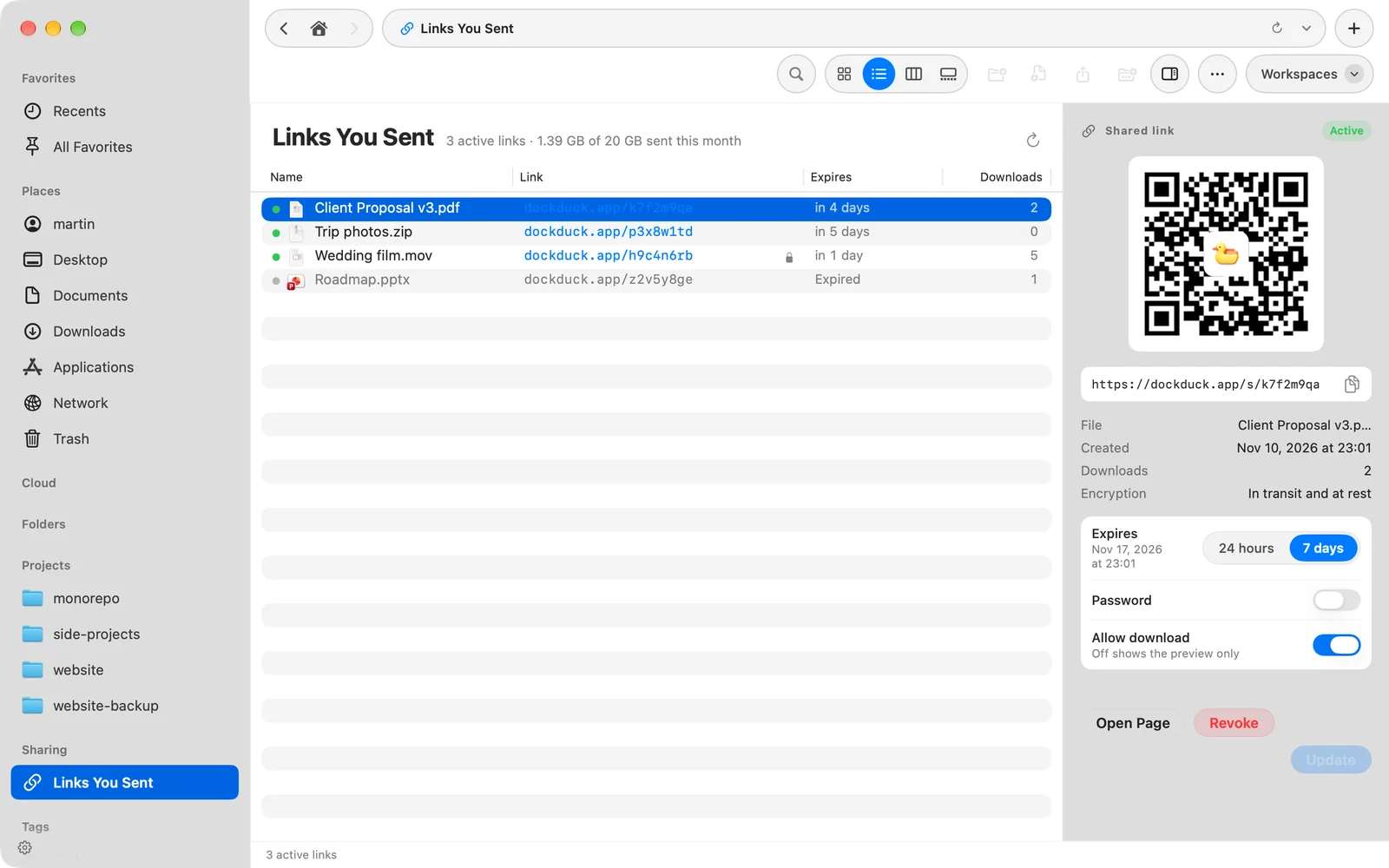
Click a link to see its details on the right: a QR code, the full link with a copy button, the file and its size, when it was created, the downloads, and Encryption: End-to-end.
Copy a link or show its QR code
- Copy it: double-click the row, or Control-click it and choose Copy Link.
- Show the QR code: select the link. The code appears at the top of the details, ready to scan with a phone.
- See the page: click Open Page, or Control-click the row and choose Open Page.
Change a live link
- Select the link in Links You Sent
The settings appear below the details while the link is active.
- Change what you need
- Expires: 24 hours or 7 days, counted from now.
- Password: turn it on and type at least 6 characters, or turn it off to remove the password.
- Allow download: off shows the preview only.
- Click Update
The changes apply to everyone who has the link.
Result: DockDuck shows Link updated.
A link never lasts longer than 7 days after you sent it. If you choose 7 days for a link sent 3 days ago, it expires 4 days from now.
Revoke a link
- Select the link
Or Control-click it in the list.
- Click Revoke
Confirm with Revoke in the “Revoke this link?” dialog.
Result: The link stops working for everyone who has it.
Revoking deletes the file from DockDuck’s storage. The allowance the link used this month doesn’t come back. Links you revoke are listed in Activity.
Turn off every link
Open Settings > Links and click Turn Off All… under Turn off all links, then confirm with Turn Off All. Every active link stops working immediately.
If something goes wrong
| Problem | What to do |
|---|---|
| ”Could not load your links” | Check your connection and click the reload button in the header. |
| ”Sign in to send links” | Click Sign In. The list belongs to your DockDuck account. |
| ”Could not update the link” | The notice gives the reason. Check your connection and click Update again. |
| Copy Link and Open Page are dimmed | The link expired or was revoked, or it was made on another Mac. |
Thanks, that helps us improve this page.