
Troubleshoot iPhone and iPad
What to do when a device doesn't appear, stays locked, won't list its photos, or refuses to delete them.
On this page 9 sections
- The device doesn’t appear in the sidebar
- The page says “Unlock your iPhone”
- “The device took too long to list its photos. Try again.”
- “The device did not open its photos”
- Photos can’t be deleted from the device
- “Photos on the device can only be copied, not changed.”
- The import stopped partway
- Import New says everything is already there
- If the problem persists
The device doesn’t appear in the sidebar
1 Symptom
You connected an iPhone or iPad, but it isn't listed under Drives & Devices.
2 Possible cause
DockDuck only sees devices connected with a cable. A device on the same Wi-Fi network doesn't count.
3 What to check
The cable is plugged in at both ends and the device is unlocked.
4 How to resolve
Connect the device with a cable, unlock it, and tap Trust if it asks whether to trust this Mac.
The page says “Unlock your iPhone”
1 Symptom
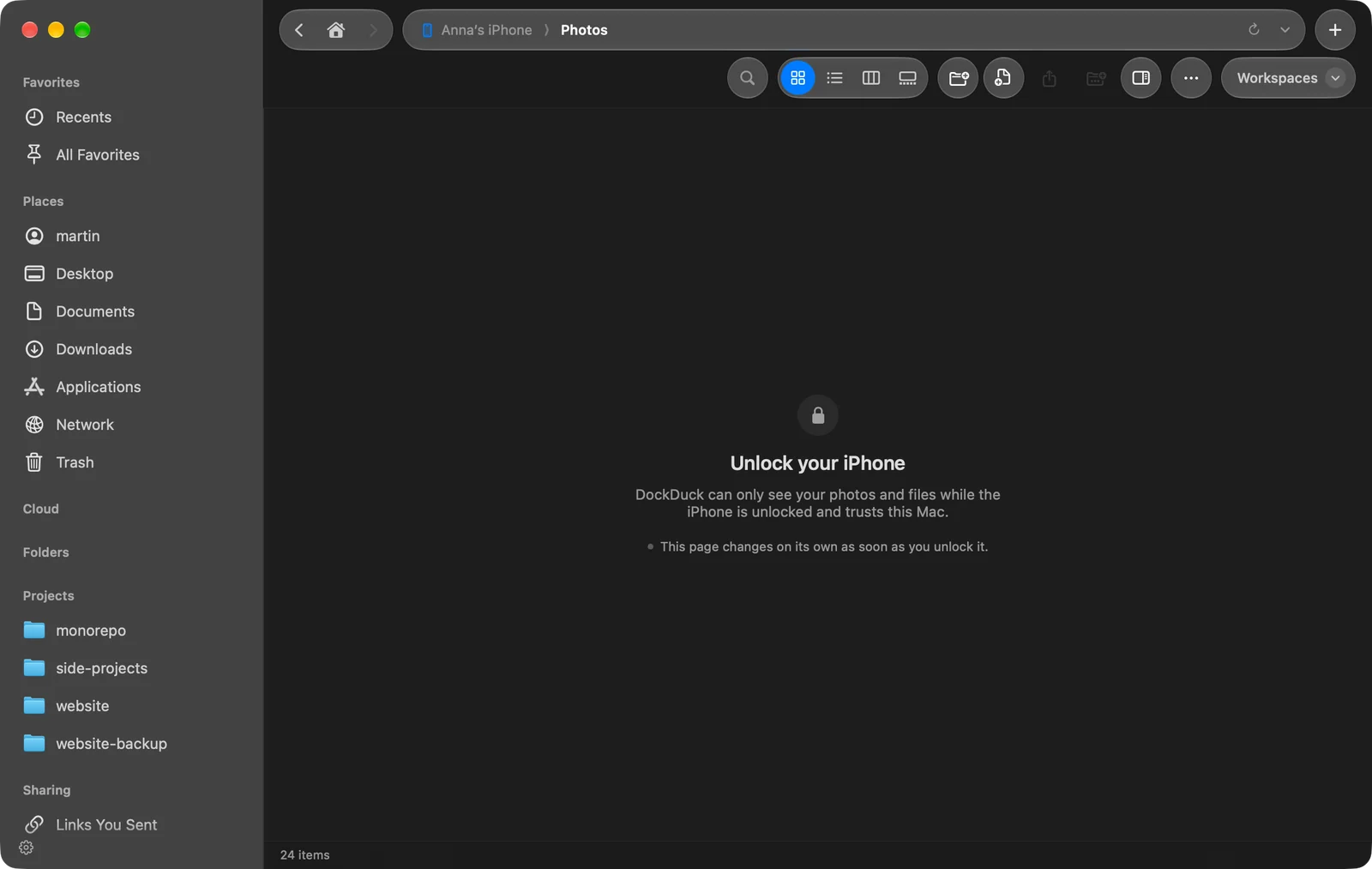
The device page shows Unlock your iPhone (or iPad) instead of photos.
2 Possible cause
DockDuck can only see your photos and files while the device is unlocked and trusts this Mac.
3 What to check
The device's screen is unlocked, and no trust question is waiting on it.
4 How to resolve
Unlock the device and answer the trust question. The page changes on its own as soon as you unlock it.
“The device took too long to list its photos. Try again.”
1 Symptom
The device page shows this message instead of the camera roll.
2 Possible cause
The device didn't finish listing its photos in time.
3 How to resolve
Keep the device unlocked and connected, then choose Go › Reload.
“The device did not open its photos”
1 Symptom
The page shows The device did not open its photos: followed by a reason from macOS.
2 Possible cause
The device refused the photo session. The reason after the colon comes from the system.
3 How to resolve
Unlock the device, unplug it, plug it back in, and open it again from the sidebar.
Photos can’t be deleted from the device
1 Symptom
Deleting shows Photos can’t be deleted from followed by the device name, or Delete is missing from the menu.
2 Possible cause
iCloud Photos is on, so the device only lets you delete photos on the device itself.
3 How to resolve
Delete the photos on the device. Copying to your Mac still works.
“Photos on the device can only be copied, not changed.”
1 Symptom
Renaming, moving or adding files on the device fails with this message.
2 Possible cause
The camera roll is read only in DockDuck, except for deleting.
3 How to resolve
Copy the photos to a folder on your Mac and change them there.
The import stopped partway
1 Symptom
An import paused with Unlock and the device name to continue, or stopped when the cable came loose.
2 Possible cause
A locked or disconnected device stops sending files.
3 How to resolve
Unlock the device and the import picks up where it stopped. If the cable came loose, plug it back in and click Import New again: only the photos still missing from the folder are copied.
Import New says everything is already there
1 Symptom
DockDuck reports that everything on the device is already in the folder, but you expected new copies.
2 Possible cause
A photo counts as already imported when the folder, at any depth, has a file with the same name and the same size or capture date.
3 What to check
The import folder shown on the button, or in Settings › General › iPhone & iPad, is the one you meant.
4 How to resolve
Choose another folder with Choose Folder… in the menu next to Import New.
If the problem persists
- Unplug the device, unlock it, and plug it in again.
- Write to support from Settings › About › Contact support. Mention the device model and iOS version from the device page header.
Was this page helpful? Suggest an edit
Thanks, that helps us improve this page.
Still stuck? Write to us with what you tried. We read every message.