
Import photos and videos
Copy only the photos and videos a folder doesn't have yet from an iPhone or iPad, sorted into folders by day, month, trip, place or kind if you like.
On this page 6 sections
What you’ll accomplish
- Copy only the new photos and videos from an iPhone or iPad to a folder you choose
- Sort the imported photos into folders by day, month, trip, place or kind
- Free up space on the device after the copies are checked
Import New compares the device’s camera roll with a folder on your Mac and copies only what the folder doesn’t have yet. DockDuck remembers the folder for each iPhone or iPad, so the next import is one click.
Before you start
Connect the device with a cable and open it from the sidebar. See Connect an iPhone or iPad.
Import the new photos
- Click Import New
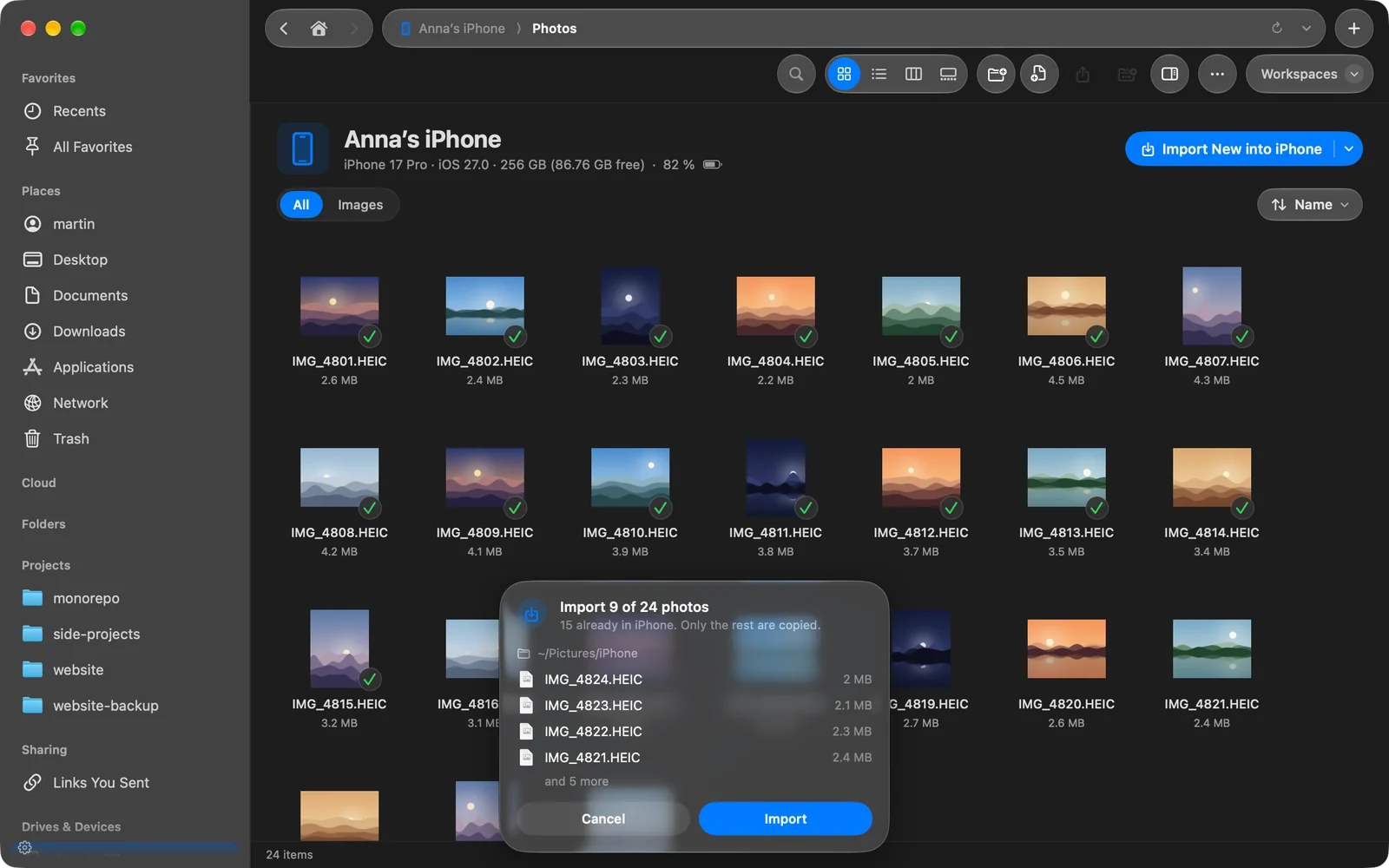
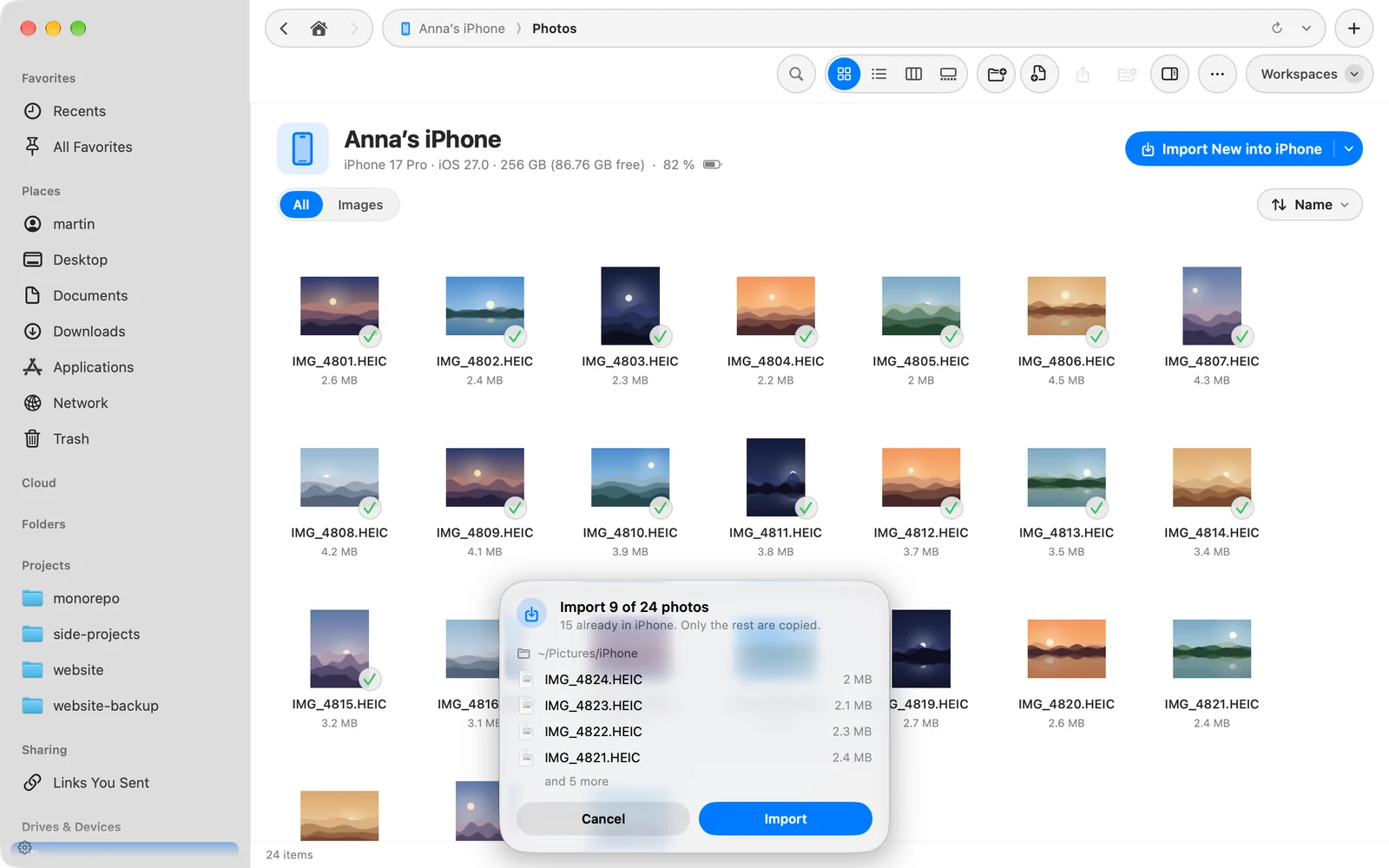
The button is in the device page header. Once a folder is remembered, it reads Import New into followed by the folder’s name. If the other pane shows a folder and none is remembered yet, DockDuck uses that folder.
Result: The first time, DockDuck asks for a folder. - Choose the folder and click Import Here
Pick the folder to compare with and import into. You can create a new one in the same window. DockDuck remembers it for this device.
- Confirm
DockDuck tells you how many photos are new and how many are already in the folder, then asks before it copies anything. Click Import.
Result: DockDuck copies the photos and checks each copy. - Choose whether to free up the device
When the import finishes, DockDuck offers to delete the imported photos from the device. Click Delete from iPhone (or iPad) or Keep. Deleted photos stay in Recently Deleted on the device for 30 days.
If every photo is already there, DockDuck says so and copies nothing.
How DockDuck decides what is new
A photo counts as already imported when the folder, at any depth, holds a file with the same name and the same size or the same capture date. A name with ” copy” or ” copy 2” added at the end still matches. Photos already in the folder show a check mark on the device page.
Each copy is checked against the size the device reported. Only checked copies are offered for deletion from the device.
Sort photos into folders
Click the arrow next to Import New and choose under Sort into Folders:
| Choice | Folders it creates |
|---|---|
| No Folders | None. Everything goes into the import folder. |
| By Day | One per day, named like 2026-08-01. |
| By Month | One per month, named like 2026-08. |
| By Trip | One per run of photos taken no more than two days apart, named by its dates. |
| By Place | One per city or country where the photos were taken, plus No location. |
| By Kind | Photos, Videos and Screenshots. |
Before anything is copied, the confirmation shows which folders will be filled and how many photos land in each. A Live Photo’s picture and video stay together. With By Day, By Month or By Trip, photos without a date stay in the import folder itself.
Each iPhone or iPad keeps its own choice. The same menu has Choose Folder… to import into a different folder.
Change or forget the import folder
Open Settings › General › iPhone & iPad. Each device you imported from is listed with its folder and how photos are sorted. Click Choose… to pick another folder, or Forget to stop remembering it.
See what was imported
Each import is recorded in Activity. Unfold it to see how many files arrived and were checked, and where the copies are. See Activity.
Thanks, that helps us improve this page.