 DockDuck
 Documentation
Copy, move & trash
One clipboard for ⌘C / ⌘X / ⌘V that talks to every app, drag to move or copy, send files to the Trash, and undo any of it.
What it is. Moving files around is the core of any file manager. DockDuck gives you a single clipboard, the drag gestures macOS users expect, and undo on every operation that touches your files.
One clipboard
There is exactly one clipboard in DockDuck, and it’s the system clipboard, so a copy here pastes into Finder, Mail, or any other app, and a copy from another app pastes into DockDuck.
| Copy | ⌘C |
| Cut | ⌘X |
| Paste | ⌘V |
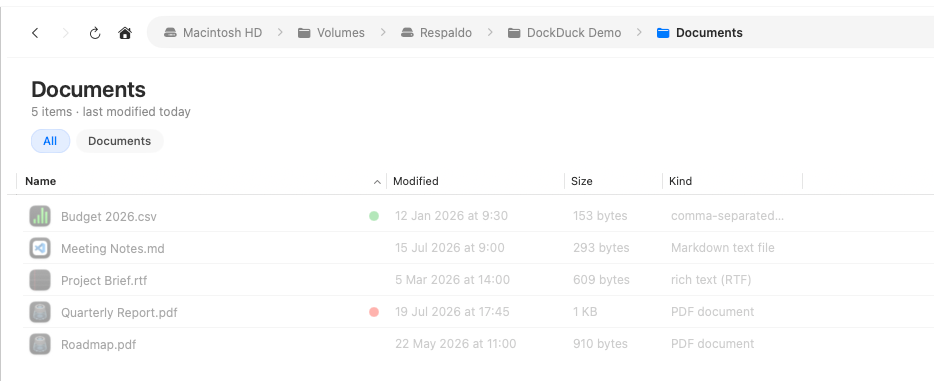
When you Cut items, they dim in the grid and list so you can see at a glance which files are pending a move. They aren’t removed until you paste, and if you paste them into another app instead, the cut is treated as a copy, matching how Finder behaves.
Paste works even when the source is a virtual machine, a remote desktop session, or an email attachment. DockDuck resolves file promises on demand, so files that “looked copied but wouldn’t paste” elsewhere come through intact.
Drag to move or copy
Drag a selection onto a folder, a sidebar location, or another pane to relocate it.
| While dragging | Result |
|---|---|
| Drag within the same volume | Move |
| Drag to a different volume | Copy |
| Hold ⌥ | Force a copy |
| Hold ⌘ | Force a move |
If a drop would overwrite something, DockDuck asks before replacing it. Drops are validated when you start the drag and re-validated at the moment you release, so an item that became invalid mid-drag never lands.
Move to Trash
Send the selection to the Trash from the context menu’s Move to Trash, or with the standard shortcut.
| Move to Trash | ⌘⌫ |
System locations and protected folders can’t be trashed. The action simply isn’t offered for them, so you can’t strand your Mac by accident.
Browsing the Trash
Open Trash from the sidebar to see everything Finder would: your Mac’s Trash and items deleted from an iCloud Desktop or Documents folder or an external drive, gathered into one view. Right-click a trashed item for Put Back (restore it to where it came from) or Delete Immediately (erase it for good). Selecting several items (folders included) and deleting works in one go.
Undo & redo
Every copy, move, rename, and trash is undoable.
| Undo | ⌘Z |
| Redo | ⌘⇧Z |
Undo is verified, not blind: undoing a trash checks the item still exists before restoring it, so undo never corrupts your files. A batch rename of many files undoes as a single step rather than one file at a time.
Where to go next
- Selecting & opening: build the selection first.
- Transfers: progress, throughput, and recursive folder copies.
- Keyboard shortcuts: rebind any of these.