 DockDuck
 Documentation
Search basics
Start a search from any folder, read the results, and page through large match sets, with the matched term highlighted and a Where column to tell same-named files apart.
What it is. DockDuck’s search is a live Spotlight query wrapped in a familiar file-browser view. When to use it. Reach for it whenever you know something about a file (part of its name, its kind, when you touched it last) but not where it lives.
Starting a search
The search field sits in the navbar, to the right of the breadcrumb. Click it, or use the ⌘K hint shown inside the pill, then type and press ↵ to run the search.
Navigate to the folder you want to search, or stay on the Start Page to search your whole Mac.
Click the search field (the magnifier pill in the navbar) and type your terms.
Press ↵ to run the search. The browser switches into search results mode.
Typing alone does not search: the query runs on ↵. This keeps DockDuck from launching a fresh Spotlight gather on every keystroke. Clear the field with the ✕ button to leave search mode.
Reading the results
Results render in whatever view mode you’re in (grid, list, or columns) and are sorted by Date Modified, newest first, as they come back from Spotlight.
Highlighting
Every result’s name shows the matched text with an accent-tinted highlight,
the way Finder and Explorer mark matches. The highlight is case-insensitive, so
report highlights Report and REPORT alike. Names with no literal match of
your typed term (for example, results matched by a kind: or size: filter)
simply render without a highlight.
The Where column
In list view, search results gain a Where column that shows each file’s enclosing folder. Because results come from across the machine, two files can share a name. The Where column is the key disambiguator, and you can click its header to sort results by location. The standard Modified, Kind, and Size columns appear alongside it.
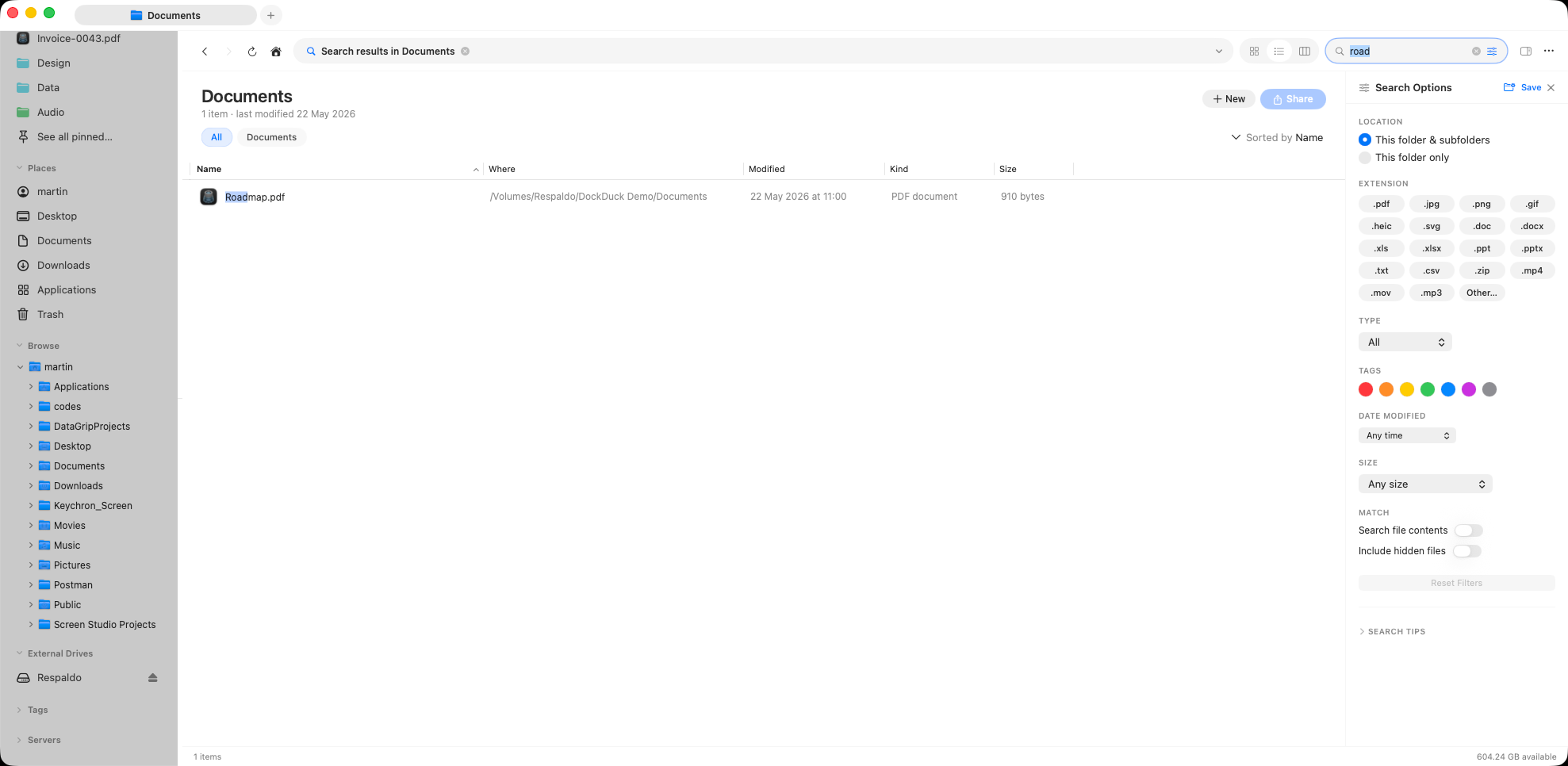
Click any result and press ↵ to open it, or use Reveal in Finder from the context menu to jump to its actual location on disk.
Sorting results
Sort results like any folder listing: click a list-view column header to sort by that field, or use the sort control. The Where column is fully sortable, so you can group results by the folder they live in. Sorting happens locally on the results already loaded; it does not re-run the search.
Loading more results: pagination
A common term can match tens of thousands of files. To keep the window responsive, DockDuck pages results in batches of 500. When more matches are available than are currently shown, a bar appears at the bottom of the results:
- The left side shows the running results count (how many are loaded so far).
- The Load more button pulls in the next page of up to 500.
Click Load more as many times as you need; the button shows Loading… while a page is being added and disappears once every match is on screen.
The count reflects results loaded so far, not the total match set. Hidden dotfiles are skipped by default (toggle Include hidden files in search scopes), and duplicates across volumes are removed, so the visible count can be slightly lower than Spotlight’s raw total.
Where to go next
- Search scopes & options: search this folder vs. your whole Mac, and narrow by extension, kind, date, size, and tags.
- Query syntax: wildcards, operators, and
key:valuefilters you can type straight into the field. - Smart folders: save a search and re-run it live from the sidebar.