 DockDuck
 Documentation
On this page
Sorting & columns
Order any folder by name, size, date, or kind; choose which columns the List view shows from the header menu; and jump to a file just by typing its name.
What it is. Three ways to bring order to a listing: choosing a sort key, configuring which columns the List view displays, and type-ahead to leap straight to a file. Why it matters. A folder of a thousand items becomes navigable the moment it’s sorted the way you think, shows the columns you care about, and answers to your keyboard.
Sorting
Every view can be sorted by any of these keys:
| Sort by | Orders on |
|---|---|
| Name | Alphabetical, with folders grouped first |
| Size | File size |
| Modified | When the item was last changed |
| Date Added | When the item arrived in this folder |
| Date Last Opened | When you last opened it |
| Kind | File type, grouping like items together |
Pick a sort key from the toolbar’s sort menu, and toggle ascending or descending. In List view you can also click a column header to sort by it; click again to reverse the direction.
Name and Kind sorts keep folders together at the top, the Finder convention. Time and size sorts don’t: the most recent or largest item rises to the top regardless of whether it’s a folder, which is what those orders are for.
When you’re looking at search results, an extra Where sort becomes available: it orders by enclosing folder, the key disambiguator when results come from all over your Mac. It’s hidden in ordinary folders, where it would mean nothing.
Configurable columns
In List view, the Name column is always present; the rest are yours to choose. Right-click any column header to open the menu and toggle these on or off:
- Modified
- Date Added
- Date Last Opened
- Size
- Kind
A checkmark marks each shown column. The default set is Modified · Size · Kind, and your choice is remembered across launches and windows.
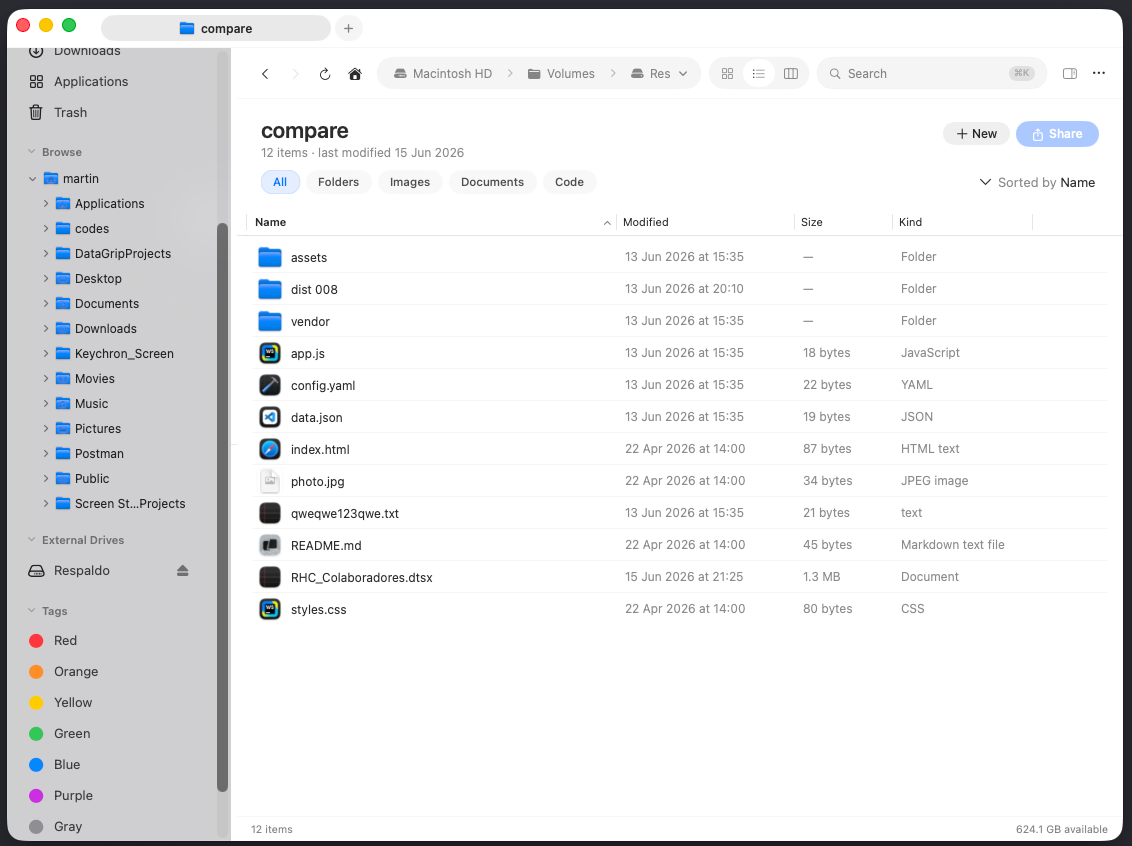
Some folders bring their own purpose-built columns. Downloads leads with Date Added, Recents with Date Last Opened, and search results add a Where column so you can tell same-named files apart.
Type-ahead selection
In both the Icons grid and the List view, start typing a name and DockDuck jumps to the first item that matches, just like Finder. Keep typing to refine the match; pause briefly and the next keystroke starts a fresh search. It’s the fastest way to land on a known file in a crowded folder without reaching for the mouse.
Where to go next
- View modes: Icons, List, and Columns, and when to use each.
- The preview panel: inspect the selected file beside the listing.
- Search: when sorting isn’t enough to find it.