
Terminal integration
Open a terminal in the folder you're viewing, dock one under your files, or link a Terminal or iTerm2 window that follows along.
On this page 4 sections
What you’ll accomplish
- Open the current folder in your terminal app
- Show a terminal panel under the files that follows the folder both ways
- Link a Terminal or iTerm2 window so it stays in the same folder as DockDuck
DockDuck works with a terminal in three ways. Opening a folder in your terminal works out of the box. The terminal panel and the linked terminal are off until you turn them on in Settings → Dev Tools.
| Way | What you get | Turn it on |
|---|---|---|
| Open in Terminal | Your terminal app opens in the current folder. | Nothing to turn on |
| Terminal panel | A shell docked under the file view that follows the folder. | Embedded terminal |
| Link Terminal | A Terminal or iTerm2 window that stays in the same folder as DockDuck. | Terminal sync |
Open a folder in your terminal
- Click the gear next to the sort pill in the folder header and choose Open in Terminal.
- Or type
terminalin the address bar and press Return. Typegitto open a terminal runninggit status, orclaudeto open one runningclaude. - You can also add Open in Terminal to the toolbar in Settings → Toolbar.
The gear menu and the toolbar button use the app chosen in the Terminal picker of Settings → Dev Tools, which appears once Developer actions in menus is on. Without a choice, DockDuck uses the first terminal installed on your Mac. Address-bar commands use Open terminal commands in, under Settings → General, which offers Terminal, iTerm2, Warp and Ghostty when they’re installed.
With Developer actions in menus on, right-clicking a file or folder also offers Open in Terminal, Open in Editor and more Copy Path formats.
Use the terminal panel
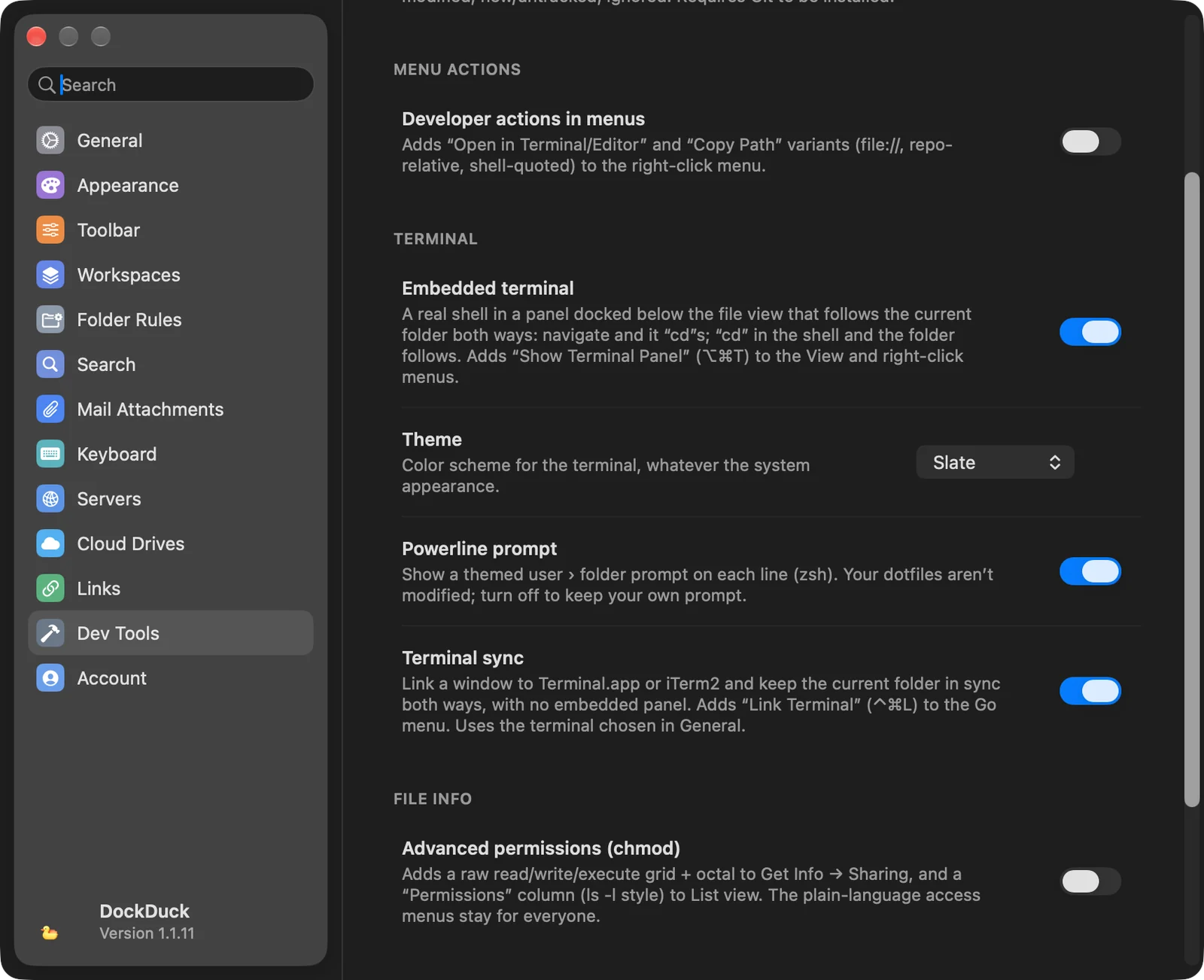
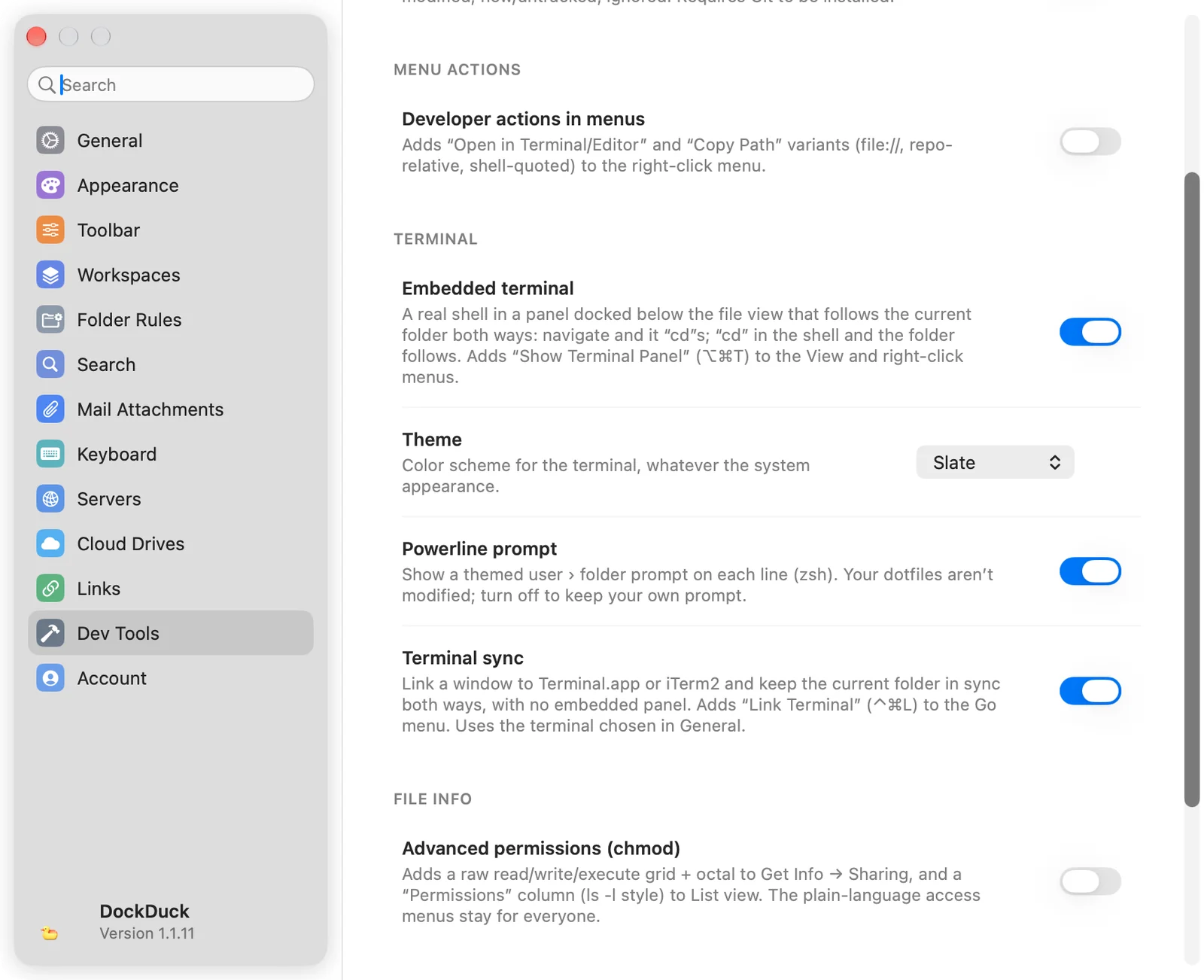
- Turn on Embedded terminal
Open Settings → Dev Tools and turn on Embedded terminal, under Terminal.
- Show the panel
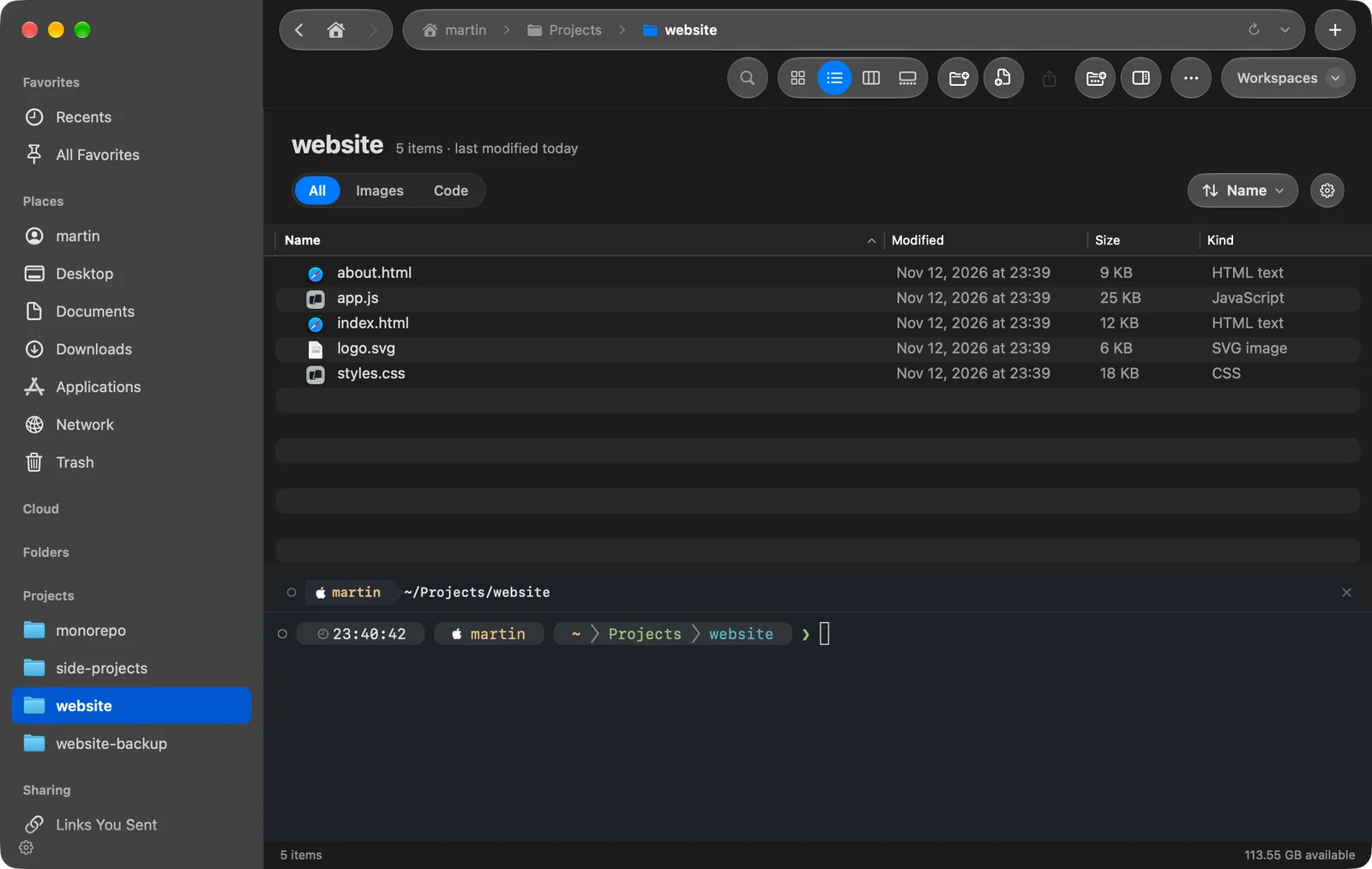
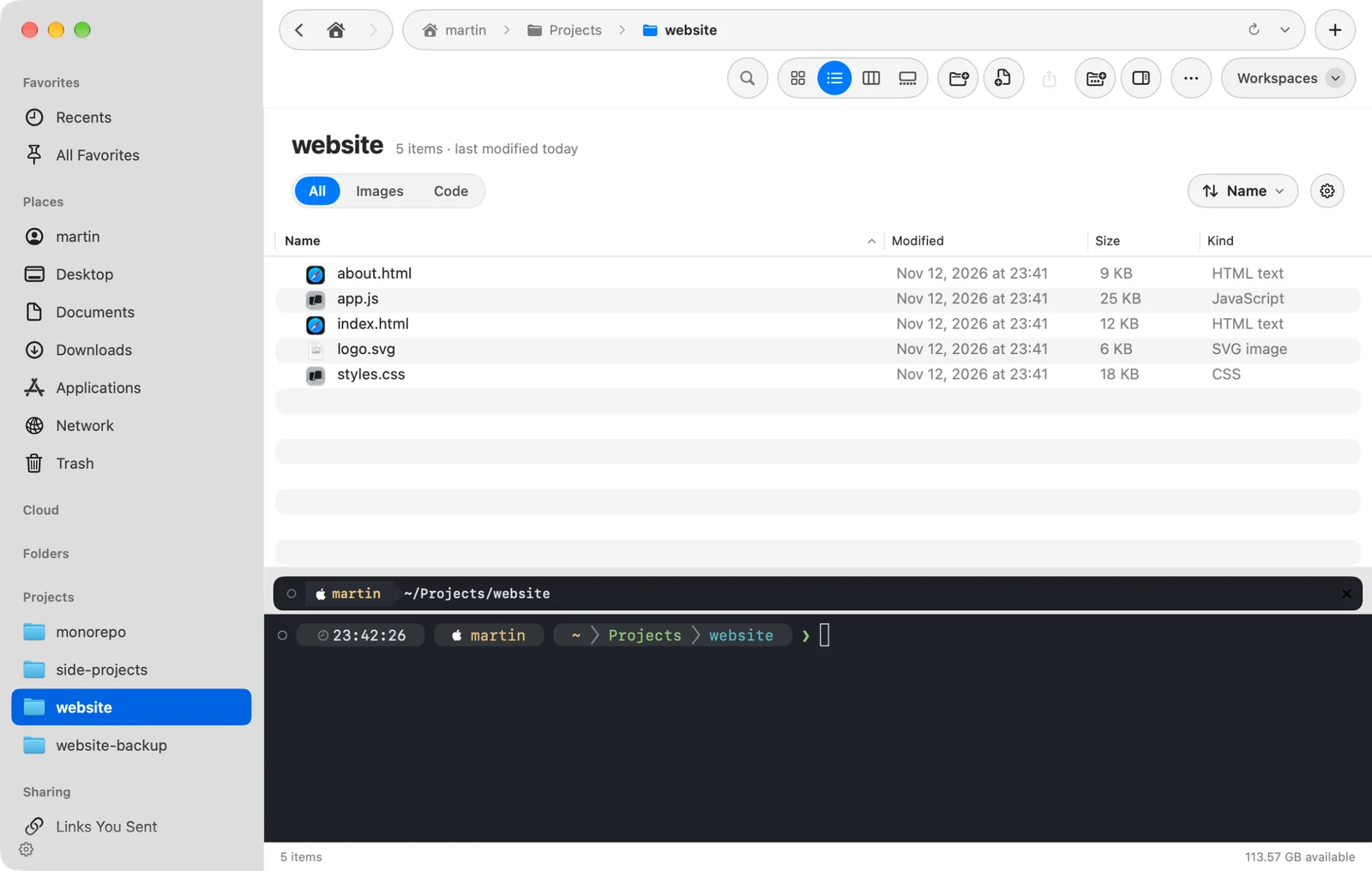
Press ⌥⌘T, or choose View → Show Terminal Panel. It’s also in the menu you get by right-clicking an empty spot in the folder, and in the gear menu of the folder header.
Result: A shell opens in a panel under the files, in the folder you're viewing. - Work in either place
Go to another folder in DockDuck and the shell changes to it. Run
cdin the shell and DockDuck follows.
Press ⌥⌘T again, or choose Hide Terminal Panel, to close it.
Two options appear under Embedded terminal once it’s on:
- Theme: the terminal’s color scheme. It’s hidden while you use an app theme, because the theme brings its own terminal colors.
- Powerline prompt: a themed user › folder prompt on each line, for zsh. DockDuck doesn’t modify your dotfiles. Turn it off to keep your own prompt.
Link a Terminal or iTerm2 window
- Turn on Terminal sync
In Settings → Dev Tools, turn on Terminal sync.
- Choose Link Terminal
In a local folder, press ⌃⌘L or choose Go → Link Terminal.
Result: A terminal window opens in the current folder, and a small terminal chip appears in the toolbar. - Browse or cd
Go to another folder in DockDuck and the linked window runs
cdto it. Change folders in the terminal and DockDuck follows.
To unlink, click the terminal chip in the toolbar or press ⌃⌘L again. Closing the terminal window or quitting the terminal app also ends the link.
Only Terminal and iTerm2 can be linked. DockDuck uses iTerm2 when it’s the app chosen in Settings → General → Open terminal commands in, and Terminal otherwise.
If something goes wrong
| Problem | What to check |
|---|---|
| ⌥⌘T does nothing | Embedded terminal is on in Settings → Dev Tools. |
| Link Terminal isn’t in the Go menu | Terminal sync is on in Settings → Dev Tools. |
| Link Terminal only beeps | The current folder is on your Mac, not on a server. |
| Open in Terminal is missing | The folder isn’t in a cloud drive or on a server. |
Thanks, that helps us improve this page.