 DockDuck
 Documentation
On this page
View modes
Icons, List, and Columns: three ways to look at a folder, each suited to a different task. Switch between them from the toolbar or with a keystroke.
What it is. Every folder can be shown three ways. The view mode is per-tab, so you can browse one folder as a grid of icons while another shows a detailed list. Why it matters. The right view turns a chore into a glance: thumbnails for a photo folder, a sortable table for a downloads pile, fast keyboard drilling for a deep tree.
The three modes
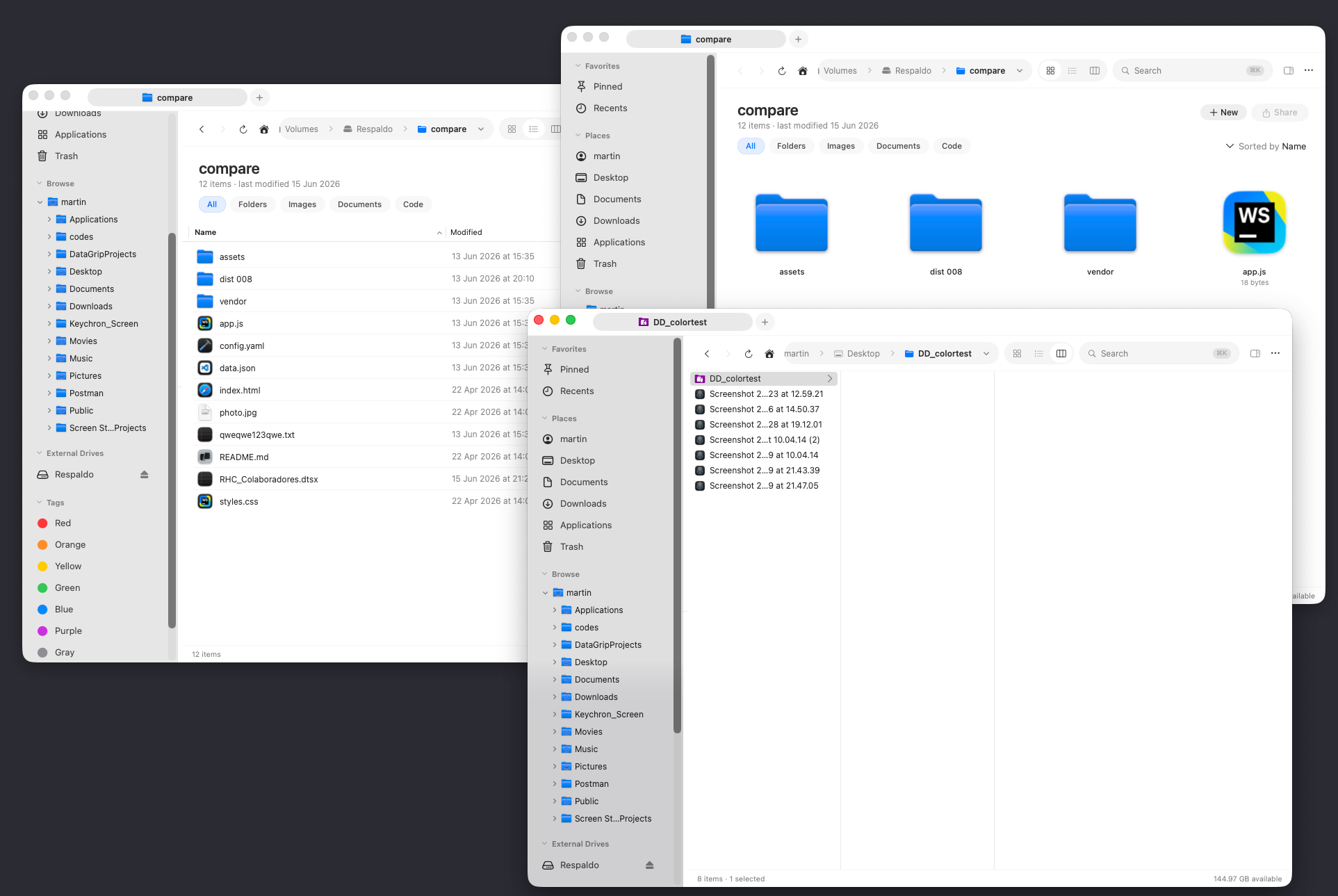
Icons: a roomy grid of thumbnails. Best for browsing photos, design assets, and anything you recognize by sight. Files render their real thumbnail; folders show their icon.
List: a compact, sortable table with one row per item and a column for each detail. Best for scanning many files, comparing dates and sizes, and sorting by any column. See sorting & columns for the configurable columns.
Columns: successive folders shown side by side, so selecting a folder opens its contents in the next column. Best for drilling deep into a tree and keeping your place at every level.
Switching views
Pick a mode from the toolbar’s view control, or use the keyboard:
| Mode | Shortcut |
|---|---|
| Icons | ⌘⌥1 |
| List | ⌘⌥2 |
| Columns | ⌘⌥3 |
These live under the View menu and, like every command, can be rebound in Settings. See keyboard shortcuts.
The view mode follows the tab, not the folder. Switching to Icons in one tab doesn’t change how the same folder looks in another tab or window.
Density
Each mode is tuned for its job and doesn’t borrow another’s spacing. Icons gives items room to breathe so thumbnails read clearly. List is dense, fitting many rows on screen at once for fast scanning. Columns keeps each pane tight so several levels of a tree stay visible together.
Some folders adopt a sensible default on their own (Recents leads with Date Last Opened, Downloads with Date Added), so the most useful order is already in place when you arrive.
Where to go next
- Sorting & columns: order the listing and choose its columns.
- The preview panel: see a file’s contents and metadata beside the listing.
- Quick Look: a full-size preview without opening the app.