
SFTP with SSH keys
Sign in to SFTP servers with a password, a private key file (with or without a passphrase) or the keys in your SSH agent.
On this page 4 sections
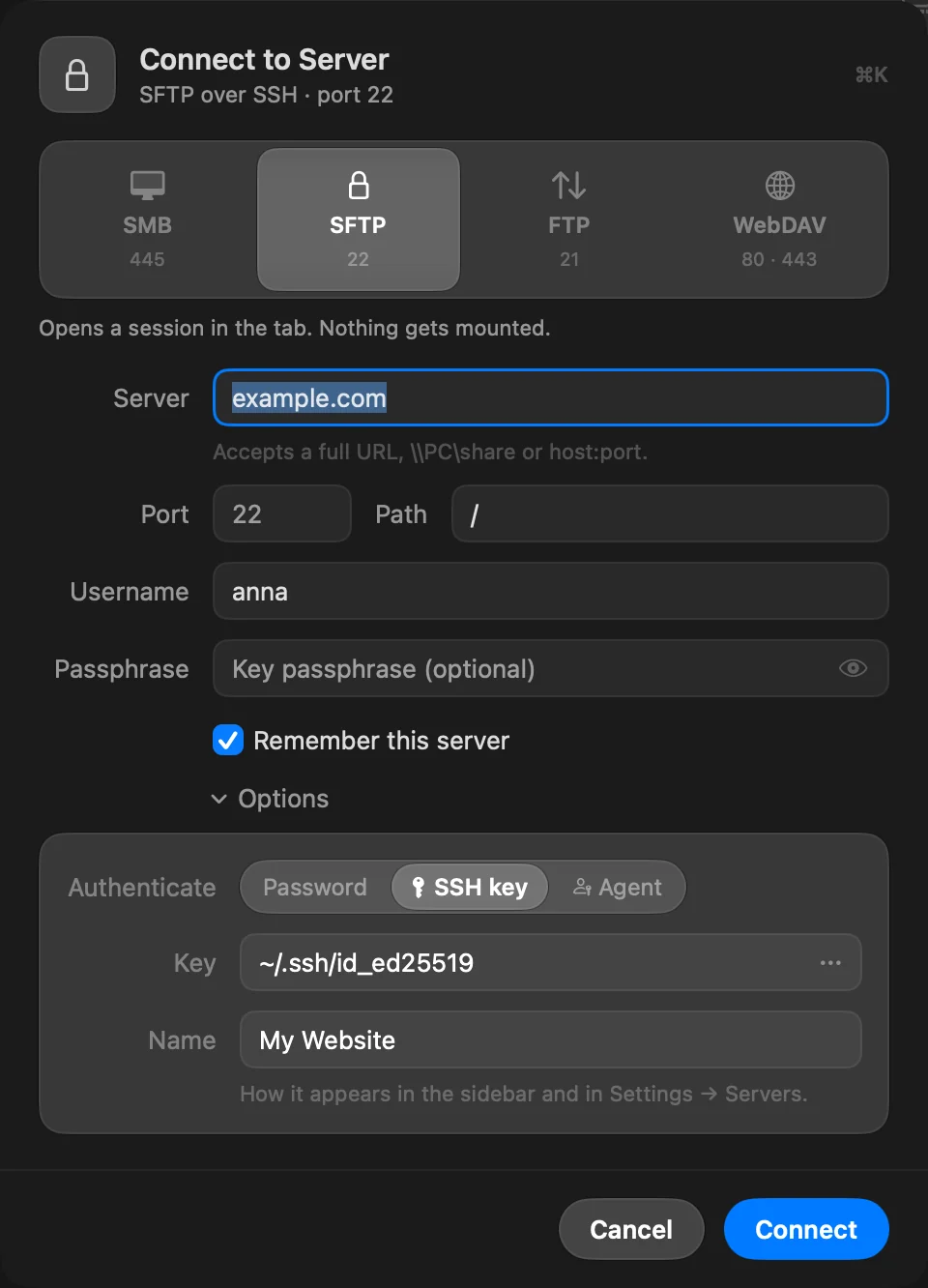
SFTP servers accept three ways to sign in. Choose one under Options › Authenticate in the Connect to Server sheet, or when you edit a saved server.
| Authenticate | What DockDuck uses | What is stored |
|---|---|---|
| Password | The account’s password. | The password, in the Keychain. |
| SSH key | A private key file on your Mac, and its passphrase if it has one. | The key’s path with the server, and the passphrase in the Keychain. |
| Agent | The keys loaded in your SSH agent. | Nothing. No password is stored. |
New SFTP servers start with the method set in Settings › Servers › Default SFTP authentication.
Sign in with a key file
- In the Connect to Server sheet, choose SFTP, then open Options.
- Set Authenticate to SSH key.
- In Key, type the path of your private key (for example
~/.ssh/id_ed25519), or click the … button to choose it. The chooser opens in~/.sshand shows hidden files. - If the key has a passphrase, type it in Passphrase. Leave it empty if the key has none.
Supported key files
| Key type | Formats |
|---|---|
| Ed25519 | OpenSSH (BEGIN OPENSSH PRIVATE KEY), with or without a passphrase |
| RSA | OpenSSH, with or without a passphrase |
| ECDSA (P-256, P-384, P-521) | OpenSSH, with or without a passphrase; also the older BEGIN EC PRIVATE KEY format without a passphrase |
RSA keys sign with SHA-512 first, so they also work on servers that refuse the older SHA-1 RSA signatures.
ssh-keygen -t ed25519 -C "you@example.com"Sign in with your SSH agent
Set Authenticate to Agent. DockDuck asks the agent for its keys and offers them to the server one at a time, with up to six tries. There is no password or passphrase field: the agent does the signing.
DockDuck finds the agent the same way ssh does:
- If
~/.ssh/configsetsIdentityAgent, DockDuck uses that socket. This is how agents from password managers are usually set up. - Otherwise it uses the agent in
SSH_AUTH_SOCK. IdentityAgent noneturns the agent off.
The agent can hold Ed25519, ECDSA (P-256, P-384, P-521) and RSA keys.
ssh-add ~/.ssh/id_ed25519Passwords the server only asks for interactively
Some servers accept a password only through an interactive prompt, not as a plain password. DockDuck can’t answer that prompt, and the server reports the same rejection as a wrong password. If you’re sure the username and password are right, sign in with an SSH key instead.
Errors you may see
| Message | What to do |
|---|---|
| Can’t read the SSH key at the path | Check the path, or choose the key file again. |
| Couldn’t read that SSH key. | Wrong passphrase, or an unsupported key type. Ed25519, ECDSA and RSA keys in OpenSSH format are supported. |
| The server rejected the credentials. | Check the username and that this key is authorized on the server. |
| The SSH agent has no keys to offer. | Add your key with ssh-add, or use a password or a key file. Click Use password to switch. |
More in Troubleshoot server connections.
Thanks, that helps us improve this page.