 DockDuck
 Documentation
Your Account & Trial
How the free trial, your license and signing in work, and how to manage them from Settings.
What it is. You can try DockDuck with no account at all. An account appears when you buy a license: it holds the license and the Macs it is active on. When you’ll meet it. After a purchase, or any time from Settings → Account.
The free trial
Every Mac gets a 14-day free trial, started on the last step of the first-launch flow. It needs no account and no credit card.
- Settings → Account shows how many days remain, and a banner reminds you as the end approaches.
- Want more time? Register your email from that banner and 7 days are added, once per Mac. A link arrives by email; there is no password to choose.
- Two things are not part of the trial and come with a license: sending files as links (Share) and the alternate app icons.
When the trial ends, DockDuck shows a paywall until you buy a license or sign in to an account that has one. Your files are never touched, only access to the app is gated.
Buying a license
There are two licenses: Pro Annual and Pro Perpetual. Neither renews on its own, so you are never charged automatically. One license covers up to 3 Macs.
Buying creates your account with the email you paid with. There is no license code to type: sign in and DockDuck recognizes the license.
Signing in
Sign in from the last onboarding step (Already purchased? Sign in), from the paywall, or any time from Settings → Account:
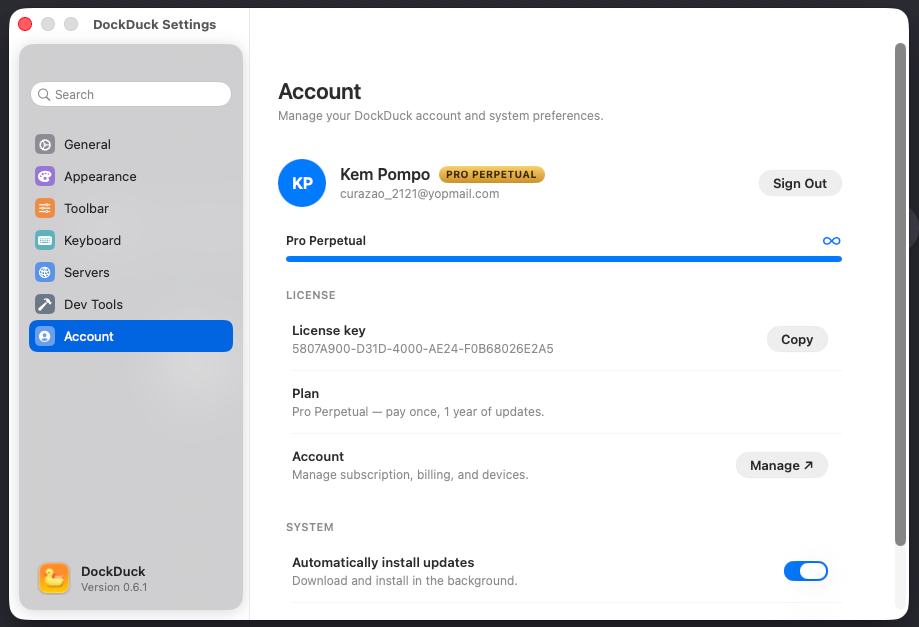
Open Settings → Account and click Sign in.
DockDuck opens your browser to complete sign-in, then hands you back to the app. No password is typed into the app itself.
Your license is recognized and this Mac is added to it.
The account page links out to Manage, where you can see your license, billing, and the Macs it is active on.
Signing out
Signing out does not lock the app. The trial belongs to this Mac, and an active license stays on it, so DockDuck keeps working. You only need to sign in again to manage your account or to send files as links.
The paywall appears in one case: the trial has ended and this Mac has no active license. Sign in to an account that has one, or buy a license, and the app opens again.
Moving to a new Mac
Sign in on the new Mac with the same account and your license is recognized automatically. If all 3 seats are in use, DockDuck asks which Mac to release.
Where to go next
- First launch: the welcome flow where your trial starts.
- Settings: the rest of DockDuck’s preferences.
- Privacy: what the account does and doesn’t collect.