
Trash & recovery
Put items back from the Trash, undo a delete, delete for good, and empty the Trash to get the space back.
On this page 4 sections
What you’ll accomplish
- Get back a file you moved to the Trash
- Delete items for good, one by one or by emptying the Trash
- See how much space the Trash is using
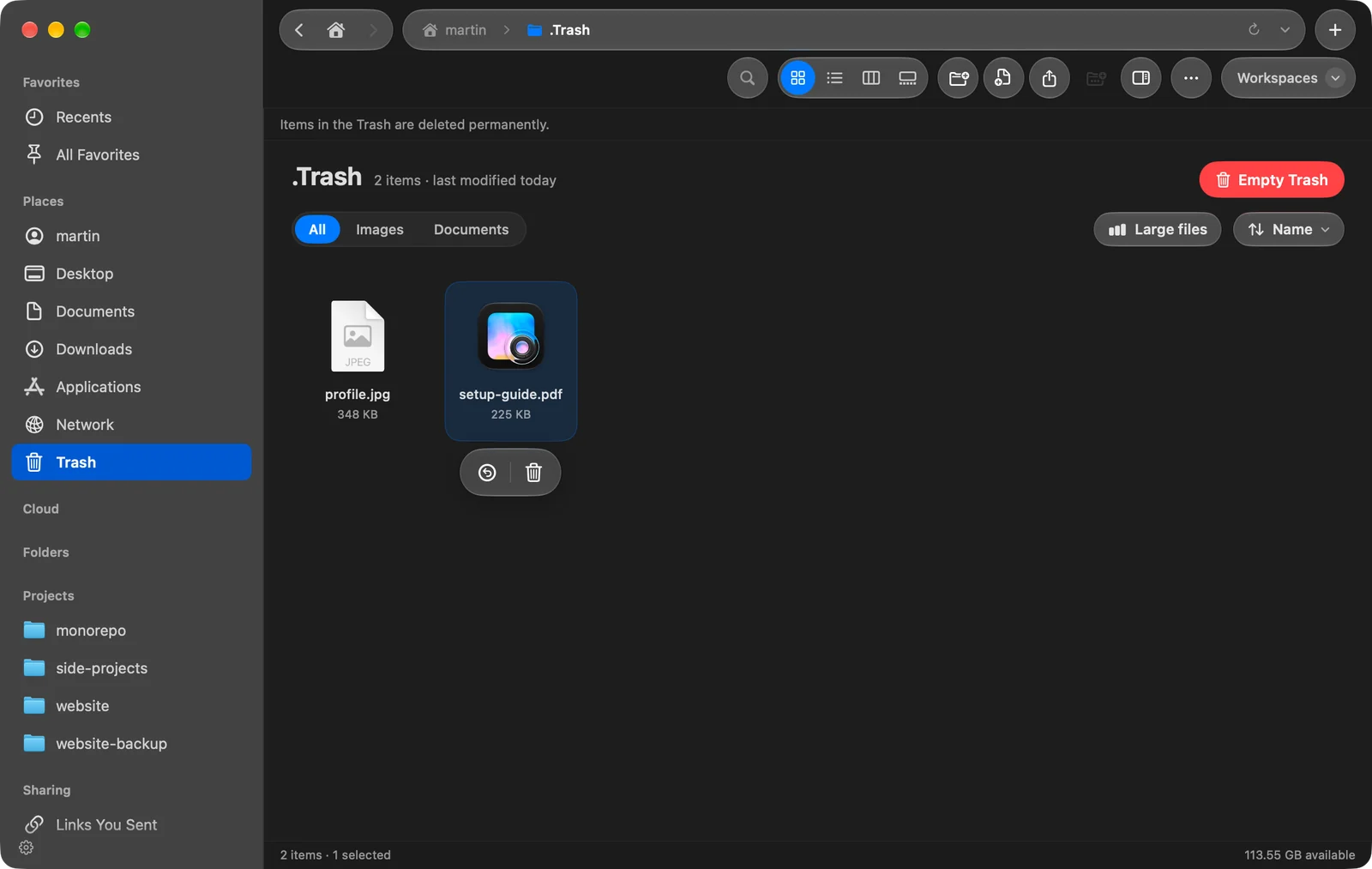
Items you delete in DockDuck go to the Trash, where they stay until you empty it. Open Trash in the sidebar to see them. The Trash also shows items deleted from external drives.
Get a file back
Right after deleting
Press ⌘Z. The items go back where they were.
From the Trash
- Open Trash in the sidebar
Select the items you want back.
- Choose Put Back
Click Put Back in the bar that appears when you select items, or Control-click and choose Put Back.
Result: Each item returns to the folder it came from.
If the original folder no longer exists, DockDuck creates it again. If an item with the same name is already there, the restored item gets a new name, so nothing is replaced.
Days later
Activity, in the sidebar below Recents, lists every trip to the Trash DockDuck made, by day. Click Undo on the row to put the files back, even days later and after quitting DockDuck.
Delete for good
These can’t be undone.
- Empty the Trash: press ⇧⌘⌫, choose File > Empty Trash…, or click Empty Trash at the top of the Trash. DockDuck asks “Empty the Trash?” first. Press Return or click Empty Trash to confirm, or Esc to cancel. Hold Option while you click Empty Trash to skip the question.
- Delete some items from the Trash: select them and click Delete Immediately in the bar, or Control-click and choose Delete Immediately.
- Delete without using the Trash: select items anywhere and press ⌥⌘⌫. DockDuck asks “Delete … for good?” and you confirm with Delete Forever.
Files on a server have no Trash, so deleting there always asks first.
See how much space the Trash uses
At the top of the Trash, a strip says, for example, “Trash is using 4.2 GB. Empty it to get that space back.” Click See what’s using space to open Free Up Space.
If something goes wrong
| Message or problem | What to do |
|---|---|
| Put Back does nothing and your Mac beeps | The items were moved to the Trash by another app, so DockDuck doesn’t know where they came from. |
| ”Allow DockDuck to manage apps” | macOS needs App Management to move an app to the Trash. Turn DockDuck on in System Settings, Privacy & Security, App Management, then reopen DockDuck. |
| ”Couldn’t move … to the Trash” | The message gives the reason, such as “it’s locked” or “you don’t have permission”. |
| The Trash looks empty but isn’t | Give DockDuck Full Disk Access in System Settings. |
Thanks, that helps us improve this page.