
Work with tabs
Open, switch, pin, group and close tabs, and jump to any open tab by typing its name.
On this page 6 sections
What you’ll accomplish
- Open, move between and close tabs from the keyboard
- Keep folders you always use in pinned tabs
- Group the tabs of a project under one name and color
- Jump to any tab in any window with Go to Tab
Each tab is its own place in the window, with its own folder and history. Tabs sit in the top row of the window, next to the window buttons. The tab you are on has a thin ring in your accent color.
Open, switch and close tabs
| To | Do this |
|---|---|
| Open a new tab | ⌘T |
| Go to the next or previous tab | ⇧⌘] or ⇧⌘[ |
| Go to tab 1 to 9 | ⌥⌘1 to ⌥⌘9 |
| Jump to any open tab | ⌘P (Go to Tab…) |
| Close the tab | ⌘W. On the last tab, this closes the window. |
| Close all tabs | ⌥⌘W |
| Move a tab | Drag it along the row. |
| Put a tab in its own window | Drag it down out of the row, or Control-click it and choose Move to New Window. |
New tabs open at the place set in Settings > General > Startup > Open at this folder.
The tab menu
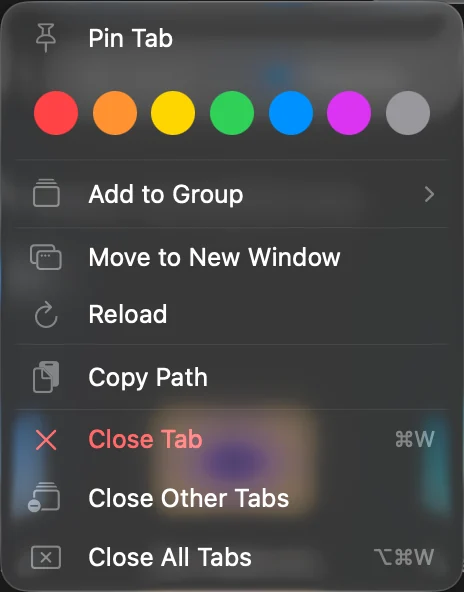
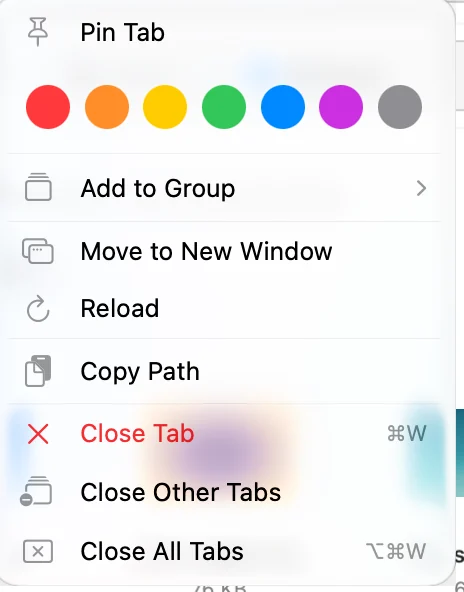
Control-click a tab to see what you can do with it:
| Item | What it does |
|---|---|
| Pin Tab / Unpin Tab | Keeps the tab at the front of the row, in every new window |
| Color dots | Gives the tab a color. Click the same color again to remove it. |
| Add to Group | Puts the tab’s folder in a tab group (see below) |
| Remove from Group | Takes the folder out of its group |
| Move to New Window | Opens the tab in a window of its own |
| Reload | Reads the folder again |
| Copy Path | Copies the folder’s path |
| Close Tab, Close Other Tabs, Close Tabs to the Right, Close All Tabs | Closes tabs. An item that wouldn’t close anything isn’t shown. |
Pin a tab
- Open the folder in a tab
Go to the folder you want to keep at hand.
- Pin it
Control-click the tab and choose Pin Tab.
Result: The tab moves to the front of the row and shows a pin badge.
A pinned tab:
- appears at the front of the row in every new window,
- has no close button, and ⌘W doesn’t close it,
- stays open through Close Other Tabs, Close Tabs to the Right and Close All Tabs,
- isn’t saved in a workspace and stays put when you open one.
To turn it back into a regular tab, Control-click it and choose Unpin Tab.
Group tabs
A tab group collects the tabs of a project under one name and color. A group belongs to folders, not to tabs: once a folder is in a group, any tab that opens that folder joins the group.
- Start a group
Control-click a tab and choose Add to Group > New Group….
- Name it and pick a color
Type a name in Group name (DockDuck suggests the name of the folder above), pick a color, and click Create.
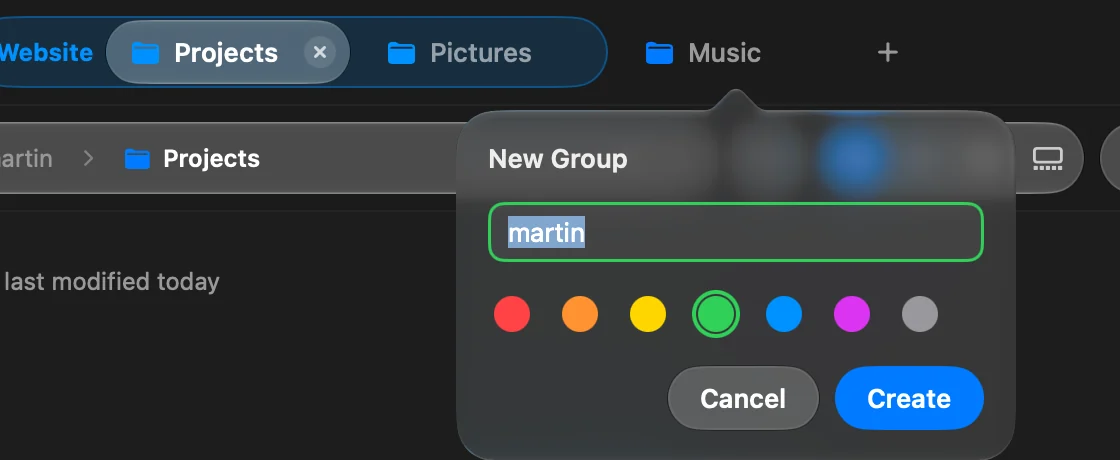
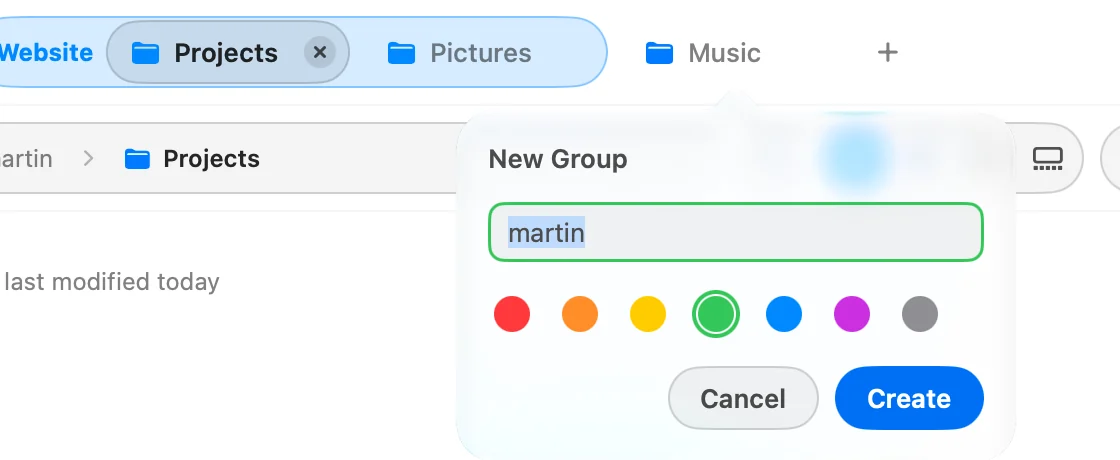 Result: The tab sits under the group's label in the tab row.
- Add more tabs
Control-click another tab and choose Add to Group, then the group’s name.


- Click the group’s label to fold its tabs out of the way, and again to show them.
- Control-click the label to rename the group, change its color, or choose Collapse Group, Ungroup or Close Group.
Ungroup removes the group and leaves its tabs open. Close Group closes its tabs but keeps the group: the next tab you open on one of its folders brings it back.
Groups are shared by all your windows and kept when you quit. Pinned tabs, Home and Recents can’t be in a group. To turn tab groups off, go to Settings > General > Window & Tabs and turn off Tab groups. Your groups come back if you turn it on again.
Go to any tab
- Open Go to Tab
Press ⌘P, or choose Window > Go to Tab….
- Find the tab
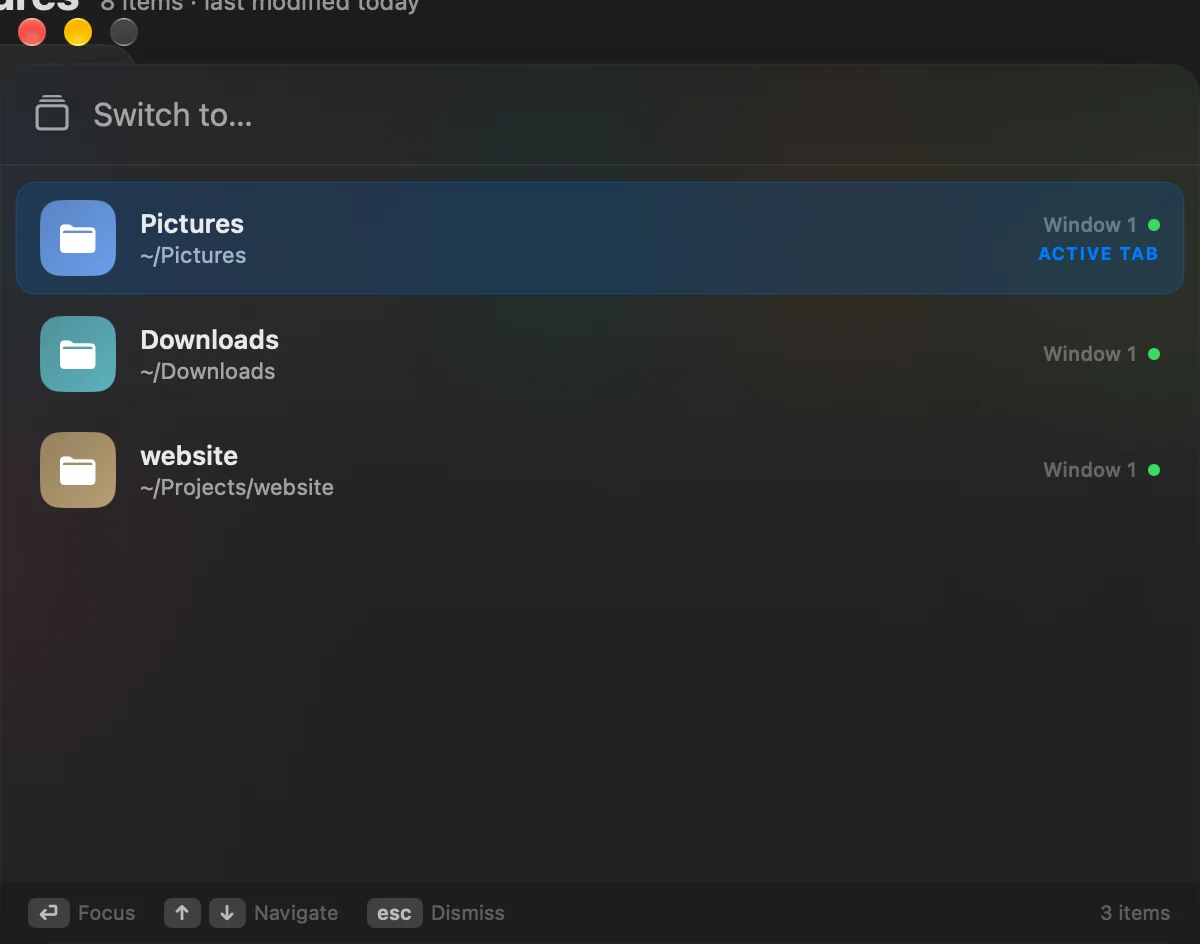
Type part of the folder’s name or path. Use ↑ and ↓ to move through the list.
- Go there
Press ↩, or click the tab. Press esc to close the list.
Result: DockDuck brings that window forward on that tab.
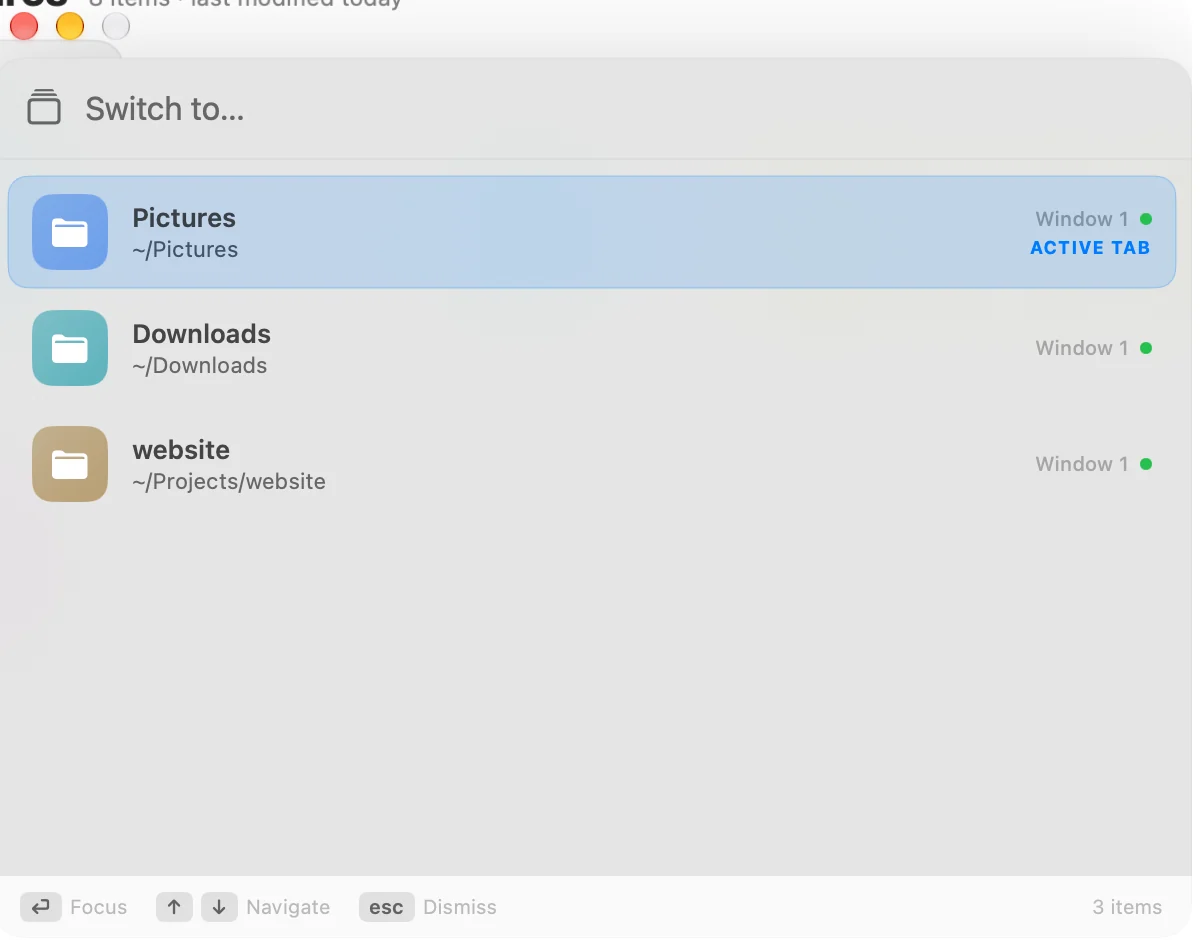
The list shows the open tabs of every DockDuck window, with the folder’s path and which window it is in.
Folders that open in a new window
Some commands, like Go > Enclosing Folder in New Window, open a folder in a new window. To open those in a tab of the same window, go to Settings > General > Window & Tabs and turn on Open folders in tabs instead of new windows. ⌘N still opens a new window.
Thanks, that helps us improve this page.