
Undo and Activity
Undo the last change with Command-Z, or find anything DockDuck did to your files in Activity and undo it, even days later.
On this page 6 sections
DockDuck has two ways to take back a change. Undo reverses the last few things you did in a window, right away. Activity keeps a record of everything DockDuck did to your files, by you, by a folder rule or by Claude, so you can find where a file went and undo an action days later, even after quitting DockDuck.
Undo and Redo
Press ⌘Z to undo and ⇧⌘Z to redo. Undo covers moves, renames, moving to the Trash, copies on the same disk, and compressing or extracting. A batch rename and New Folder with Selection each undo in one step.
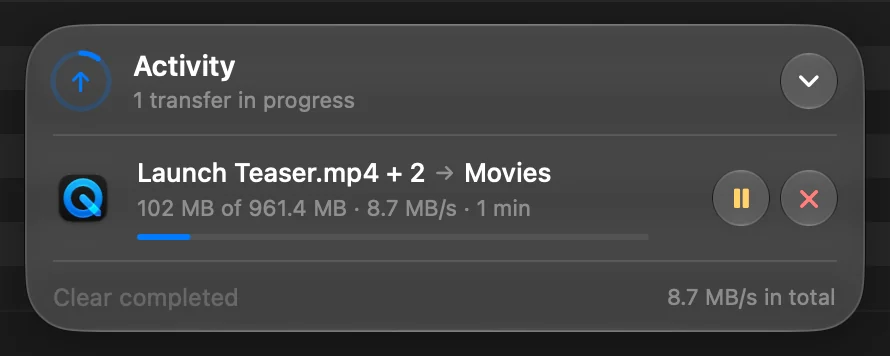
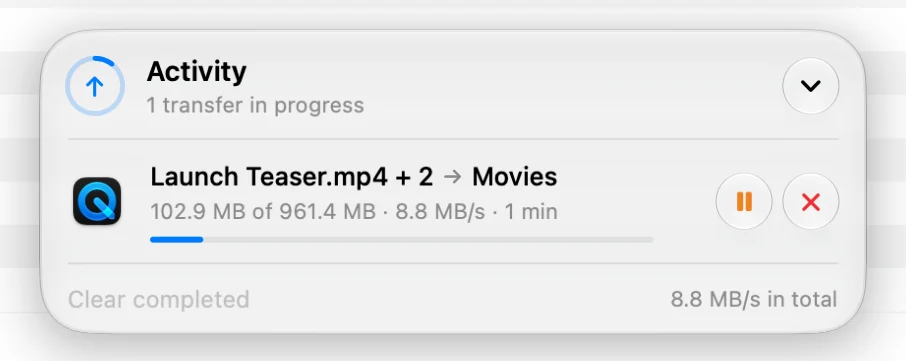
A copy to another disk, a share or a server runs in the transfer capsule instead, where you can pause or cancel it while it runs. Afterward, undo it from Activity.
Activity
Click Activity in the sidebar, below Recents. Every copy, move, rename, trip to the Trash, new folder, tag change and lock is listed by day, in plain words, with who did it.
- Today and Yesterday are listed in full. Older actions fold into Previous 7 Days, Previous 30 Days, and then months and years, each with how many actions it holds.
- Click the arrow on a row to see its files: where they were and where they went.
- Show takes you to the files, even if they have moved since.
- Undo puts them back. A file that has taken their place is never replaced: the one coming back gets a free name beside it.
Retry, receipts and Claude
- A copy that failed partway offers Retry while the originals are still there.
- What Claude does in one conversation is a single row. Unfold it to see each step, or choose Undo All….
- An offload from a camera card or an import from an iPhone unfolds into a receipt: how many files arrived and were checked, and where the copies are. Export PDF… saves it with every file listed.
Find an action
| Use | To |
|---|---|
| The date menu | Pick a range such as This Week or This Month, a month or a year |
| The filters | Show only Deleted, Rules, Claude or Problems |
| The search field | Find actions by file name |
One file’s history
Select a file and press ⌘I for Get Info, then click the Activity tab. Beside the dates the file already had, it says what DockDuck did to it, such as “Moved here from Downloads” or “Renamed from ‘scan.pdf’”, with who did it and when. It follows the file through its moves and renames.
The preview panel shows the latest of these as Last change.
The transfer capsule
The capsule at the bottom of the window shows the last few actions with Show and Undo, and See All Activity opens the Activity page.
How long Activity is kept
Open Settings, choose General, and under Activity set Keep activity to for 30 Days or for 1 Year. Clear Activity… empties the history. Your files stay as they are: only the record goes.
Where to go next
Thanks, that helps us improve this page.