 DockDuck
 Documentation
Quick Look
Preview a file without opening its app. Press Space and DockDuck shows the content full-size using macOS Quick Look.
What it is. Quick Look gives you a full-size look at a file without launching the app that owns it. When to use it. Skimming a folder of PDFs, checking which screenshot is the right one, or reading a text file you don’t want to edit. Glance, then move on.
Previewing a file
Select an item in any view.
Press Space to open the preview. Press Space again, or esc, to close it.
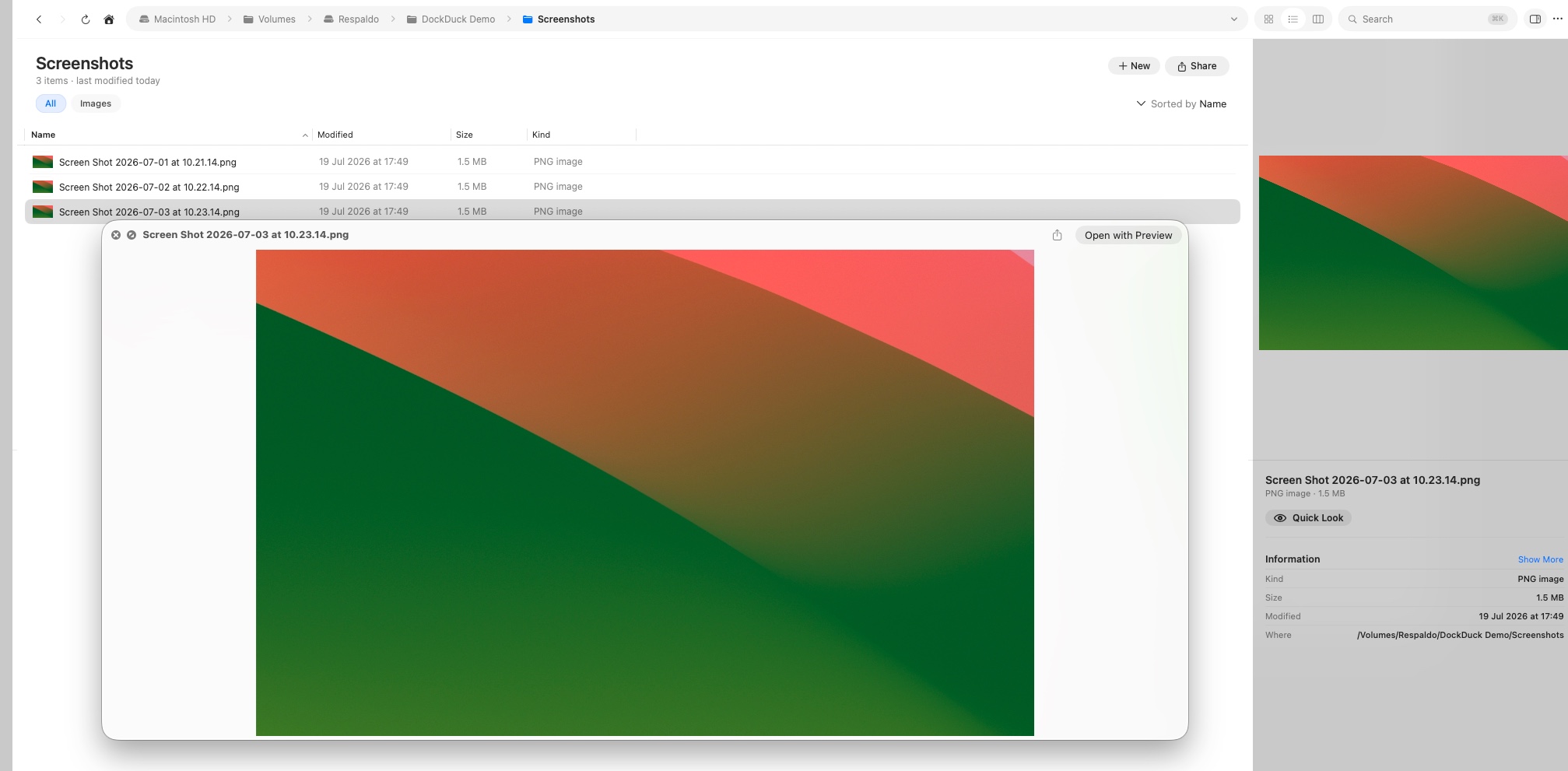
You can also trigger Quick Look from the context menu, the Columns view’s preview column, and the preview panel.
What it can preview
Quick Look uses the same engine as Finder, so it previews everything the system knows how to render:
- Images, PDFs, and rich documents
- Plain text, source code, and Markdown
- Audio and video, with playback controls
- Many app-specific formats, via their Quick Look extensions
If a file type has no previewer installed, Quick Look shows the file’s icon and basic information instead.
Quick Look opens on the same display as the DockDuck window that triggered it, so the preview never jumps to another monitor.
Quick Look vs. the preview panel
Quick Look is a momentary, full-size glance. The preview panel is a persistent sidebar that stays open as you move through a folder, showing a preview plus metadata for whatever is selected. Use Quick Look for a quick check; keep the preview panel open when you’re comparing many files in a row.
Where to go next
- Selecting & opening: choose what to preview.
- The preview panel: a persistent preview with metadata.
- Keyboard shortcuts: every binding in one place.