
Connect to SMB shares
Mount shared folders from a NAS, a Windows PC or another Mac, from the Network page or with Connect to Server.
On this page 4 sections
What you’ll accomplish
- Find the computers and NAS drives sharing files on your network
- Connect to a shared folder as a guest or with an account
- Eject one share, or every share of a computer at once
SMB is how Macs, Windows PCs and most NAS drives share folders on a local network.
DockDuck asks macOS to mount the share in /Volumes; from then on it works like
any local folder. Mounted shares appear in the sidebar under Servers, also
the ones you mounted outside DockDuck.
Connect from the Network page
- Open Network
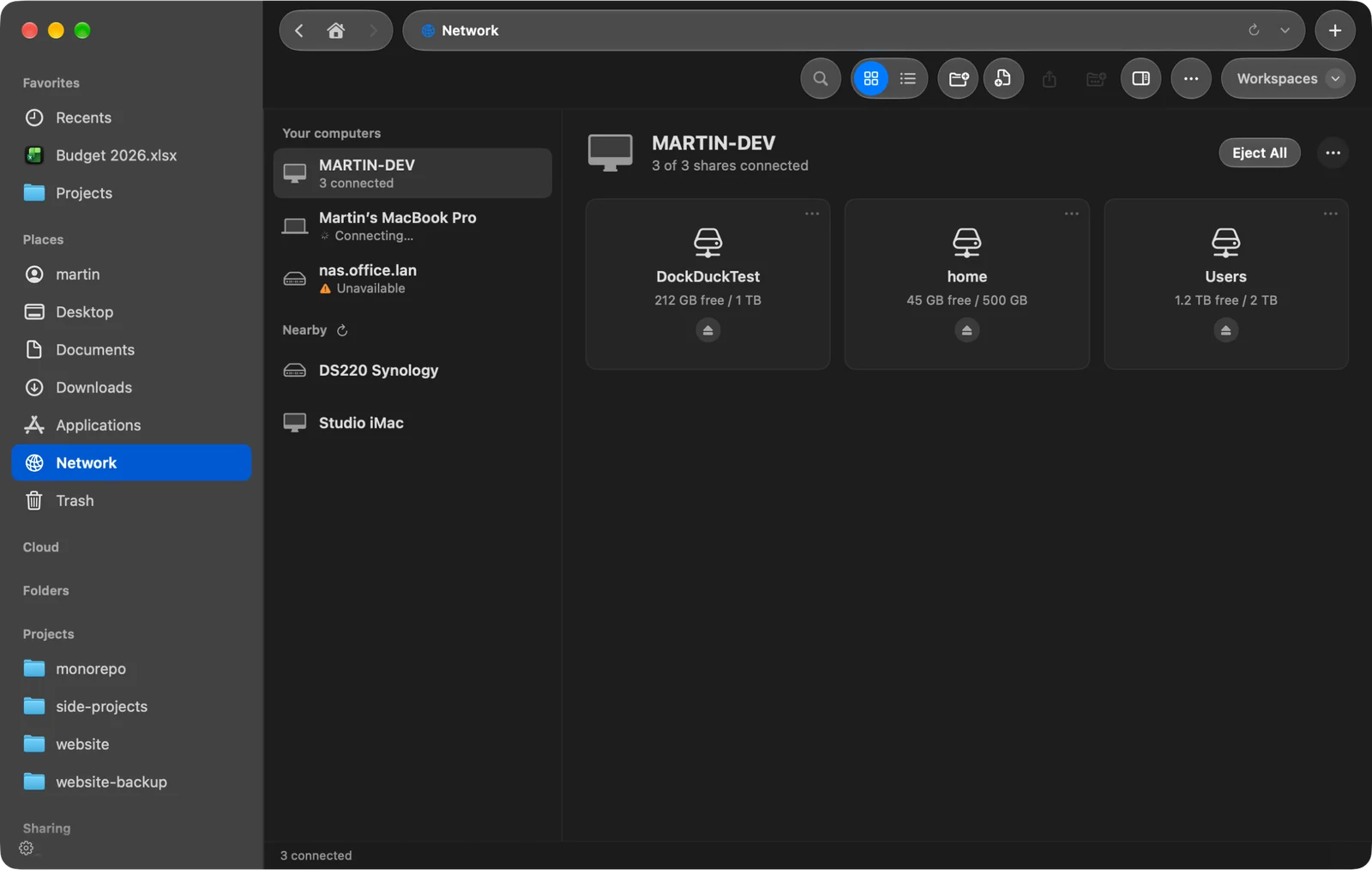
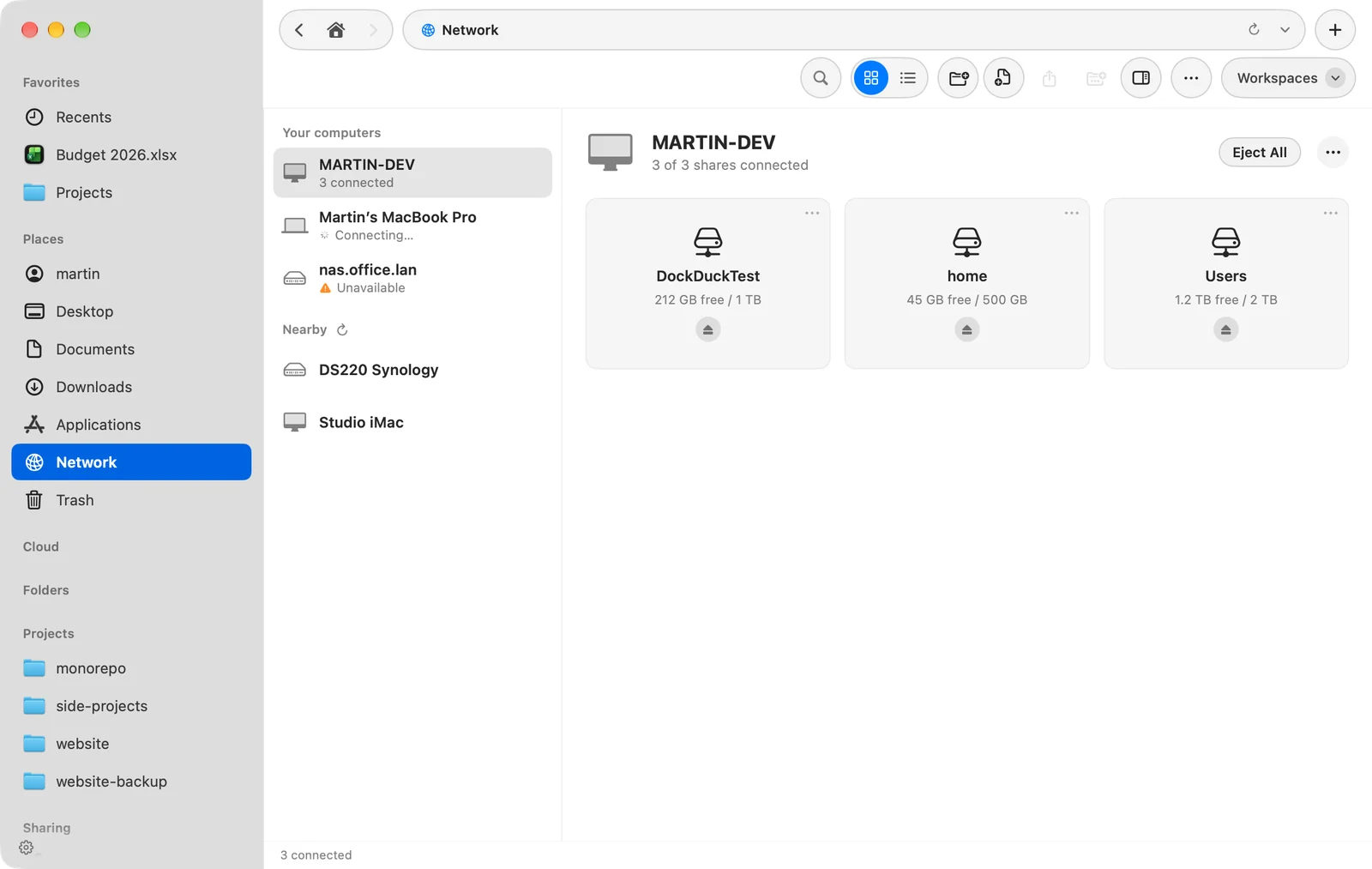
Click Network in the sidebar. Your computers lists those you have a saved or connected share on; Nearby lists the ones DockDuck finds on the local network.
Result: The computers on your network are listed on the left. - Click a computer
If the computer has no shared folders to show, click Connect… to sign in.
Result: Its shared folders appear on the right, as tiles or as a list, each with its free space once connected. - Open a share
Click Connect on a share. Once it’s mounted, the button reads Open.
Sign in with another name
Click the … button next to the computer’s name and choose Connect As…. Choose Guest or Registered user. For a registered user, enter the Name and Password, and leave Remember this password in my keychain on to skip this next time.
Eject
- Click Eject on a share to disconnect it.
- Click Eject All to disconnect every share of that computer at once.
For a share you saved, the share’s menu also has Edit… and Remove from Saved.
Connect with Connect to Server
- Open Connect to Server and click SMB
Press ⌘K. SMB uses port 445.
- Enter the server and the share
Type the host name or IP address in Server, and the name of the shared folder in Share. You can also paste
smb://nas.local/Photosor\\NAS\Photosinto Server: the share moves to its own field.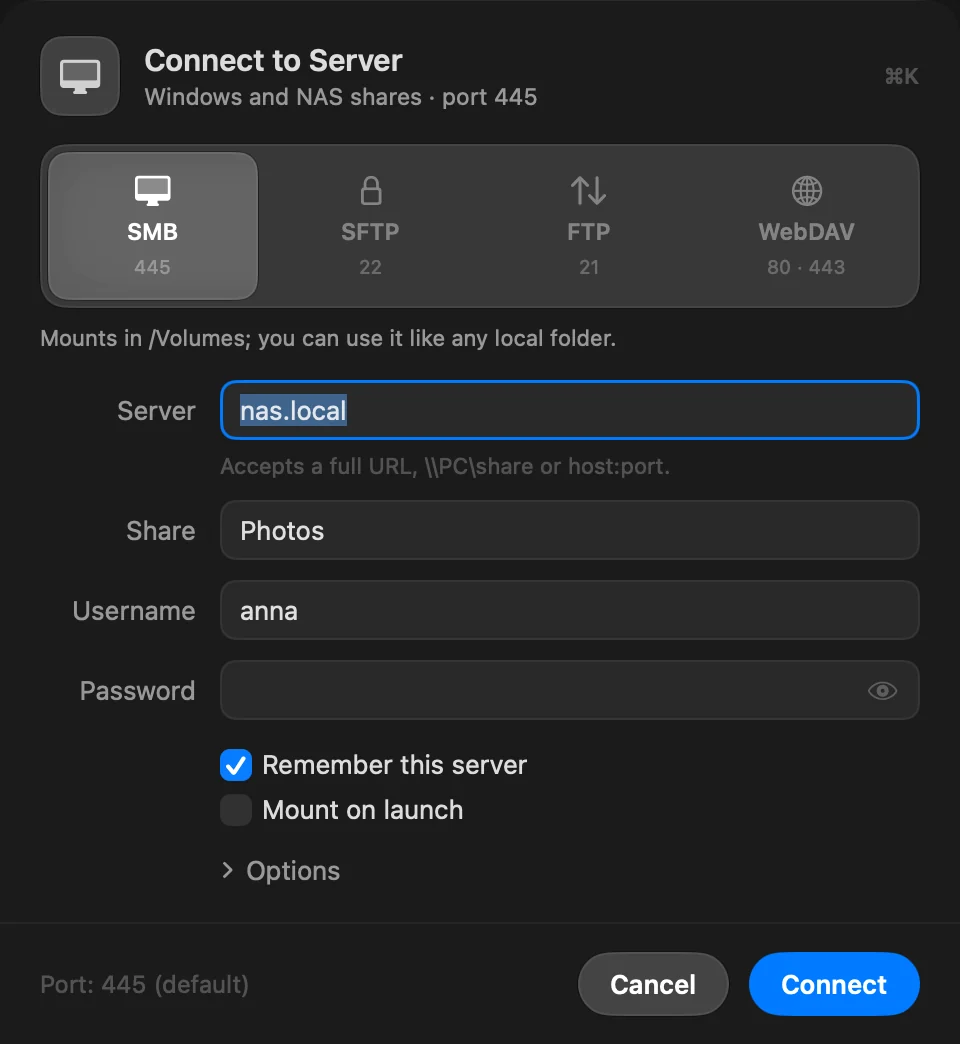
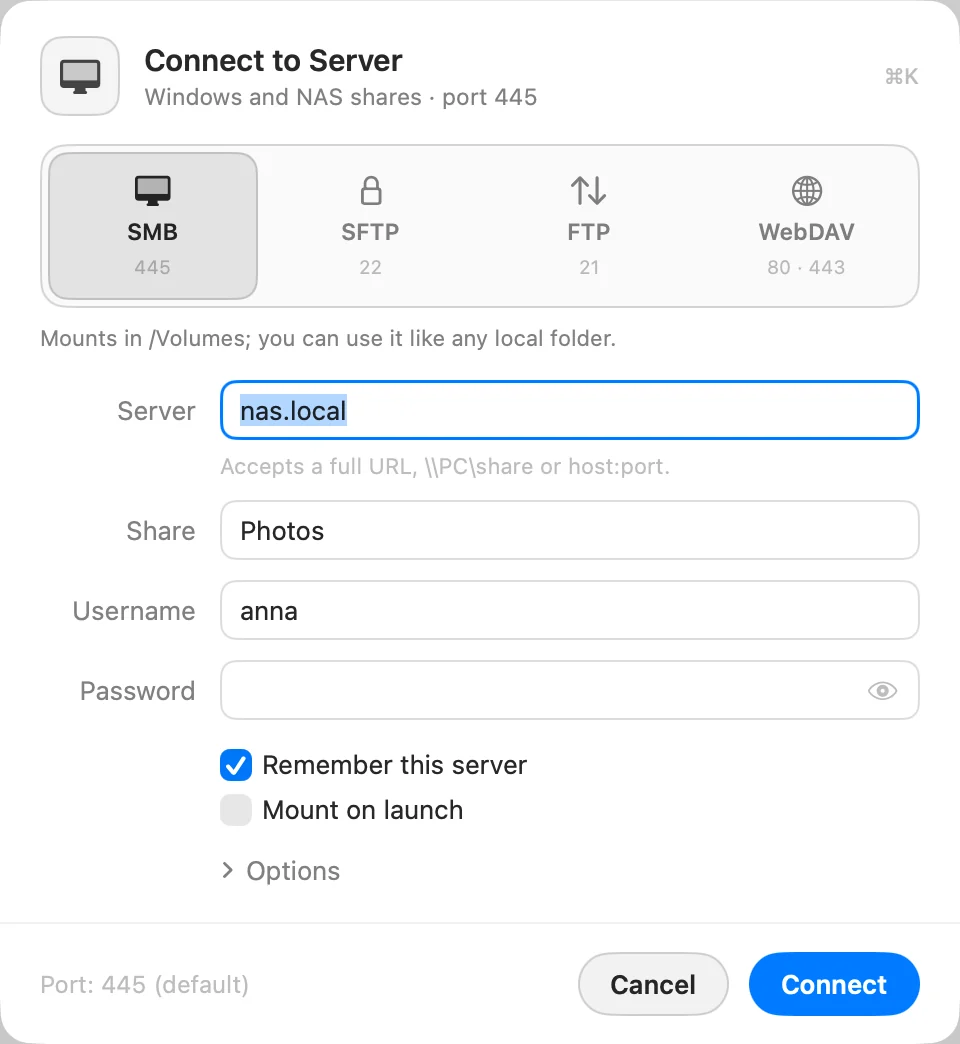
- Enter your account and click Connect
Fill in Username and Password. Turn on Mount on launch to mount the share every time DockDuck opens.
You can also type \\NAS\Photos or smb://nas.local/Photos in the address bar
(⇧⌘G).
Good to know
- A share that was open in a window connects again when your Mac wakes from sleep.
- Changes someone else makes on the share show up on their own. Go › Reload (⌘R) reads the folder again.
- DockDuck never asks a share anything to draw the sidebar, the Home page or the Network page, so a share that stops answering doesn’t hold up the window.
If something goes wrong
| Message | What to do |
|---|---|
| The folder or share wasn’t found on the host | Check the share name. On Windows it’s the share name, not the folder path. |
| The server rejected the username or password. | Check both. Accounts without a password can’t be reached over the network. |
| That name or password did not work. (Connect As) | Retype them, or try another account. |
| Guest access has no shared folders here. Sign in as a registered user. | Use Connect As… with an account on that computer. |
More in Troubleshoot server connections.
Thanks, that helps us improve this page.