Guides
Clear answers to everyday Mac questions, one step at a time.
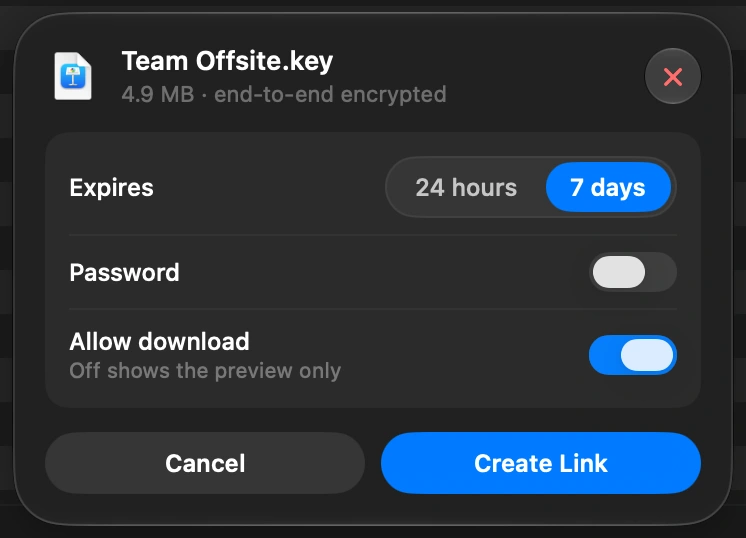
How to send a large file from your Mac
Select the file in DockDuck and choose Share Link. You get a link to send to anyone, and they open it in any browser.
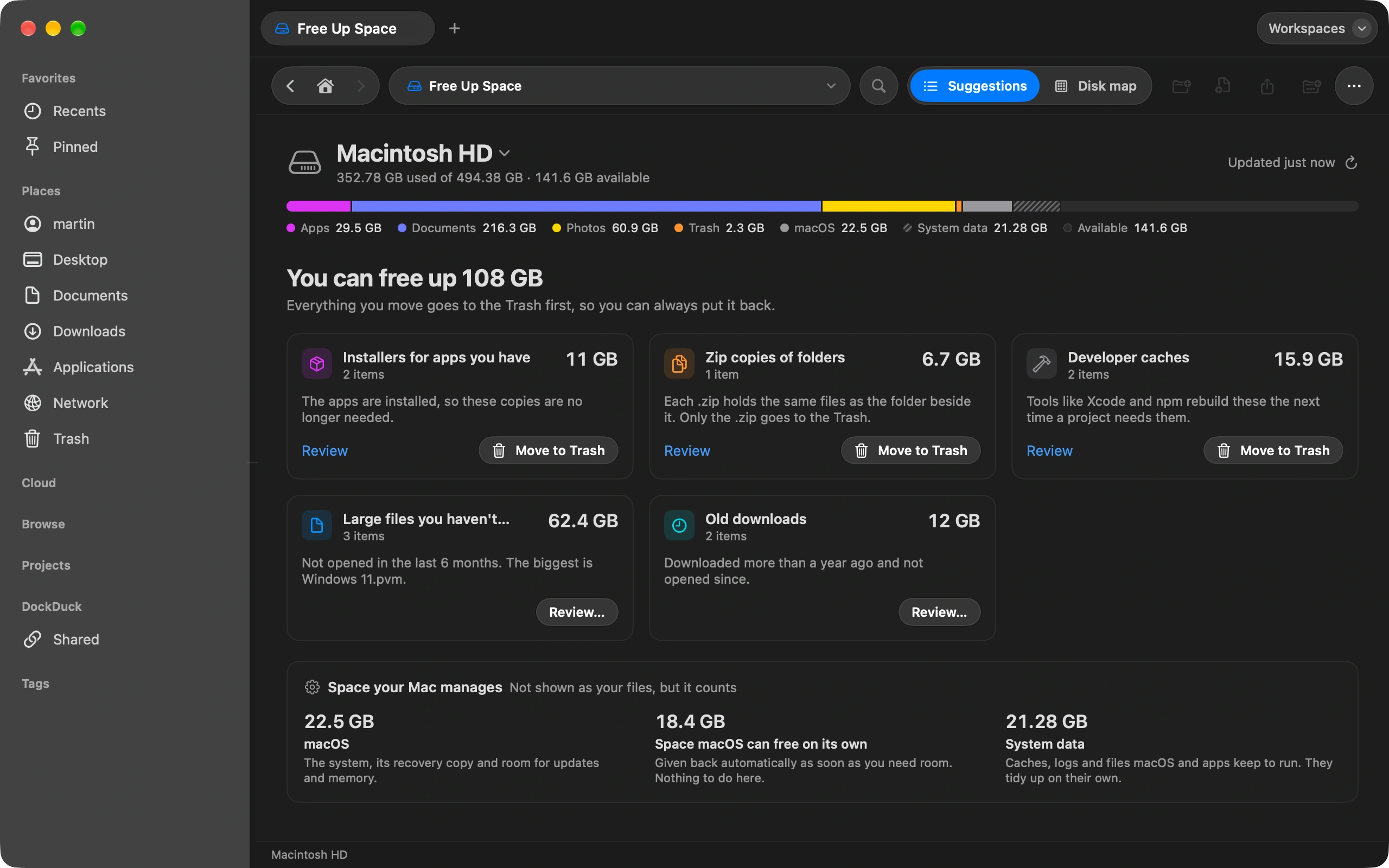
Read the guideHow to see what is taking up space on your Mac
Free Up Space shows what fills your disk and what is safe to remove.
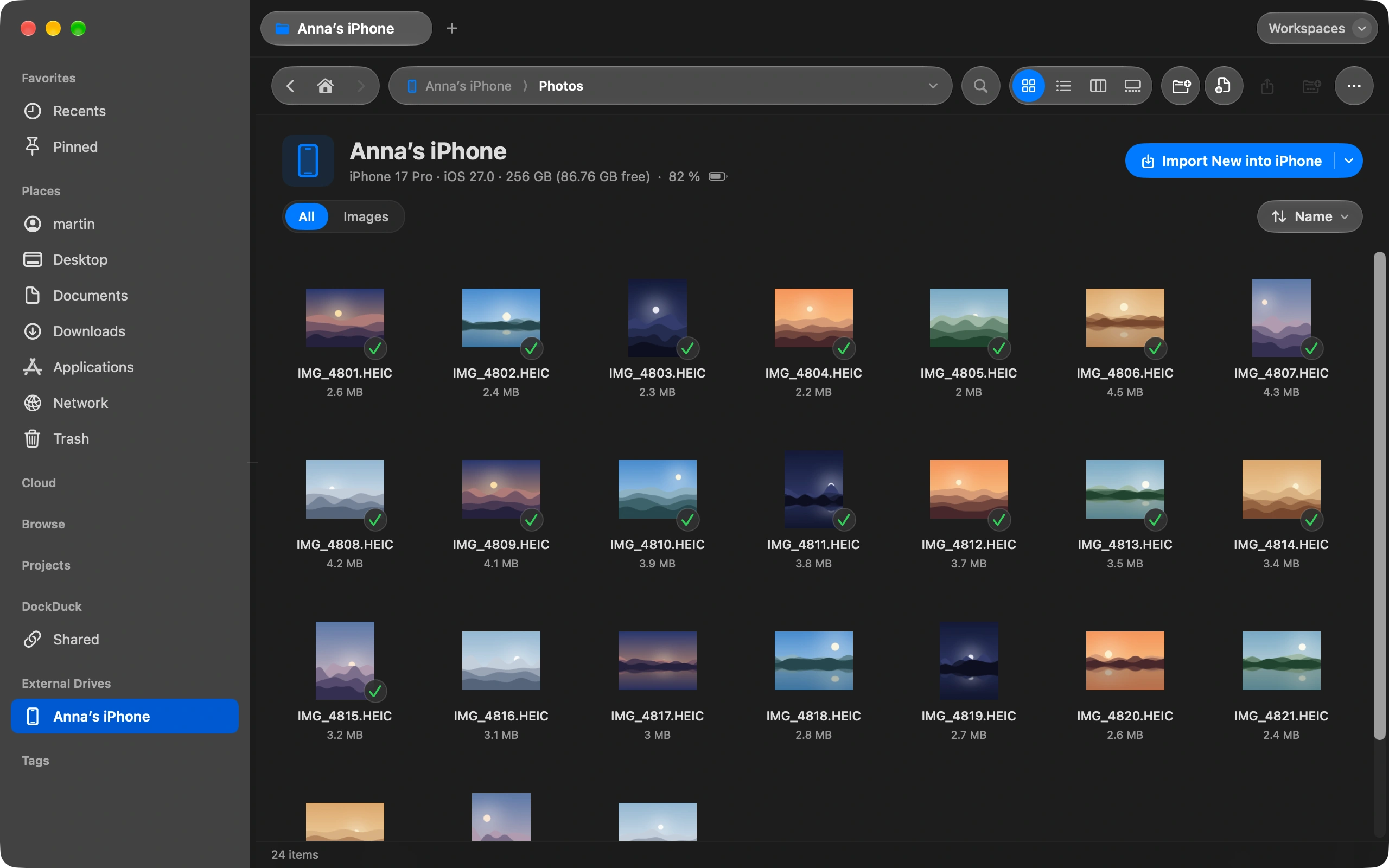
How to move photos from your iPhone to your Mac without iCloud
Plug in your iPhone and import photos straight into any folder you choose.
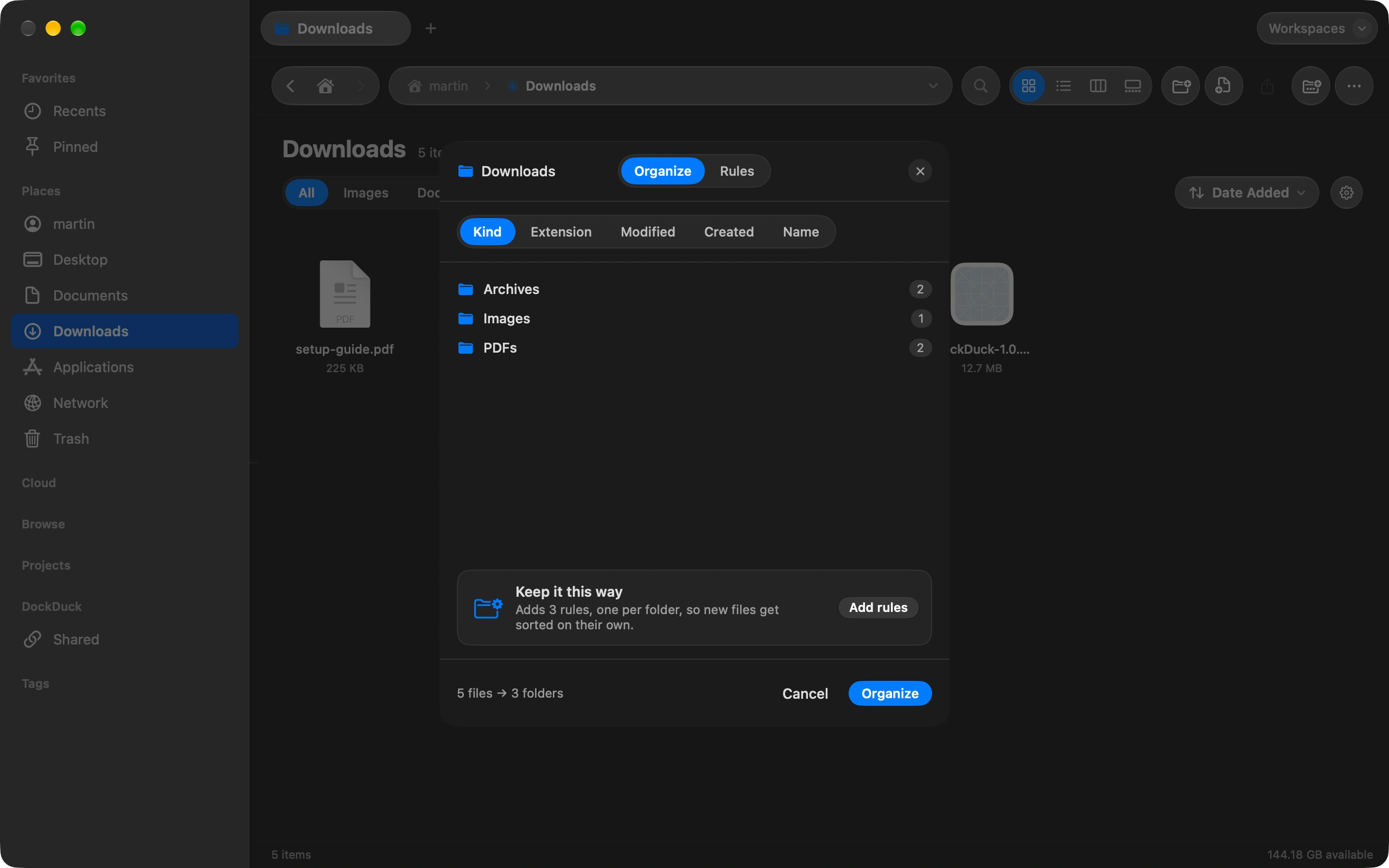
How to keep your Downloads folder tidy automatically
Sort Downloads once, then let rules keep it that way on their own.
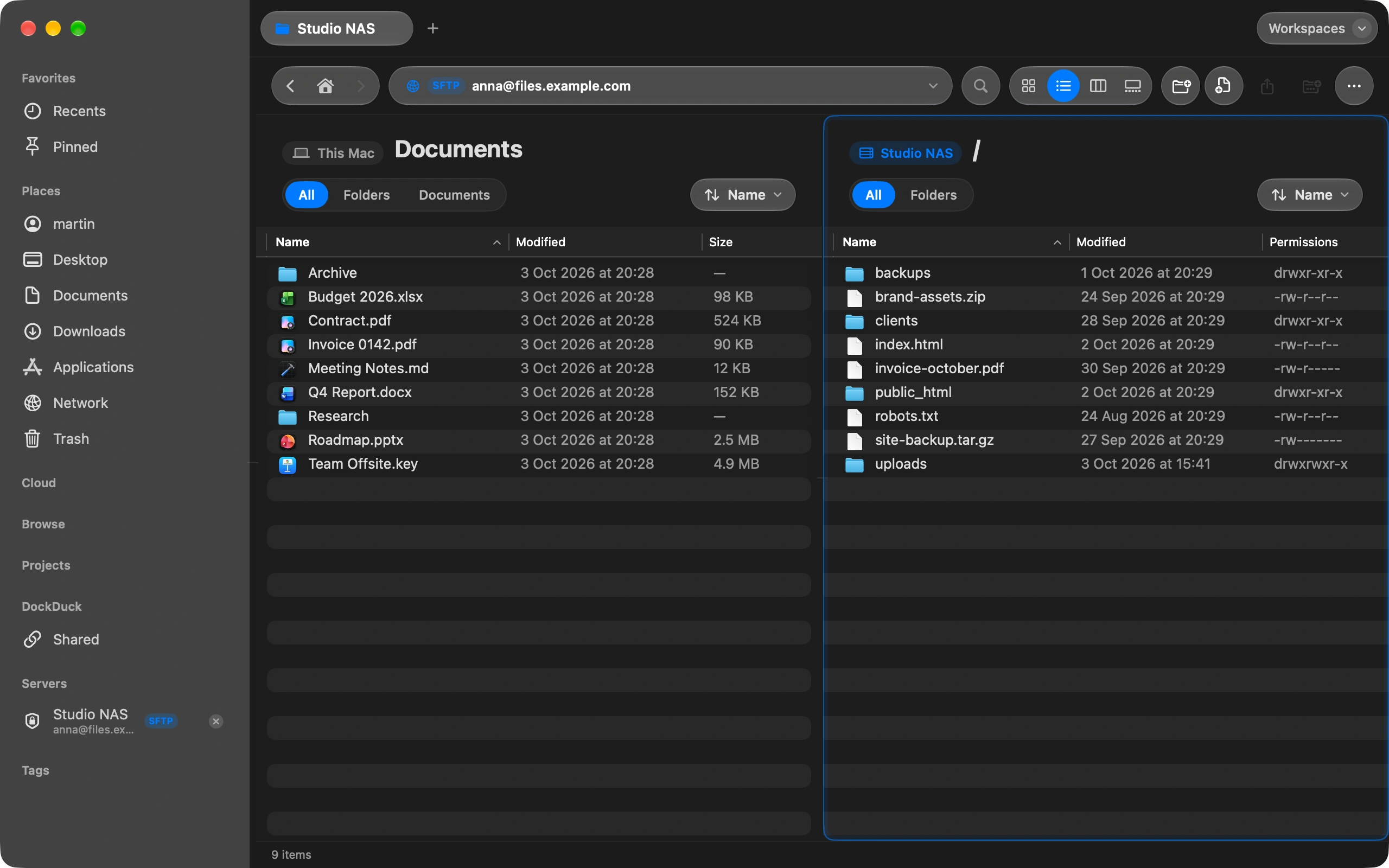
How to connect to an FTP or SFTP server from your Mac
Add the server once and browse it like any folder on your Mac.
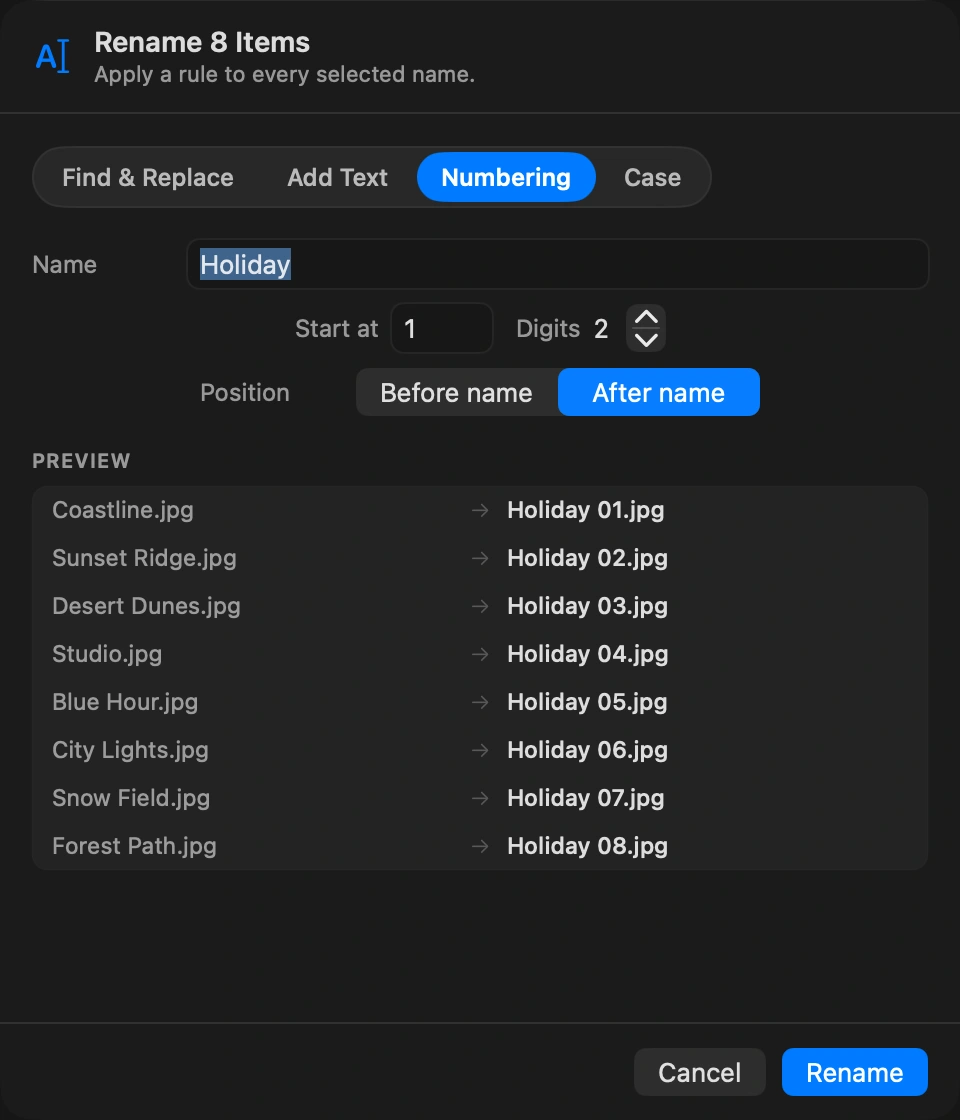
How to rename many files at once
Select the files, choose Rename, and set one pattern for all of them.
No guides on this topic yet.