
Preview, manage & undo rules
Review what a rule is about to do, let trusted rules run on their own, undo a pass, and move rules between folders and Macs.
On this page 7 sections
What you’ll accomplish
- Approve a rule's changes from a preview, and undo a pass in one step
- Let a rule run without asking, also with DockDuck closed
- Pause, reorder, copy, export and import rules
A folder’s rules are checked from top to bottom when you open the folder. If you turned on Also when DockDuck opens for a rule, it’s checked at launch too, and rules can keep working with DockDuck closed. Every rule shows a preview the first time it has something to do.
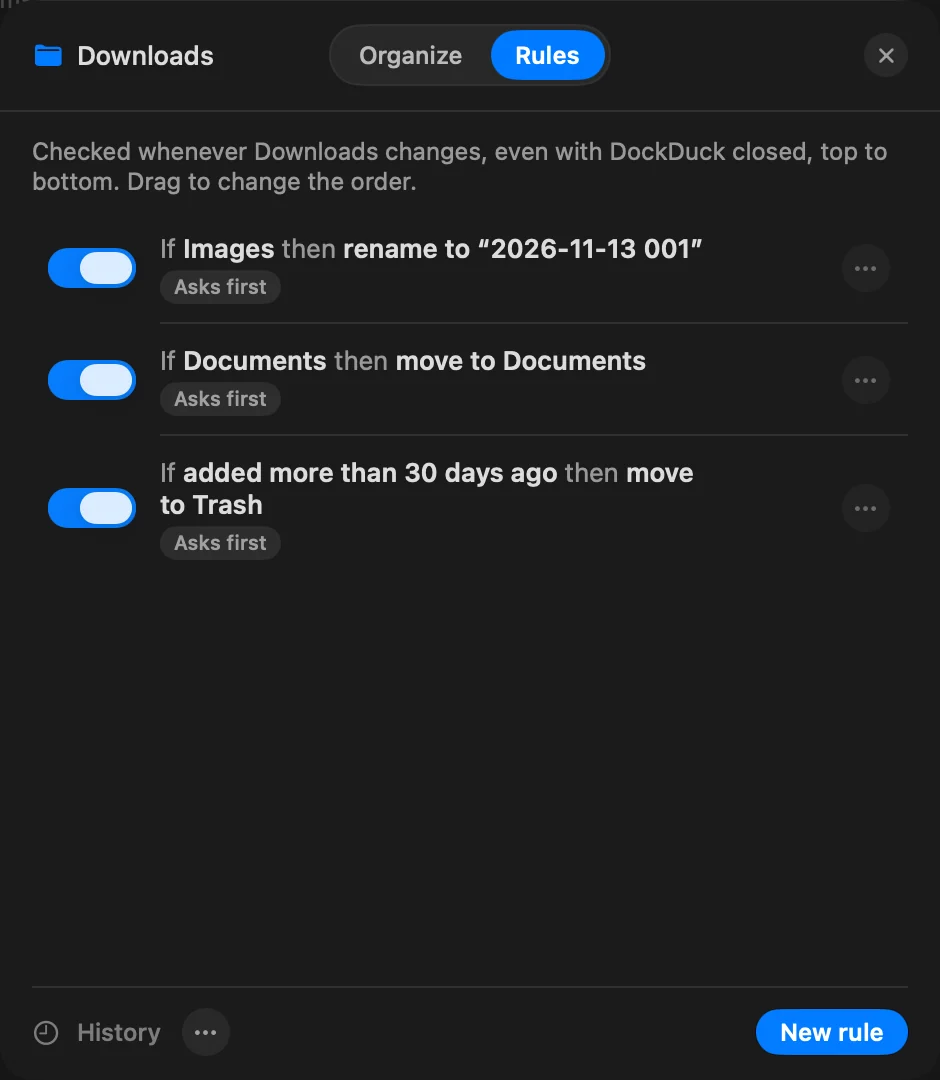
To see a folder’s rules, Control-click an empty spot in it, choose Organize This Folder… and open Rules. Settings > Folder Rules lists every folder that has rules, with a Rules… button for each.
Approve a pass from the preview
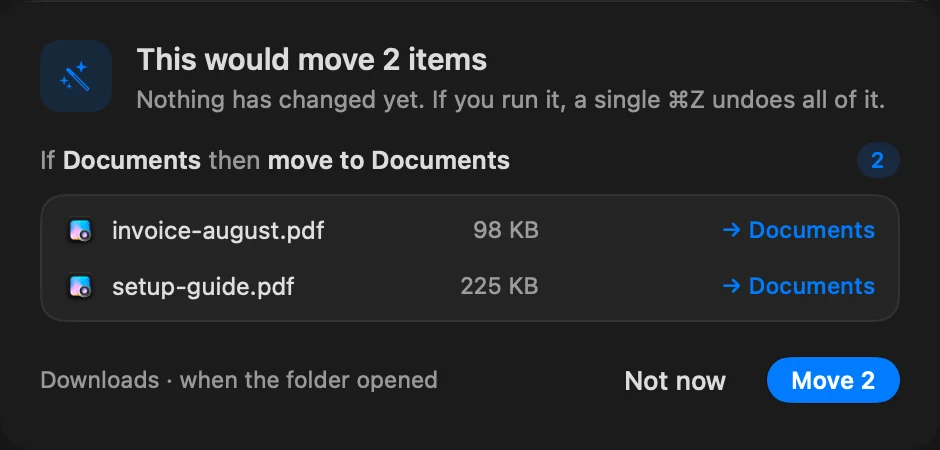
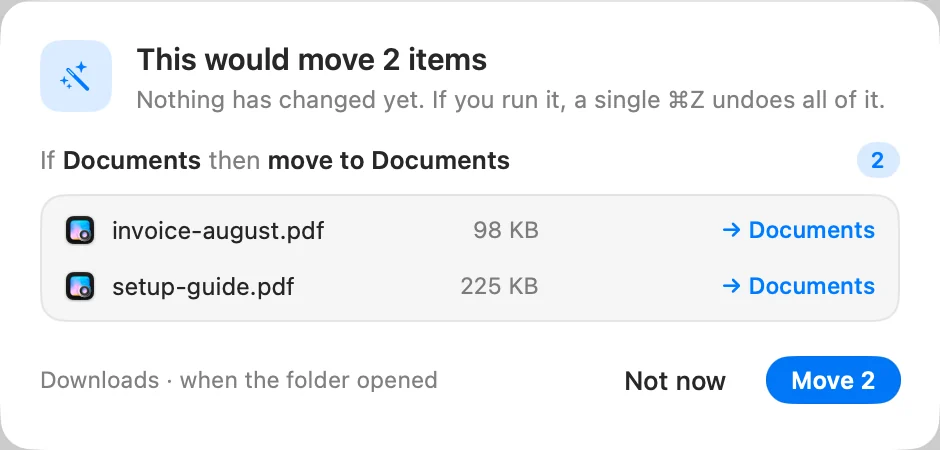
When a rule finds files to work on and it asks first, a preview opens.
- Read the preview
Each rule lists the files it would take and where they would go. Click See all for the full list. “Nothing has changed yet.”
Result: The title says what would happen, for example This would move 12 items. - Confirm or wait
Click the button that names the action, such as Move 12 or Rename 12, to run it. Click Not now to leave everything as it is.
After a pass, the bottom of the window says “Rules tidied” and the folder’s name, with Undo.
Let a rule run without asking
After a rule has run once from a preview, the preview offers Don’t ask again for this rule. You can also open the rule and turn on Run without asking. The list shows Asks first or Without asking for each rule.
A rule set to run without asking still stops and shows a preview when it suddenly matches far more files than usual. From there you can run it, click Not now, or click Pause the rule.
Actions you can’t undo
Import to Photos, Import to Music and Open with… can’t be undone with ⌘Z. The preview says so before you confirm.
Run rules now
In the rules list, click ⋯ and choose Run now. The preview always opens, even for rules set to run without asking.
Undo a pass
- Right after a pass, click Undo at the bottom of the window, or press ⌘Z. A whole pass is one undo.
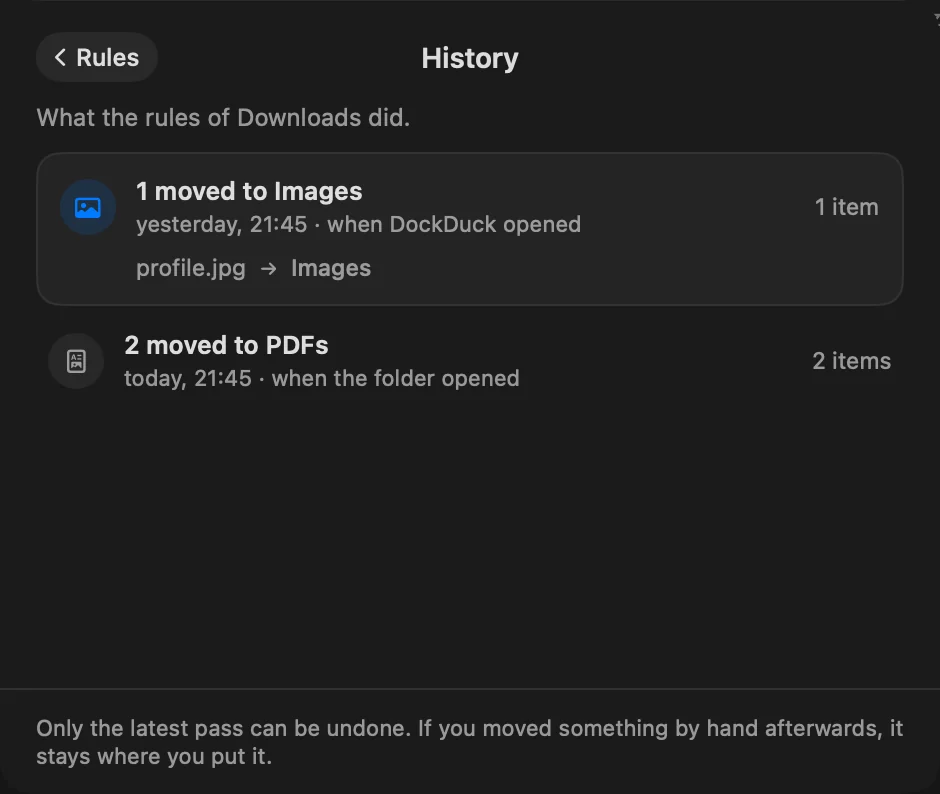
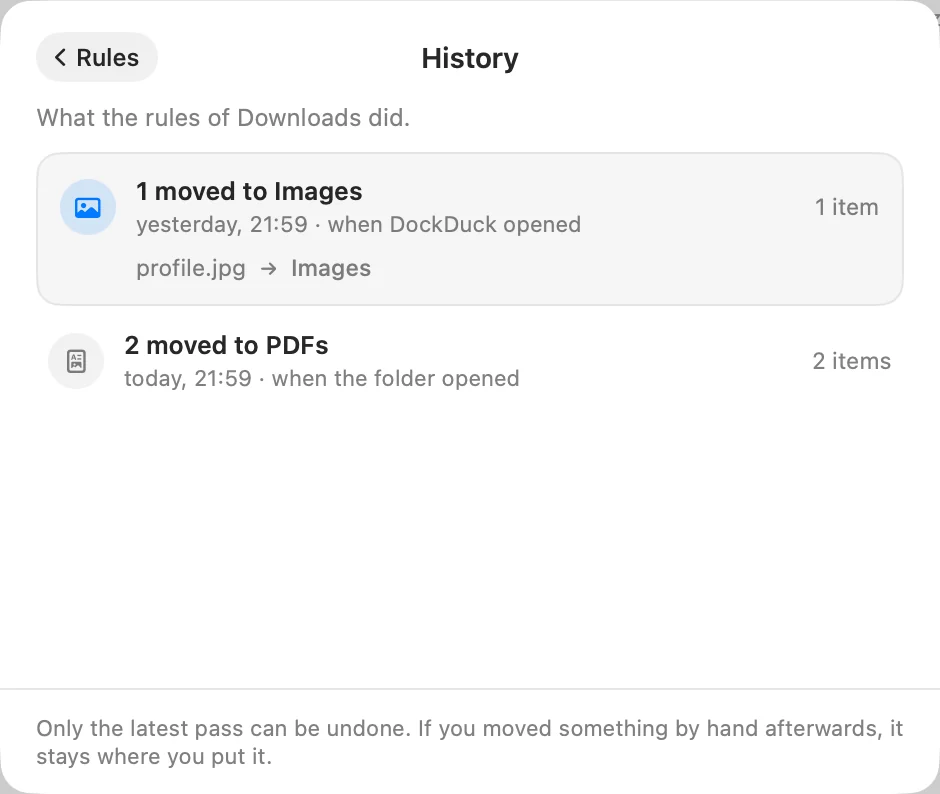
- Later, click History in the rules list. It lists what the folder’s rules did, when and why (when the folder opened, when DockDuck opened, run by hand, or in the background). Only the latest pass can be undone, and anything you moved by hand afterward stays where you put it.
- Activity lists what your rules did, marked as done by the rule, with Undo.
Rules with DockDuck closed
Settings > Folder Rules > Keep folders tidy in the background is on by default. When a file lands in the folder, rules tidy it right away, even if DockDuck isn’t open, and a notification tells you what they did.
A folder’s rules run in the background only when:
- the folder and every destination are in your home folder, outside Library
- every active rule uses an action that runs with DockDuck closed: move, rename, add a tag, hide the extension, lock, make an alias or move to the Trash (see Conditions & actions)
Rules that ask first wait until you open the folder. To undo a background pass, open the folder and press ⌘Z, or use History.
The line under the folder’s name in the rules list says whether its rules run in the background, and if not, why.
Manage the list
- Reorder: drag a rule up or down. The first rule that matches a file keeps it, unless that rule has Let the rules below see these files too on.
- Edit: click a rule to open it in the editor.
- Rule menu: click ⋯ on a rule, or Control-click it, for Edit, Duplicate, Copy to another folder…, Export this rule…, Pause or Resume, and Delete…. A paused rule keeps its place and shows “Paused since” and the date.
- Folder menu: click ⋯ next to History for Run now, Pause all rules or Resume all rules, Import rules… and Export the rules of ….
- Search: type in Search the rules and choose Here or All folders.
Move rules to another folder or Mac
Export saves rules to a .ddrules file. To add them somewhere else, choose
Import rules… in that folder’s rules, or open the .ddrules file and pick
the folder that should get them. Imported and copied rules ask before their
first pass, like any new rule.
If something goes wrong
| Message | What to do |
|---|---|
| ”Folder … not found · not running” | The folder was moved or renamed outside DockDuck. Click Find… and pick it. |
| ”Can’t find … The rule waits until you pick another.” | The destination folder is gone. Click Choose folder…. |
| ”Every rule in that file is already here.” | The rules in the .ddrules file already exist in this folder. |
| A rule doesn’t run in the background | Check the line under the folder’s name in the rules list. It names the action or location that keeps the rules to the app. |
Thanks, that helps us improve this page.