
Themes & appearance
Pick a color theme for the whole window, size the icons, and choose the app icon in your Dock.
On this page 3 sections
What you’ll accomplish
- Follow the system's light or dark mode, or pick one of 39 color themes
- Set the icon size, spacing and text size of the Icons view
- Choose the Dock icon and turn seasonal icons on or off
Everything on this page lives in Settings → Appearance. Open Settings with ⌘,.
Choose a theme
- Open Settings → Appearance
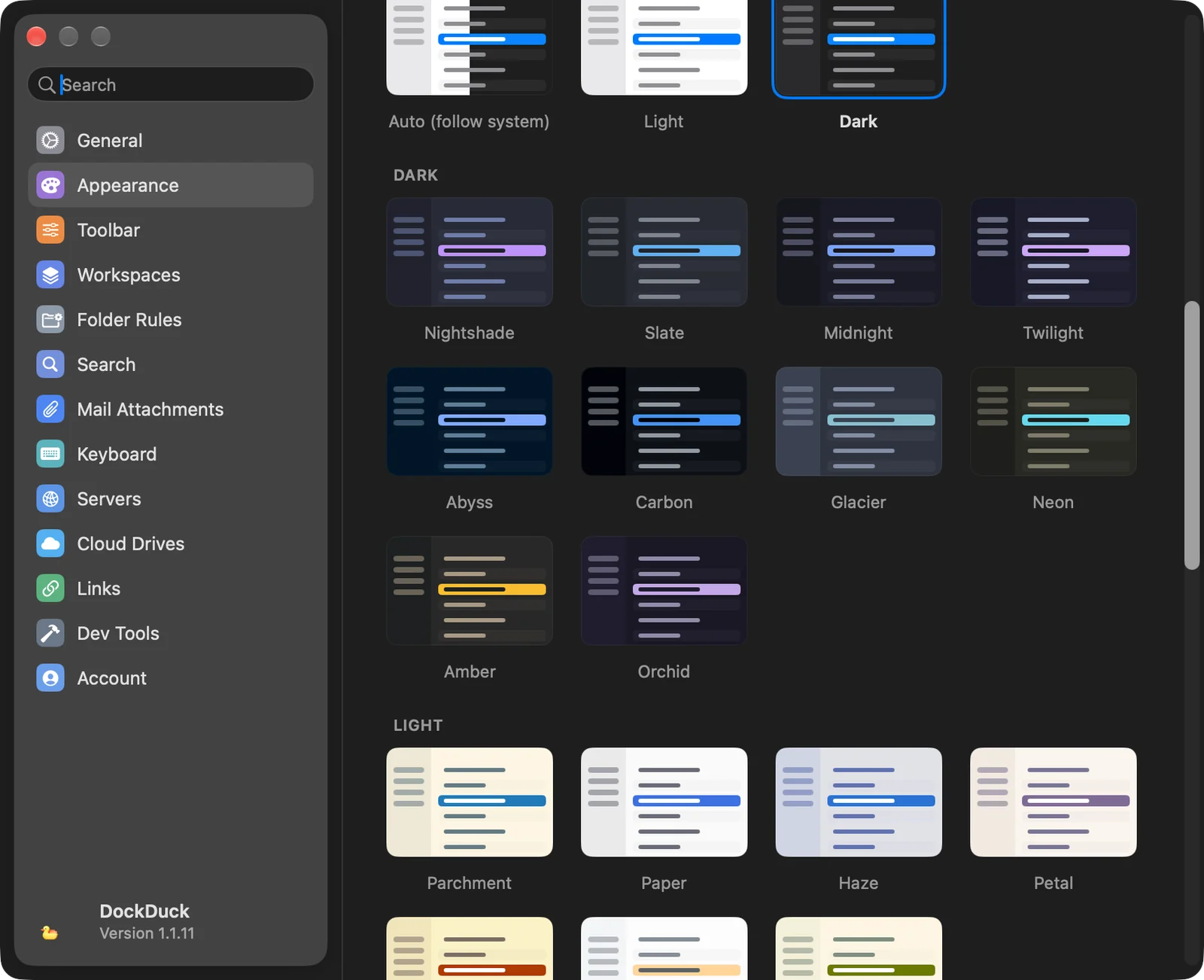
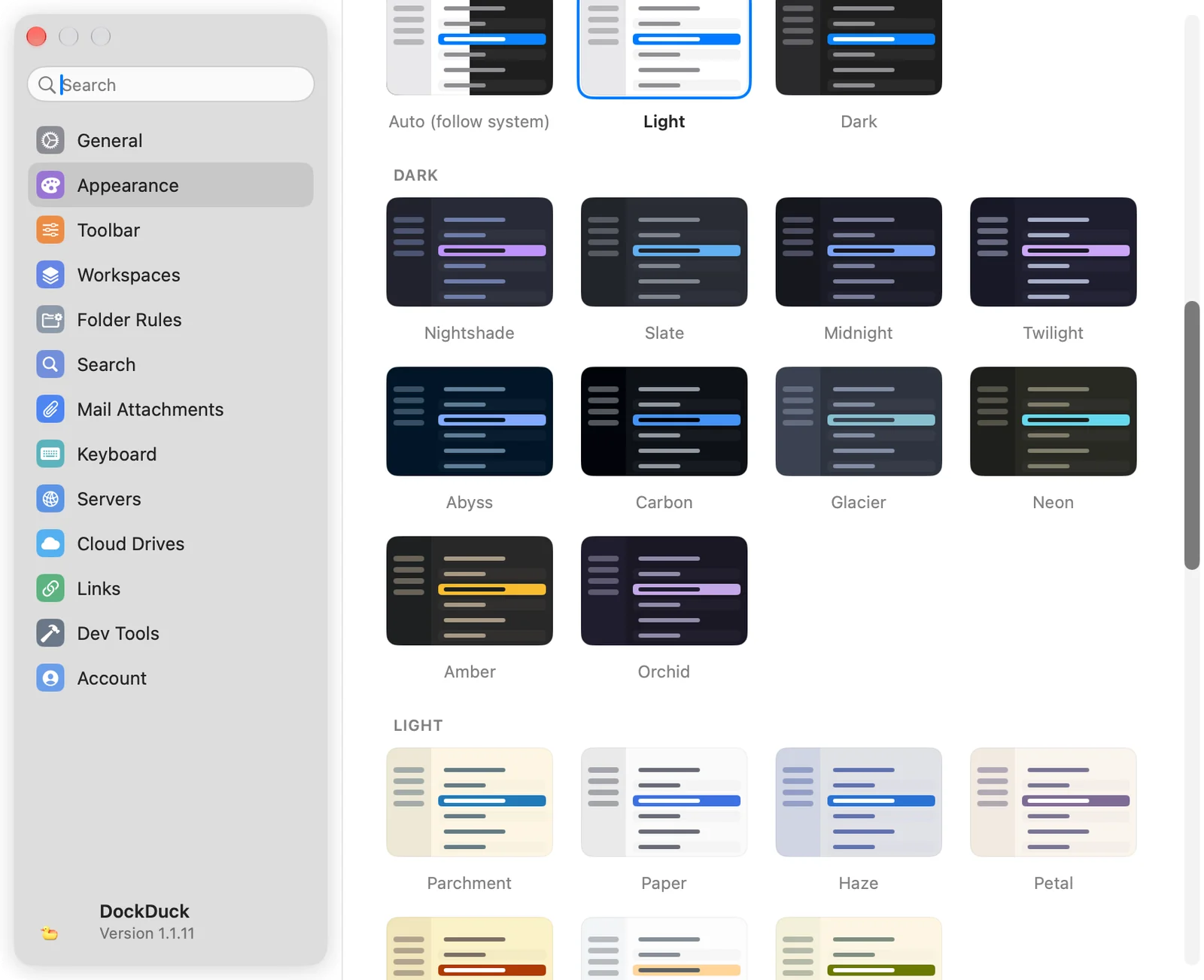
Scroll past App Icon, Icons View and Folder Header to the theme cards.
- Click a card
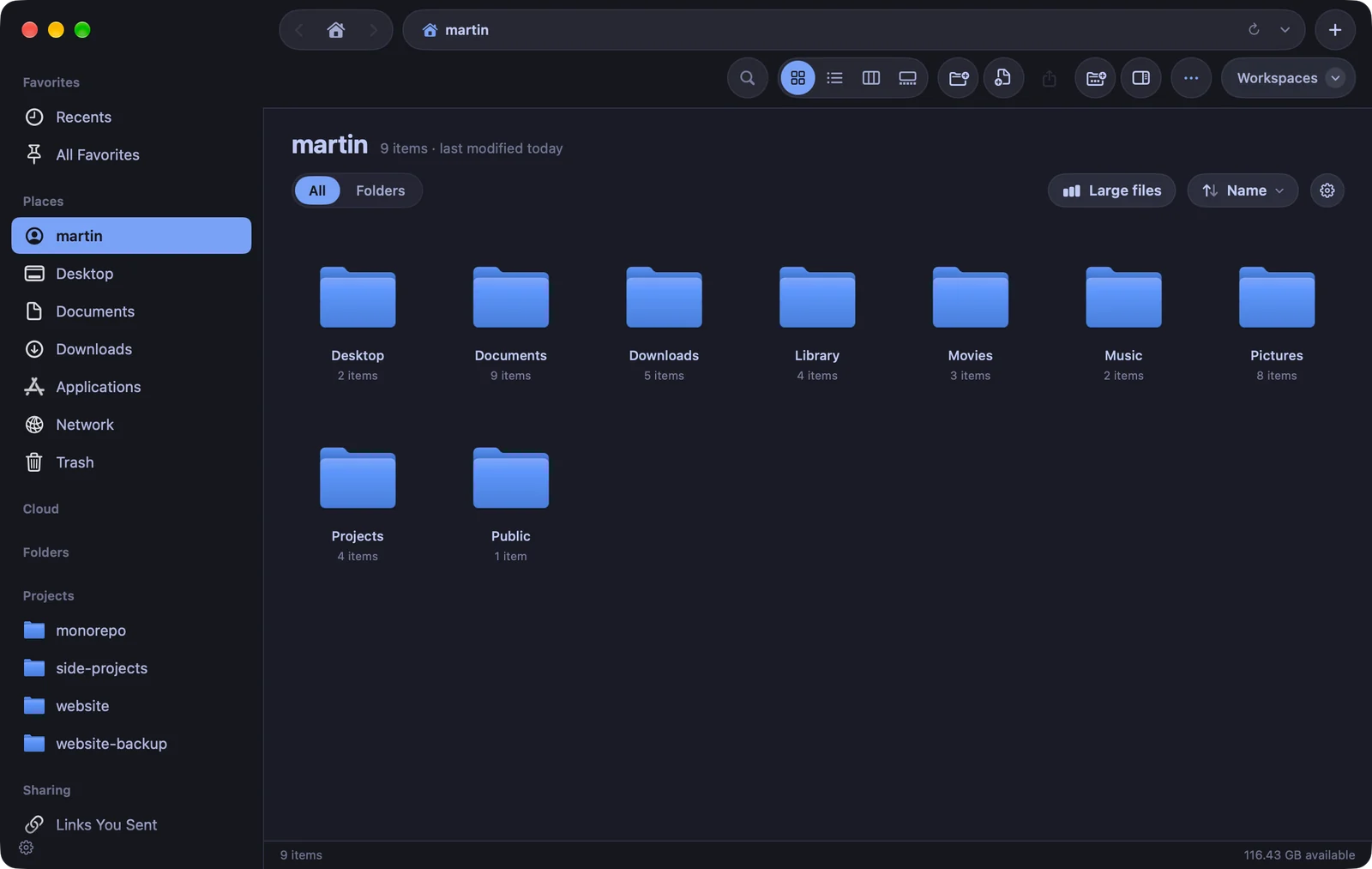
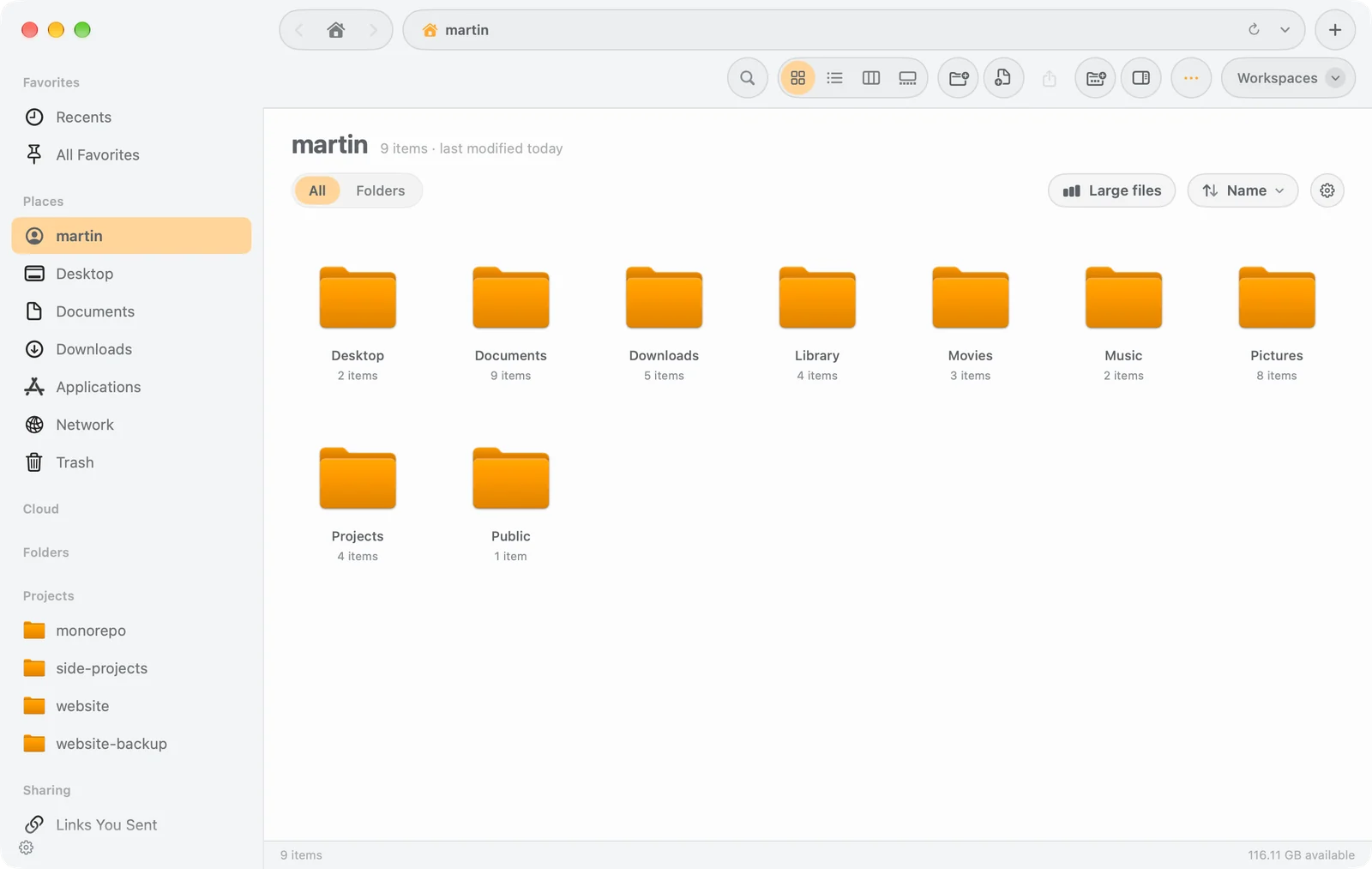
Under System, pick Auto (follow system), Light or Dark to use DockDuck’s standard look. Or pick any card in the theme sections below.
Result: The whole window changes at once. The selected card has an outline.
A theme sets the colors of the whole window, including the sidebar, the file list, selections and tag colors. Folder icons take the theme’s color, and the embedded terminal uses the theme’s colors too. A theme is either light or dark, so while one is selected it decides the mode instead of your Mac’s appearance setting. Click a card under System to go back.
| Section | Themes |
|---|---|
| Dark | Nightshade, Slate, Midnight, Twilight, Abyss, Carbon, Glacier, Neon, Amber, Orchid |
| Light | Parchment, Paper, Haze, Petal, Harvest, Citrus, Meadow |
| Pride | Prism, Sorbet, Berry |
| Inspired | Blossom, Afterglow, Lilac, Peony, Harbor, Sage, Regatta, Lagoon, Bordeaux |
| Gradient | Ciruela, Aurora, Brasa, Océano, Crepúsculo, each in a dark and a light version |
Adjust the Icons view
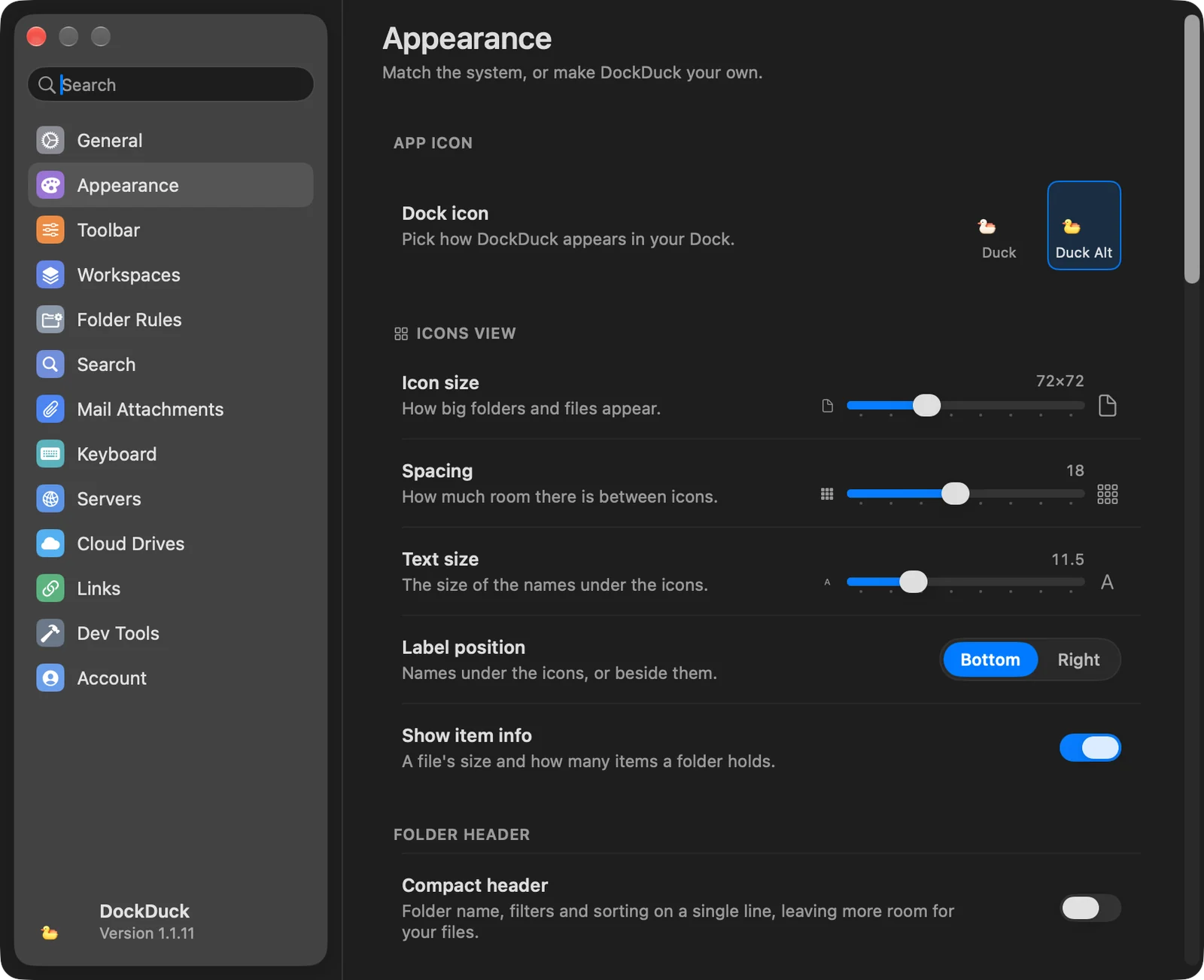
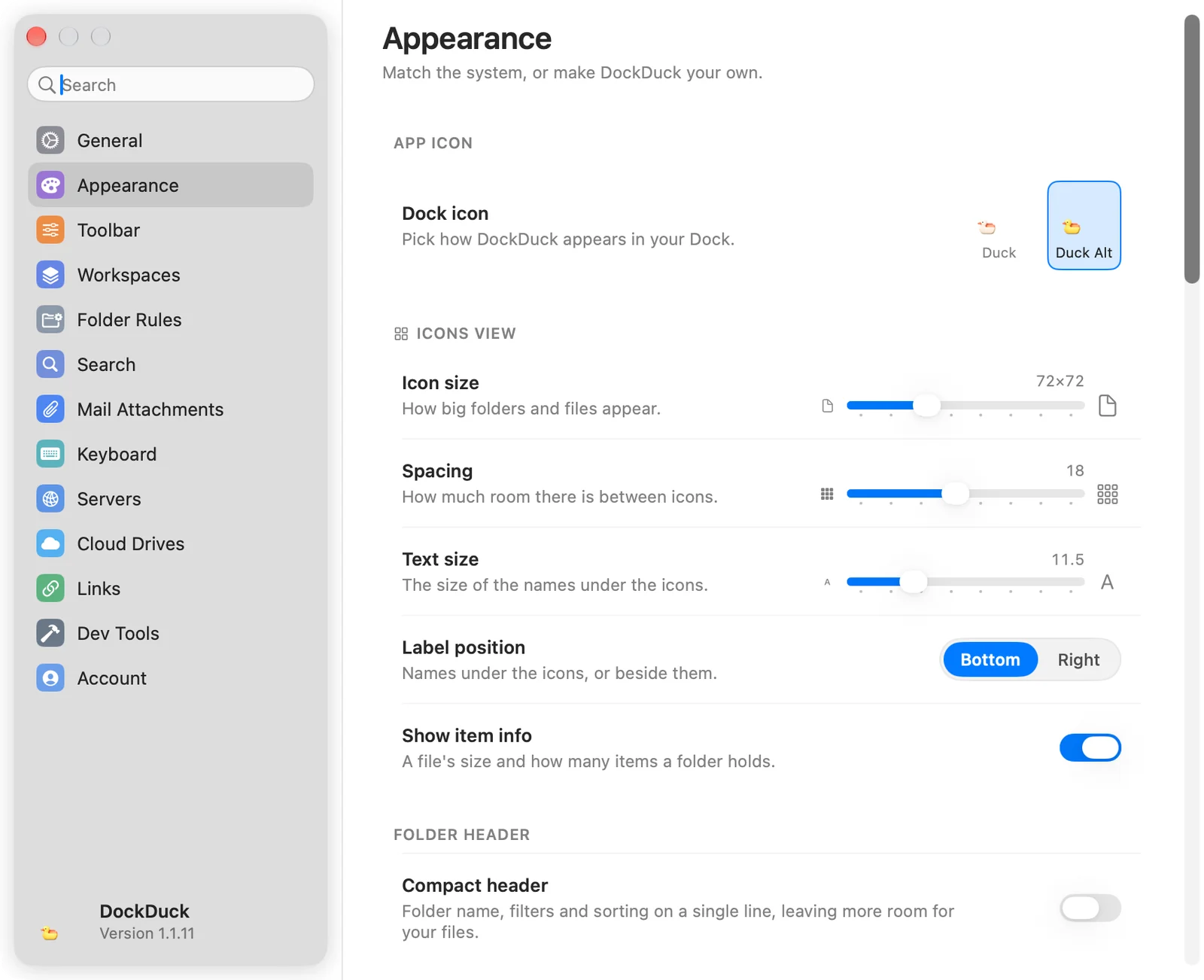
The Icons View group applies to the Icons view only.
| Setting | What it does |
|---|---|
| Icon size | How big folders and files appear, from 32×32 to 160×160 (72×72 by default). |
| Spacing | The room between icons, from 0 to 40 (18 by default). |
| Text size | The size of the names under the icons, from 10 to 16 (11.5 by default). |
| Label position | Bottom puts names under the icons, Right beside them. |
| Show item info | Shows a file’s size and how many items a folder holds. |
Under Folder Header, Compact header puts the folder name, filters and sorting on a single line, which leaves more room for your files.
Choose the app icon
The App Icon group sets the icon DockDuck shows in your Dock.
- Dock icon: click an icon to use it. Alternate icons come with a license, so during the trial they show a lock. If your Mac uses a tinted or clear icon style, that style applies to the default icon only.
- Seasonal icons: holiday icons for Halloween (October 1 to November 2) and Christmas (November 2 to January 15). While a season runs, a row lets you pick its icon, such as Santa, Reindeer or Snowman. When the season ends, your Dock goes back to the icon you had. Turn the switch off to keep your own icon.
To give a single folder its own color and symbol, see Customize a folder.
Thanks, that helps us improve this page.