
Connect an iPhone or iPad
Plug in an iPhone or iPad with a cable and browse its camera roll in DockDuck: thumbnails, full-size previews, copies to your Mac.
On this page 5 sections
What you’ll accomplish
- Open the camera roll of an iPhone or iPad in a DockDuck window
- Copy photos and videos to your Mac by dragging or with Copy to Downloads
- Delete photos from the device when iOS allows it
DockDuck reads the camera roll of an iPhone or iPad connected to your Mac with a cable. The device appears in the sidebar under Drives & Devices with its name. There is nothing to install on the device.
Before you start
- Connect the device with a USB cable. A device that is only on the same Wi-Fi network does not appear.
- Unlock the device. The first time, tap Trust on the device when it asks whether to trust this Mac.
Open the device
- Plug in the iPhone or iPad
Use a cable connected to your Mac.
Result: It appears in the sidebar under Drives & Devices. - Click the device in the sidebar
The header shows the model, the iOS or iPadOS version, the capacity and free space, and the battery level.
Result: The device page opens with the camera roll as thumbnails. - Look at a photo or video
Select it and use Quick Look, or open it, to see it full size.
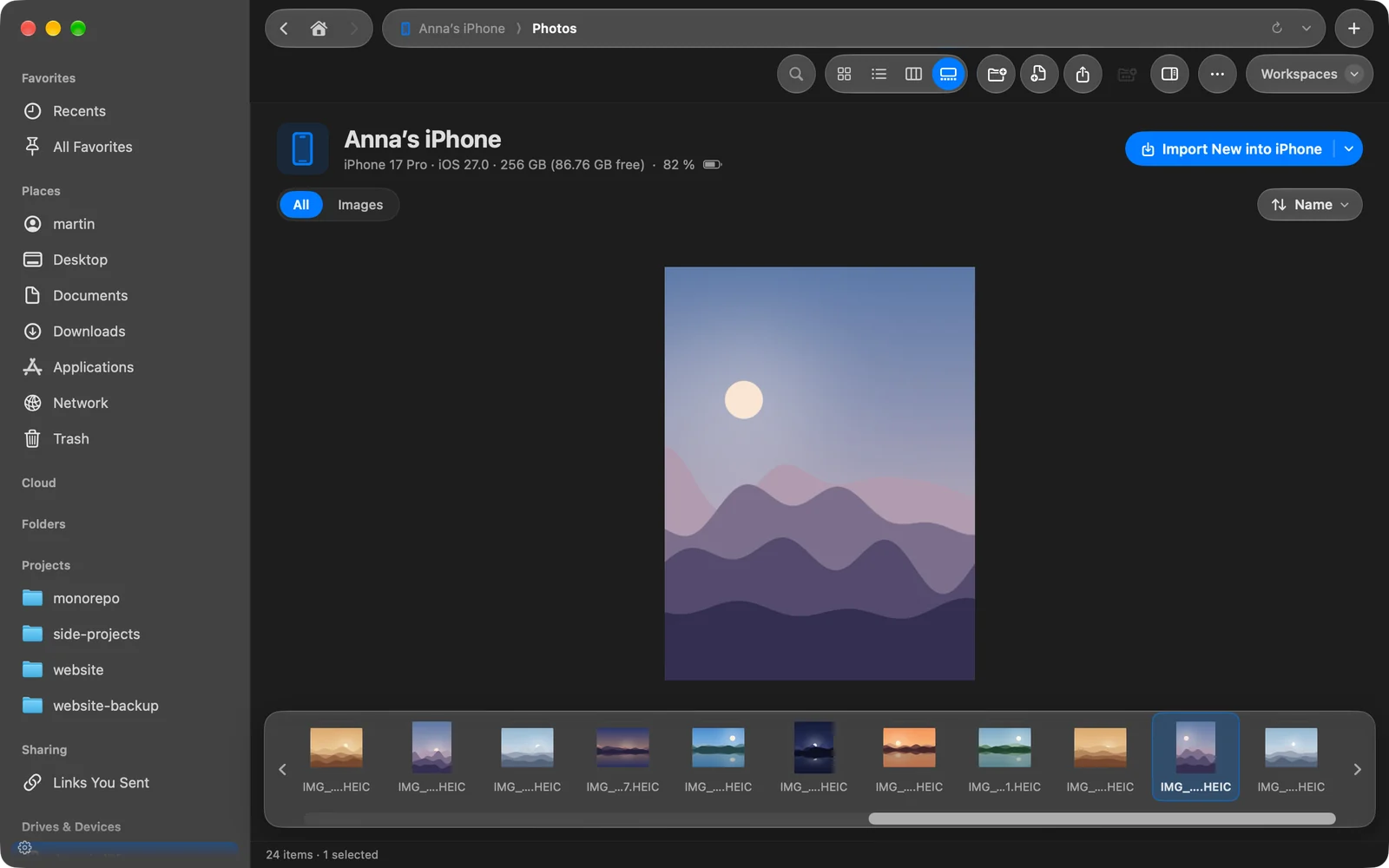
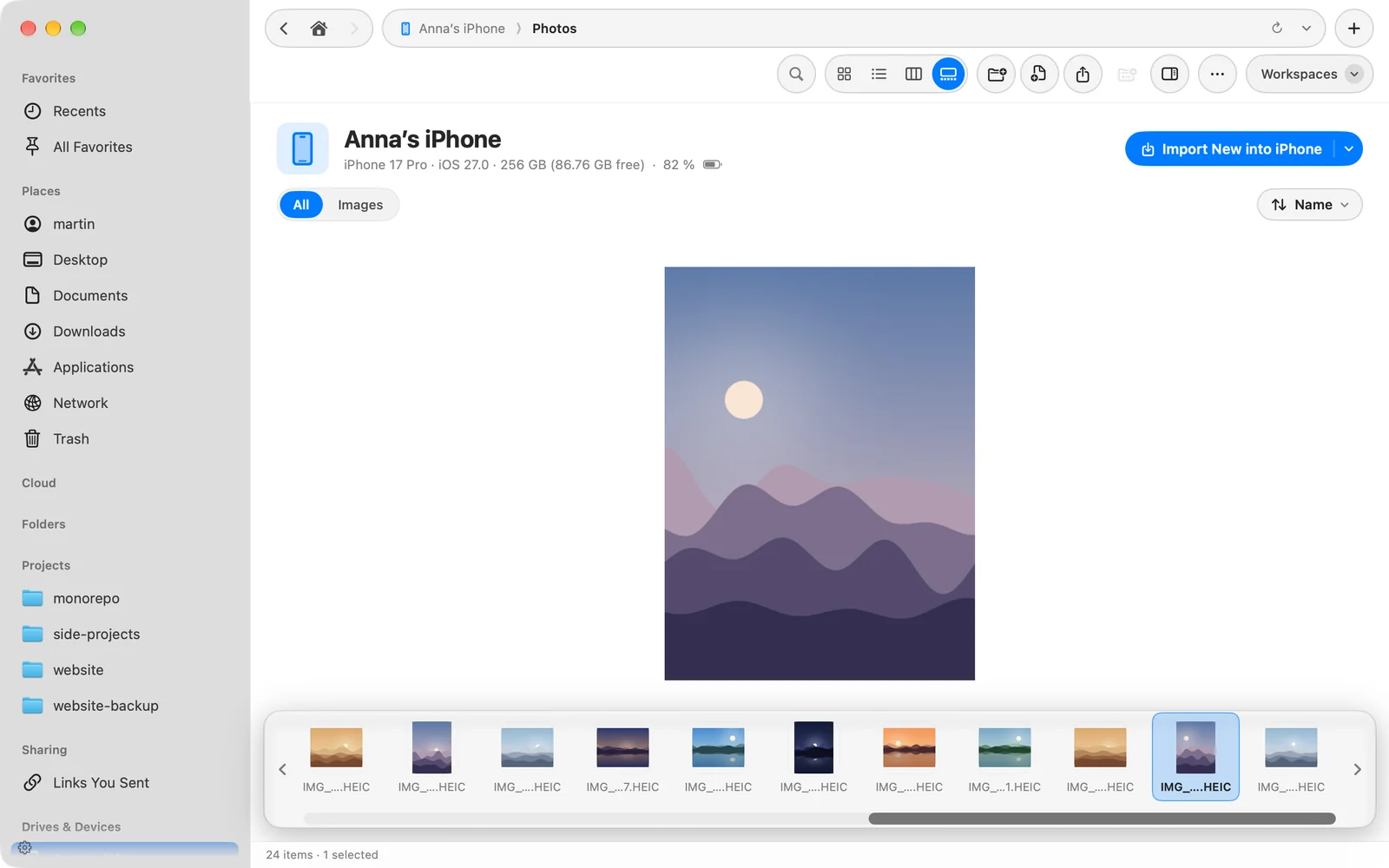
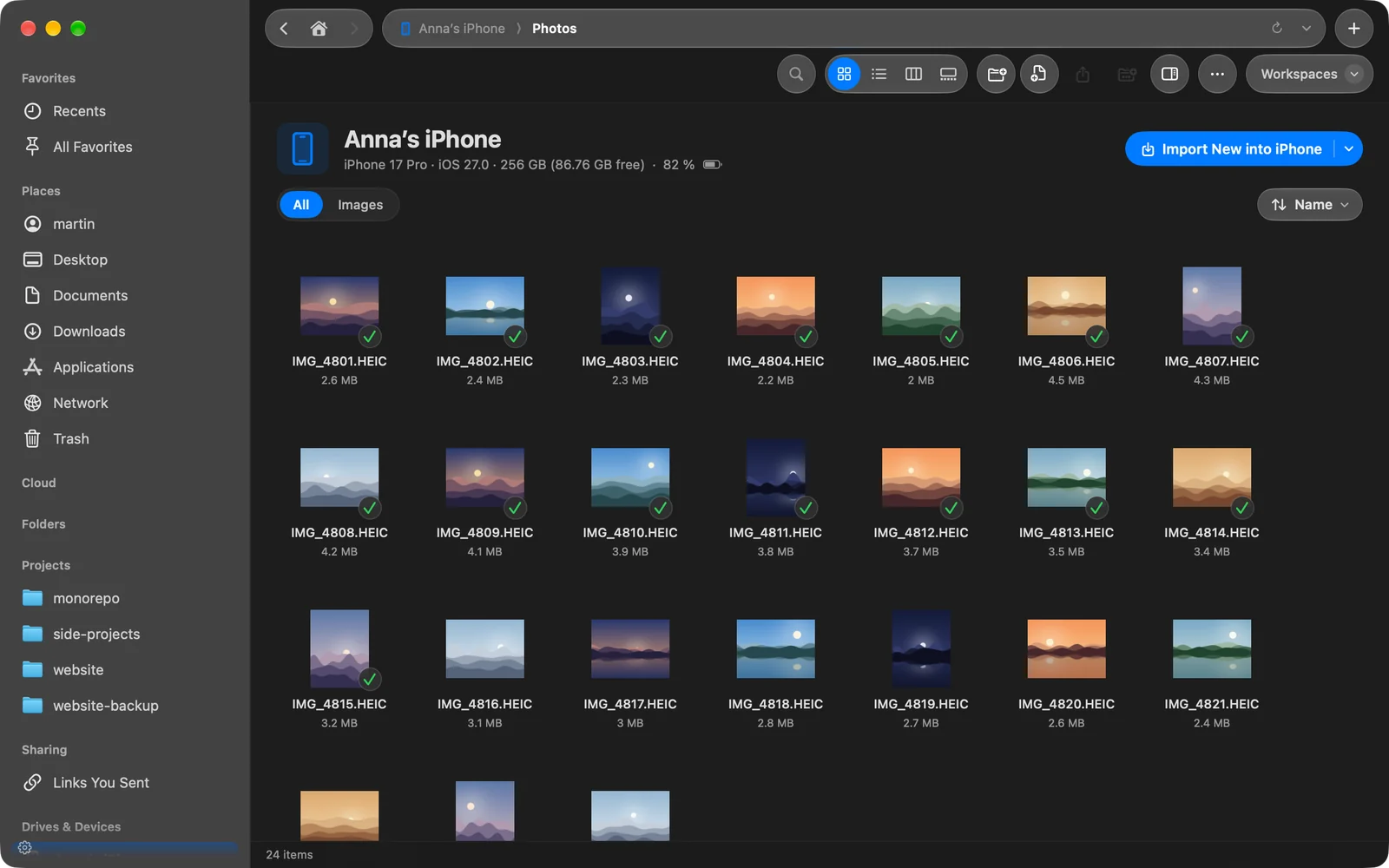
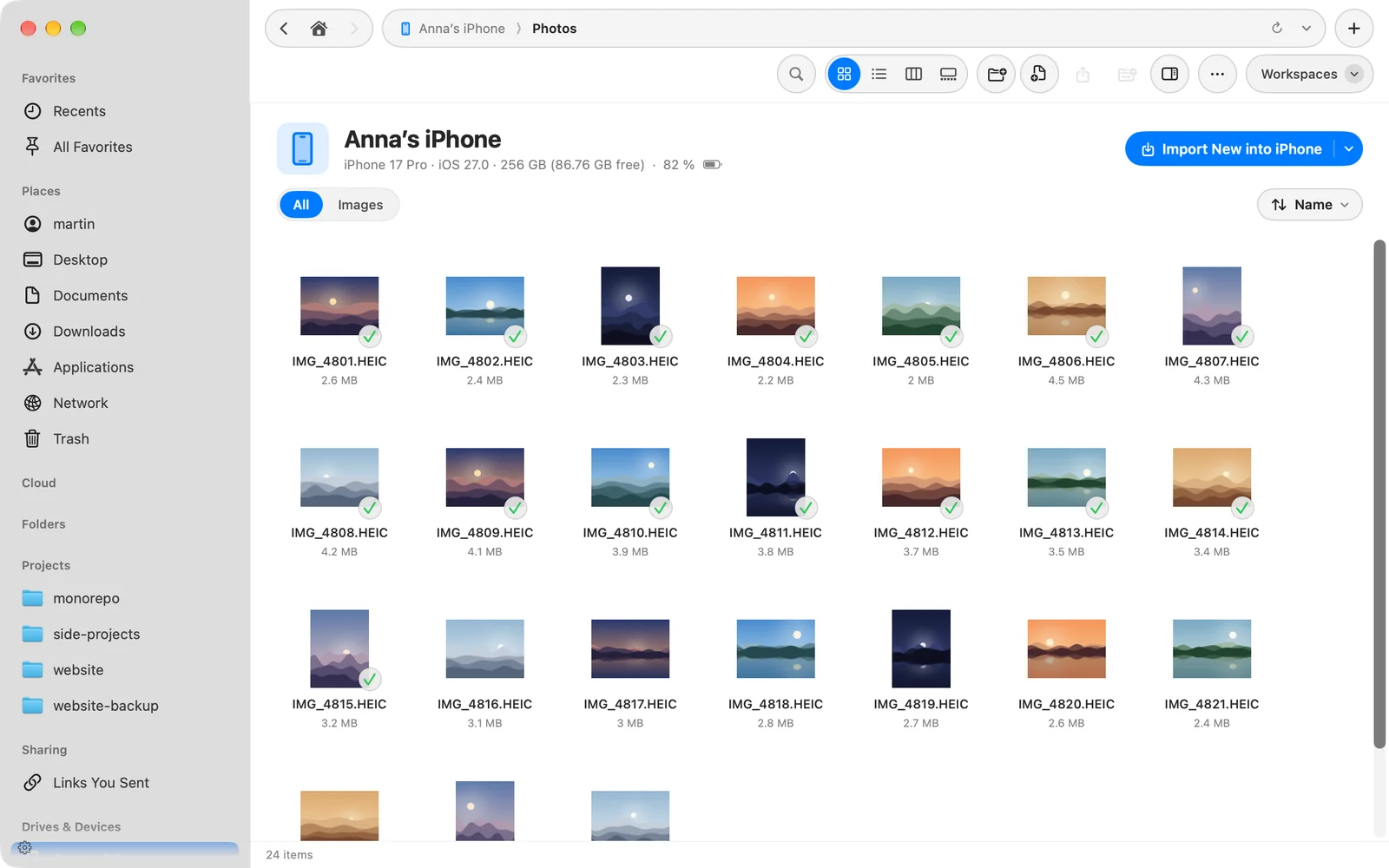
If the device is locked, the page shows Unlock your iPhone (or iPad). It fills in on its own as soon as you unlock the device. If you unplug it, the page dims and says the device has been disconnected; plug it back in and the page picks up where it was.
Copy photos and videos to your Mac
- Drag photos or videos out of the device page into any folder or pane.
- Select them and click Copy to Downloads in the selection bar. DockDuck copies them to your Downloads folder and reveals the copies.
- Control-click a selection for Download, Quick Look, Copy (⌘C) and Add to Shelf.
To copy only the photos a folder doesn’t have yet, use Import New. See Import photos and videos.
Delete photos from the device
Photos on the device are read only, with one exception: deleting. Select photos and press ⌘⌫, or click Delete in the selection bar. DockDuck asks first, then the photos move to Recently Deleted on the device, where they stay for 30 days.
If something goes wrong
| Problem | What to do |
|---|---|
| The device doesn’t appear in the sidebar | Check the cable and unlock the device. See troubleshooting. |
| The page says Unlock your iPhone | Unlock it and tap Trust if the device asks. |
| Delete is missing or refused | iCloud Photos is on. Delete on the device. |
Thanks, that helps us improve this page.