
Troubleshoot cloud drives
What to do when a cloud drive is missing from the sidebar, has no status badges, or shows a conflict or sync error.
On this page 6 sections
A cloud drive is missing from the sidebar
1 Symptom
Dropbox, Google Drive or another drive doesn't appear under Cloud in the sidebar.
2 Possible cause
The provider's app isn't installed or signed in, or the drive is switched off in DockDuck.
3 What to check
Open Settings › Cloud Drives and read the line under the provider: Not installed on this Mac. or Installed. Sign in to the app and its drive appears here.
4 How to resolve
Install the provider's app and sign in to it. The drive then gets a switch on that page; make sure it is on.
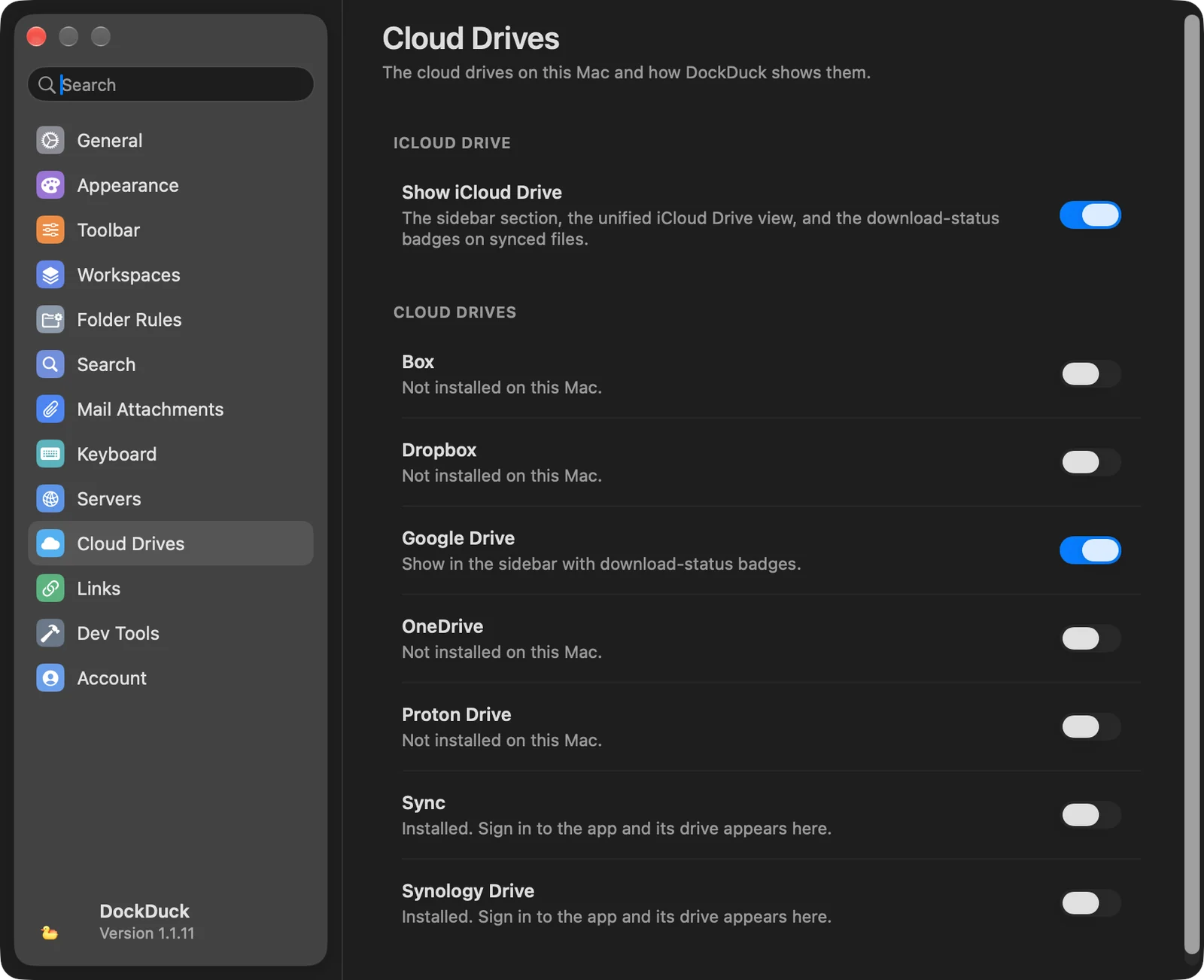
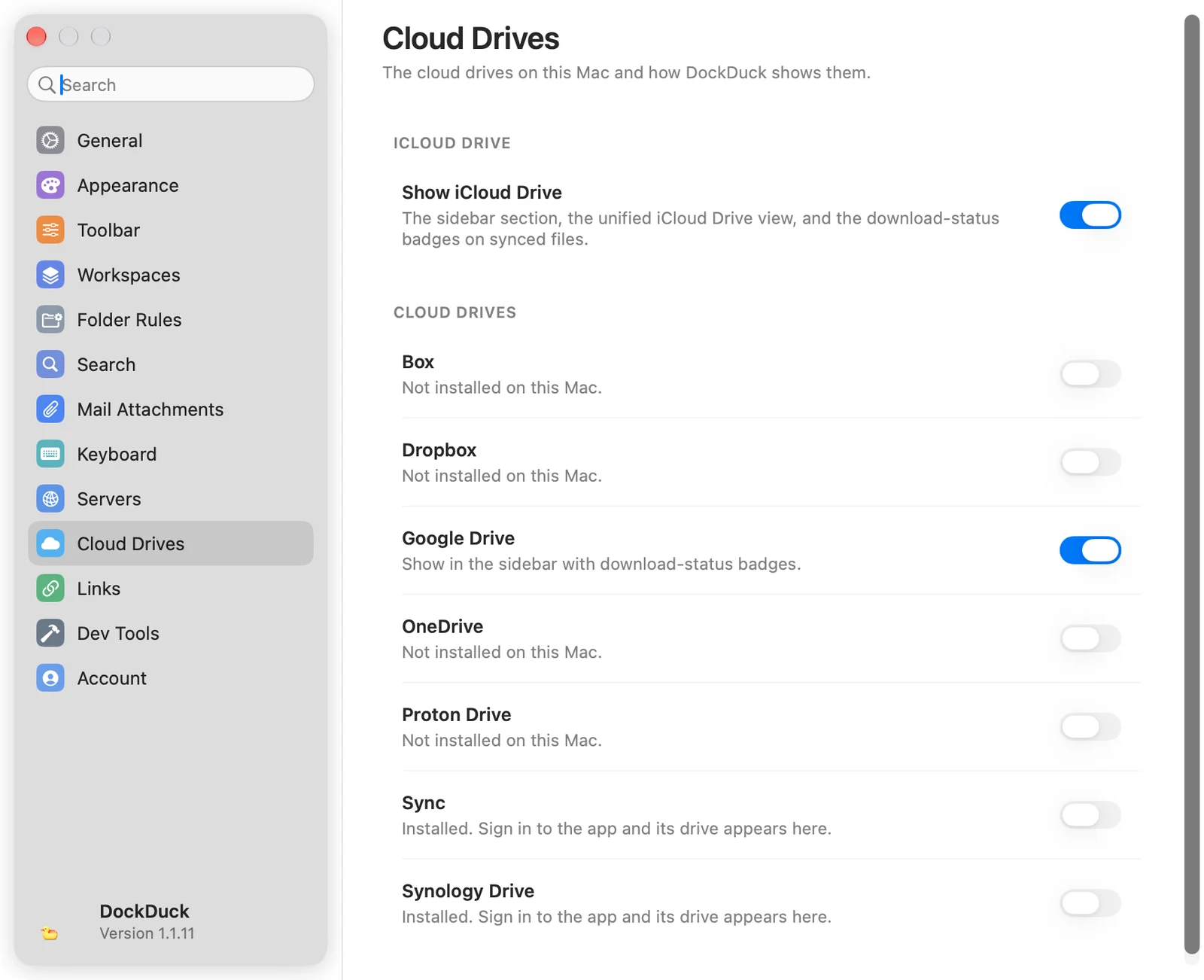
If the switch is on and the drive still doesn’t show, check that the Cloud section isn’t hidden: click the gear at the bottom of the sidebar.
iCloud Drive is missing
1 Symptom
There is no iCloud Drive in the sidebar, and Go › iCloud Drive does nothing.
2 Possible cause
Show iCloud Drive is off, or iCloud Drive isn't turned on for this Mac.
3 What to check
Settings › Cloud Drives › Show iCloud Drive is on.
4 How to resolve
Turn on Show iCloud Drive. If it's already on, turn on iCloud Drive in System Settings for your Apple Account.
Files have no status badges
1 Symptom
Files in a cloud drive show no badge for downloaded, uploading or cloud-only.
2 Possible cause
Show iCloud Drive is off, which turns off the badges for every cloud drive. Or the provider keeps all files on your Mac, so there is no status to show.
3 What to check
Settings › Cloud Drives › Show iCloud Drive is on.
4 How to resolve
Turn on Show iCloud Drive. Drives such as Synology Drive, a Dropbox that syncs a regular folder, or Google Drive in mirror mode keep every file locally and show no badges.
Download Now or Remove Download is missing
1 Symptom
The Control-click menu of a cloud file has no Download Now or Remove Download.
2 Possible cause
DockDuck shows Download Now only when something still needs downloading, and Remove Download only when it's already on your Mac. Neither appears in a drive that keeps every file locally.
3 How to resolve
Check the file's badge first. To free space in a drive that keeps every file locally, use the provider's app.
A file shows a conflict or a sync error
1 Symptom
The badge says Conflict: two versions of this item or Sync error.
2 Possible cause
The cloud has two different versions of the item, or the provider couldn't sync it because of permissions, quota or the network.
3 How to resolve
Open the provider's app to resolve the conflict or the error. DockDuck shows the status the provider reports; the badge clears once the provider has synced the item.
If the problem persists
- Quit and reopen the provider’s app, then check its own status.
- Open the drive’s folder again in DockDuck, or choose Go › Reload.
- Write to support from Settings › About › Contact support.
Was this page helpful? Suggest an edit
Thanks, that helps us improve this page.
Still stuck? Write to us with what you tried. We read every message.