 DockDuck
 Documentation
Remote servers
Mount SFTP, SMB, WebDAV, and FTP servers as if they were folders on your Mac: browse, search, and transfer with the same gestures you use everywhere else.
What it is. A remote server connection makes a machine you reach over the network appear in DockDuck’s sidebar as a normal location. When to use it. Reach for it whenever you’d otherwise open a separate FTP app: deploying a site, pulling logs off a box, or moving media to a NAS.
Supported protocols
DockDuck speaks four protocol families. All credentials are stored in the macOS Keychain, never in plain text.
| Protocol | Use it for | Encrypted |
|---|---|---|
| SFTP | Servers you reach over SSH, the default for deploys and Linux boxes | Yes |
| SMB | Windows shares and most NAS devices on your network | Yes (SMB 3) |
| WebDAV | Web-hosted file stores and many self-hosted clouds | Over HTTPS |
| FTP / FTPS | Legacy file servers; FTPS adds TLS | FTPS only |
SMB shares you’ve already mounted in Finder appear automatically under Places. You only add a server here when you want DockDuck to manage the connection.
Connecting from the address bar
The fastest way to connect is to type the URL straight into the path bar.
Press ⌘L to focus the path bar.
Type a server URL, for example sftp://user@example.com,
and press ↵.
Enter the password when prompted. Tick Remember in Keychain to skip it next time.
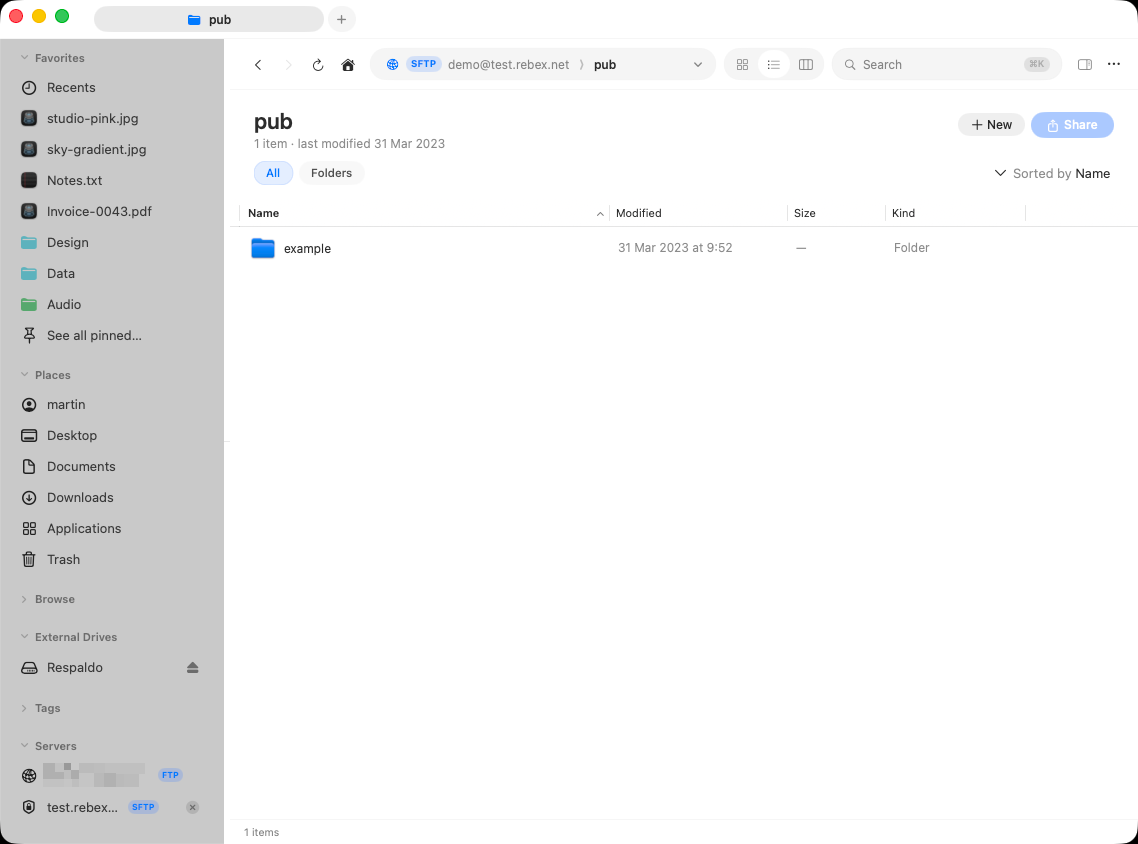
Drag a connected server onto Pinned to keep it one click away on the Start Page.
Transfers
Copy files to and from a server exactly like local folders: drag between panes, or paste with ⌘V. Recursive folder uploads and downloads show a live progress panel with throughput and time remaining.
Plain FTP sends credentials unencrypted. Prefer SFTP or FTPS whenever the server supports it.
Disconnecting
Click the ✕ next to a connected server in the sidebar to disconnect; DockDuck sends you back to your Home folder and keeps the saved server for next time. The credentials stay in the Keychain. Disconnecting never forgets them.
Where to go next
- The Connect sheet: every field, and how URLs pre-fill it.
- Managing servers: saving, editing, and setting defaults.
- Transfers: copy, move, and recursive folder transfers.
- Troubleshooting: host keys, timeouts, and error codes.