
Free up space on your Mac
See what fills your disk, review what's safe to remove, and move it to the Trash, where you can still put it back.
On this page 5 sections
What you’ll accomplish
- See how your disk is used, by apps, documents, photos, the Trash and macOS
- Remove forgotten installers, zip copies, developer caches and old downloads
- Explore every folder by size on the disk map
Free Up Space shows what is using your disk and suggests what is safe to remove. Nothing moves until you choose it, and everything you remove goes to the Trash first, so you can put it back.
Open Free Up Space
- Choose Go > Free Up Space.
- In the Trash, click See what’s using space.
- When your startup disk is almost full, DockDuck sends a notification, “Your Mac is almost full”. Click Free Up Space in it.
The first time, DockDuck checks your disk. You can keep working meanwhile, and the suggestions appear when the check finishes. Later visits show the last result right away, and DockDuck checks again in the background when that result is more than 15 minutes old. Click the refresh button next to “Updated …” to check now.
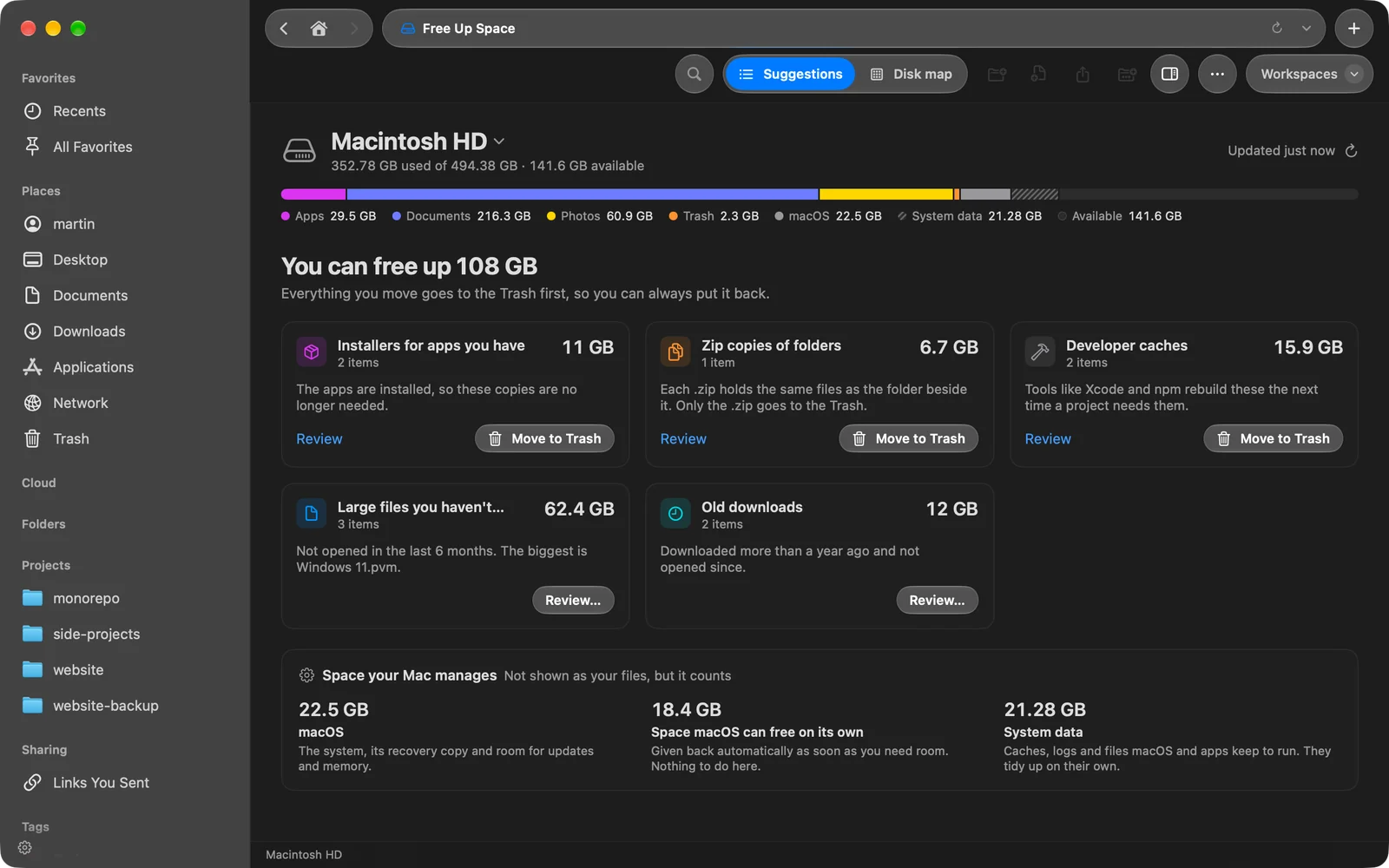
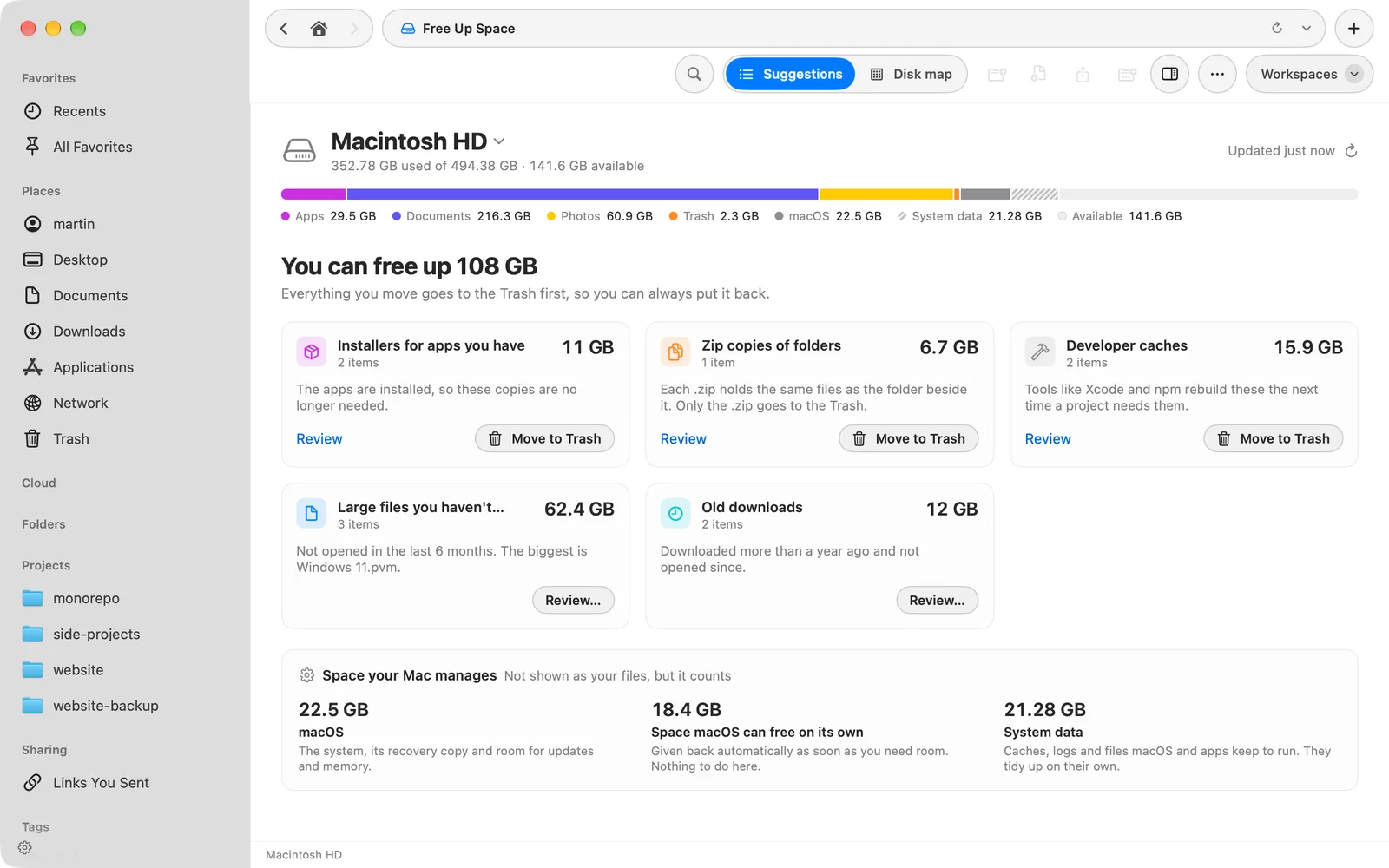
Read the capacity bar
The bar at the top splits the disk into Apps, Documents, Photos, Trash, macOS, System data and Available. Below the suggestion cards, Space your Mac manages explains the parts that aren’t your files:
| Part | What it is |
|---|---|
| macOS | The system, its recovery copy and room for updates and memory |
| Space macOS can free on its own | Given back as soon as you need room, including local Time Machine backups |
| System data | Caches, logs and files macOS and apps keep to run. They tidy up on their own. |
If you have more than one disk, click the disk’s name to choose another. Suggestions cover your startup disk; for other disks, use the disk map.
Remove what you don’t need
Each card is one kind of leftover, with its total size. A file appears on one card only, so the total at the top is the space you would actually get back.
| Card | What it lists |
|---|---|
| Installers for apps you have | .dmg, .pkg, .mpkg and .xip files in Downloads and Desktop for apps that are already installed |
| Zip copies of folders | A .zip that holds the same files as the folder beside it. Only the .zip goes. |
| Developer caches | Caches that Xcode, Simulator, Homebrew, CocoaPods, Yarn, pip, Go, npm and Gradle rebuild on their own |
| Large files you haven’t opened | Files of 250 MB or more not opened in the last 6 months |
| Old downloads | Items in Downloads downloaded more than a year ago and not opened since |
A card appears only when it adds up to at least 50 MB.
- Click Review on a card
Control-click an item for Quick Look or Show in Folder if you want to check it first.
Result: A list of the card's items opens, with size and when each was last opened. - Choose the items
Select or deselect the checkboxes, or use Select All and Select None.
- Move them to the Trash
Click Move … to Trash. The button shows how many items and how much space.
Result: The items leave the card and the notice at the bottom of the window offers Undo.
Installers, Zip copies and Developer caches also have a Move to Trash button on the card that moves everything at once. Large files and Old downloads are personal, so they always go through Review….
Explore the disk map
Click Disk map in the toolbar to see every folder by size, as Blocks or Rings. Click a folder to go into it. The list beside the map shows the largest items in the folder you’re looking at.
To remove several things together, Control-click an item and choose Collect, or drag it to the Collected tray. When you’re done, click Move to Trash in the tray. Control-click an item for Quick Look, Show in Folder or Move to Trash.
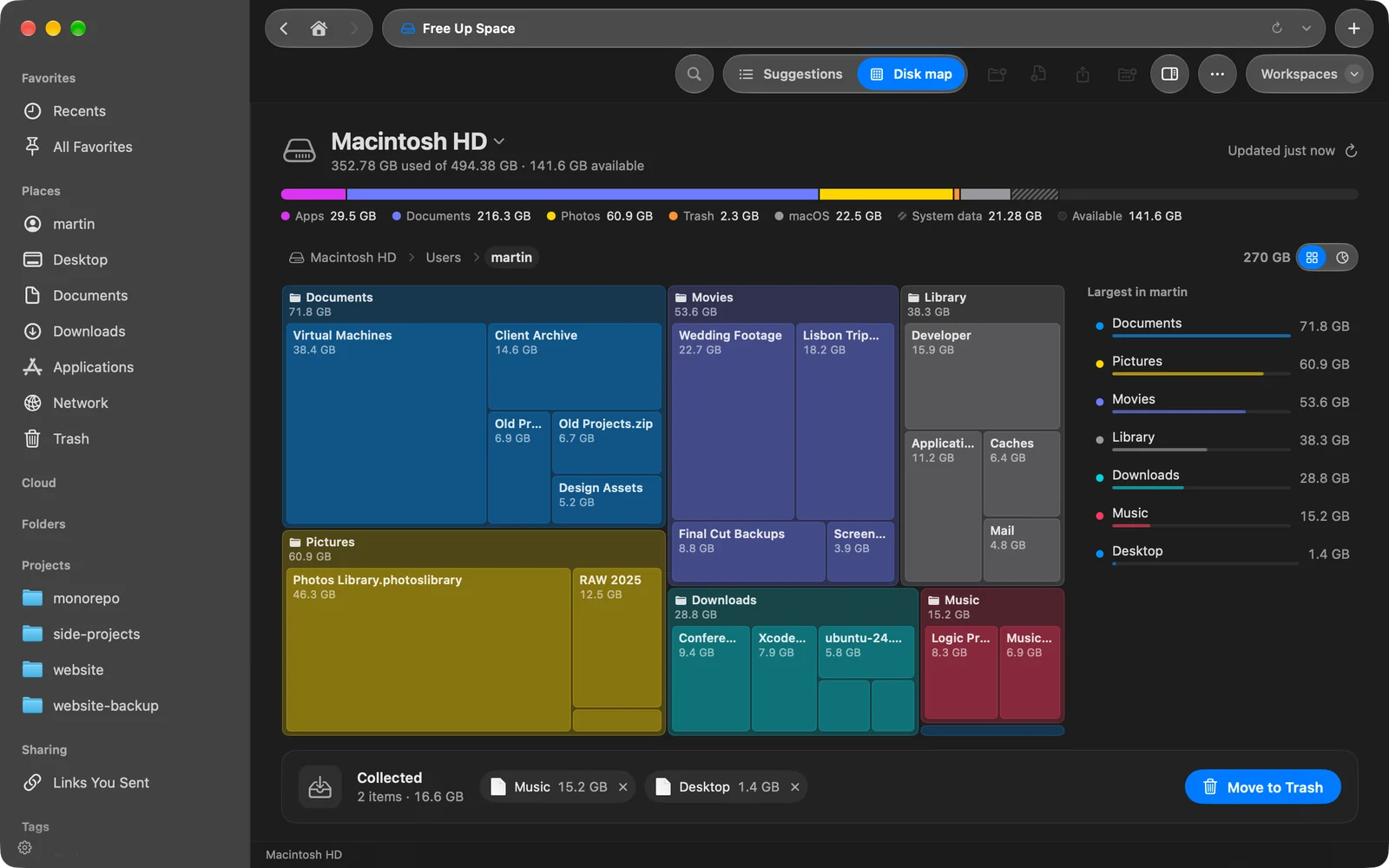
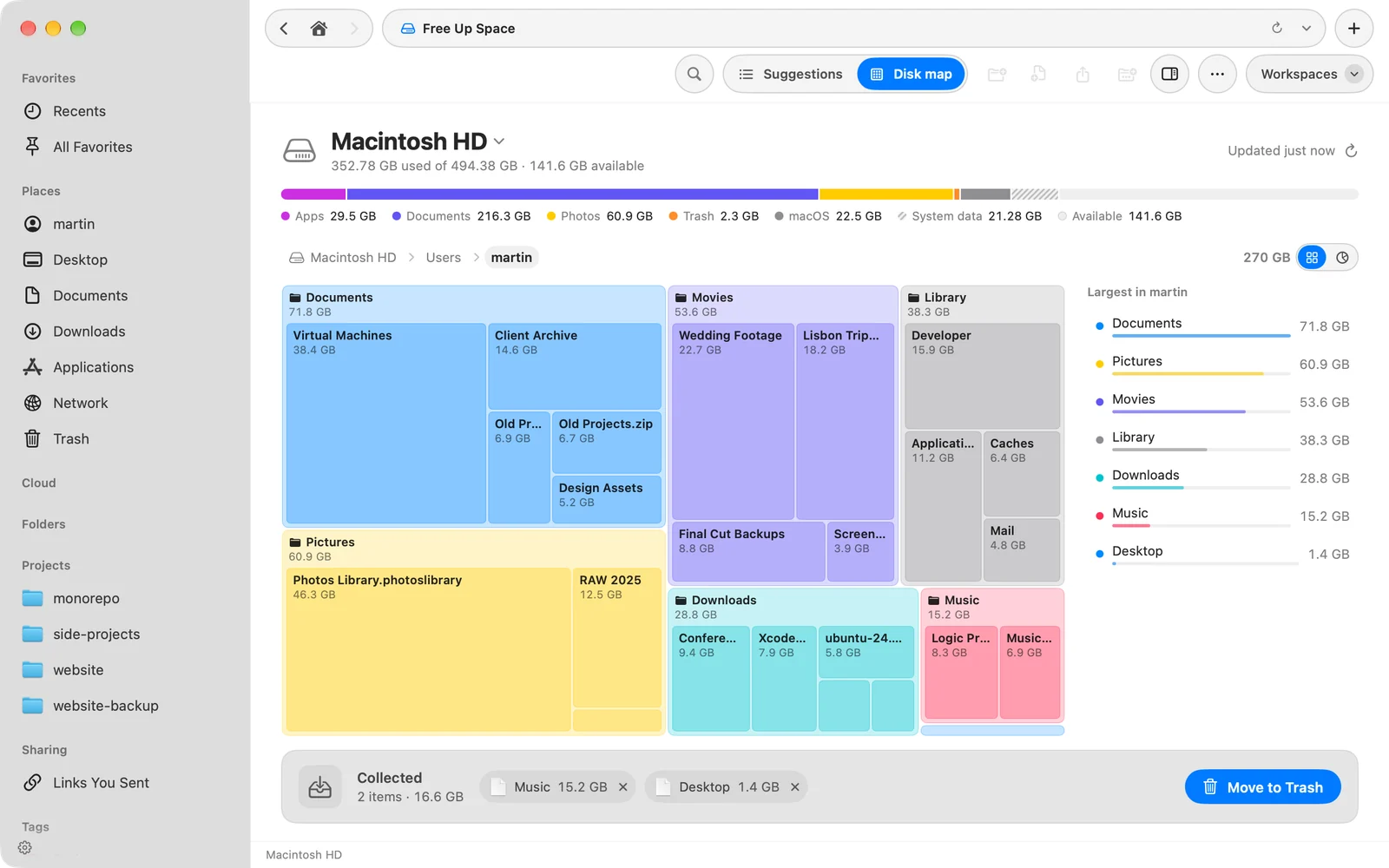
Click Suggestions in the toolbar to go back to the cards.
If something goes wrong
| Message or problem | What to do |
|---|---|
| ”Some folders were skipped” | DockDuck can’t look inside Mail, Messages and other apps’ data without Full Disk Access. Click Allow Full Disk Access…. The capacity bar shows that space as Not checked. |
| ”Nothing obvious to remove” | No leftovers turned up. Click Show Disk Map to find what takes the most space. |
| The low-space notification never appears | Allow notifications for DockDuck in System Settings. DockDuck asks the first time you open Free Up Space. |
Thanks, that helps us improve this page.