
Connect cloud drives
Show iCloud Drive, Dropbox, Google Drive, OneDrive and other cloud drives in the sidebar, with a badge for what is downloaded, uploading or only in the cloud.
On this page 6 sections
What you’ll accomplish
- Show your cloud drives in the sidebar's Cloud section
- See at a glance which files are downloaded, uploading or only in the cloud
- Download a cloud-only file, or remove its local copy to free space
DockDuck shows the cloud drives that are already on your Mac. It doesn’t sign in to any cloud service itself: the provider’s own app signs you in and keeps the files in sync, and DockDuck shows the folder that app keeps. Your cloud drives appear in the sidebar under Cloud.
Before you start
Install the provider’s app and sign in to it. For iCloud Drive, sign in to iCloud on your Mac and turn on iCloud Drive in System Settings.
Choose which drives appear
- Open Settings › Cloud Drives
The page lists every provider DockDuck knows, and says for each one whether it is installed on this Mac.
- Turn a drive on or off
A drive that is installed and signed in has a switch, on by default. A provider that is not installed, or installed without a drive yet, has its switch off and dimmed.
Result: The drive appears in, or leaves, the sidebar's Cloud section.
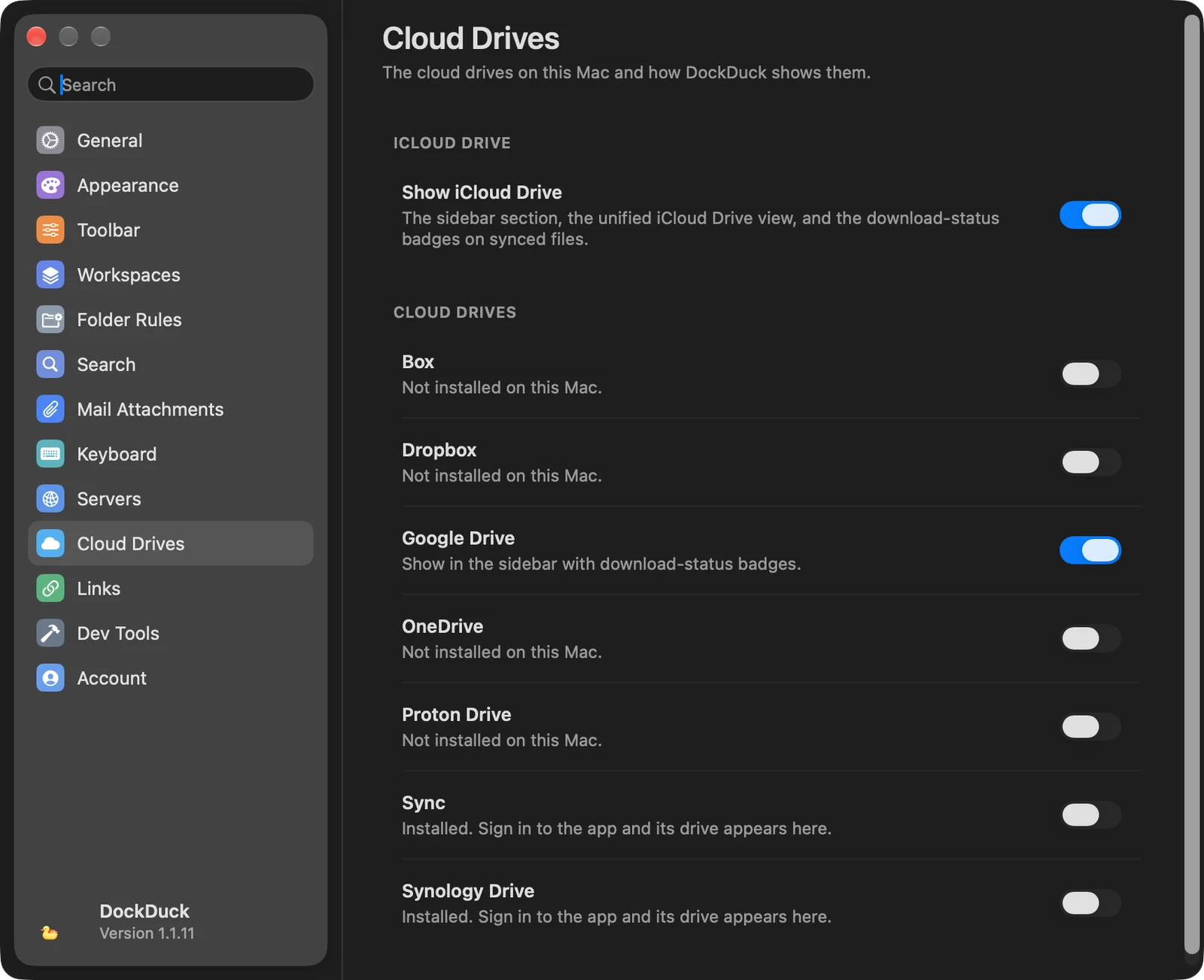
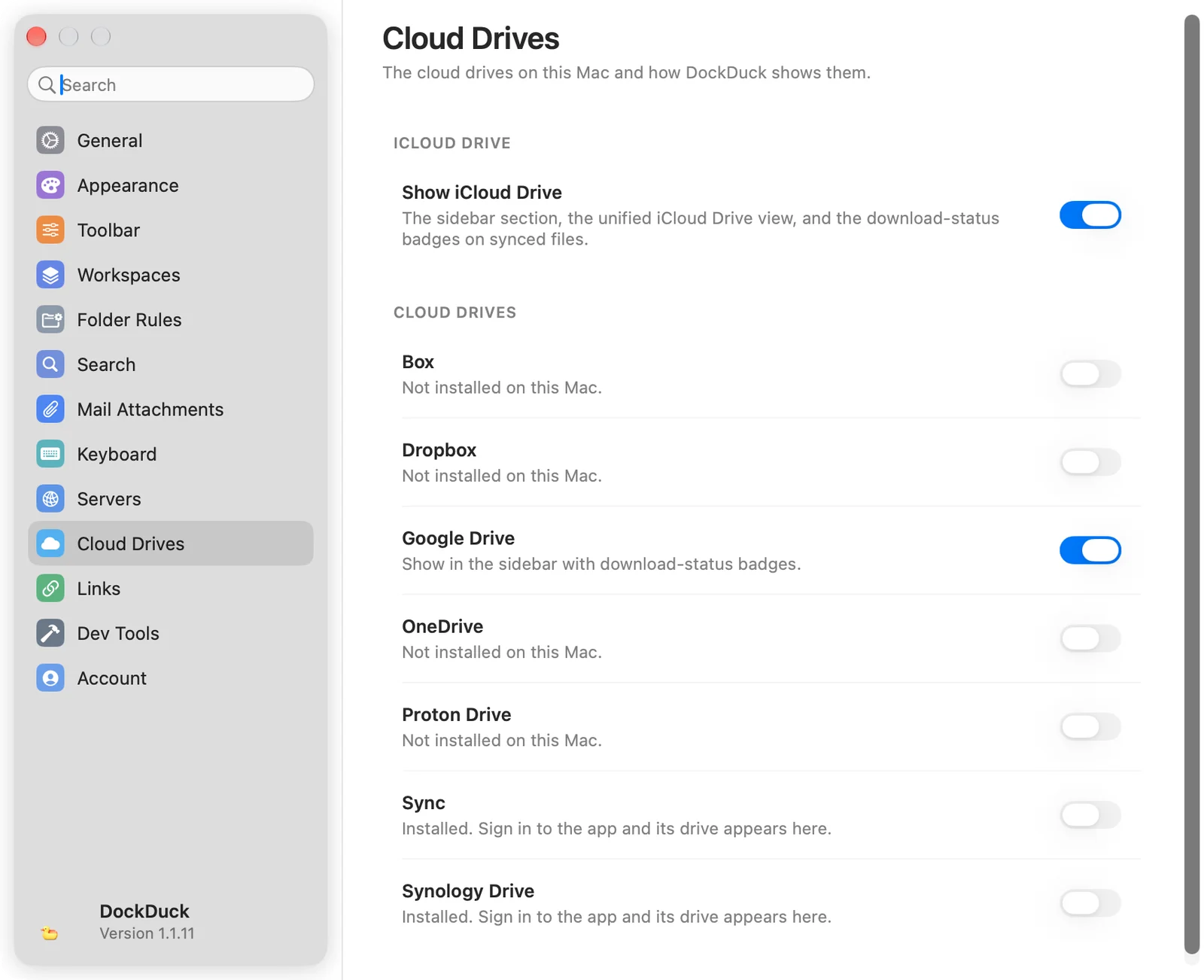
Settings › Cloud Drives has a group for iCloud Drive, with Show iCloud Drive, and a switch for each of these providers: Box, Dropbox, Google Drive, OneDrive, Proton Drive, Sync and Synology Drive.
Another cloud app that keeps its drive in your Mac’s cloud storage folder
(~/Library/CloudStorage) gets a switch of its own on the same page. With two
accounts of the same provider, each drive shows the account in its name.
Open iCloud Drive
Click iCloud Drive in the sidebar, or choose Go › iCloud Drive (⇧⌘I). DockDuck shows the same view of iCloud Drive that macOS shows: your own folders, a folder for each app that stores documents in iCloud, and Desktop and Documents when they sync to iCloud.
Read the status badges
Files and folders in a cloud drive carry a small badge. Point at it for a description.
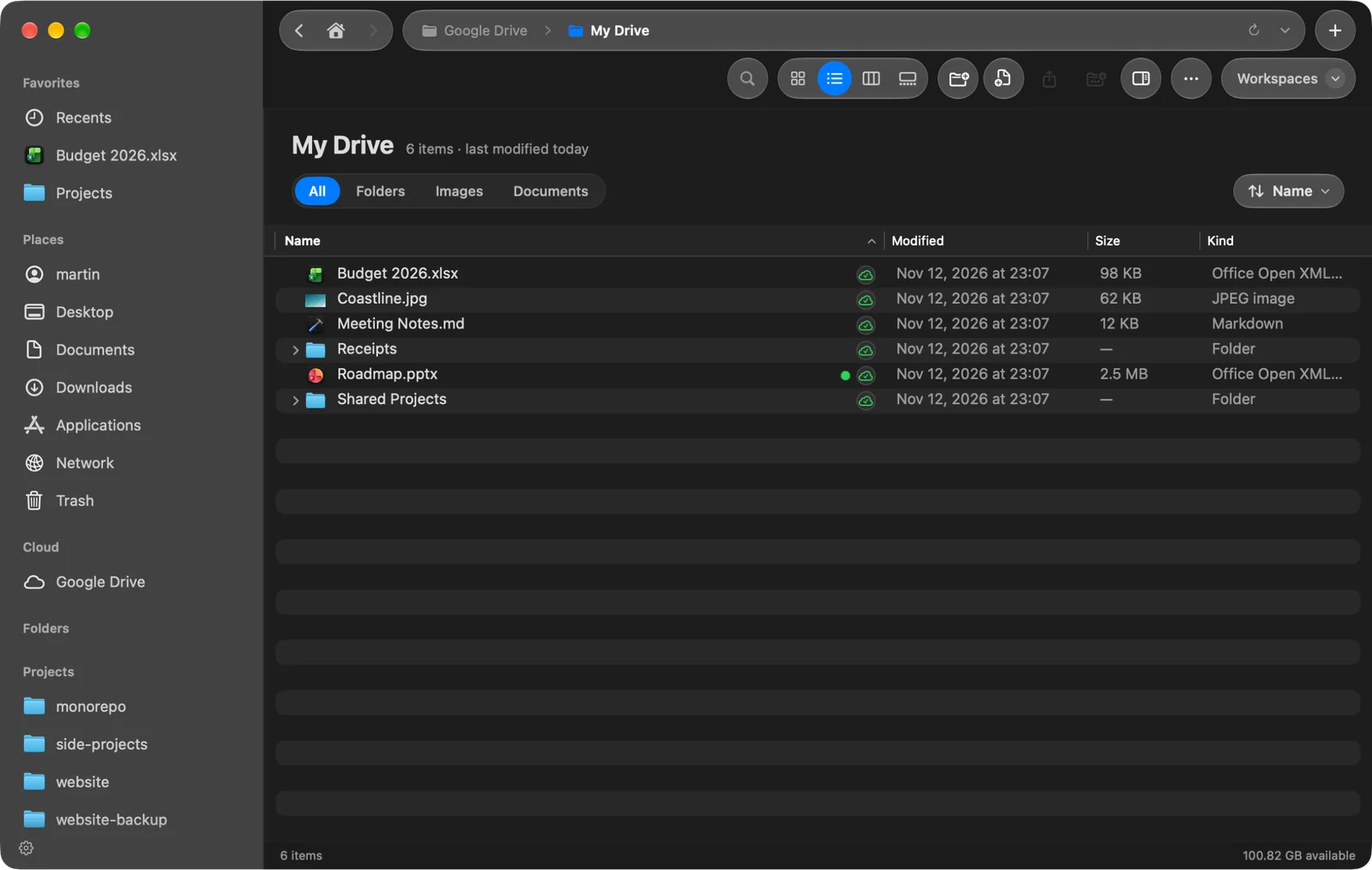
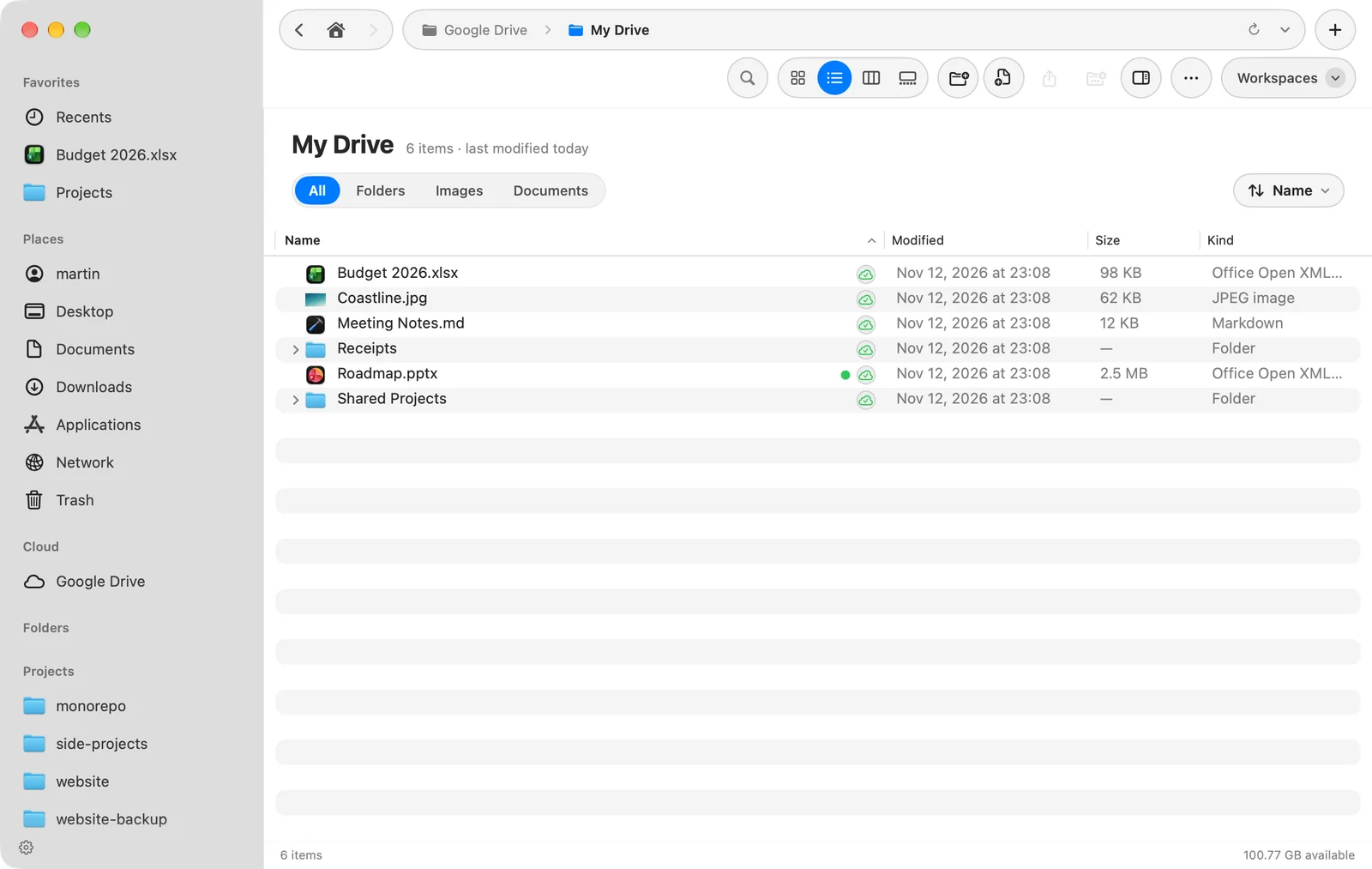
| Badge says | Meaning |
|---|---|
| Only in the cloud. Click to download. | The content isn’t on your Mac yet. In icon view the name shows In the cloud. |
| Downloading | A download is in progress. If DockDuck started it, click the badge to stop it. |
| Uploading local changes | Your changes aren’t confirmed by the cloud yet. |
| Downloaded and in sync | The file is on your Mac and up to date. |
| Conflict: two versions of this item | Two different versions exist. Resolve it in the provider’s app. |
| Sync error | Permissions, quota or network. It stays until the cause is fixed. |
Badges also show downloads that other apps start.
Download a file or free its space
- Click the badge of a cloud-only file to download it, or open the file.
- Control-click files or folders and choose Download Now to fetch them.
- Choose Remove Download to delete the local copy and keep the file in the cloud. This frees space on your Mac.
Good to know
- Folder rules never run on cloud folders.
- The folder of a cloud drive shows the provider’s own icon.
- Turning off Show iCloud Drive also hides the status badges on every cloud drive.
Thanks, that helps us improve this page.