
Rename a file or folder
Press Return to rename an item in place, in any view. The extension stays out of the way, and Undo gives the old name back.
On this page 5 sections
What you’ll accomplish
- Rename a file or folder without leaving the list
- Change or keep a file's extension on purpose
- Name a new file or folder as you create it
Renaming happens in place, in the icons, list, columns and gallery views. To rename many items at once with a rule, see Rename many files at once.
Rename an item
- Select the item
Click it once.
- Start renaming
Press ↩, click Rename in the row at the top of the Control-click menu, or click the name of the selected item once more after a moment.
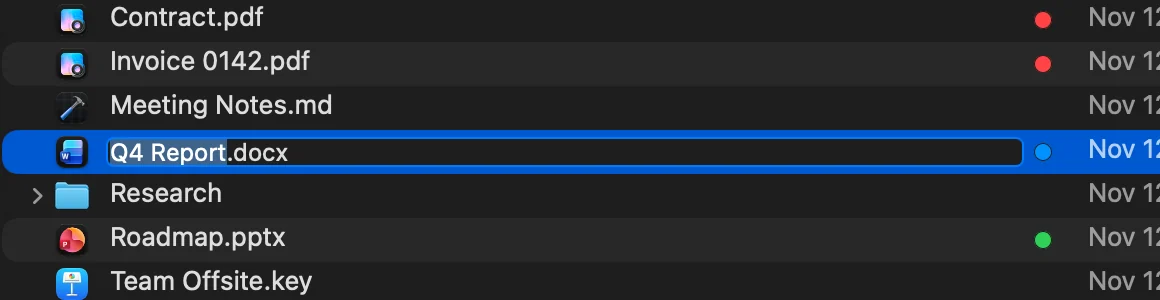
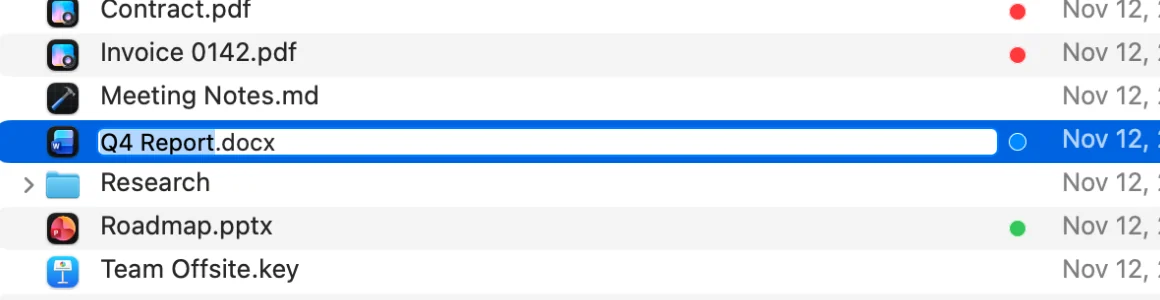
Result: The name becomes editable, with the part before the extension selected. - Type the new name
Typing replaces the selected part, so
.pdfstays as it is. For a folder the whole name is selected. - Press Return to finish
Press Esc instead to leave the name as it was.
Result: The item takes the new name and stays selected.
Change the extension
If the new name removes, adds or changes the extension of a file, DockDuck asks first, since the file may then open in another app:
- Remove or Keep “.pdf” when you take the extension away.
- Add or Don’t Add when you give it one.
- Use “.txt” or Keep “.pdf” when you change it.
Esc keeps the original extension. Folders have no extension, so a dot in a folder’s name never asks.
Name a new file or folder
New Folder (⇧⌘N) and New File create the item and start renaming it at once. A new folder is called “Untitled Folder” and a new file “Untitled.txt”.
- For a new file, typing a name without an extension keeps
.txt: “Notes” becomes “Notes.txt”. - Press Esc right away to remove a new item that is still empty.
New Folder with Selection (⌃⌘N) puts the selected items into a new folder called “New Folder With Items”, and starts renaming it.
Undo a rename
Press ⌘Z to give the item its old name back. Renames are also listed in Activity, where you can undo them later. See Undo and Activity.
If something goes wrong
| Problem | What to do |
|---|---|
| That name can’t be used. | Names can’t contain ”/” or ”:”. Choose another name. |
| ↩ beeps | Rename isn’t available here: in search results, for system folders such as Desktop or Applications, inside an archive, or in Mail Attachments. Open the item’s folder first. |
| Couldn’t rename the item. | The message below it says why, for example that another item already has that name or that you don’t have permission. |
Thanks, that helps us improve this page.