 DockDuck
 Documentation
On this page
Keyboard shortcuts
The complete reference to every shortcut in DockDuck, and how to rebind any of them. Every command here is invocable from a menu, and almost all of them carry a default key combination you can change.
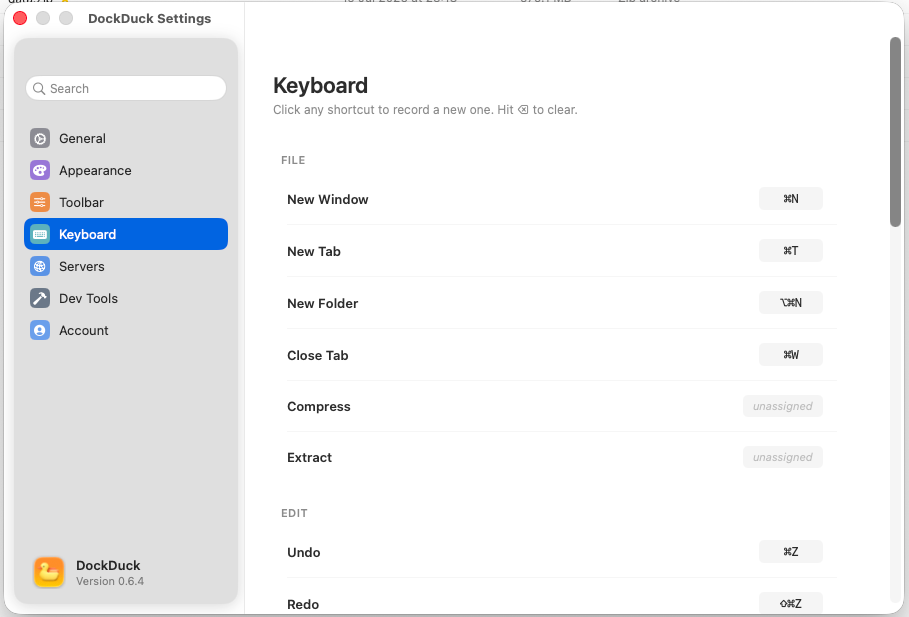
Every action in DockDuck has a stable command behind it, and almost every command ships with a default keyboard shortcut. The tables below list the factory defaults. None of them are fixed: open Settings → Keyboard to rebind any command, clear a shortcut entirely, or restore the defaults.
Lost among windows? Press ⌘P to open the Quick Switcher and type part of a folder name. It lists every open tab in every DockDuck window and jumps to the one you pick.
Navigation
Move around the filesystem and your browsing history.
| Back | ⌘[ |
| Forward | ⌘] |
| Enclosing folder | ⌘↑ |
| Home folder | ⌘⇧H |
| Reload | ⌘R |
Files
Create, organize, and manage items. Compress and Extract have no default binding (they live in the right-click and File menus) but you can assign them a shortcut in Settings.
| New folder | ⌘⌥N |
| Copy / Cut / Paste | ⌘C ⌘X ⌘V |
| Select all | ⌘A |
| Undo | ⌘Z |
| Redo | ⌘⇧Z |
| Compress | None |
| Extract | None |
Cut and Paste move files through DockDuck’s clipboard. See the Shelf for the other way to stage items before dropping them somewhere. It survives navigation, unlike the clipboard.
View
Switch how the current folder is displayed, and toggle the chrome around it.
| As Grid | ⌘⌥1 |
| As List | ⌘⌥2 |
| As Columns | ⌘⌥3 |
| Toggle sidebar | ⌘⌃S |
| Toggle preview | ⌘I |
Search
DockDuck doesn’t bind a dedicated search shortcut by default; click the search icon in the toolbar or type in the address bar. The Quick Switcher jumps between open tabs, so you can land in the right folder before you refine the query.
| Quick Switcher | ⌘P |
For the full query syntax and search scopes, see search.
Window & Tabs
Manage windows and the tabs inside them.
| New window | ⌘N |
| New tab | ⌘T |
| Close tab | ⌘W |
| Next tab | ⌘⇧] |
| Previous tab | ⌘⇧[ |
| Next window | ⌘` |
| Previous window | ⌘⇧` |
Rebinding shortcuts
Open DockDuck → Settings (⌘,) and pick Keyboard.
Find the command. They’re grouped File, Edit, View, Go, and Window, exactly like the menu bar. Click its shortcut and press the new combination.
If the combination is already taken, DockDuck warns you which command owns it before you commit, so you never create a silent conflict.
Changing a shortcut takes effect immediately, no relaunch. You can clear a binding to make a command menu-only, or use Restore Defaults to undo every change at once.
Where to go next
- Search: query syntax and scopes.
- Batch rename: rename many files at once with a live preview.
- Remote servers: the same shortcuts work on mounted servers.
- The Shelf: stage files for drag-and-drop without losing your place.