 DockDuck
 Documentation
First launch
The onboarding tour, starting your free trial, granting Full Disk Access, and the Start Page that greets you.
What it is. What happens the first few times you open DockDuck: a short tour, an optional permission, starting your trial, and the dashboard you land on. When to use it. Read this once when you set DockDuck up; you won’t see most of it again.
The onboarding tour
The first time you open DockDuck, a centered welcome card walks you through a short feature tour. Each step introduces a part of the app: browsing, connecting to servers, and the organizing tools.
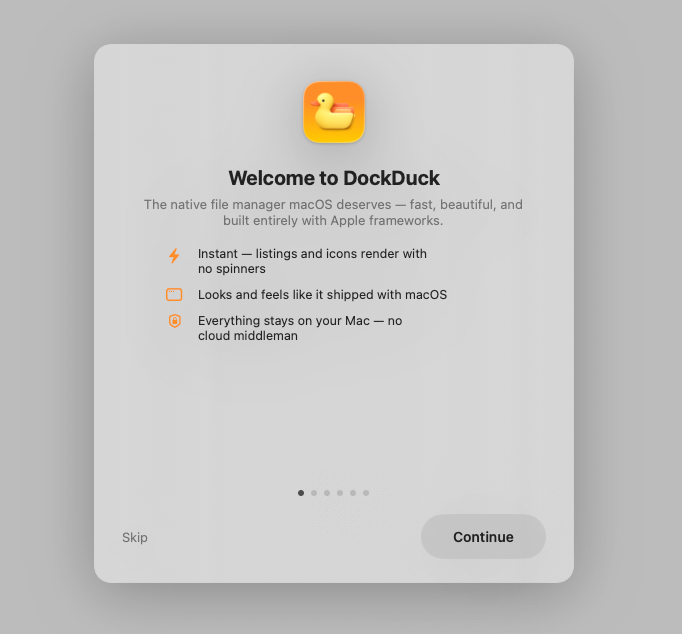
- Press Continue to step through the pages, or Skip to jump straight to the setup steps.
- The tour is one-time. Once you’ve stepped past it, a relaunch resumes at the setup steps instead of replaying the whole thing.
Full Disk Access (optional)
macOS asks before any app reads certain folders. DockDuck can work without extra permission, but granting Full Disk Access once stops those prompts. It’s the same access Finder already has, and you can turn it off anytime.
- During onboarding, an optional step offers to take you straight to the right pane in System Settings. You can also do it later.
- If you skip it, a quiet one-time banner appears in the window offering the same shortcut. It disappears on its own the moment you grant access.
macOS doesn’t let any app grant Full Disk Access to itself. You flip the switch in System Settings → Privacy & Security → Full Disk Access. DockDuck can only take you there. Your files never leave your Mac regardless; this permission is only about reading folders locally.
Start your free trial
DockDuck includes a 14-day free trial. It needs no account and no credit card: the trial belongs to this Mac, and the last onboarding step starts it.
On the final onboarding step, click Start Free Trial. The 14 days begin right away, even if you are offline.
Onboarding closes and you are in the app.
Starting the trial means you agree to the Terms and the Privacy Policy. Both are linked right under the button.
Already bought DockDuck? On that same step, click Already purchased? Sign in instead, and your license is recognized.
Two things are not part of the trial and come with a license: sending files as links (Share) and the alternate app icons. Everything else works for the full 14 days. When the trial ends, DockDuck shows a paywall until you buy a license or sign in to an account that has one. Your files are never touched.
The Start Page
After onboarding, every new window opens on the Start Page, a dashboard rather than a folder listing. It gathers, top to bottom:
- This Mac: your disks and volumes, with storage bars.
- Servers: your saved remote servers, if you have any.
- Quick Access: your common system folders as cards.
- Pinned: folders and files you’ve pinned for quick reach.
- Recent: a compact list of your recent activity.
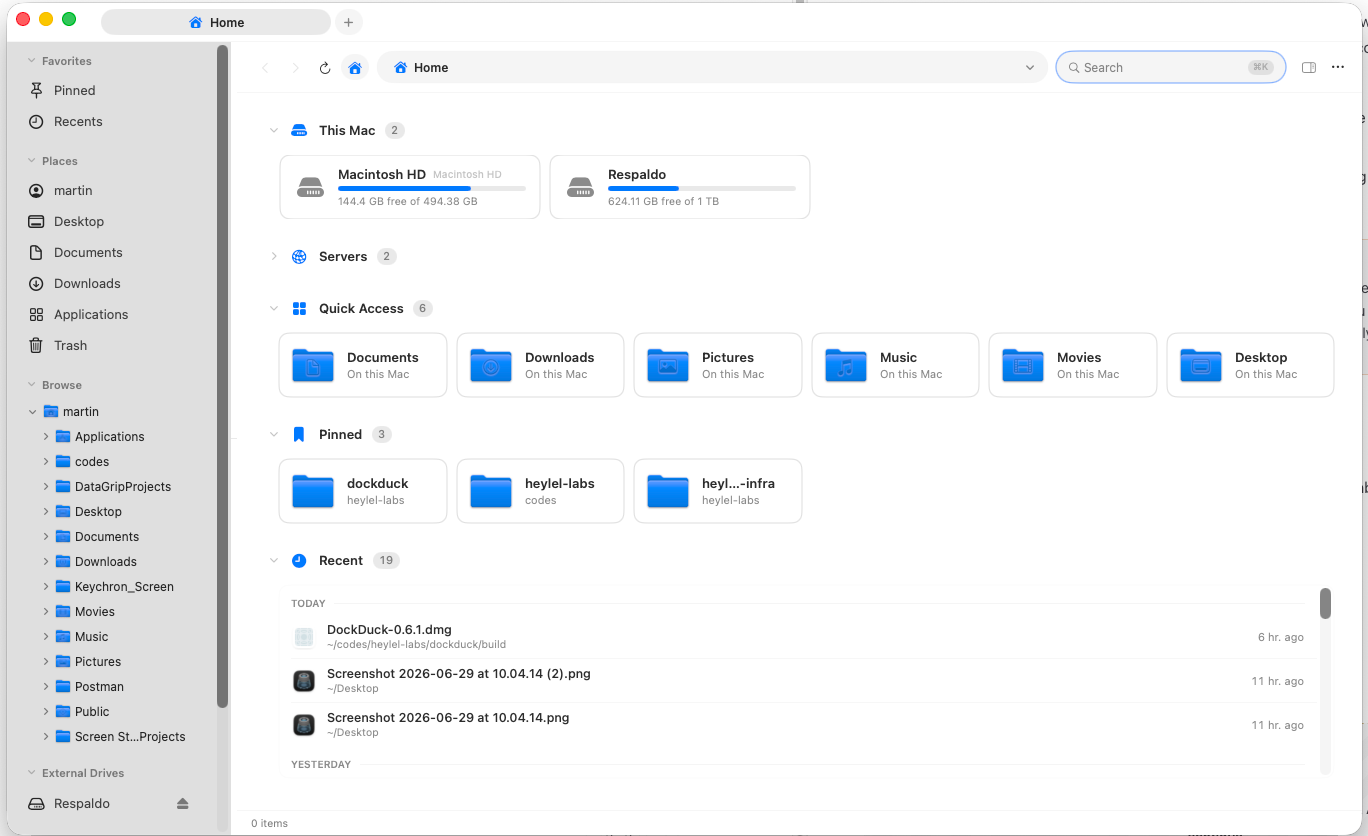
Click a folder card to open it in the current tab; click a file to open it in its default app. You can return to the Start Page anytime with the Home button in the toolbar.
Where to go next
- The interface: a tour of the sidebar, toolbar, and panes.
- Remote servers: connect to SFTP, SMB, WebDAV, and FTP.
- Keyboard shortcuts: drive DockDuck from the keyboard.