 DockDuck
 Documentation
The Shelf
A global holding tray for gathering files from anywhere, then dropping the whole batch into a new location with Move here or Copy here.
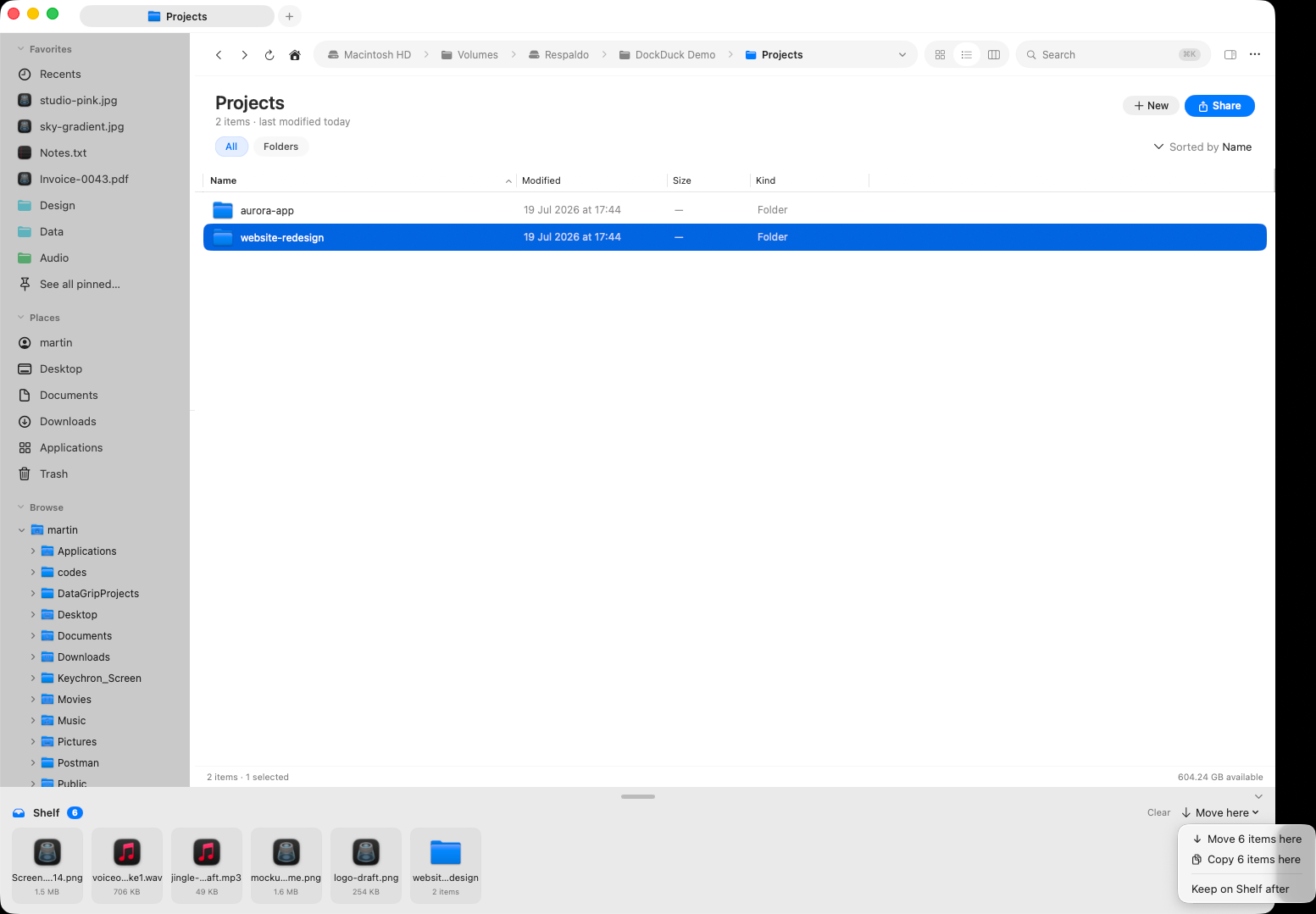
What it is. The Shelf is a temporary, session-only tray that floats above every DockDuck window. Drop files onto it from one place, navigate somewhere else, and drop the whole batch where you want it. When to use it. Whenever you’re collecting files from several folders before moving them: no more keeping a window open just to remember what you’d picked.
The tray and the pill
The Shelf has two states:
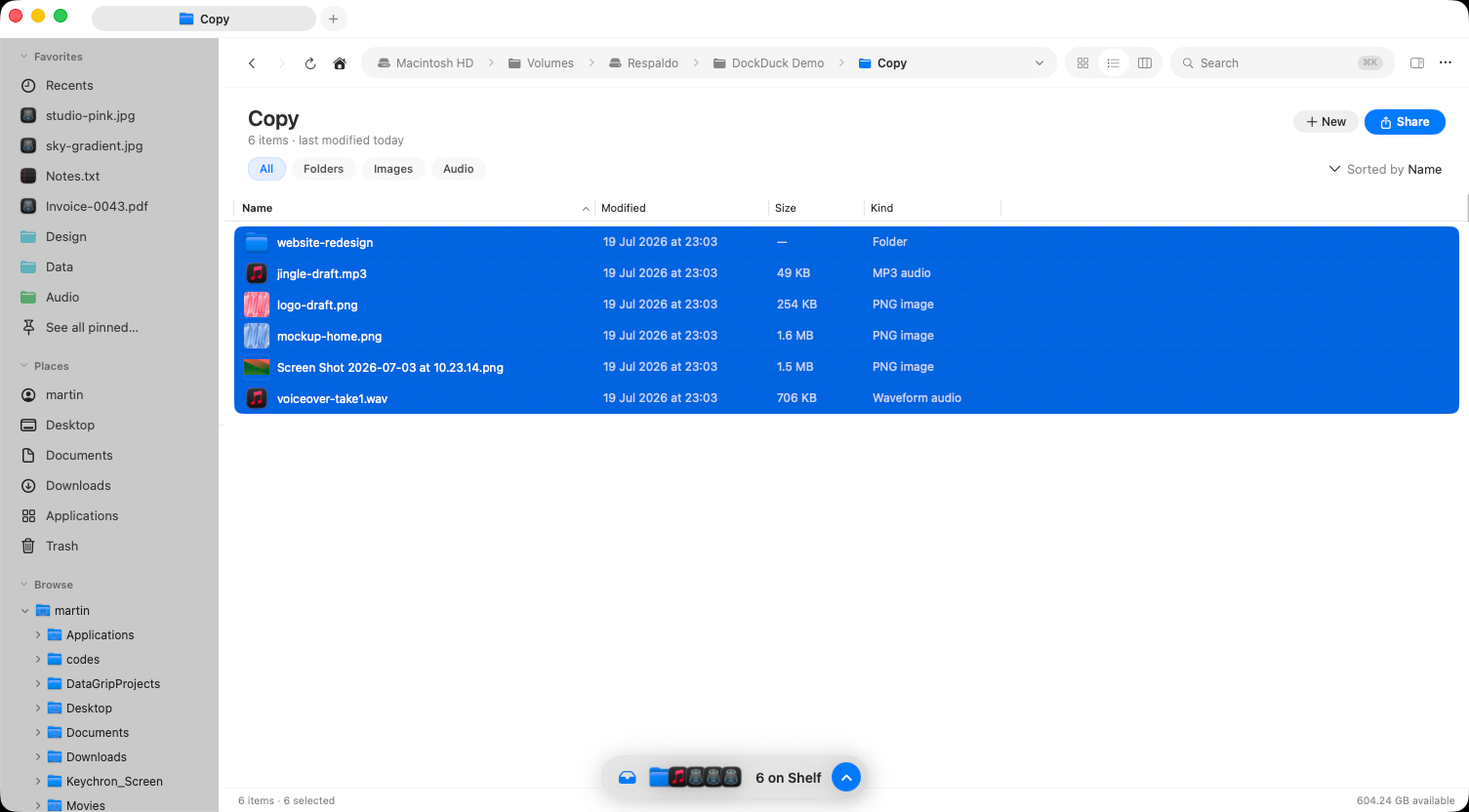
- Floating pill: a small badge showing the item count and a peek of what’s inside. It appears whenever the Shelf has items but isn’t expanded.
- Docked tray: the expanded Shelf, with every collected item, a count, a Clear button, and the Move/Copy-here actions. It docks at the bottom of the window.
Click the pill to expand the tray; collapse it to drop back to the pill. An empty Shelf stays out of the way entirely.
Adding items
Drag any selection onto the pill or the tray to add it. You can also right-click a selection and choose Add to Shelf. Items are gathered and the tray expands so you can see what you’ve collected. Adding the same item twice is a no-op, so you can’t end up with duplicates.
Adding to the Shelf has no default keyboard shortcut. Use the Add to Shelf context-menu action or drag items in.
Taking items out
When you’re ready, navigate to the destination folder and:
- Drag items out of the tray into the current folder, or
- Click Move here or Copy here in the tray to send the whole batch at once.
By default a Move or Copy clears the Shelf afterward. Turn on Keep on Shelf after if you want the items to stay so you can drop the same batch into more than one place. Remove a single item with the ✕ on its card, or empty the whole Shelf with Clear.
It clears when you quit
The Shelf is intentionally session-only: it’s shared across all your DockDuck windows while the app is running, and it empties automatically when you quit. It’s a staging area, not storage. Nothing you put on it is ever moved or deleted until you choose Move here, Copy here, or drag it out.
Where to go next
- Copy, move & trash: the same Move/Copy rules apply.
- Transfers: progress when a Shelf drop copies large folders.
- Selecting & opening: build the selection to gather.