
Conditions & actions
Every condition a folder rule can check, every action it can take, and the rename tokens.
On this page 4 sections
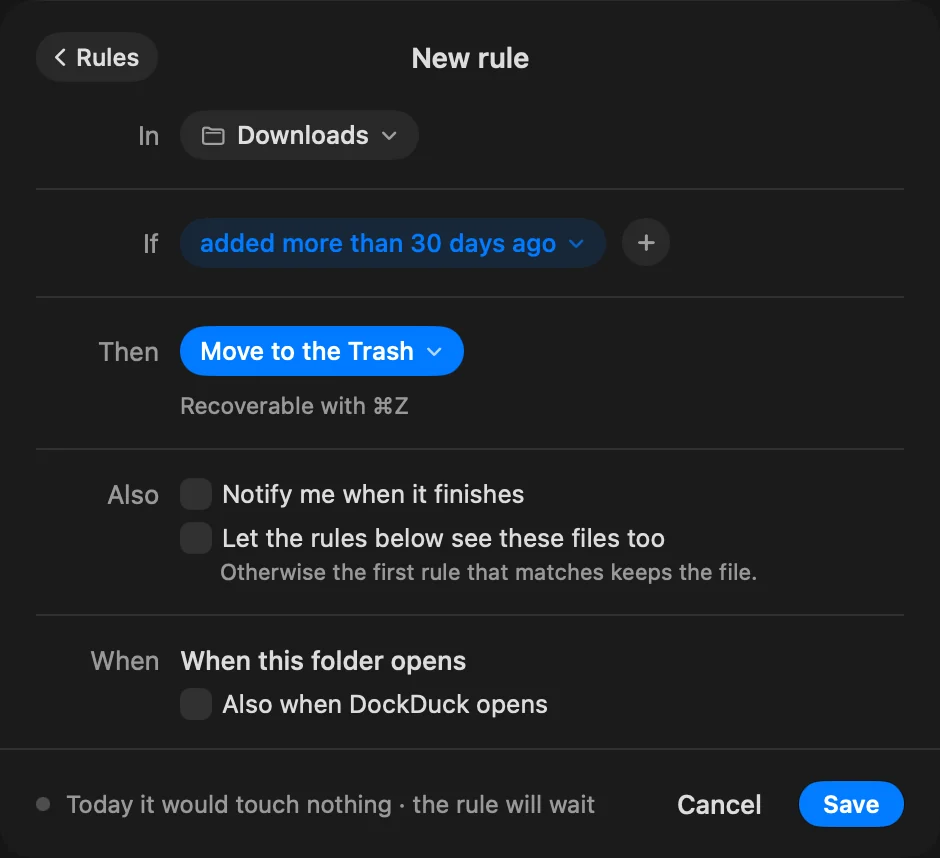
A rule has a scope (In), one or more conditions (If) and one action (Then). A file must meet every condition. A rule with no conditions matches nothing.
Scope
| Choice | Where the rule looks |
|---|---|
| Only in the folder | The files directly in the folder |
| In … and all its subfolders | The folder and everything below it |
| Only in the subfolder… | One subfolder you name |
Folders your rules move things into are never checked.
Conditions
Click + next to If to add a condition. The menu groups them under The file, Dates and Deeper.
The file
| Condition | Matches when |
|---|---|
| Kind | The item is one of Folders, Images, Documents, Code, Videos, Audio or Archives |
| Name | The name contains the text you type. Upper and lower case don’t matter. |
| Extension | The file has that extension. pdf, .pdf and PDF all work. |
| Size | The file is larger than the number of MB you set (1 MB is 1,000,000 bytes). Folders never match. |
| Tag or color | The item has that tag. Pick a color or a tag name, or create one. |
Dates
Choose the date, then more than or less than a number of days, weeks or months ago. A month counts as 30 days.
| Condition | The date it looks at |
|---|---|
| Date added | When the item arrived in the folder |
| Date modified | When the item last changed |
| Date created | When the item was created |
| Last opened | When the item was last opened |
For example, “added more than 30 days ago” or “modified less than 2 weeks ago”.
Deeper
These look inside each file or at details macOS keeps with it.
| Condition | Matches when |
|---|---|
| Downloaded from… | Any part of the address the browser saved with the file contains your text |
| Contains the text… | The text appears inside the file. Works with text, code and PDF files. |
| Comment… | The comment from Get Info contains your text |
Actions
Click the action next to Then to choose another one. The menu groups them under Sort, Change, Convert and Send, with Move to the Trash at the end.
| Action | What happens | Undo with ⌘Z | Runs with DockDuck closed |
|---|---|---|---|
| Move to a subfolder | Moves the files into a subfolder, created if it doesn’t exist | Yes | Yes |
| Move to… | Moves the files to a folder you choose | Yes | Yes |
| Copy to… | Copies the files to a folder you choose | Yes | No |
| Make an alias in… | The file stays; an alias to it appears in the folder you choose | Yes | Yes |
| Rename | Renames the files with a pattern (see below). The extension stays. | Yes | Yes |
| Add a tag | Adds a tag or color | Yes | Yes |
| Hide the extension | Hides the file’s extension | Yes | Yes |
| Lock | Locks the file | Yes | Yes |
| Compress to .zip | Each file becomes its own .zip; the original stays | Yes | No |
| Extract here | Extracts the archive next to it; the original stays | Yes | No |
| Import to Photos | A copy goes into Photos; your files stay | No | No |
| Import to Music | Music adds them to its library; your files stay | No | No |
| Open with… | Opens the files with an app you choose | No | No |
| Move to the Trash | Moves the files to the Trash | Yes | Yes |
A rule skips files where the action would change nothing, such as a file that already has the tag, is already locked, or already has its .zip next to it. Import and Open with… remember each file they handled, so they don’t repeat it.
A rule runs with DockDuck closed only if its action allows it and the folder and any destination are in your home folder (outside Library). See Preview, manage & undo rules.
Rename tokens
Rename builds the new name from pieces. Click + to add one, or click a piece to change or remove it.
| Piece | What it adds |
|---|---|
| Date | A date. Choose Date added, Date created, Date modified or Today, and a format such as 2026-11-12, 12-11-2026, 2026-11 or 2026. |
| Number | A counter. Always add one gives 001, 002, 003, even if you delete one. Use the lowest free number fills gaps: if 001 and 003 exist, the next is 002. Each folder keeps its own count. |
| Original name | The file’s current name |
| Text | Any text you type, such as a space or “Holiday” |
For example, Date, a space, “Holiday”, a space and Number renames IMG_1234.jpg
to 2026-09-25 Holiday 001.jpg.
Thanks, that helps us improve this page.