
Quick start
Five everyday tasks to get going: open and move around, select, create and rename, copy and move, and find and preview.
On this page 5 sections
What you’ll accomplish
- Get around your folders with the mouse and the keyboard
- Select, create and rename files and folders
- Copy, move and find files, and undo a mistake
DockDuck uses the Mac conventions you know, including most of Finder’s shortcuts. These five tasks cover what you do every day.
1. Open folders and move around
- Double-click a folder to open it, or select it and press ⌘O or ⌘↓. A file opens in its app, and an archive opens like a folder.
- Go back with ⌘[ or ⌫, and forward with ⌘].
- Go up to the enclosing folder with ⌘↑.
- Jump to common places from the Go menu: Desktop ⇧⌘D, Documents ⇧⌘O, Downloads ⌥⌘L, Applications ⇧⌘A, or any path with Go to Folder… ⇧⌘G.
In the List view, → unfolds the selected folder in place and ← folds it. See View modes.
2. Select files
| To | Do this |
|---|---|
| Select one item | Click it. |
| Select a range | Click the first item, then Shift-click the last. |
| Add or remove one item | ⌘-click it. |
| Select several by area | Drag across empty space around them. |
| Select everything | ⌘A |
| Deselect everything | ⌥⌘A |
| Jump to a file by name | Start typing its name. |
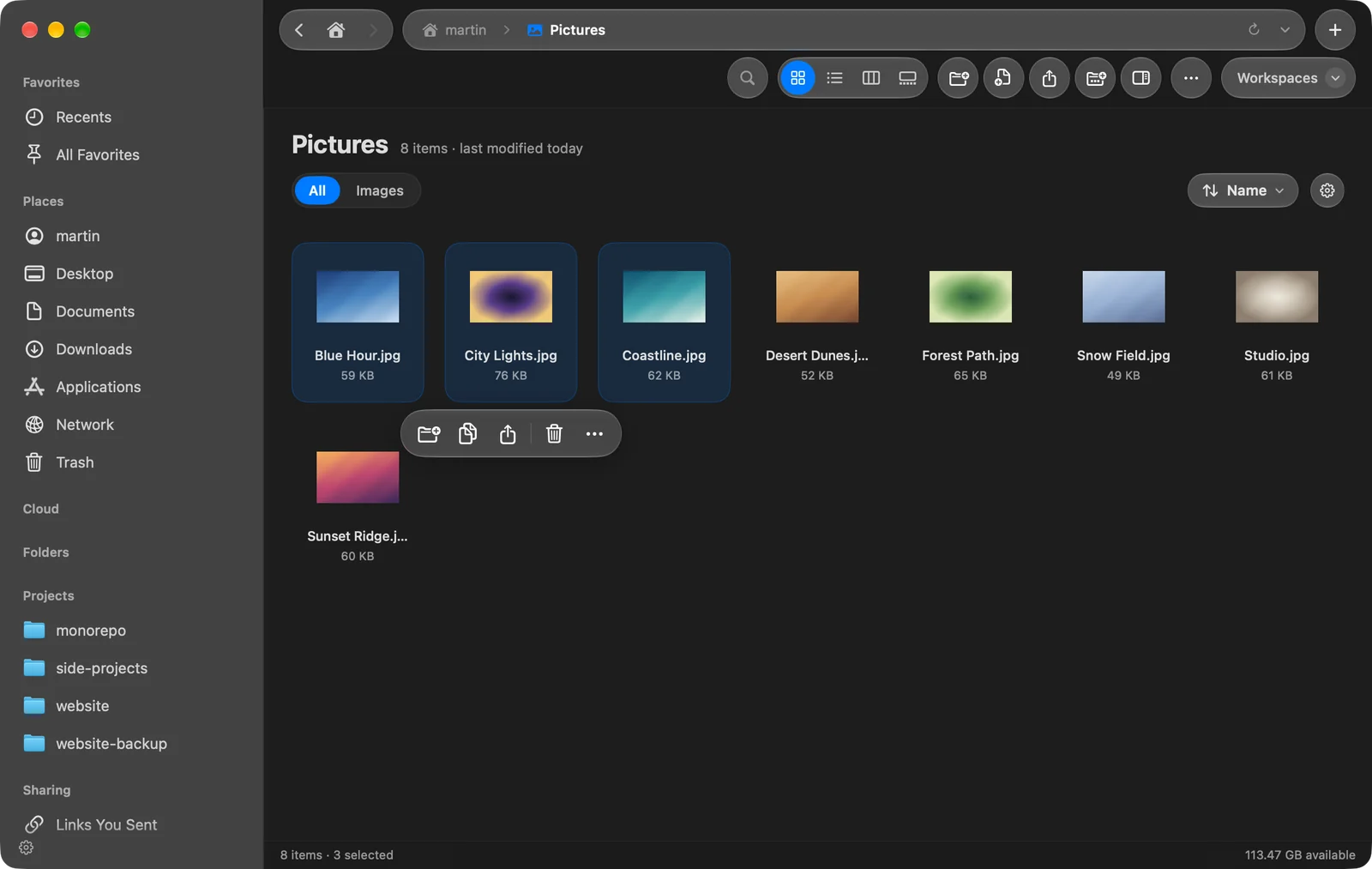
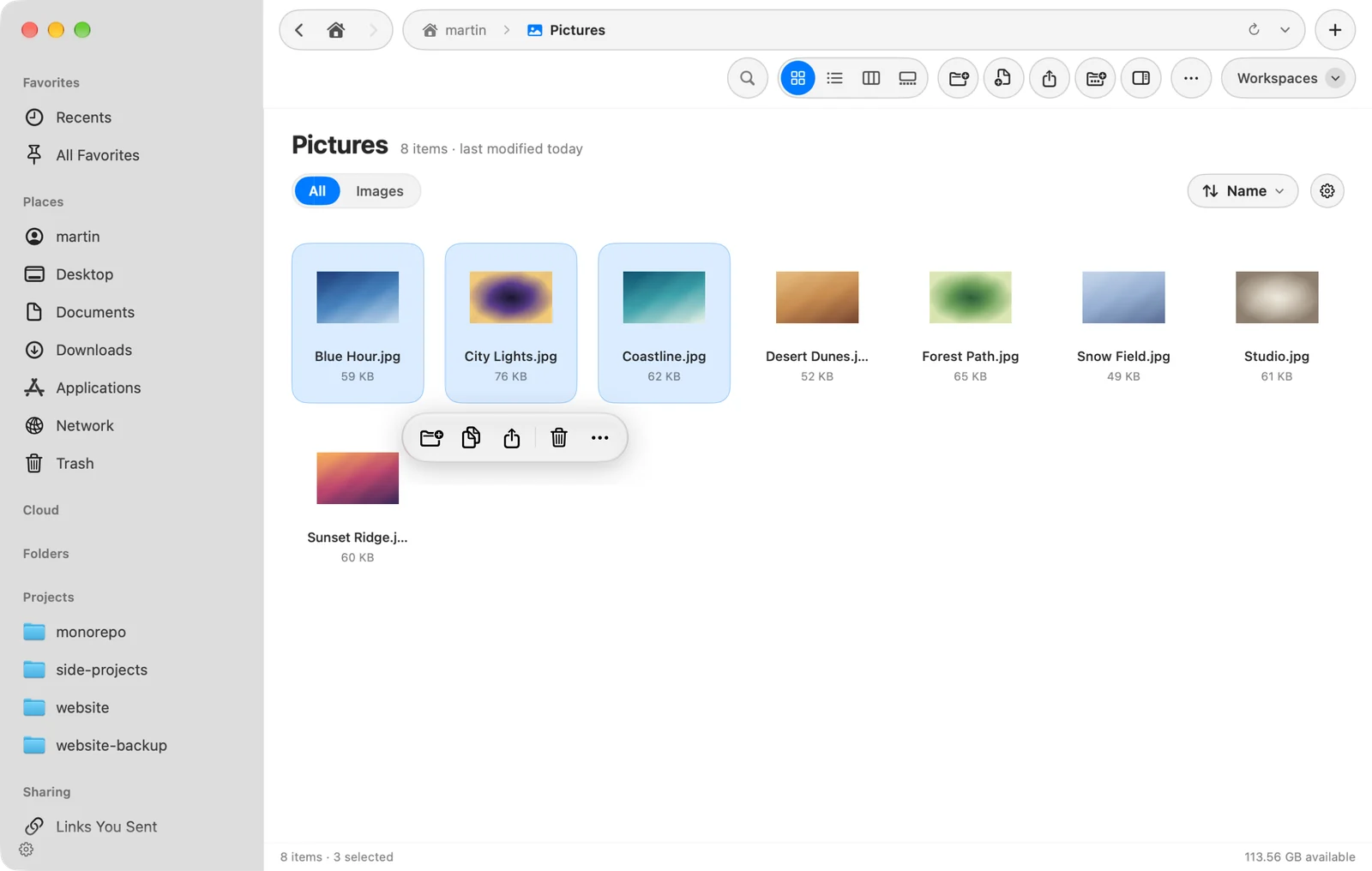
When you click to select, the quick action bar appears below the selection with common actions. Control-click the selection for every action.
3. Create and rename
- Create a folder
Press ⇧⌘N, or click New Folder in the toolbar. To put selected files straight into a new folder, press ⌃⌘N (New Folder with Selection).
Result: A new folder appears with its name ready to type. - Name it
Type the name and press ↩. Press esc right away to remove the new folder.
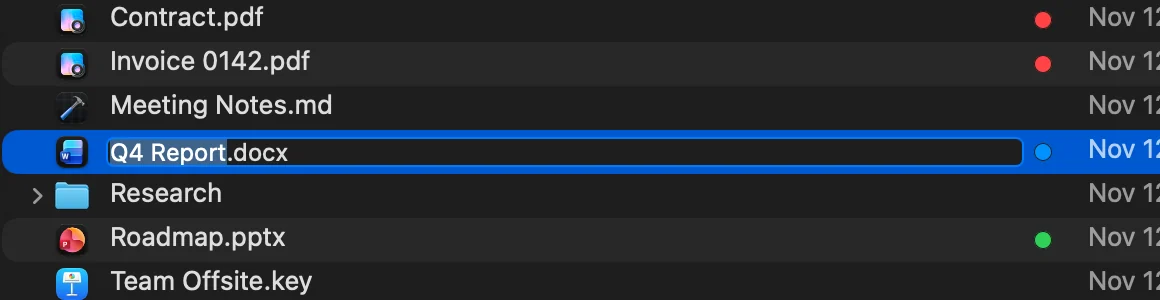
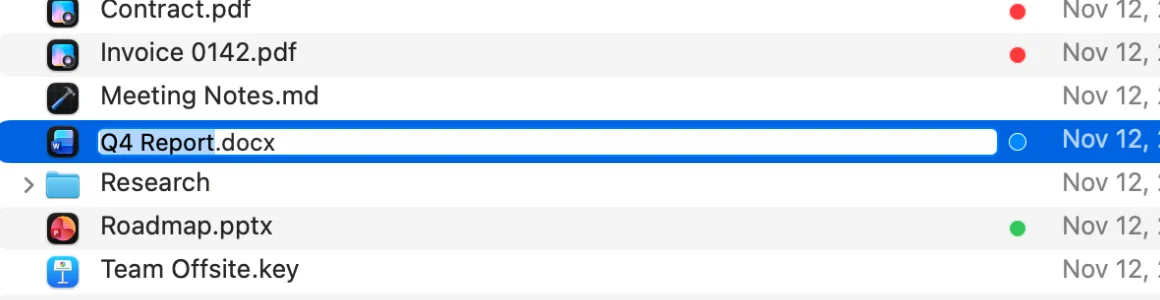
To rename an item, select it and press ↩. Only the name is selected, so the extension stays as it is. Select several items and press ↩ to rename them all at once. See Batch rename.
4. Copy, move and delete
| To | Do this |
|---|---|
| Copy | ⌘C, then ⌘V in the destination |
| Move | ⌘C, then ⌥⌘V (Move Items Here), or ⌘X then ⌘V |
| Duplicate | ⌘D |
| Move to the Trash | ⌘⌫ |
| Undo | ⌘Z |
You can also drag files to a folder, a tab, a favorite in the sidebar, or another pane. Hold ⌥ while dropping to copy, or ⌘ to move. See Copy, move & trash.
5. Find and preview
- Press ⌘F and type part of a name. Results appear as you type. See Search basics.
- Select a file and press Space to see it full size with Quick Look.
- Press ⇧⌘P to show the preview panel and a file’s details.
Thanks, that helps us improve this page.