
Let Claude work in DockDuck
Connect the Claude app to DockDuck so you can ask Claude to find, open and organize files in your DockDuck windows.
On this page 6 sections
What you’ll accomplish
- Connect DockDuck to the Claude app in one switch
- Know what Claude can and can't do with your files
- Undo what Claude changed, or turn the connection off
With this on, the Claude app can work in DockDuck for you. Ask it to file your downloads, find something, or set up a workspace, and it does the work in your DockDuck windows while you watch.
Before you start
- The Claude app for Mac, installed in your Applications folder.
- A paid Claude plan.
Turn it on
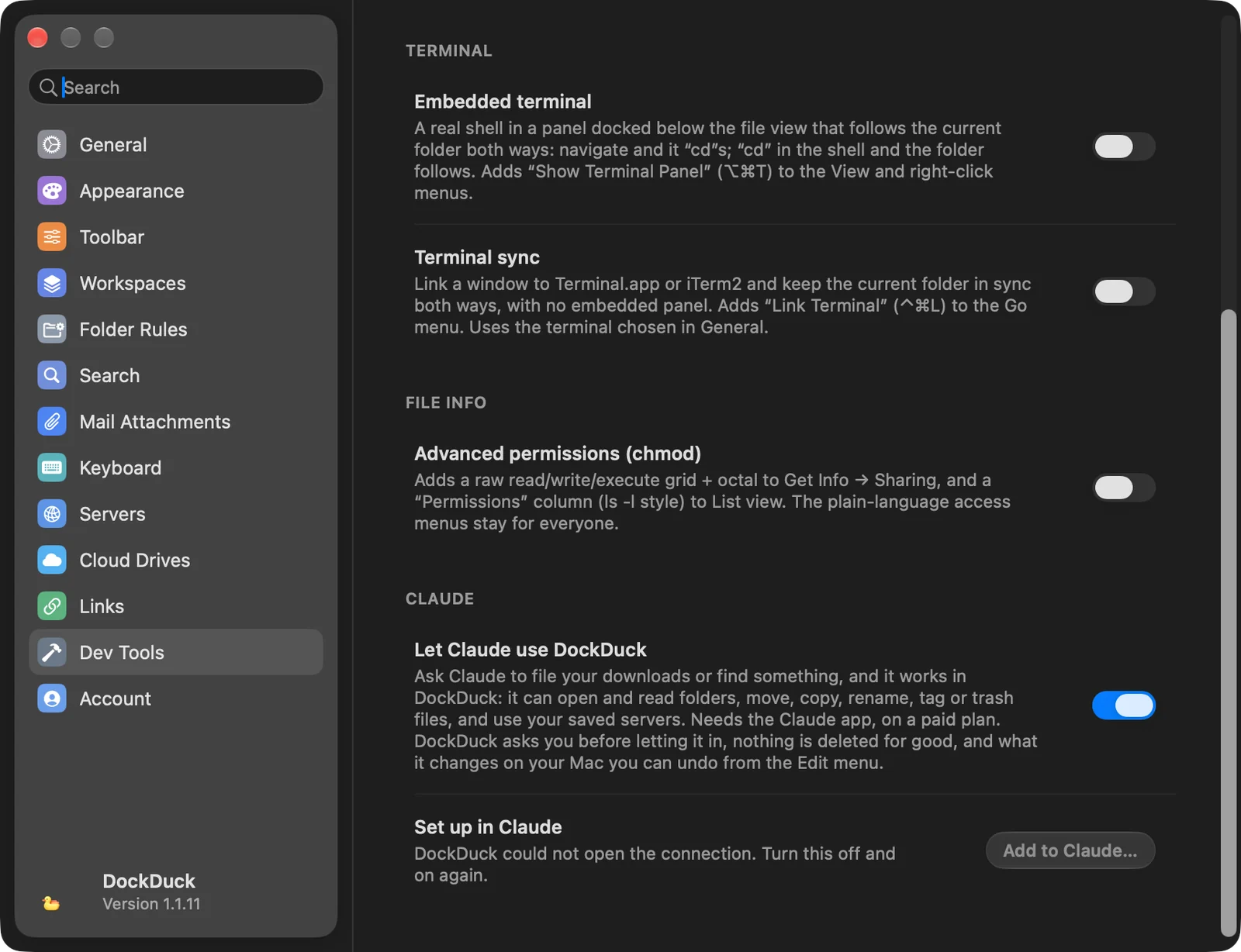
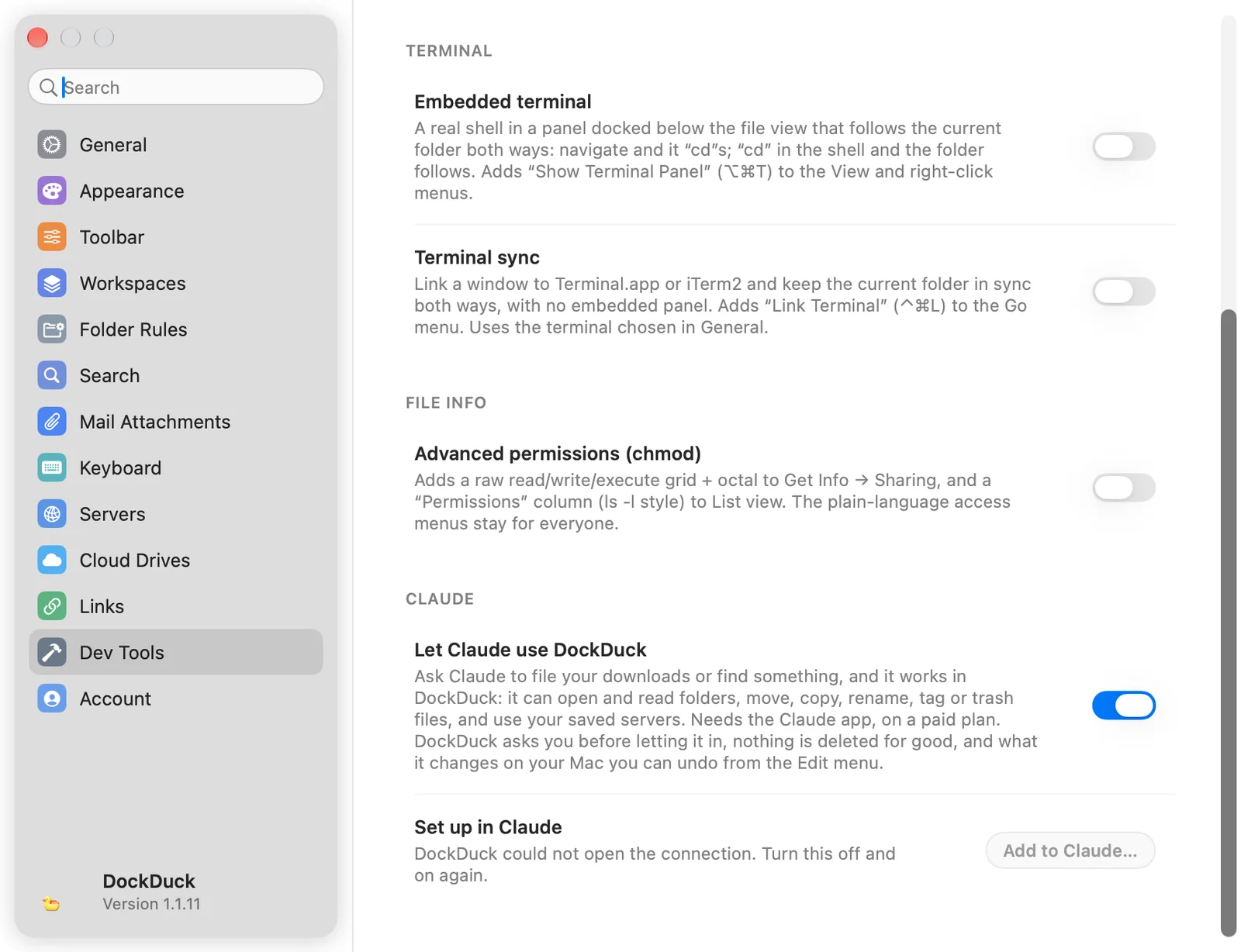
- Open Settings → Dev Tools
Press ⌘, and choose Dev Tools. The switch is in the Claude group at the bottom.
- Turn on Let Claude use DockDuck
DockDuck adds its own entry to Claude’s settings and leaves the rest of them as they were.
Result: DockDuck adds itself to Claude's list of connectors. - Restart Claude
Claude only notices DockDuck when it starts. If Claude is open, DockDuck offers Restart Claude. If it’s closed, just open it.


- Allow the connection
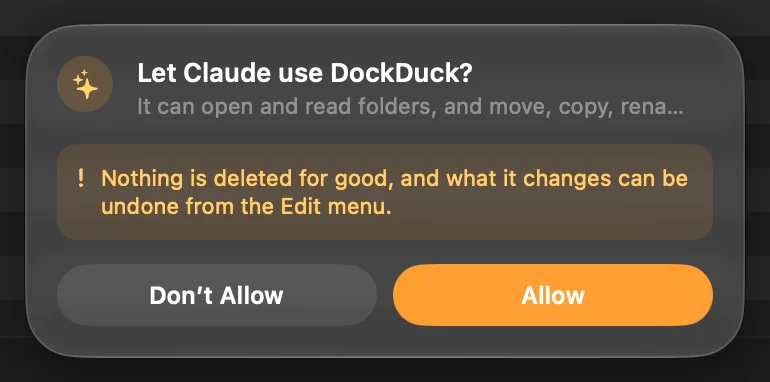
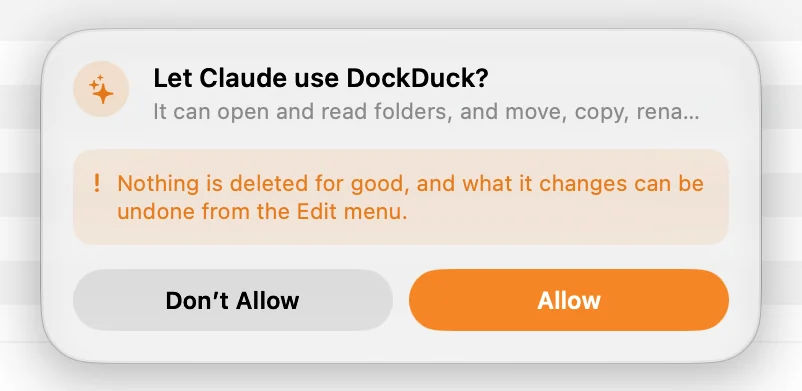
The first time Claude connects, DockDuck asks Let Claude use DockDuck? and names the program that is asking. Click Allow. DockDuck asks again the next time you open it.
Result: Claude can now use DockDuck until you quit DockDuck.
What Claude can do
- See where you are: the folder in the front window, what you selected, the view, the sort order and your open tabs.
- Read and browse: list folders, get file details, open a folder, reveal a file, select files, and change the view.
- Change files on your Mac: move, copy, rename, duplicate, tag, compress, extract, move to the Trash, create folders and create text files.
- Use the rest of DockDuck: the Shelf, Favorites, workspaces, folder rules, cloud drive folders, shared links, and your saved servers.
What keeps your files safe
- Nothing on your Mac is deleted for good. Claude can move items to the Trash, where you can put them back.
- System folders stay put. The startup disk, System, Applications, your home folder and its standard folders can’t be moved, renamed or trashed.
- You can undo it. What Claude changes on your Mac goes into DockDuck’s Undo, in the Edit menu. Activity lists what Claude did in a conversation as one row, with Undo All.
- Servers ask first. A server has no Trash, so before Claude deletes anything on one, DockDuck shows you exactly what will go and waits for you to confirm. Changes on a server can’t be undone.
- It stays on your Mac. Claude reaches DockDuck through a local connection that only your user account can open, and only while the switch is on.
Turn it off
Turn off Let Claude use DockDuck in Settings → Dev Tools. Claude can no longer reach DockDuck, and if you turn it on again, DockDuck asks for your permission again.
If something goes wrong
| Problem | What to do |
|---|---|
| Claude doesn’t see DockDuck | In Settings → Dev Tools, click Add to Claude…, then restart Claude. |
| ”Claude is not installed” | Install the Claude app, then click Add to Claude…. |
| ”DockDuck could not open the connection” | Turn Let Claude use DockDuck off and on again. |
| ”Claude is still open” | Quit Claude from its menu, then open it again. |
Thanks, that helps us improve this page.