
Fix search problems
What to do when search misses a file, shows something outdated, finds nothing inside files, or stops before the end.
On this page 6 sections
Most search problems come from where a file is: DockDuck’s index leaves some places out on purpose, and some searches depend on Spotlight. How the search index works explains both.
A file you know exists doesn’t appear
1 Symptom
The file is on your Mac, but searching for its name finds nothing.
2 Possible cause
The search looks in the current folder and its subfolders, or the file is in a place the index leaves out: the Library folder, inside a hidden folder, inside an app or package, or in a build folder such as node_modules.
3 What to check
Look at the scope in the Filters panel, and at where the file is. A name that starts with a dot is a hidden file.
4 How to resolve
Click Search This Mac, or choose Mac as the scope. For hidden files, turn on Include hidden files in the Filters panel. To find files in the Library, hidden folders and apps, turn on Include hidden and system folders in Settings, Search.
1 Symptom
Files inside a cloud folder aren't found.
2 Possible cause
The folder is only in the cloud. DockDuck doesn't read folders that aren't downloaded, because reading them would download them.
3 What to check
The folder shows the cloud badge for items only in the cloud.
4 How to resolve
Download the folder first: Control-click it and choose Download Now.
1 Symptom
Nothing on a network share is found right away.
2 Possible cause
Network shares aren't indexed. A search inside a share reads its folders when you search, and waits for a pause in your typing.
3 What to check
The folder is on a share from a NAS or another computer.
4 How to resolve
Search from inside the folder that holds the file, so there is less to read.
Results are outdated
1 Symptom
Search shows a file you deleted or renamed, or misses one you just added.
2 Possible cause
The index hasn't caught up with a change, which can happen after a large change made while DockDuck was closed.
3 What to check
Open the folder: the listing always reads the disk.
4 How to resolve
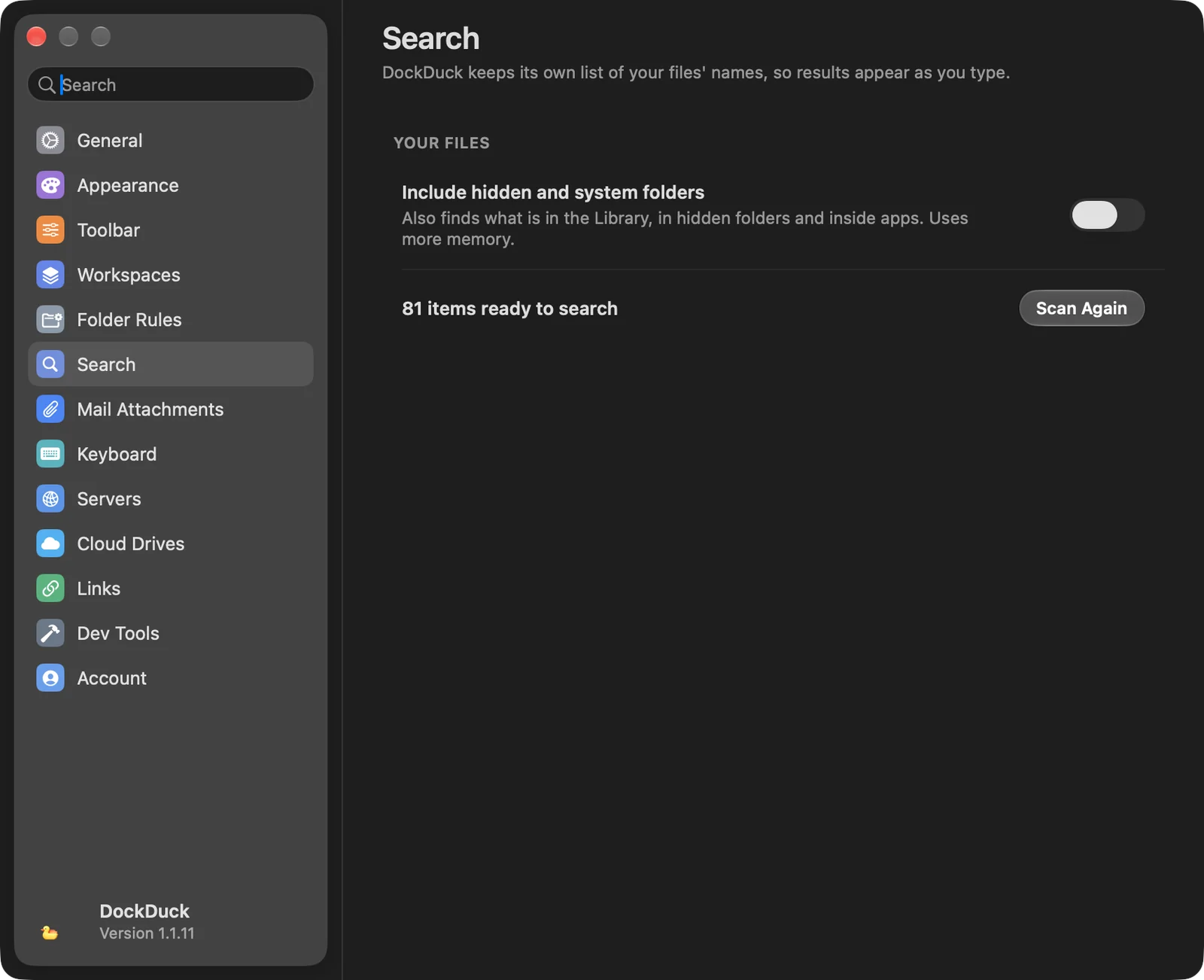
Open Settings, choose Search, and click Scan Again. DockDuck builds the index again from the disk.
Search says Getting ready
1 Symptom
Settings, Search reads Getting ready…, and searches take a while to answer.
2 Possible cause
DockDuck is building its index, the first time or after Scan Again or a change to Include hidden and system folders.
3 What to check
The number of items appears in Settings, Search once the index is ready.
4 How to resolve
Wait for the build to finish. A search started meanwhile waits for it.
Nothing is found inside files
1 Symptom
With Search inside files on, or with contents:, files that contain the word don't appear.
2 Possible cause
The text inside files comes from Spotlight, the index macOS keeps. Files Spotlight hasn't indexed can't match by their text. The same goes for tag:, author: and created:.
3 What to check
The disk isn't excluded from Spotlight in System Settings, and the file's text can be indexed.
4 How to resolve
Make sure Spotlight indexes that disk. Names still match through DockDuck's index.
1 Symptom
On a server, Search inside files finds only names.
2 Possible cause
Servers are searched by name only. The status bar says Servers are searched by name.
3 What to check
The search is on an FTP or SFTP server.
4 How to resolve
Download the files to your Mac to search their text.
The search stops before the end
1 Symptom
The status bar says Too many items to search them all.
2 Possible cause
The folder isn't in the index and holds too many items to read in one search, or the server has too many folders.
3 What to check
The folder is outside your home folder, iCloud Drive, Applications and external drives, or it is on a server.
4 How to resolve
Search a smaller folder that holds the file, or add a filter such as a kind or a date.
If the problem persists
- Open Settings, choose Search and click Scan Again. Wait until the number of items appears.
- Search from the Start Page, which covers the whole Mac.
- If the file still doesn’t appear, contact support from Settings, About, and include where the file is and what you typed.
Was this page helpful? Suggest an edit
Thanks, that helps us improve this page.
Still stuck? Write to us with what you tried. We read every message.