 DockDuck
 Documentation
Managing servers
Save, edit, and organize your remote connections in Settings → Servers: protocol-grouped lists, status badges, the Add and Edit sheets, the Test button, and app-wide defaults.
What it is. A saved server is a bookmark plus its Keychain password, so you never retype connection details. Where they live. In the sidebar’s Servers section, on the Start Page, and in Settings → Servers where you add, edit, and configure them.
Saving a server
There are two ways in:
- From the address bar. Type a URL, connect, and leave Remember this server ticked in the Connect sheet. Done.
- From Settings. Open Settings → Servers and click Add Server.
A saved server appears automatically on the Start Page under a Servers section, right below This Mac, so it’s reachable from Home even when the sidebar’s Servers section is turned off.
The Add Server sheet
Pick a protocol tile: SFTP, FTP / FTPS, or SMB. The FTP tile covers both plain FTP and FTPS; choose between them with the Encryption toggle (Plain FTP / TLS).
Fill in Name (optional, e.g. prod-api),
Server, Port, Username, and Password. The port placeholder
shows the protocol default.
Use Test to verify the connection without keeping it, Connect to connect and save, or Save to store it as a bookmark you can connect to later, handy for a server that’s offline, behind a VPN, or whose host key you haven’t trusted yet.
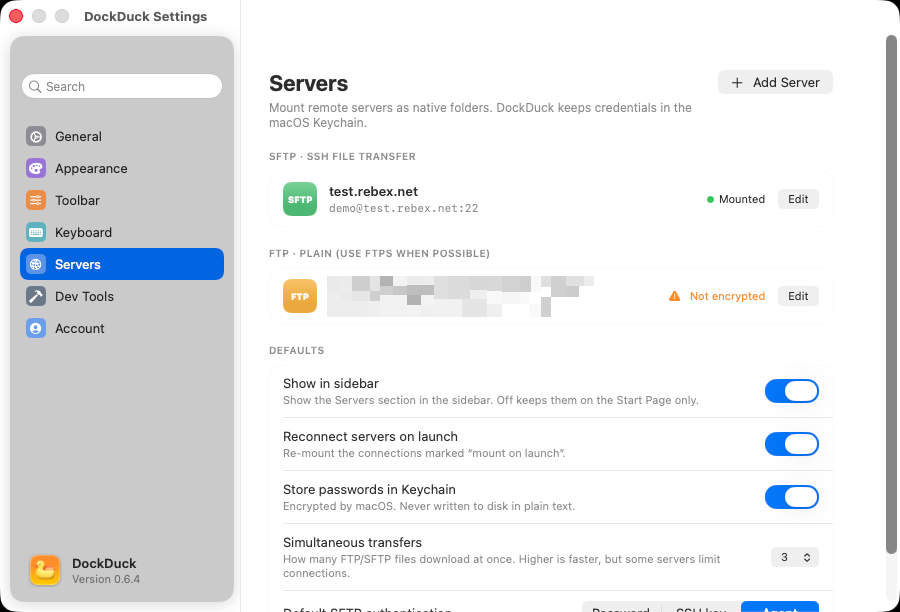
The Add sheet keeps the basics on screen. The full set of options (friendly name, remote path, SFTP authentication, mount-on-launch) lives in the per-server Edit sheet, after the first connect.
Settings → Servers
The Servers settings page lists every saved connection, grouped by protocol:
- SFTP · SSH File Transfer
- FTPS · FTP over TLS
- FTP · Plain (use FTPS when possible)
- SMB · Windows & NAS shares
- WebDAV / DAVS
Each row carries a colored protocol badge, the server’s name and
user@host:port · /path detail line, a status pill, and an Edit button.
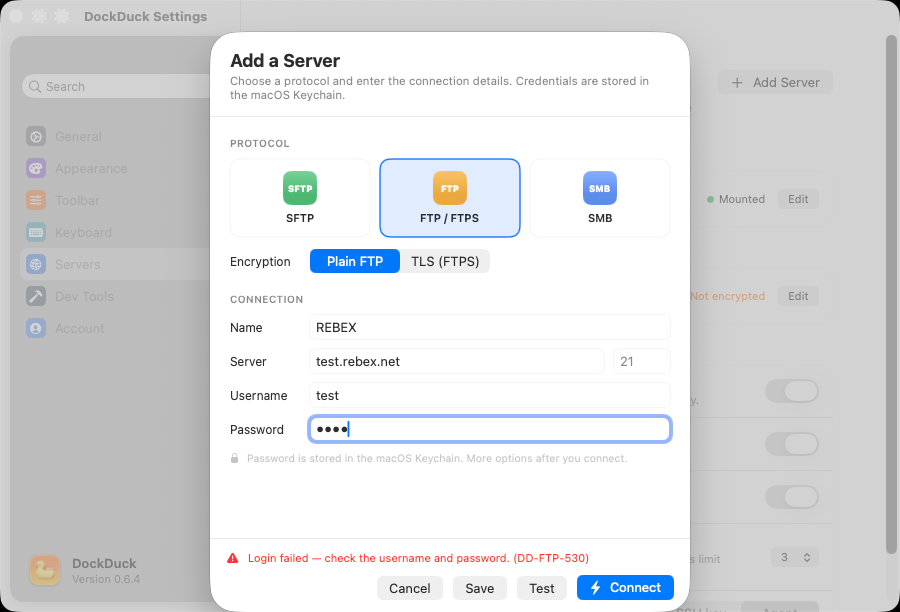
The status pill tells you the connection state at a glance:
- A green dot reads Mounted when a connection is live; a gray dot reads Disconnected when it isn’t.
- Plain FTP rows show an orange Not encrypted warning instead, a standing reminder to prefer FTPS.
Editing a server
Click Edit to open the full editor. Here you can change the protocol, Name, Server URL, Port, Username, Password (stored in Keychain), and Remote path. For SFTP, an Authentication section lets you pick the method.
The editor has its own Test Connection button. It tries the connection and reports success or the failure reason inline, so you can confirm a change before saving. Save & Connect commits the edits and opens the server; Delete forgets it.
Deleting a server is thorough: it removes the saved entry, wipes its Keychain password, drops any live session, and forgets the trusted SSH host key or TLS certificate for that host, unless another saved server still uses the same host.
Defaults
Below the list, the Defaults section holds app-wide preferences:
| Setting | What it controls |
|---|---|
| Show in sidebar | Whether the Servers section appears in the sidebar. Off keeps your servers on the Start Page only. |
| Reconnect servers on launch | Re-mounts the connections you marked Mount on launch when DockDuck starts. |
| Store passwords in Keychain | Keep passwords in the macOS Keychain, encrypted by the system, never written to disk in plain text. |
| Simultaneous transfers | How many FTP/SFTP files download at once (1–6). Higher is faster, but some servers cap connections per client. |
| Default SFTP authentication | The auth method new SFTP servers start with. |
Pinning and the Start Page
Saved servers show up on the Start Page automatically. To keep any folder one click away, drag it onto Pinned on the Start Page. Once you’ve connected to a server, the folder you land in can be pinned like any other.
Where to go next
- The Connect sheet: every field, and how URLs pre-fill it.
- Transfers: copy, move, and recursive folder transfers.
- Troubleshooting: host keys, timeouts, and error codes.
- Remote servers overview: the four protocols at a glance.