
Move files between panes
Drag, copy or move files from one pane to another, switch panes from the keyboard, and use function keys for the common actions.
On this page 6 sections
What you’ll accomplish
- Copy or move files from one pane to another, by dragging or with a command
- Switch between panes without the mouse
- Use F5 and F6 to copy and move between panes
Before you start
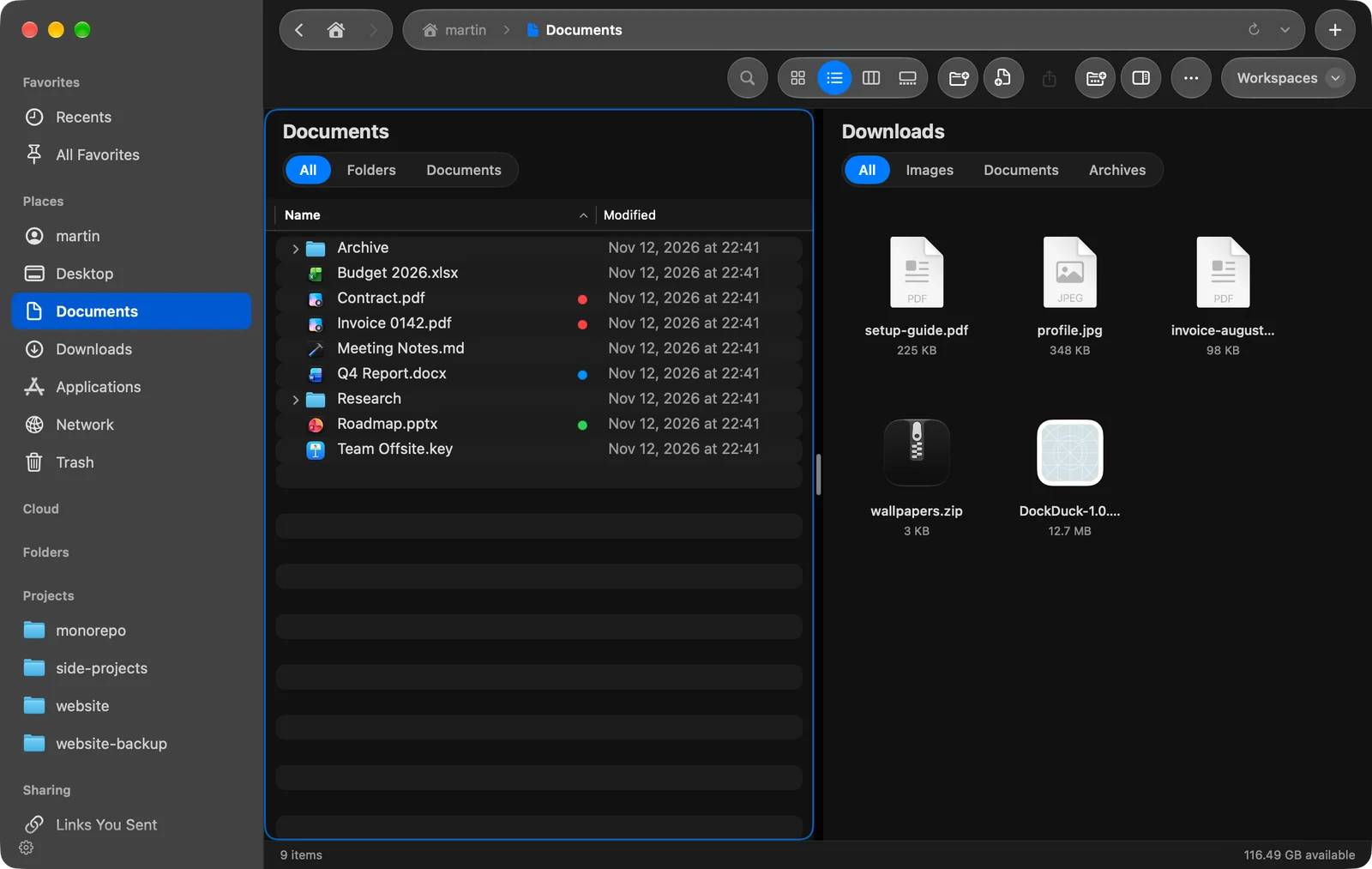
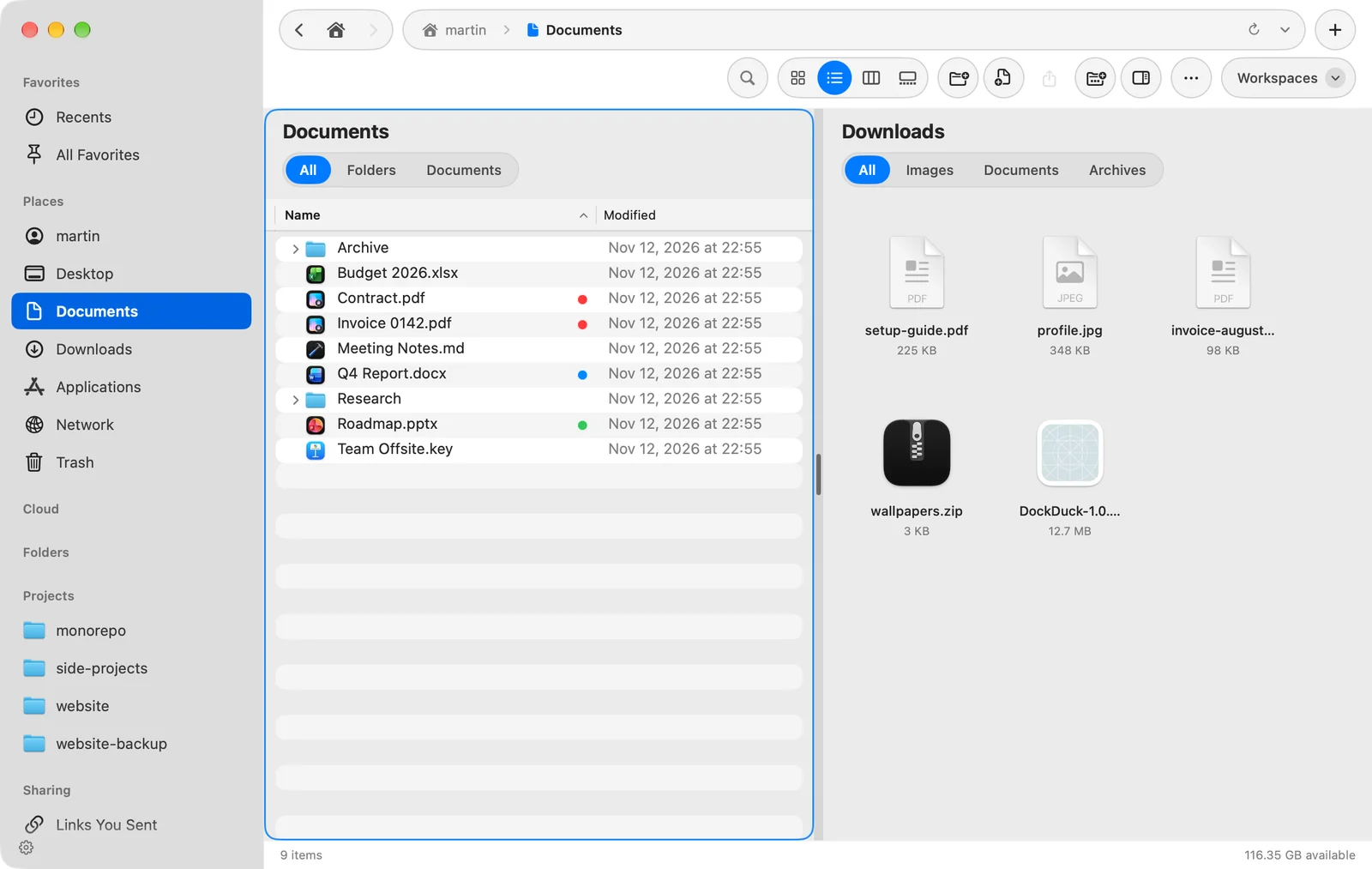
Open at least two panes: press ⌃⌘2, or choose View > Panes > 2 Panes. Go to the source folder in one pane and the destination in the other. See Panes and workspaces.
Drag files to another pane
- Select the files
Click in the source pane and select what you want to copy or move.
- Drag them to the other pane
Drop them on the empty space of the other pane, or on a folder inside it.
Result: The files land in that pane's folder. Long copies show their progress at the bottom of the window.
Dragging between panes follows the same rules as anywhere on your Mac:
| While dropping | Result |
|---|---|
| No key, same disk | The files move. |
| No key, another disk | The files are copied. |
| ⌥ | The files are copied. |
| ⌘ | The files move. |
Copy or move with a command
Select files in the focused pane, then choose Edit > Copy to Other Pane or Edit > Move to Other Pane. The files go to the folder of the next pane. With three or more panes, the next pane is the one after the focused pane, in reading order (left to right, then top to bottom), and the last pane goes back to the first.
These commands have no shortcut by default. Give them one in Settings > Keyboard, or turn on function keys (below).
Switch panes from the keyboard
Choose View > Panes > Next Pane or Previous Pane. The colored frame and the keyboard move to that pane. Neither has a shortcut by default; you can set one in Settings > Keyboard.
Use function keys
Go to Settings > Keyboard > Function keys and turn on Use function keys. These keys then work on top of the usual shortcuts:
| Key | Action |
|---|---|
| Tab | Next pane (⇧Tab goes back) |
| F3 | Quick Look |
| F5 | Copy to Other Pane |
| F6 | Move to Other Pane |
| F7 | New Folder |
| F8 | Move to Trash |
Tab, F5 and F6 do nothing with a single pane. You can change each key in the same place, and Reset Function Keys brings back these defaults.
Tips
- Moving files from your Mac to a server, or back, really moves them: the originals are removed once the copy has arrived.
- Use Compare folders to see what differs between two folders before you copy.
- Undo a copy or move with ⌘Z, or later from Activity. See Undo and Activity.
Thanks, that helps us improve this page.