 DockDuck
 Documentation
Smart Folders
Save a search (its query, scope, and filters) as a Smart Folder in the sidebar. It isn't a snapshot: it re-runs live every time you open it, so the contents are always current.
What it is. A Smart Folder is a saved search. It remembers the search text, the folder it ran in, and any filters you set, and it re-runs that search live every time you open it. When to use it. Reach for one whenever you find yourself running the same search over and over: “PDFs added this week,” “everything tagged Red,” “files over 1 GB in Downloads.”
A Smart Folder is not a copy of your files and not a frozen snapshot of results. It’s a query that runs fresh on open, so newly matching files appear and no-longer-matching ones drop out automatically.
Saving a search
You save a Smart Folder from the search options, after you’ve set up a search you like.
Run a search and open the search options.
Adjust the scope and filters (tags, kind, date) until the results are what you want.
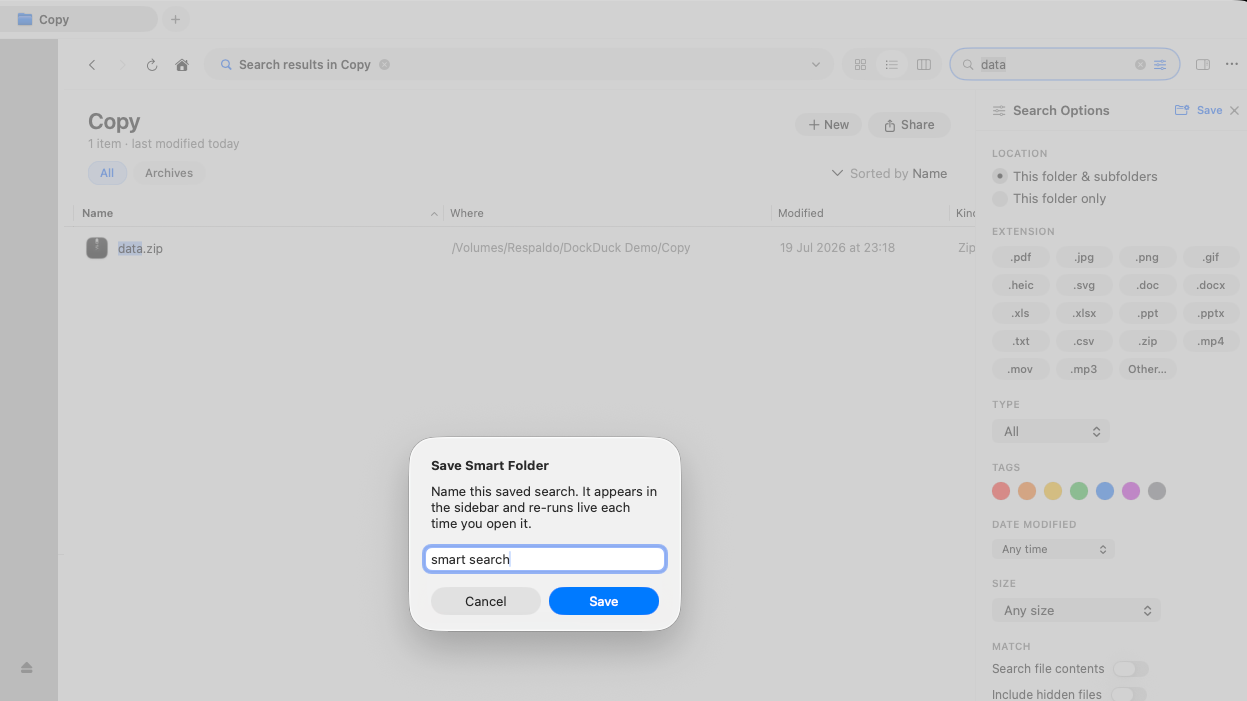
Click Save in the search options header.
Give the Smart Folder a name and confirm. It appears immediately in the sidebar.
The Save button is enabled once your search has some query text. The saved folder keeps the scope you searched in: a search started from the Start Page is saved as machine-wide, while a search inside a folder is saved scoped to that folder.
Where they appear
Saved searches live in a Smart Folders section in the sidebar. The section only shows up once you’ve saved at least one. Click a Smart Folder to run it and see the current matches as a normal listing you can sort, preview, and open.
Behind the scenes each Smart Folder has its own virtual address using the
dockduck-smart:// scheme, which is how DockDuck tells a saved search apart from
a real folder or a remote server. You don’t need to type these (clicking the
sidebar row is all it takes), but it’s why opening one re-runs the query instead
of listing a directory.
Editing and removing
To remove a Smart Folder, right-click its row in the sidebar and choose Delete Smart Folder. This only deletes the saved search; your files are never touched.
To change a saved search’s query or filters, run the search the way you want it and save it again under a new name, then delete the old one. Deleting a Smart Folder is always safe: it removes the shortcut, not any files it was finding.
Where to go next
- Search: build the search you’ll save.
- Color tags: tag files, then save a tag-filtered search.
- Pinning: pin frequently used locations to the Start Page.