
Send a file as a link
Upload a file or folder of up to 2 GB, end-to-end encrypted, and share a link that opens in any browser.
On this page 6 sections
What you’ll accomplish
- Share a file, several files or a folder of up to 2 GB as one link
- Choose how long the link lasts and protect it with a password
- Let people preview the file without downloading it
- Set the defaults every new link starts from
Send as Link uploads what you select and gives you a link to send to anyone. They open it in any browser, with no app and no account. DockDuck encrypts the file on your Mac before it leaves, and the link stops working after 24 hours or 7 days.
Before you start
- A Pro license. Send as Link comes with Pro Annual and Pro Lifetime. It is not part of the free trial, and it doesn’t appear in the menus until you have a license. See Manage licenses.
- Signed in, with a verified email. Links belong to your DockDuck account.
- The Share terms accepted. The first time you send a link, DockDuck opens Settings at Links. Click Review and accept terms…, read them, and click Accept and turn on Share.
Send a link
- Select what to send
Select a file, several files, or a folder. Everything must come from the same folder on this Mac.
Result: One file goes as it is. Several items or a folder go as one zip. - Choose Send as Link
Press ⇧⌘S, choose File > Send as Link, or Control-click the selection and choose Send as Link.
Result: A card opens at the bottom of the window. - Set up the link
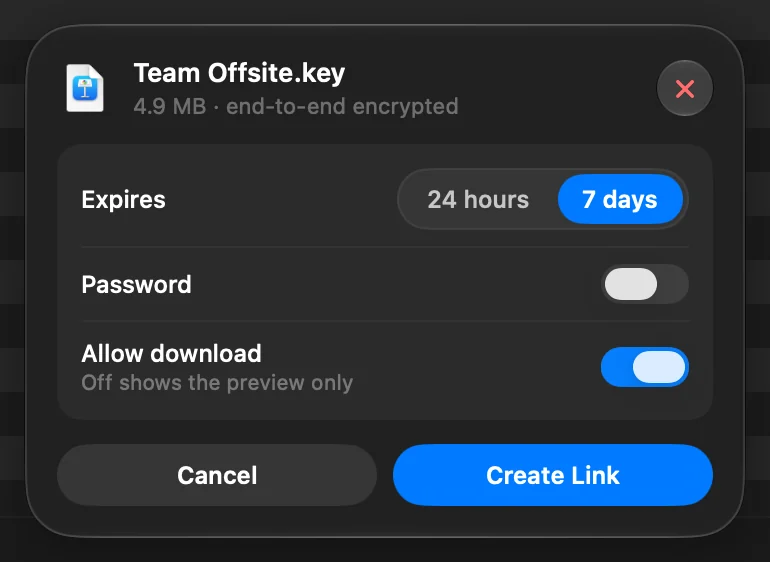
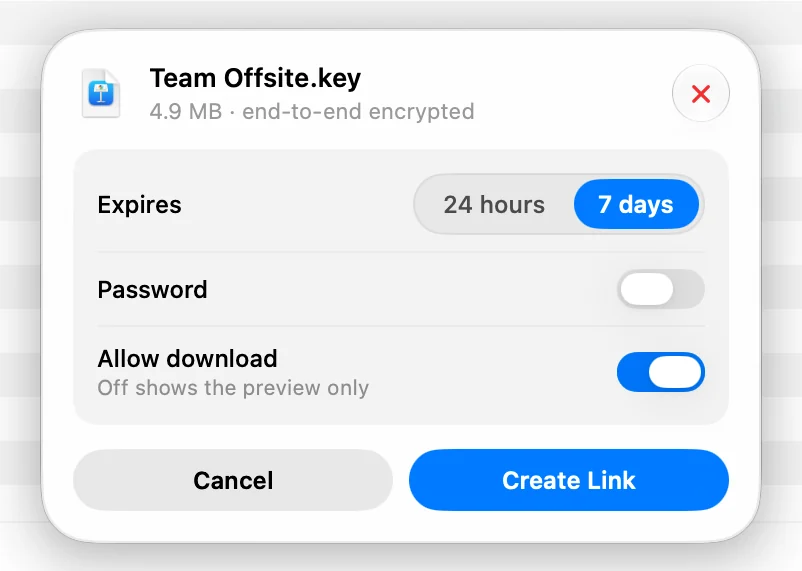
- Expires: 24 hours or 7 days.
- Password: turn it on and type at least 6 characters.
- Allow download: turn it off to let people see the preview only.
- Click Create Link
The upload runs at the bottom of the window, where you can cancel it. You can keep working meanwhile.
Result: When the upload ends, DockDuck shows Link copied and the link is on your clipboard. - Send the link
Paste it into a message or an email. If you set a password, send the password separately.
After the upload, the notice offers Copy Link and Show Links. Show Links opens Links You Sent, where you can show a QR code, change the link or revoke it. See Manage shared links.
What the recipient sees
The link opens a page on share.dockduck.app with the file’s name, size and a preview for images, videos and documents. If you set a password, the page asks for it first. With Allow download off, the page shows the preview and says the sender allowed viewing only.
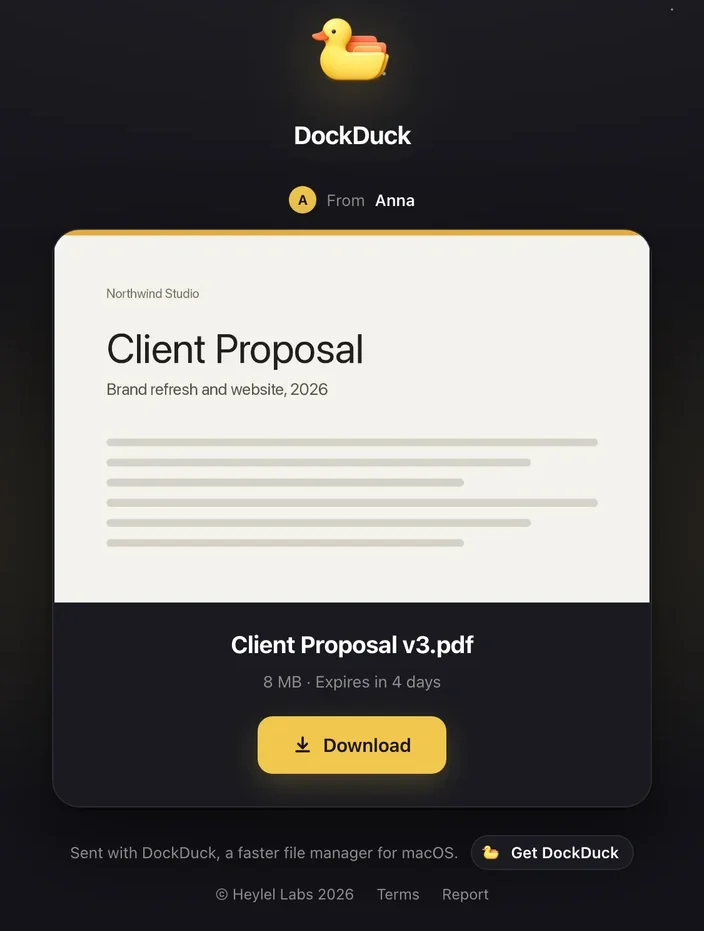
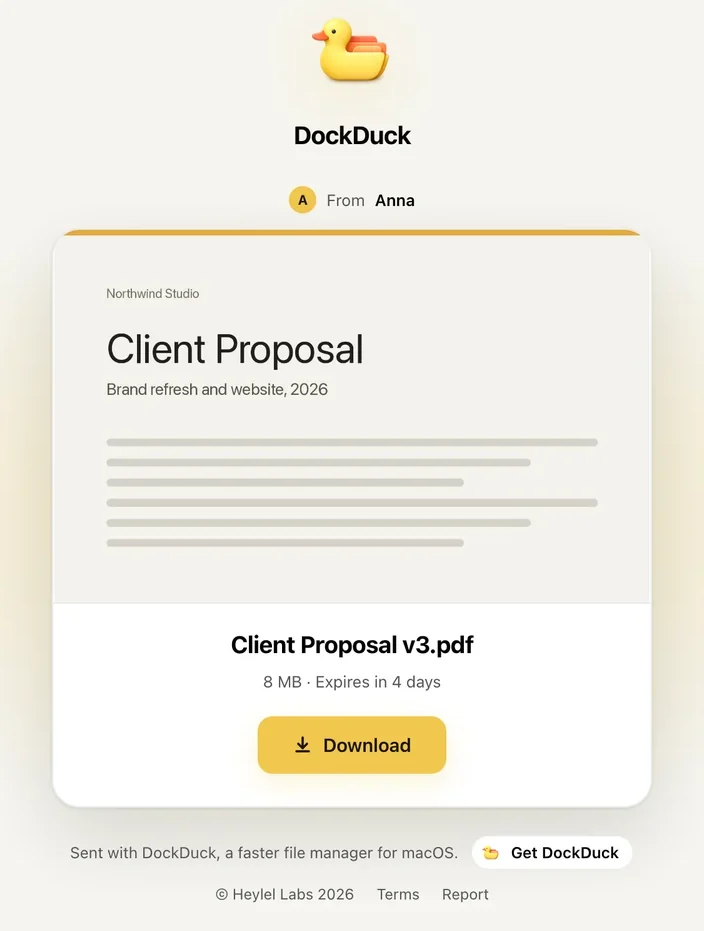
If Show my name to the recipient is on, the page says who sent the file. Your email address is never shown.
Limits
| Limit | Value |
|---|---|
| Size of one link | 2 GB |
| Sent per calendar month | 10 GB |
| Links per calendar month | 200 |
| Downloads per link | 500 |
| Link lifetime | 24 hours or 7 days |
Sizes are decimal: 1 GB is 1,000,000,000 bytes. Settings > Links shows how much you have sent this month and the day the allowance resets.
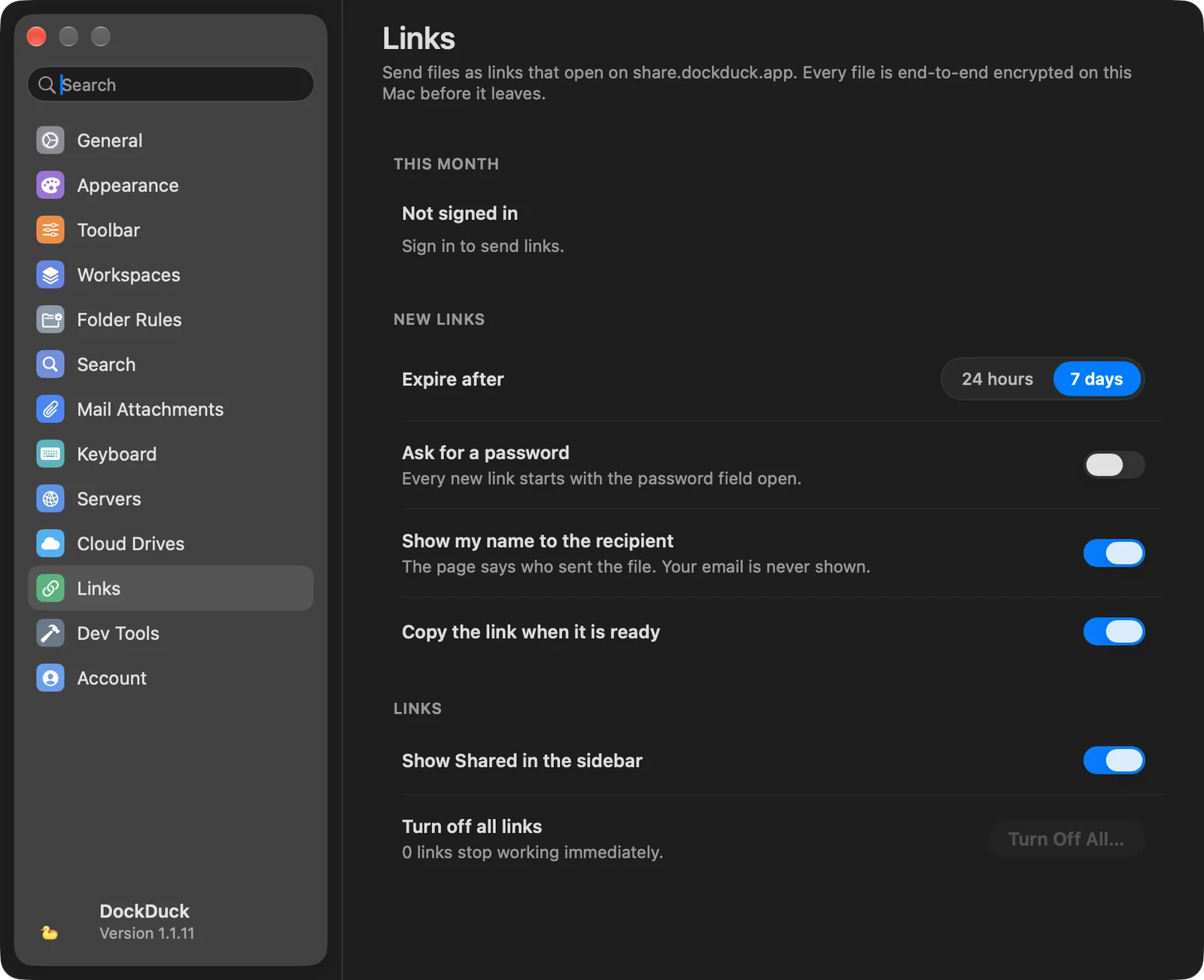
Defaults for new links
Open Settings and choose Links.
| Setting | What it does | Default |
|---|---|---|
| Expire after | The lifetime a new link starts with: 24 hours or 7 days. | 7 days |
| Ask for a password | Every new link starts with the password field open. | Off |
| Show my name to the recipient | The page says who sent the file. | On |
| Copy the link when it is ready | Puts the link on the clipboard when the upload ends. | On |
| Show Shared in the sidebar | Shows Links You Sent in the sidebar. | On |
| Turn off all links | Stops every active link at once. |
If something goes wrong
| Message or problem | What to do |
|---|---|
| Send as Link isn’t in the menus | It needs a Pro license. During the trial it doesn’t appear. |
| ”Sign in to send links.” | Click Sign In and sign in to your DockDuck account. |
| ”Sending links comes with a license.” | Your account has no active license. Click See plans. |
| ”Verify your email address to send links.” | Open the verification email from DockDuck and follow the link. |
| ”Accept the Share terms in Settings to send links.” | Open Settings > Links and accept the terms. |
| ”A link can hold up to 2 GB.” | Send fewer files, or split them across several links. |
| ”You have used this month’s sending allowance.” | The notice says how much is left and when it resets. |
| ”Select items from one folder at a time.” | Select items that sit in the same folder. |
| ”Only files on this Mac can be sent as a link.” | Files on a server or an iPhone can’t be sent. Copy them to your Mac first. |
| ”… is a kind of file that cannot be sent as a link.” | Programs and scripts are refused, such as .exe, .msi, .bat, .sh, .command, .jar, .apk, .ipa and .js. |
| ”DockDuck Share isn’t available in your region.” | Sending isn’t offered where you are. Everything else in DockDuck works. |
| ”DockDuck could not reach the server.” | Check your internet connection and try again. Nothing was sent. |
Thanks, that helps us improve this page.