
Manage licenses
Activate your license on a Mac, see the Macs it's on, and free one up to use another.
On this page 6 sections
What you’ll accomplish
- Activate your license on this Mac by signing in
- See which Macs use your license, up to 3 at a time
- Remove a Mac to make room for another
A DockDuck license belongs to your account and runs on up to 3 Macs at a time. There’s no license key to type: you sign in, and DockDuck finds the license on your account.
Activate your license on a Mac
- Open Settings → Account
Press ⌘, and choose Account. If the trial has ended, use Already purchased? Sign in on the screen that covers the window instead.
- Click Sign in
Your browser opens to sign in to your DockDuck account. You never type your password into the app.
Result: Settings shows Waiting for browser… while you sign in. - Come back to DockDuck
DockDuck gets the license from your account and activates it on this Mac.
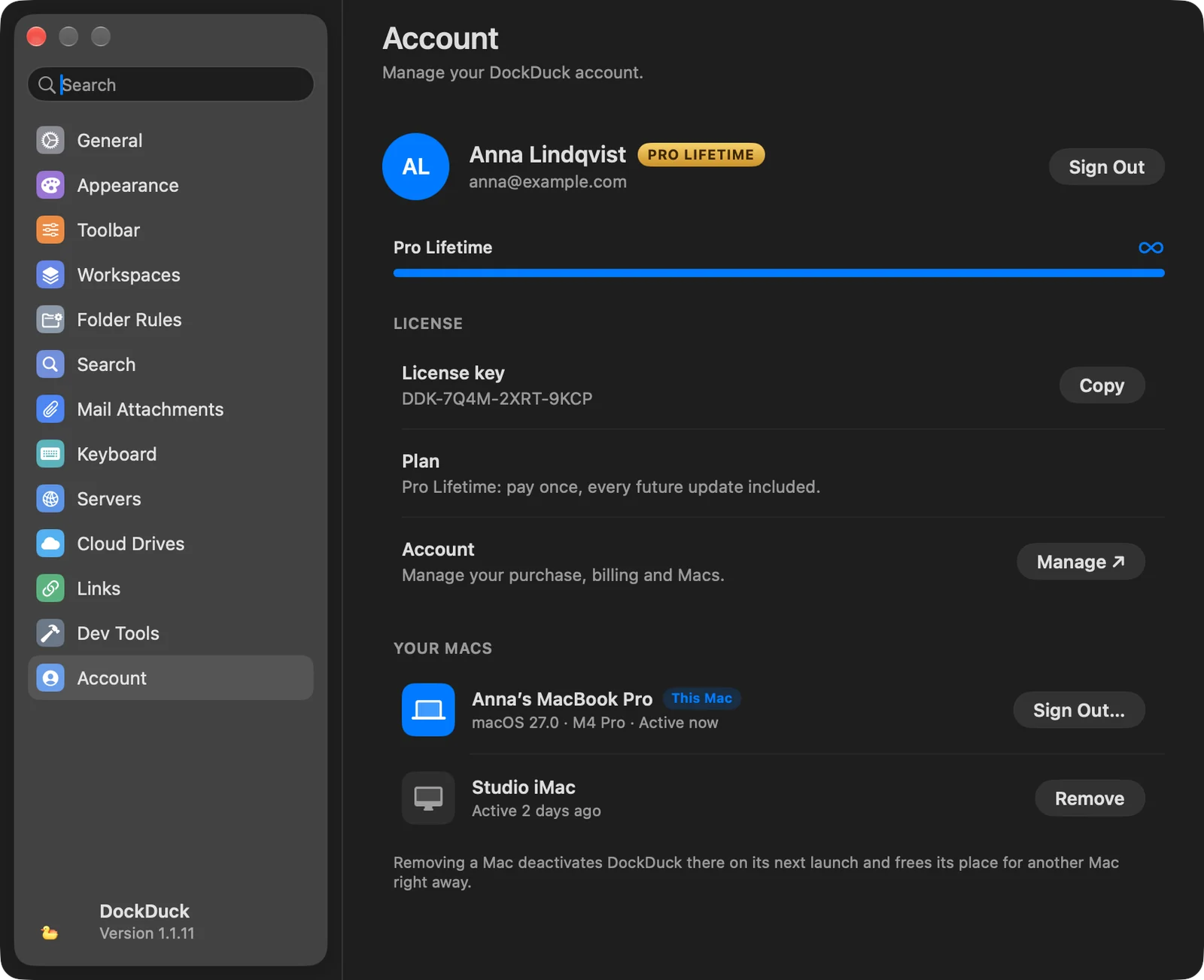
Result: The License group shows your license key and plan, and this Mac appears under Your Macs.
To buy a license from the app, click Upgrade in Settings → Account (or Buy license once the trial has ended). The purchase page opens in your browser, already signed in.
See your Macs
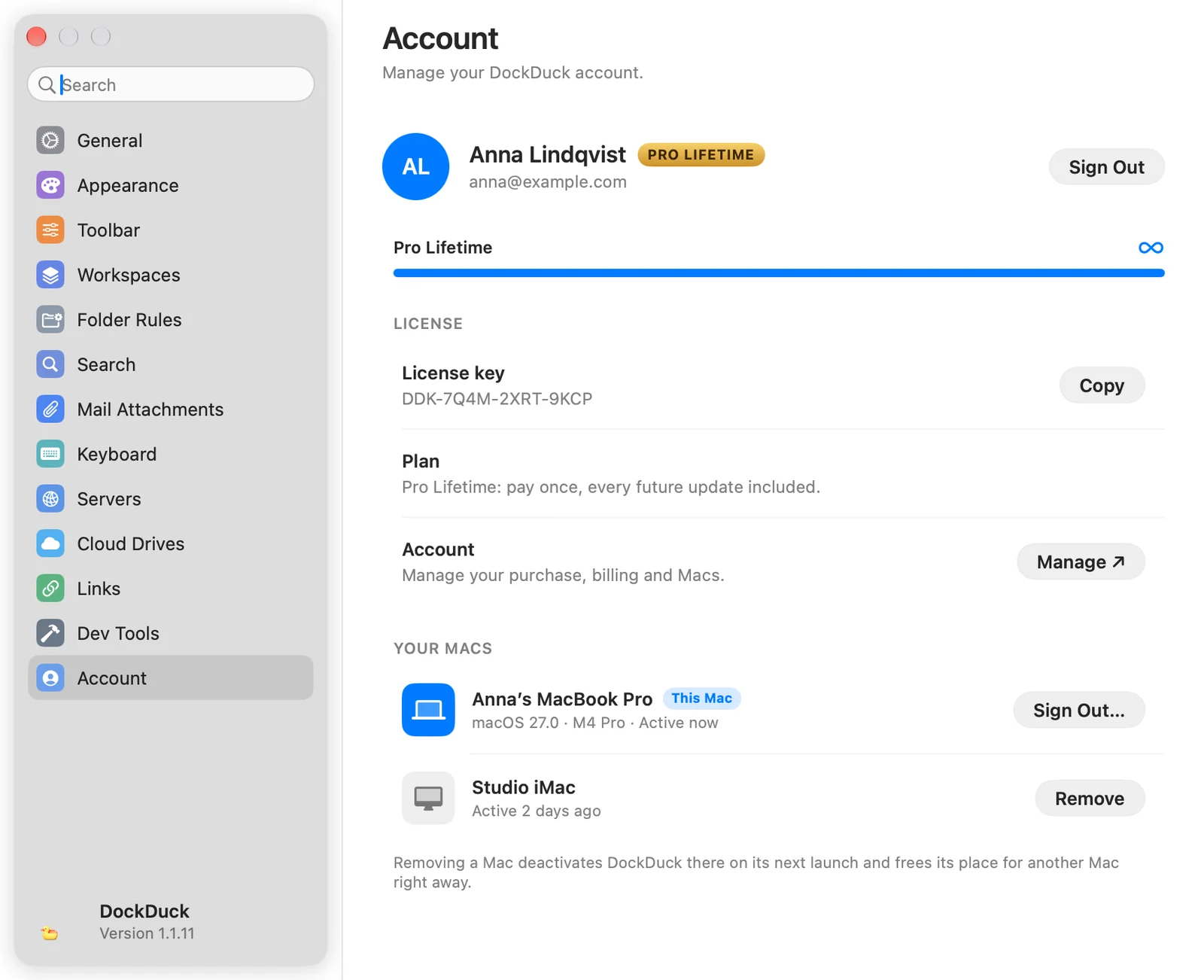
Signed in, Settings → Account lists Your Macs. The Mac you’re using has a This Mac badge with its macOS version and chip. The others show when they were last active.
The License group also has:
- License key, read only, with Copy.
- Plan, your plan and its status.
- Account: Manage ↗ opens your account on the web, already signed in, to manage your purchase, billing and Macs.
Remove a Mac
- Click Remove next to the Mac
For the Mac you’re using, the button is Sign Out… instead.
- Confirm with Remove Mac
The sheet tells you how many Macs will remain in use. DockDuck deactivates on the removed Mac the next time it opens. Its files and servers aren’t touched.
Result: The Mac leaves the list, and its place is free for another Mac right away.
Removing a Mac needs an internet connection. Without one, you can keep using DockDuck on this Mac.
When your license is already on 3 Macs
If you sign in on a fourth Mac, DockDuck shows Your license is already on 3 Macs with the list of them. Click Remove next to one you no longer use, then Free up a Mac to continue. DockDuck activates on this Mac and tells you when it’s done. Use this when you move to a new Mac.
Signing out
Signing out of your account doesn’t lock DockDuck. An active license stays on this Mac, and so does the trial. You need to be signed in to send files as links and to write to support.
If something goes wrong
| Problem | What to do |
|---|---|
| No active license on your account. | You signed in with an account that has no purchase. Sign out, then sign in with the account you bought the license with. |
| We couldn’t load your Macs | Check your connection and click Retry. |
| This Mac has no connection (on the 3 Macs screen) | Your license is fine. Connect to the internet; DockDuck tries again on its own. |
Thanks, that helps us improve this page.