 DockDuck
 Documentation
On this page
The preview panel
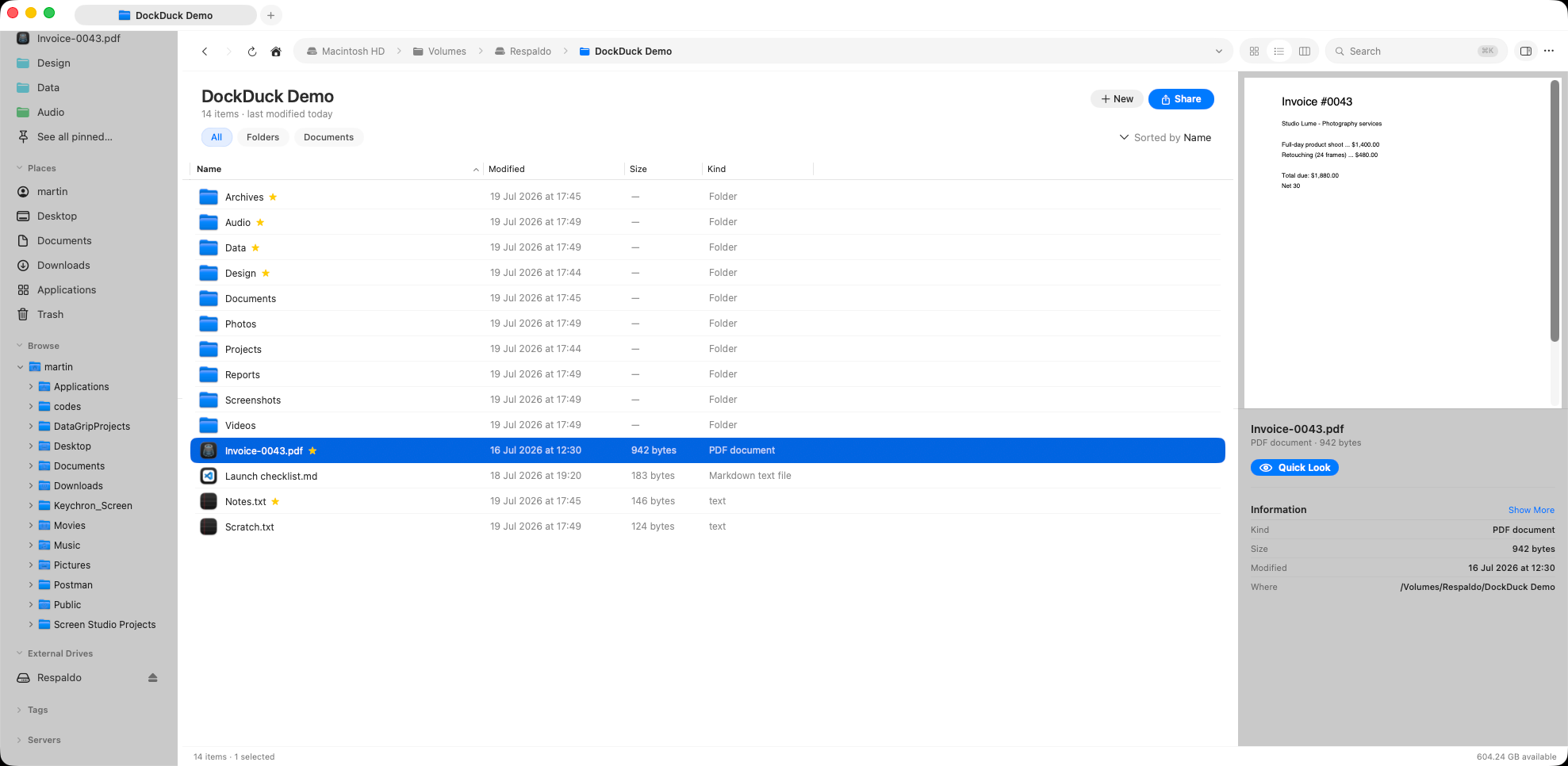
A panel beside the file listing that shows the selected item's contents and key details: a rendered preview up top, a metadata block below, and Quick Look one click away.
What it is. A panel along the right edge of the window that previews whatever you’ve selected: a rendered view of the file’s contents over a block of its details. Why it matters. You can confirm you’ve got the right file, read its metadata, and glance at its contents without opening anything.
What it shows
Select a file and the panel fills in two parts:
A rendered preview at the top. Images, PDFs, code, video, audio, and more render with full fidelity through the same engine Finder uses, so a markdown file looks like markdown and a video shows a playable frame. Folders show their large icon instead, with a count of what they contain.
A metadata block below it: the file’s name, its kind, size (or item count for a folder), modified date, and where it lives. A Show More toggle reveals the deeper details: created and last-opened dates, and for images the dimensions, color space, and color profile.
The panel reads the same details Finder’s Get Info and mdls use, so the values
match what you’d see elsewhere on your Mac.
Toggling it
Show or hide the panel from the toolbar, or with ⌘I. The setting is per-tab: hiding it in one tab leaves it open in another. Its starting state comes from your Show preview panel preference in Settings; changing that default affects new tabs, not ones already open.
The panel also works on the Start Page. Click a disk, a pinned item, or a recent file and the panel previews it just as it would inside a folder.
Relation to Quick Look
The preview panel and Quick Look are built on the same engine, but they serve different moments. The panel is an always-available sidebar for a quick check while you browse. Quick Look is the full-size, focused preview. Press the Quick Look button in the panel (or use its shortcut) to open the selected file large and centered, ideal when the inline preview is too small to read.
Leave the panel open while you scrub through a folder with the arrow keys: the preview updates with each selection, turning browsing into a fast visual scan.
Where to go next
- Quick Look: the full-size preview and how to invoke it.
- View modes: pair the panel with Icons, List, or Columns.
- Color tags: organize files you spot in the preview.