
File actions and menus
Every action in the Control-click menus and the quick action bar, what it does, and its shortcut.
On this page 3 sections
DockDuck has three places for actions on files: the menu of a file, the menu of the folder itself, and the quick action bar that floats under a selection. Actions that don’t apply in a place, such as New File in the Trash, aren’t offered there.
File menu
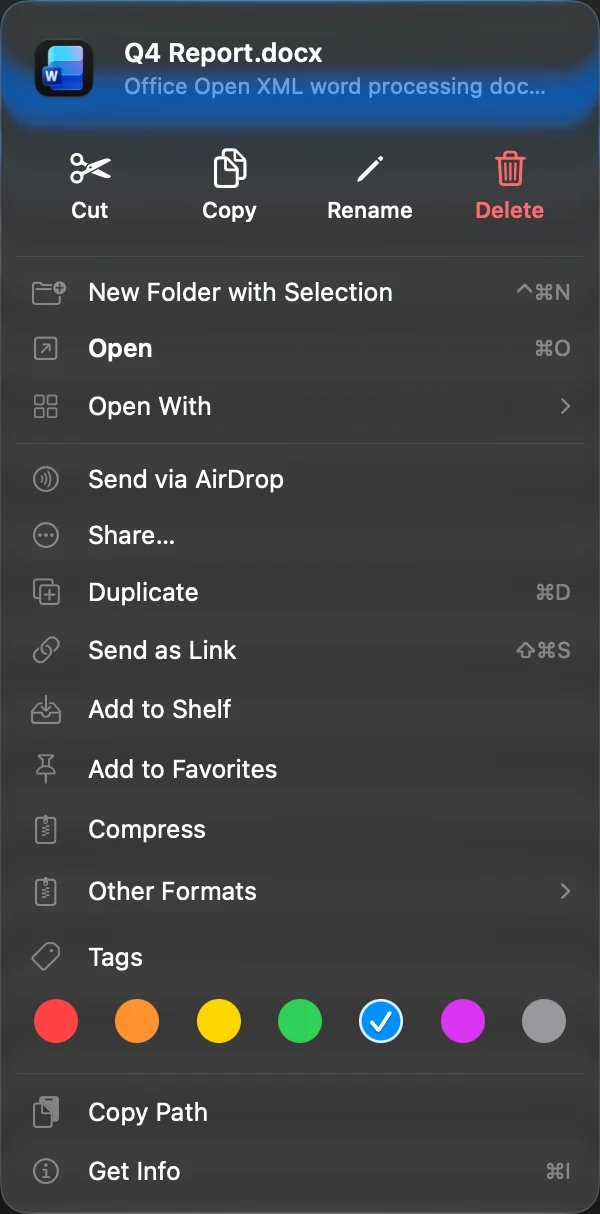
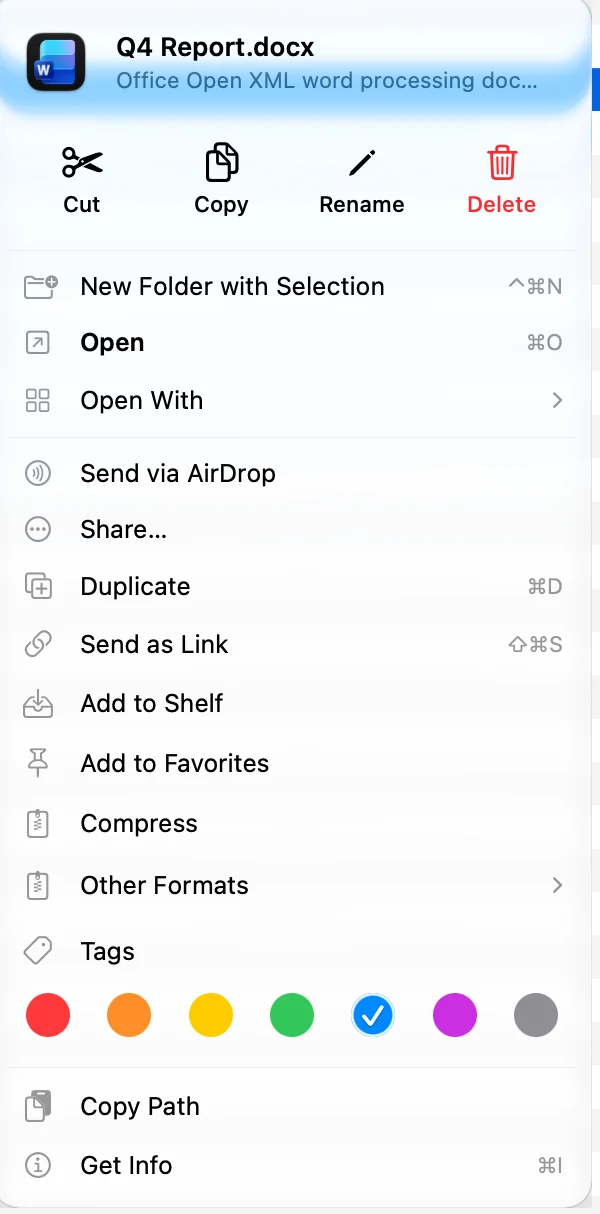
Control-click a file, a folder or a selection. The row of buttons at the top holds Cut, Copy, Rename and Delete (move to the Trash). It is left out for system folders such as Desktop, Documents and Applications.
| Action | What it does | Shortcut |
|---|---|---|
| New Folder with Selection | Puts the selected items into a new folder and starts renaming it | ⌃⌘N |
| Open | Opens the item. A folder or archive opens in DockDuck. | ⌘O |
| Show Package Contents | Opens an app or another package as a folder, to look inside | |
| Open With | Opens the item with another app, and sets the default app | |
| Open in New Tab | Opens the folder in a new tab | |
| Send via AirDrop | Sends the items with AirDrop | ⇧⌘R |
| Share… | Opens the macOS share options | |
| Download Now, Remove Download | For items in iCloud Drive and other cloud folders | |
| Show in Finder | Shows the item in Finder. Turn it on in Settings, General, Show Finder actions. | |
| Extract | Unpacks an archive next to it. See Compress and extract archives. | |
| Quick Actions | For images: Convert to PNG, JPEG, HEIC or TIFF, and Resize to 640, 1280, 1920 or 2560 px. For two or more PDFs: Combine N PDFs. | |
| Organize into Folders… | Sorts several selected files into folders | |
| Duplicate | Makes a copy in the same folder | ⌘D |
| Send as Link | Uploads the items and gives you a link. See Send a file as a link. | ⇧⌘S |
| Add to Shelf | Adds the items to the Shelf | |
| Add to Favorites, Remove from Favorites | For one item | |
| Compress, Other Formats | Makes an archive. See Compress and extract archives. | |
| Tags | The seven color tags. See Tag files with colors. | |
| Customize Folder… | Puts a symbol or an emoji on one folder. See Customize folders. | |
| Copy Path | Copies the item’s path | |
| Get Info | Opens the item’s details, with its Activity tab | ⌘I |
A converted or resized image is saved next to the original, such as “Photo.png” or “Photo (1280px).jpg”. Combined PDFs are saved as “Combined.pdf”. ⌘Z moves the new file to the Trash.
With Developer actions in menus on in Settings, Dev Tools, the menu also has Open in Terminal, Open in Editor, and more ways to copy a path. See Terminal.
In the Trash
Items in the Trash get Put Back, Delete Immediately and Get Info only. See Recover files from the Trash.
Folder menu
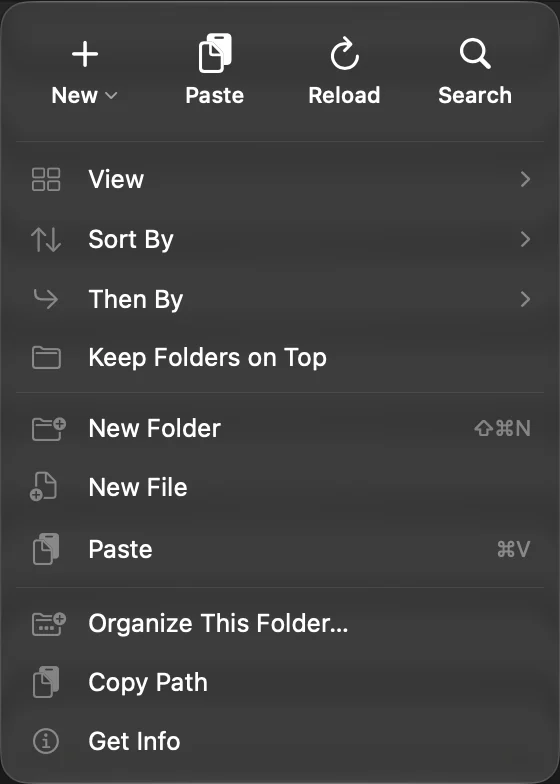
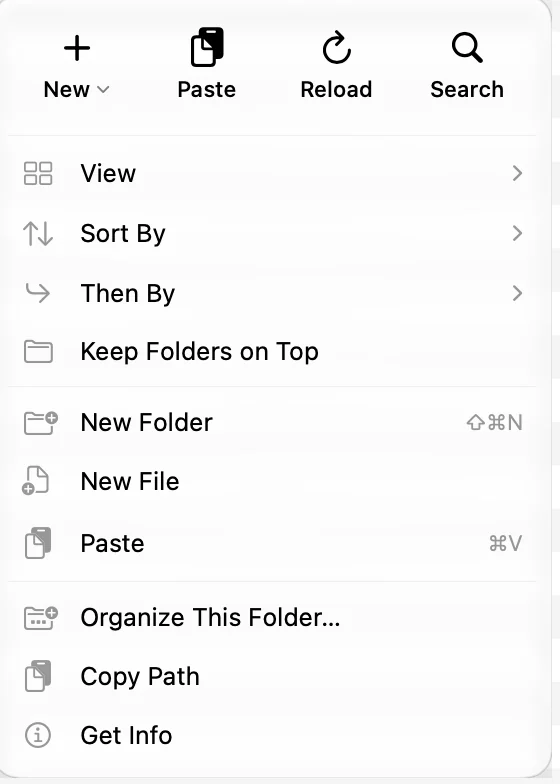
Control-click an empty part of the list.
| Action | What it does | Shortcut |
|---|---|---|
| New | A choice of New Folder or New File | |
| Paste | Pastes what you copied | ⌘V |
| Reload | Reads the folder again | ⌘R |
| Search | Puts the cursor in the search field | ⌘F |
| View, Sort By, Then By, Keep Folders on Top | How the folder is shown and sorted | |
| New Folder | Makes a folder and starts renaming it | ⇧⌘N |
| New File | Makes an empty “Untitled.txt” file and starts renaming it | |
| Empty Trash | In the Trash only | ⇧⌘⌫ |
| Organize This Folder… | Sorts the folder now, or sets folder rules | |
| Copy Path | Copies the folder’s path | |
| Get Info | The folder’s details |
New File has no shortcut by default. You can give it one in Settings, Keyboard. New Folder, New File, Share and Organize are also on the toolbar.
Quick action bar
When you click to select items in the icons, list or gallery view, a small bar floats under the selection. By default it has:
- New Folder with Selection
- Copy
- Share
- Move to Trash
- ⋯, which opens the full file menu
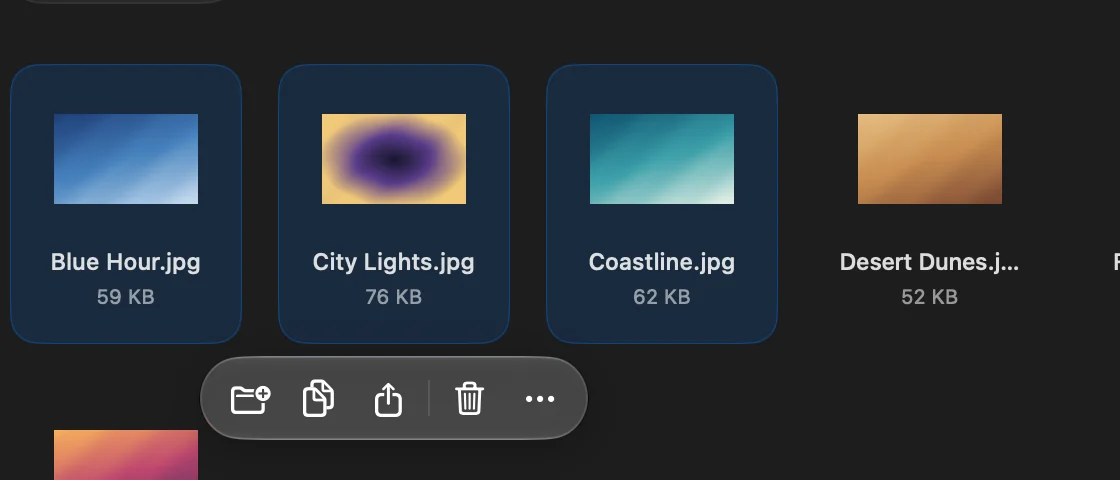
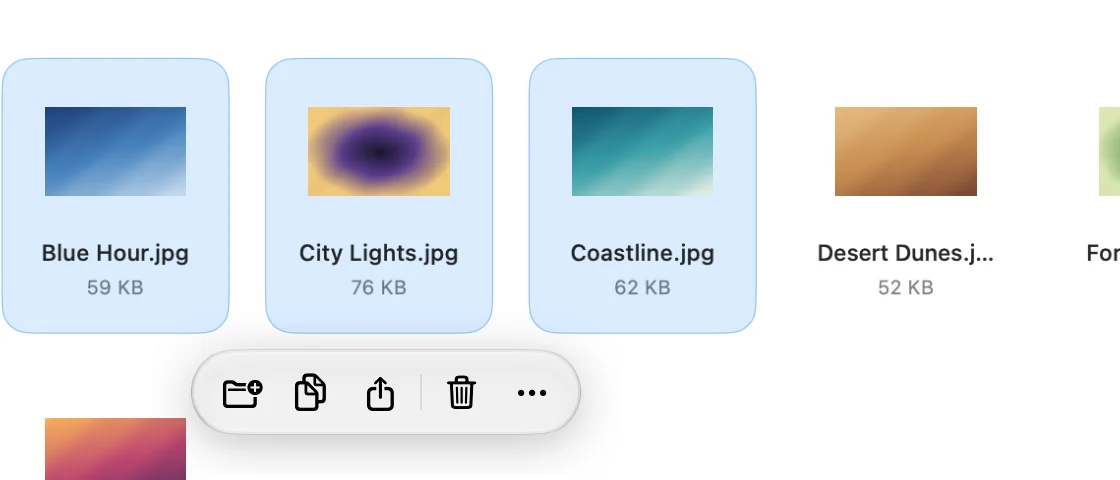
To change its buttons, open Settings, choose Toolbar, and drag actions in or out of Quick Action Bar. You can add Open, Duplicate, Rename, Compress, Extract, Add to Shelf, Quick Look, Get Info, AirDrop and Send as Link. Reset Bar brings back the default set. To hide the bar, turn off Quick action bar in Settings, General.
Thanks, that helps us improve this page.