 DockDuck
 Documentation
The Start Page
The dashboard DockDuck shows when no folder is open: your disks, saved servers, quick-access folders, pinned shortcuts, and recent activity, all one click away.
What it is. The Start Page is DockDuck’s home dashboard, the view a new tab opens to, and the place you land when you click Home. Instead of a bare folder, it gathers the locations you reach for most into one anchored screen. When you see it. Any time a tab isn’t pointed at a folder: a fresh tab, a new window, or after you disconnect a server.
What’s on it
The Start Page stacks its sections top to bottom. Each one only appears when it has something to show, so the dashboard stays uncluttered.
| Section | What it holds |
|---|---|
| This Mac | Your mounted disks, each as a card with a storage bar |
| Servers | Saved remote servers, connect with a click |
| Quick Access | Six system folders (Home, Documents, Downloads, and the rest) |
| Pinned | Folders and files you’ve chosen to keep within reach |
| Recent | A compact list of files and folders you’ve opened lately |
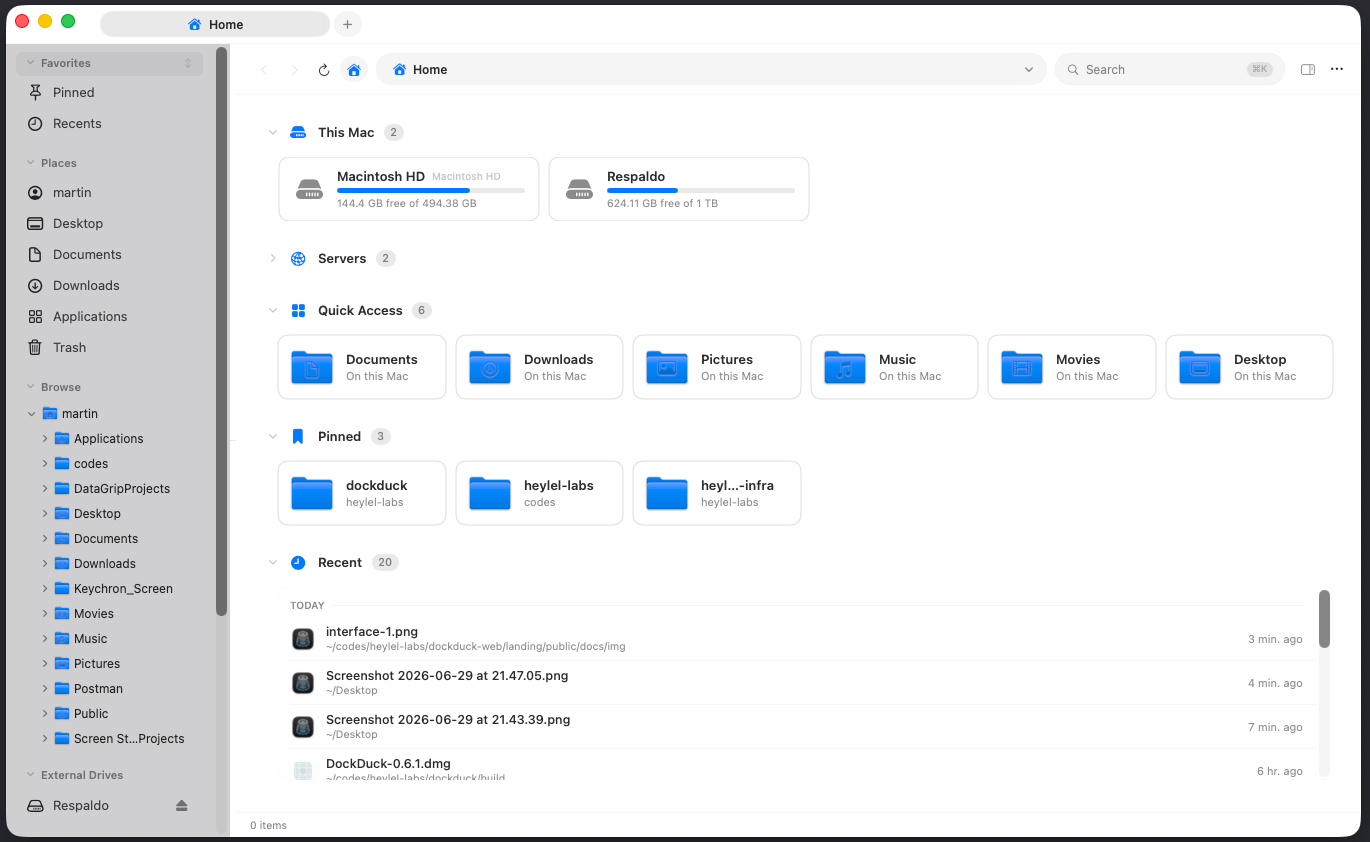
Every section header has a disclosure triangle. Collapse the ones you don’t use. DockDuck remembers each section’s open or closed state across launches.
Opening and selecting items
A single click selects a card; the preview panel updates to show its metadata and thumbnail, exactly as it does in a folder. Open an item the way you’d expect:
- A folder opens in the current tab, so you land inside it.
- A file opens in its default app, the same as double-clicking in Finder.
- A server connects, then navigates the tab to it.
Right-click any item for the full file menu (Open in New Tab, Show in Finder, tags, Pin to Start, and the rest), the same menu you get in the browser.
Pinning
Pinned is your own curated shelf of shortcuts. Drag a folder or file onto the section to add it; right-click a pin and choose to remove it when you’re done. Pins persist, so they’re always waiting on your next launch.
Pinning a deep project folder turns a five-click descent into a single click from every new tab.
Recent activity
The Recent list shows what you’ve opened lately, newest first. It’s backed by the same system index Spotlight uses, and DockDuck caches it so the list is already there the instant the Start Page appears, no spinner, no flash of empty space. Click a row to select it, double-click to open it, or right-click for the full menu.
Where to go next
- View modes: Icons, List, and Columns once you’re inside a folder.
- Sorting & columns: order a listing and choose what it shows.
- Search: find a file when you don’t know where it lives.