 DockDuck
 Documentation
The interface
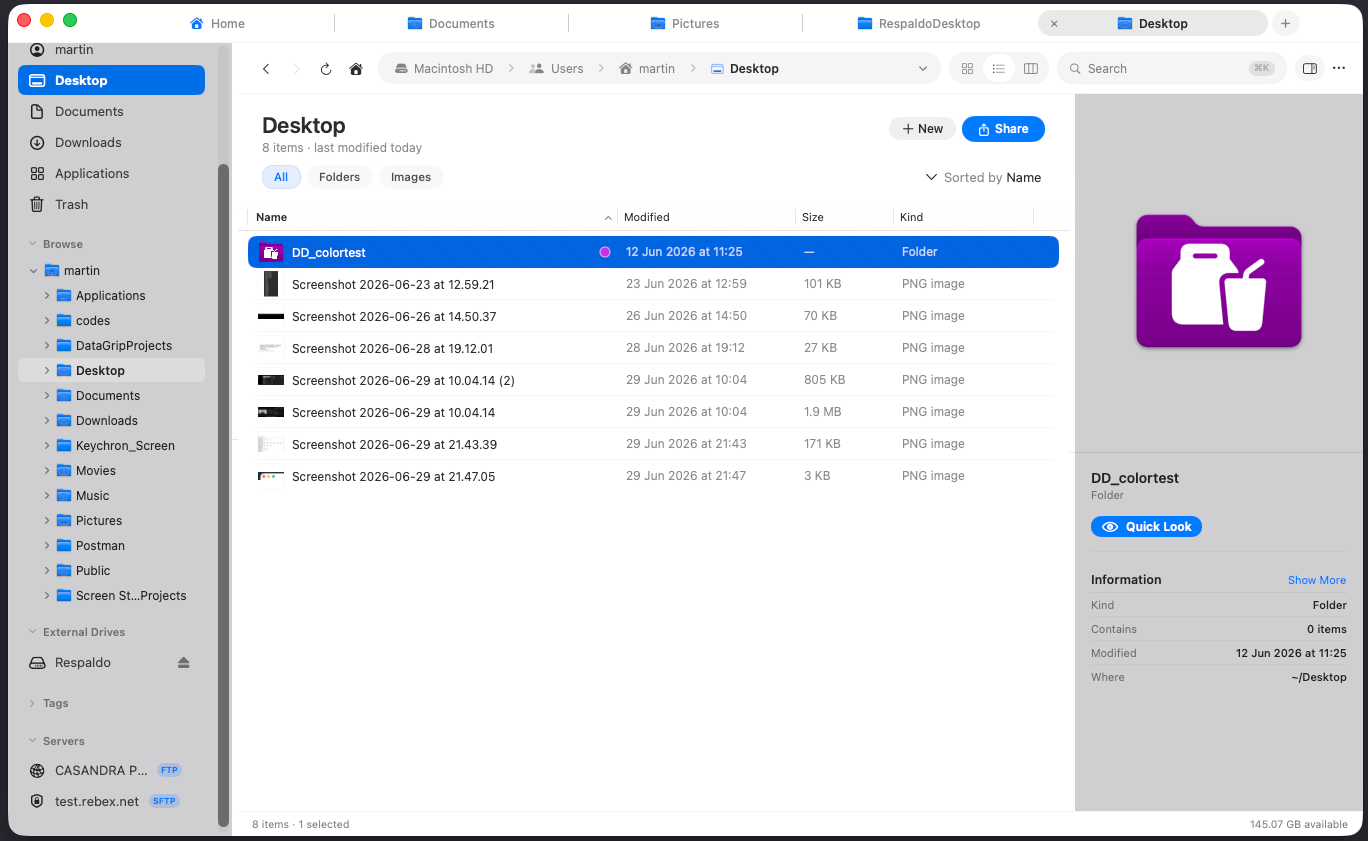
A quick tour of the DockDuck window: sidebar, toolbar and address bar, the file area, the preview panel, and tabs.
What it is. A guided look at the main DockDuck window and what each part does. When to use it. When you’re getting oriented, or want to know where a control lives.
Tabs
Tabs run across the top of the window. Each tab is an independent location with its own history, selection, and view. Open a new tab with ⌘T, close the current one with ⌘W, and move between tabs with ⌘⇧] and ⌘⇧[. You can also open a whole new window with ⌃E.
Sidebar
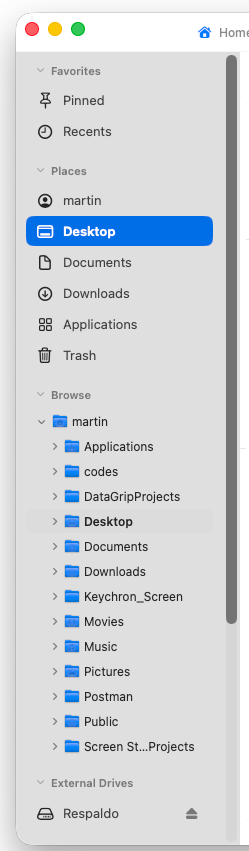
The sidebar at the left is your map of locations. It groups your favorite places, volumes, saved servers, and Smart Folders into sections, with an expandable Browse tree below for drilling into the file hierarchy. Click any row to navigate there.
- Reorder sections by dragging a section header up or down.
- Collapse a section by clicking its header, and your choice is remembered across launches.
- Toggle the sidebar with ⌘⌃S.
Toolbar and address bar
The toolbar sits above the file area. From left to right it carries:
- Back, Forward, Reload, and Home: ⌘[, ⌘], ⌘R, and the house button that returns you to the Start Page. Right-click Back or Forward for your history.
- The address bar (path bar): shows your location as a breadcrumb. Click a
crumb to jump up the path. You can also type a path or a server URL like
sftp://user@example.comhere to go straight there. - View mode toggle: switch between Icons, List, and Columns (below).
- Search: a search field, or a magnifier button when the window is narrow. Search with ⌘F; ⌘K opens Connect to Server.
- More (⋯) menu: sort, filter, share, split, compare, the Shelf, and folder actions. Out of the box the right side of the toolbar is just this one menu; you can promote any of those utilities to their own toolbar button in Settings.
The address bar’s sort, filter, and view-mode controls only apply to folder listings, so they’re hidden on the Start Page, which is a dashboard rather than a sortable list.
The file area
The center of the window is where your files appear. There are three view modes, each with a keyboard shortcut:
| View | What it shows | Shortcut |
|---|---|---|
| Icons | A roomy grid of icons and thumbnails | ⌘⌥1 |
| List | A compact, sortable table of rows | ⌘⌥2 |
| Columns | Cascading columns, one per folder level | ⌘⌥3 |
Sort by name, size, date modified, date added, date last opened, or kind from the sort menu. Filter the listing to a kind: folders, images, documents, code, videos, audio, or archives.
Preview panel
A preview panel can sit at the right edge of the window. Select a single item and it shows a Quick Look preview plus the file’s details. Toggle it with ⌘I.
The preview panel is hidden while you’re working in two panes side by side: two listings plus a preview would leave too little room. Close the split to bring it back.
Dual panes
DockDuck can show two panes side by side, each its own location, so you can drag files between them. Open and close the split from the ⋯ menu (or promote Split to a toolbar button). With two panes open you can also turn on folder Compare to see how their contents differ.
The Shelf
The Shelf is a temporary tray for files you’re collecting as you browse. When empty it stays out of the way; drop a file onto it and a small pill appears at the bottom of the window. Expand it from the ⋯ menu (or the Shelf toolbar button) to dock it as a tray.
Where to go next
- First launch: onboarding and the Start Page.
- Keyboard shortcuts: the full list of keys.
- Remote servers: browse SFTP, SMB, WebDAV, and FTP.