 DockDuck
 Documentation
On this page
Settings
A tour of every Settings pane: what each one controls, the defaults that make DockDuck "just work" out of the box, and the power-user knobs you'll only want occasionally.
Open Settings with ⌘, or from the DockDuck menu. The window has a sidebar of panes on the left; everything is off-screen by default so the main app stays uncluttered. Sensible defaults mean most people never need to open it at all.
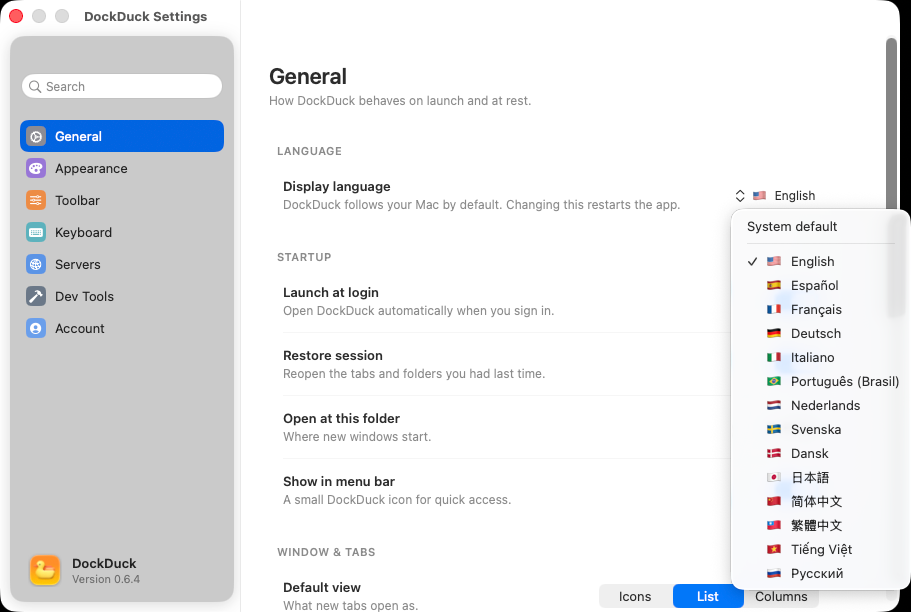
General
Startup behavior and the defaults new windows inherit.
- Language: DockDuck follows your Mac’s language by default. Pick a specific language here and DockDuck relaunches to apply it.
- Default File Manager: turn on Open folders in DockDuck to make double-clicking a folder open it here instead of Finder. (The Desktop and Dock stay Finder; macOS doesn’t allow replacing those.)
- Startup: Launch at login, Restore session (reopen last tabs and folders), the folder new windows open at, and an optional menu-bar icon.
- Window & Tabs: Default view (Grid, List, or Columns), whether new windows open as tabs or separate windows, and toggles for the path bar, hidden files, the preview panel, “Reveal in Finder” actions, and image thumbnails.
- When copying over existing files: what to do on a name collision; defaults to asking, like Finder.
“Open at this folder” can point at the Start Page or any folder on disk, handy if you always begin in a project directory.
Appearance
- Theme: Auto (follow system), Light, or Dark. Auto is the default and respects your macOS appearance, including any “dark at sunset” schedule.
- Icon size: Small, Medium, or Large for grid view; Medium by default.
Accent color and Increase Contrast are macOS-level preferences. DockDuck inherits them from System Settings → Appearance rather than duplicating them.
Toolbar
A drag-and-drop editor for the toolbar’s right-hand cluster. Drag an item up to show it as an icon, or back down to tuck it inside the ⋯ menu; drag within the bar to reorder. The ⋯ menu is always present and can’t be removed. Reset Toolbar returns to the default layout.
Keyboard
Rebind any command. Shortcuts are grouped File, Edit, View, Go, and Window, the same structure as the menu bar. Click a binding and press a new combination; DockDuck warns you if it conflicts with an existing one. Changes apply immediately, with no relaunch. See keyboard shortcuts for the full default reference.
Servers
Manage saved remote server connections, grouped by protocol (SFTP, FTPS, FTP, SMB, WebDAV). Each row shows its connection status and an Edit button; Add Server opens the connection sheet. Defaults here cover:
- Show in sidebar: whether the Servers section appears in the sidebar.
- Reconnect servers on launch: re-mount the connections you’ve marked for it.
- Store passwords in Keychain: encrypted by macOS, never written to disk in plain text.
- Simultaneous transfers: how many files download at once (1–6; default 3).
- Default SFTP authentication: password or key.
Dev Tools
Power features for developers: everything here is off by default, and the median user never needs to open it.
- Git status badges: overlay a small badge on files inside a Git repository (modified, new, ignored). Requires Git installed.
- Developer actions in menus: adds “Open in Terminal/Editor” and “Copy as Path” variants to the right-click menu, with pickers for your preferred terminal and editor.
- Advanced permissions (chmod): adds a raw read/write/execute grid to Get Info and a permissions column to List view.
See Developer tools for the full walkthrough.
Account
See your plan, sign in to your DockDuck account, and manage your license.
- Account card: your name, email, and a plan badge (Free Trial, Pro Annual, or Pro Perpetual). Sign in or out from here.
- Plan progress: a slim bar counting down a trial or annual term; Perpetual shows an infinity glyph.
- License: your license key (read-only; it’s tied to your account, with a Copy button) and a Manage link that opens your web account dashboard already signed in.
- System: automatically install updates, and launch at startup.
Every Mac gets a 14-day free trial that needs no account. It survives reinstalling, and can’t be reset by reinstalling. Sending files as links and the alternate app icons come with a license. See Your account & trial for how the trial, signing in, and the paywall behave, and privacy for what that means for your data.
About
App version, links to support and legal pages, and a single privacy control: Share Technical Data: anonymous usage diagnostics, off by default and fully reversible.
Where to go next
- Keyboard shortcuts: the complete, rebindable reference.
- Privacy & data: what DockDuck collects, and why it’s so little.
- Keychain & signing: where credentials live.