 DockDuck
 Documentation
Dual-Pane View
Split the window into two independent panes and drag files straight from one side to the other, the classic two-up file-manager layout.
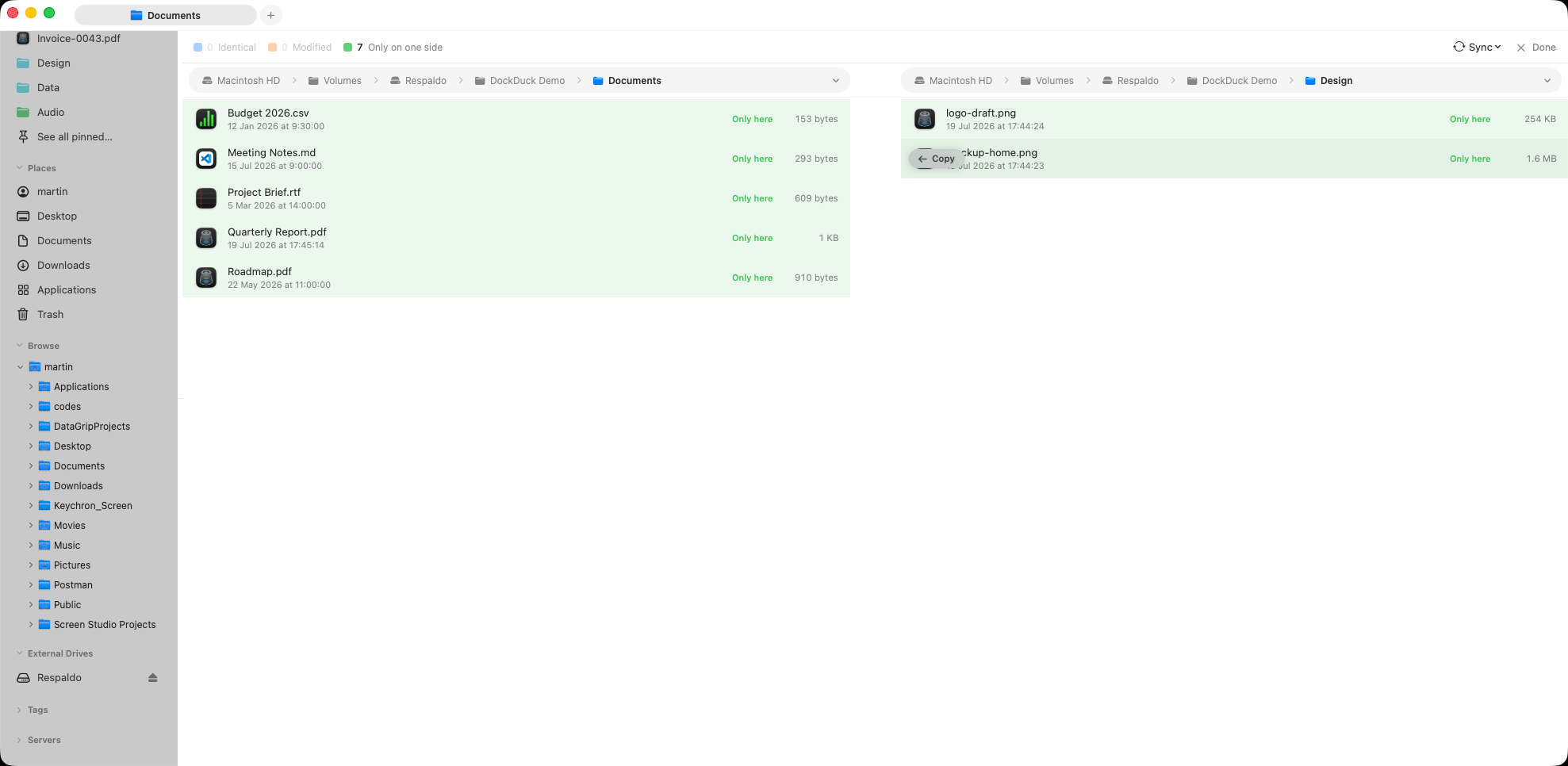
What it is. Dual-pane splits the window into a left and a right pane, each a fully independent browser with its own folder, selection, view mode, and history. When to use it. Moving or copying between two places (local to local, a folder to a server, one server to another) without juggling two windows.
Opening and closing the split
Click Split View in the toolbar (the split-rectangle icon) to open the second pane. It starts pointing at the same folder as the pane you were in; navigate either side anywhere you like. Click the toolbar button again, now Close Split, to drop back to a single pane.
Each pane is its own browser
The left and right panes don’t share anything but the window. Each keeps its own:
- current folder and back/forward history,
- selection,
- view mode (icons, list, or columns) and sort.
Click anywhere in a pane to focus it. The focused pane is the one the sidebar, the path bar, and global actions (New Folder, search, keyboard shortcuts) act on, so you always know what you’re steering.
Moving and copying between panes
Drag a selection from one pane and drop it into the other:
- Drop to move within the same volume.
- Hold ⌥ while dropping to copy instead.
Large transfers, and anything to or from a server, show up in the Transfers panel with progress, just like a normal drag.
Dual-pane pairs with Compare Folders: once you’re split, the Compare button diffs the two sides so you can see exactly what differs before you copy.
Works with servers too
Either pane can be a remote location. Browse a local build folder on the left and an SFTP/FTP server on the right, then drag across to upload. The same split layout, no extra setup.
Where to go next
- Compare folders: diff the two panes by name.
- Copy, move & trash: the move/copy rules in detail.
- View modes: set each pane’s layout independently.